Free Bid Invoice Template
Bill for work completed under an accepted bid
Bill for work completed under the accepted bid and include any approved changes. Show the finished job and agreed charges clearly so the customer can pay you.
Email, print or download your invoice as a PDF.
14-day free trial. No credit card required.
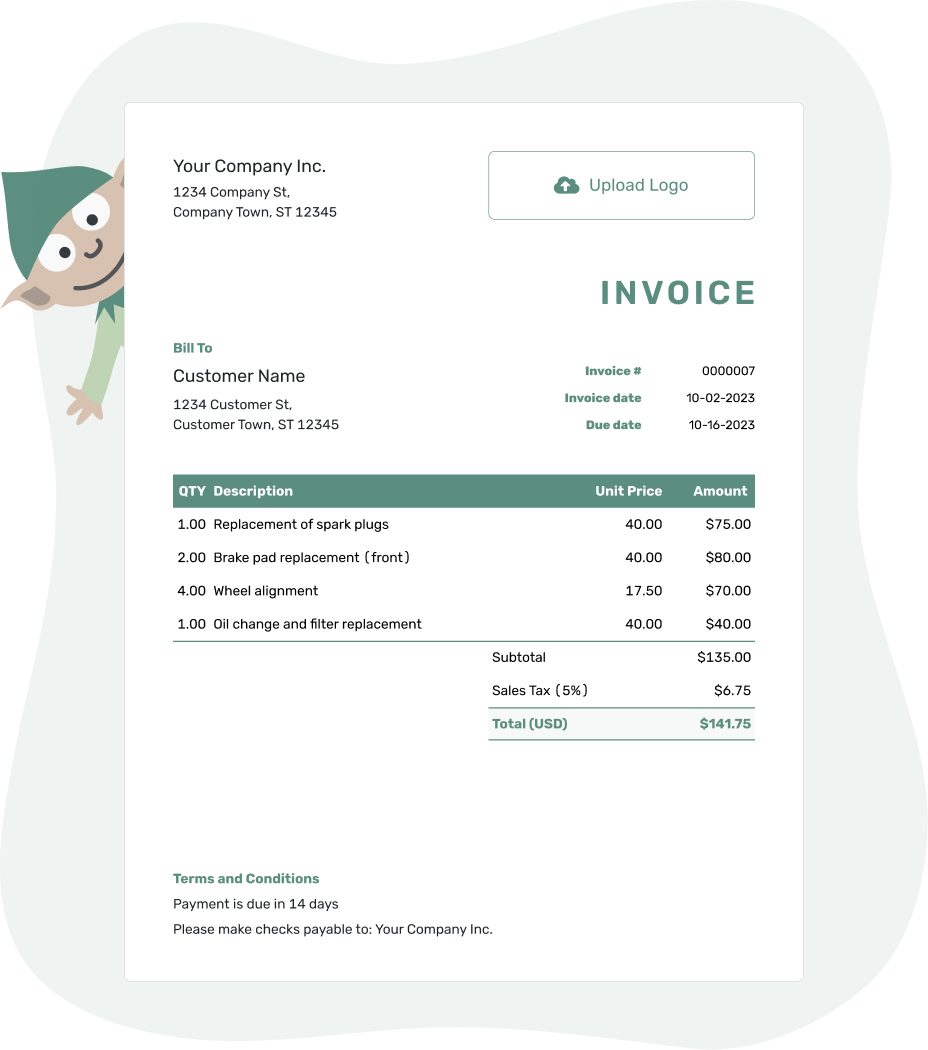
Create the invoice. Send it. Get back to work.
Choose a Layout for Billing an Accepted Bid
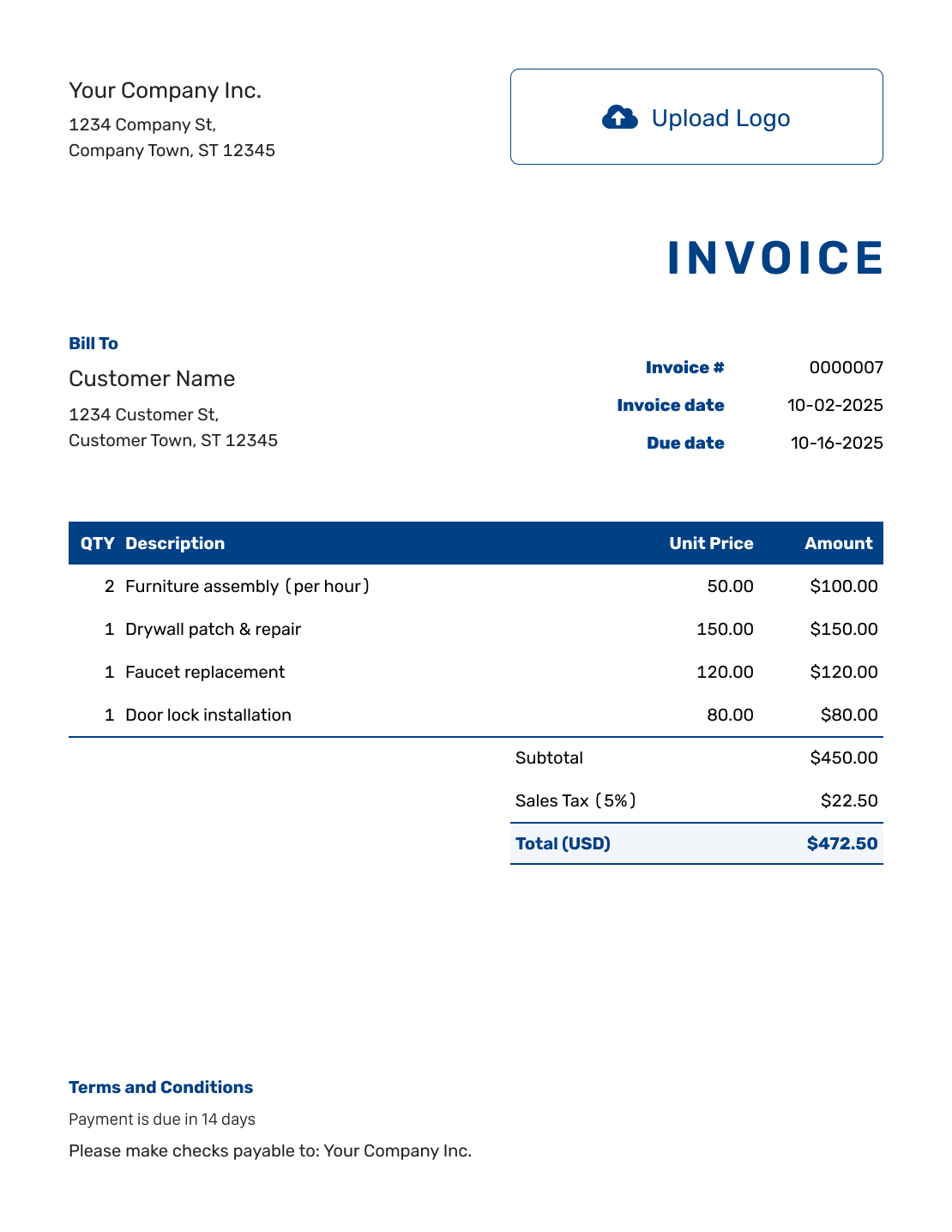
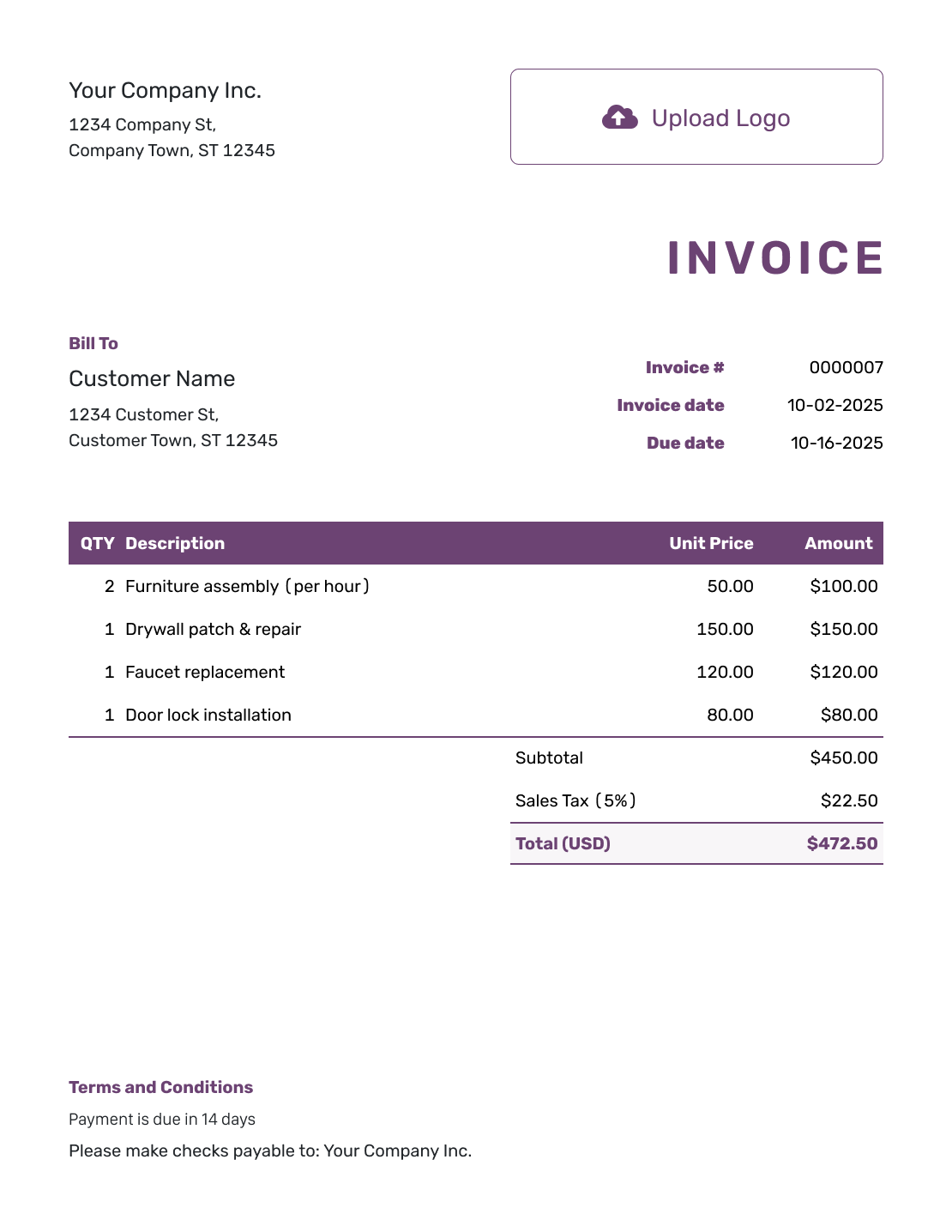
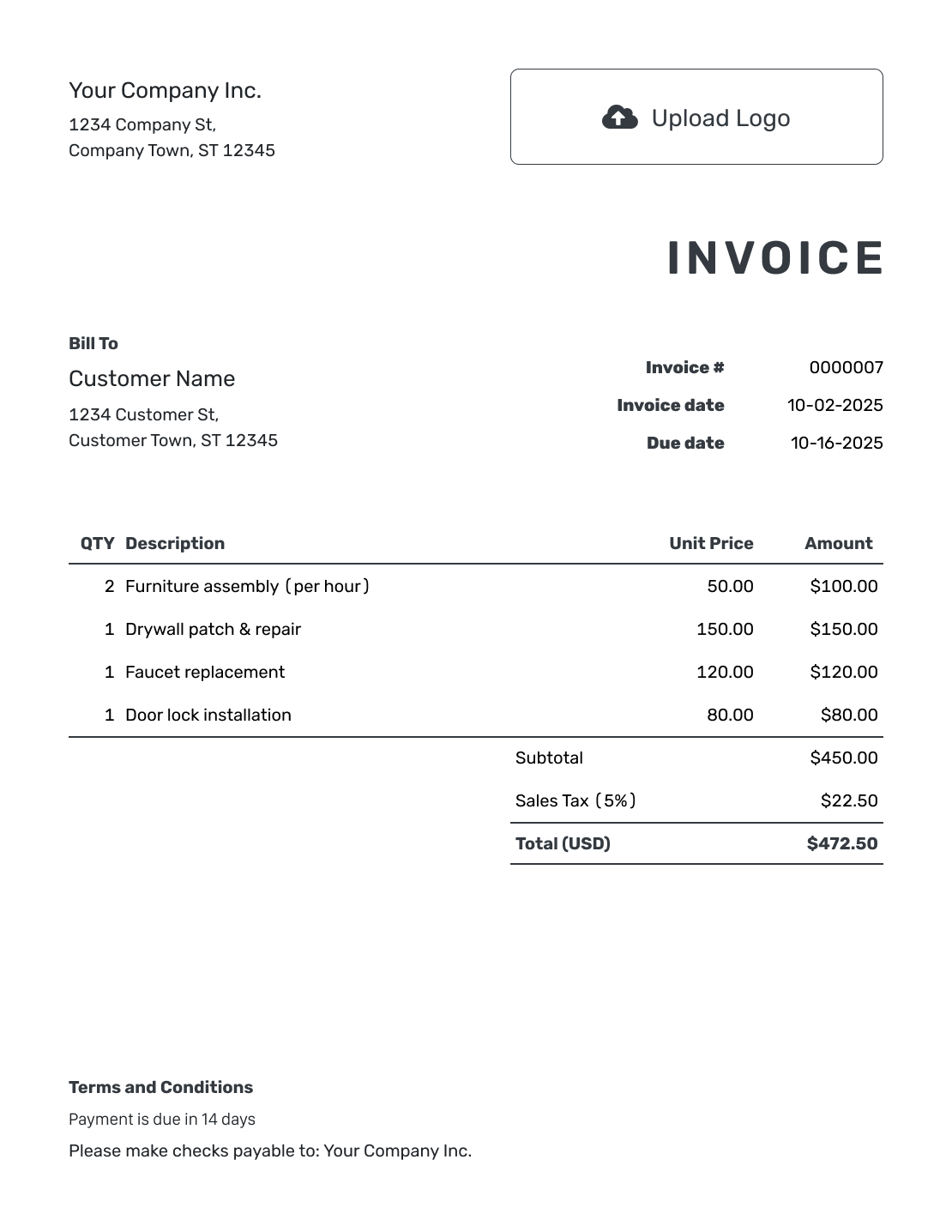
Replace the sample details with your completed work and agreed charges. Each preview opens the invoice editor.
Use the Accepted Bid as the Starting Point
A bid sets out the work and price before the customer chooses you. This invoice asks for payment for work completed under that accepted bid. Keep the bid reference so the customer can compare the bill with the offer they approved.
For a painting job, repair or move, use the same service names as the accepted bid. Put an approved extra on its own line. Bill for an option only after the customer approves it and you complete the work.
How to Create an Invoice for an Accepted Bid
Keep the accepted bid beside you while you fill in the invoice. Use its descriptions and prices for the work you completed.
- Identify Your Business: Use the business name and contact details shown on the accepted bid.
- Add Your Logo: Match the invoice to the bid with your business logo.
- Choose the Customer: Use the billing contact for the customer who accepted the work.
- Set the Number and Dates: Check the invoice number. Set the invoice date and agreed due date.
- List the Completed Work: Use the bid descriptions and prices. List approved extras on their own lines.
- Review the Total: Add any tax or discount that applies. Docelf calculates each charge and the total.
- Add Terms and Send: Add the bid and change references and payment instructions in Terms and Conditions. Review the invoice, then email it or download a PDF.
How to Fill In Bid Invoice Line Items
Keep agreed work separate from changes. A short reference beside an extra charge helps the customer see why the final bill differs from the original bid.
This fictional painting job follows bid B-104 and one approved change, CO-01. Prices are in USD. The example applies 8% tax to all three charges.
| QTY | Description | Unit Price | Amount |
|---|---|---|---|
| 1 | Wall preparation — bid B-104 | $240.00 | $240.00 |
| 2 | Room painting — agreed price per room | $325.00 | $650.00 |
| 1 | Extra trim coat — approved change CO-01 | $90.00 | $90.00 |
| Subtotal | $980.00 | |
| Sales Tax (8% example) | $78.40 | |
| Total | $1,058.40 |
The accepted work adds up to $890.00. The $90.00 approved extra brings the subtotal to $980.00. The 8% tax is illustrative; use the tax treatment that applies to your work.
What to Include in Bid Invoice Terms
Use Terms and Conditions to connect this bill to the accepted bid. State the payment deadline and how the customer should pay. Include the reference for any approved change.
Keep only terms you actually agreed to use. Check local requirements before adding late fees or warranty conditions. Adapt this example to the bid and work you are billing.
Example: Terms and Conditions
- This invoice covers the completed work under accepted bid B-104 and approved change CO-01.
- Payment is due within 14 days of the invoice date.
- Please pay by [Payment Method] using [Payment Details], and include the invoice number.
- For questions about the listed work or charges, contact [Billing Contact].
Finished the Work You Bid For?
Bring the agreed charges into one invoice. Docelf calculates the total as you add the completed work. Review it and send the bill.
Check the Final Bill Against the Bid
A fixed-price job does not become hourly billing just because you spent longer on it. For one fixed fee, enter 1 in QTY and the agreed amount as the Unit Price. Keep work covered by that fee together; list any approved extras separately.
Check these details before sending the invoice:
- The job or property reference matches the accepted bid.
- Only completed work and approved extras are included.
- Money already received is recorded as a payment, not a discount.
- The due date matches the payment timing you agreed.
Already Created the Bid in Docelf?
When the accepted bid is a Docelf quote or estimate, you can create an invoice from it. Docelf copies the customer, items and prices. Check that the invoice matches the completed work before you send it.
For a bid prepared elsewhere, enter its reference and attach a PDF or image of the accepted offer. The customer can use that document to check the agreed work and charges.
Keep the Invoice Recognizable
Use the logo, colors and fonts the customer saw on your bid. An optional industry name before “Invoice” can identify your trade. Put a useful billing email or phone number in the footer.
Choose the same currency as the agreed price. Docelf supports USD, EUR, GBP, CAD and AUD.
After You Send the Bid Invoice
Check the invoice history in Docelf for delivery details. You can also see when the customer opened the emailed invoice. If the customer questions an extra charge, use the bid and change references to explain it.
Record payments as you receive them so the remaining balance stays clear. After recording a payment, you can create a receipt from the invoice.
More Invoice Layouts for Accepted Bids
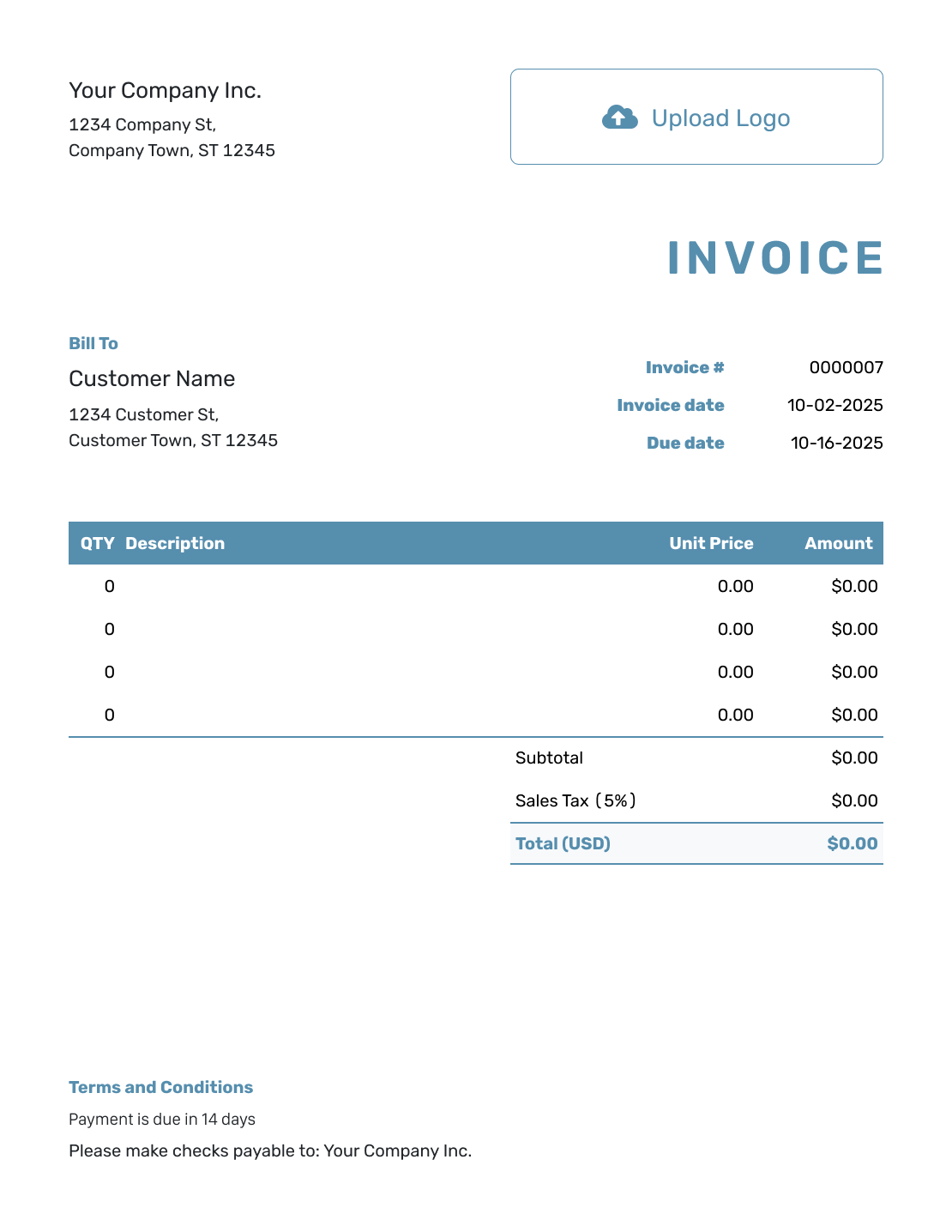
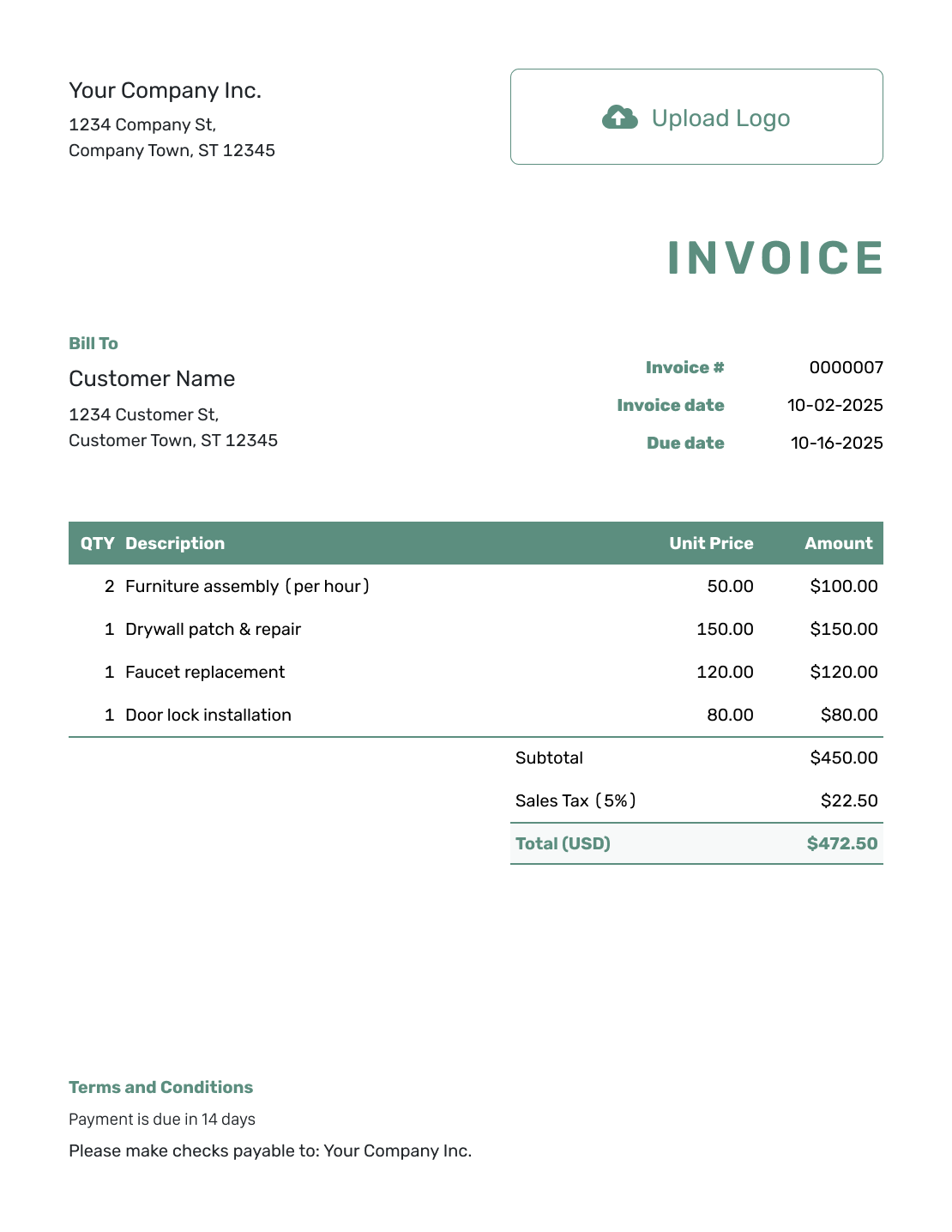
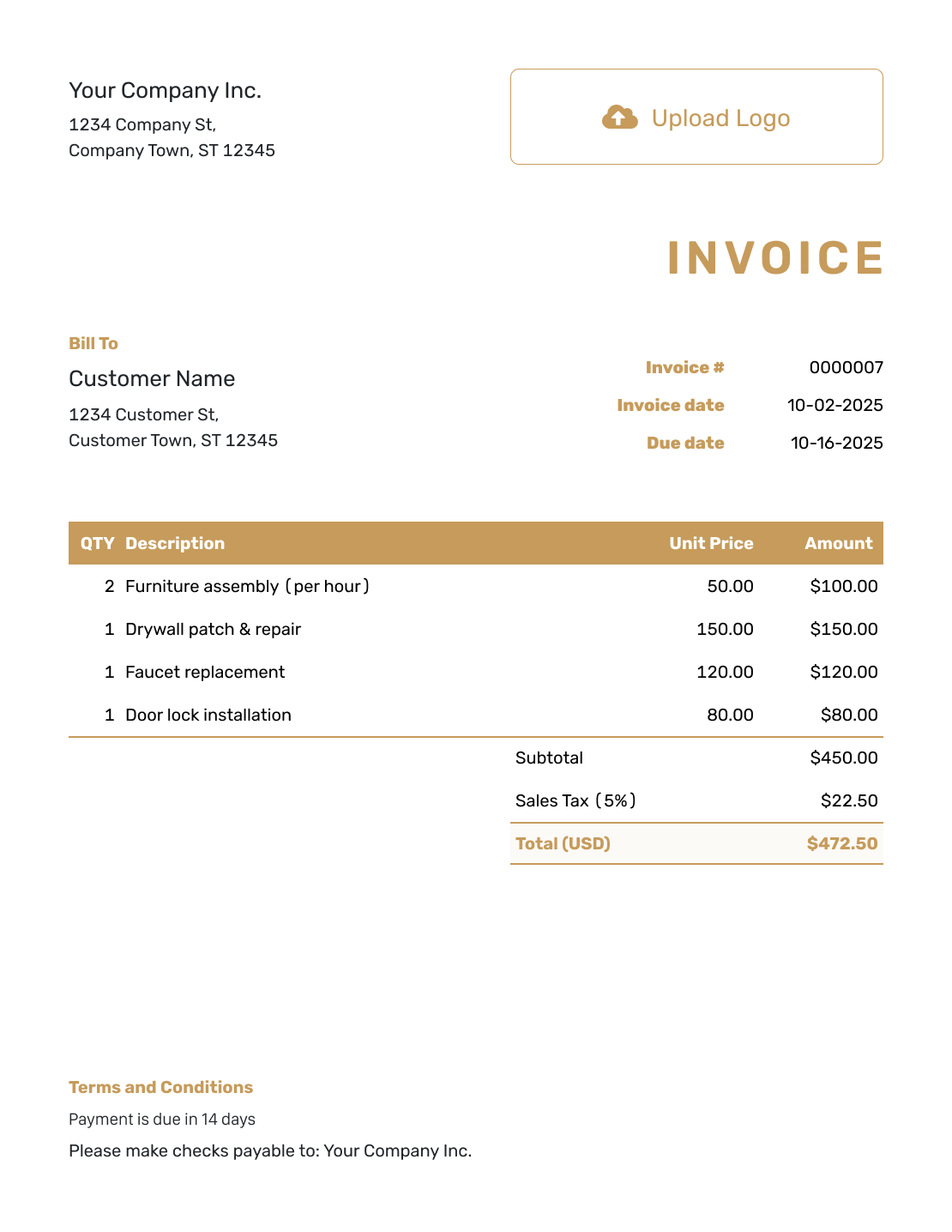
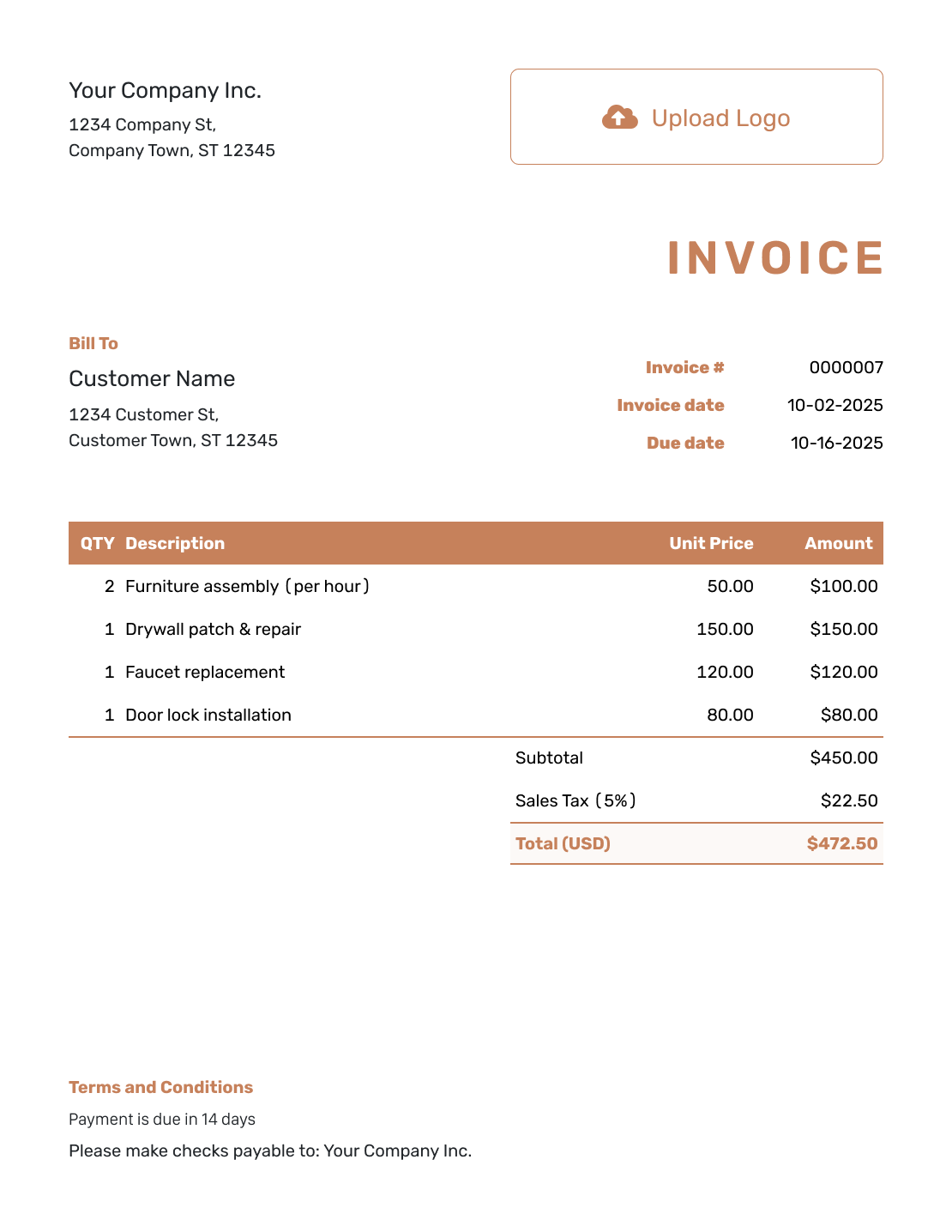
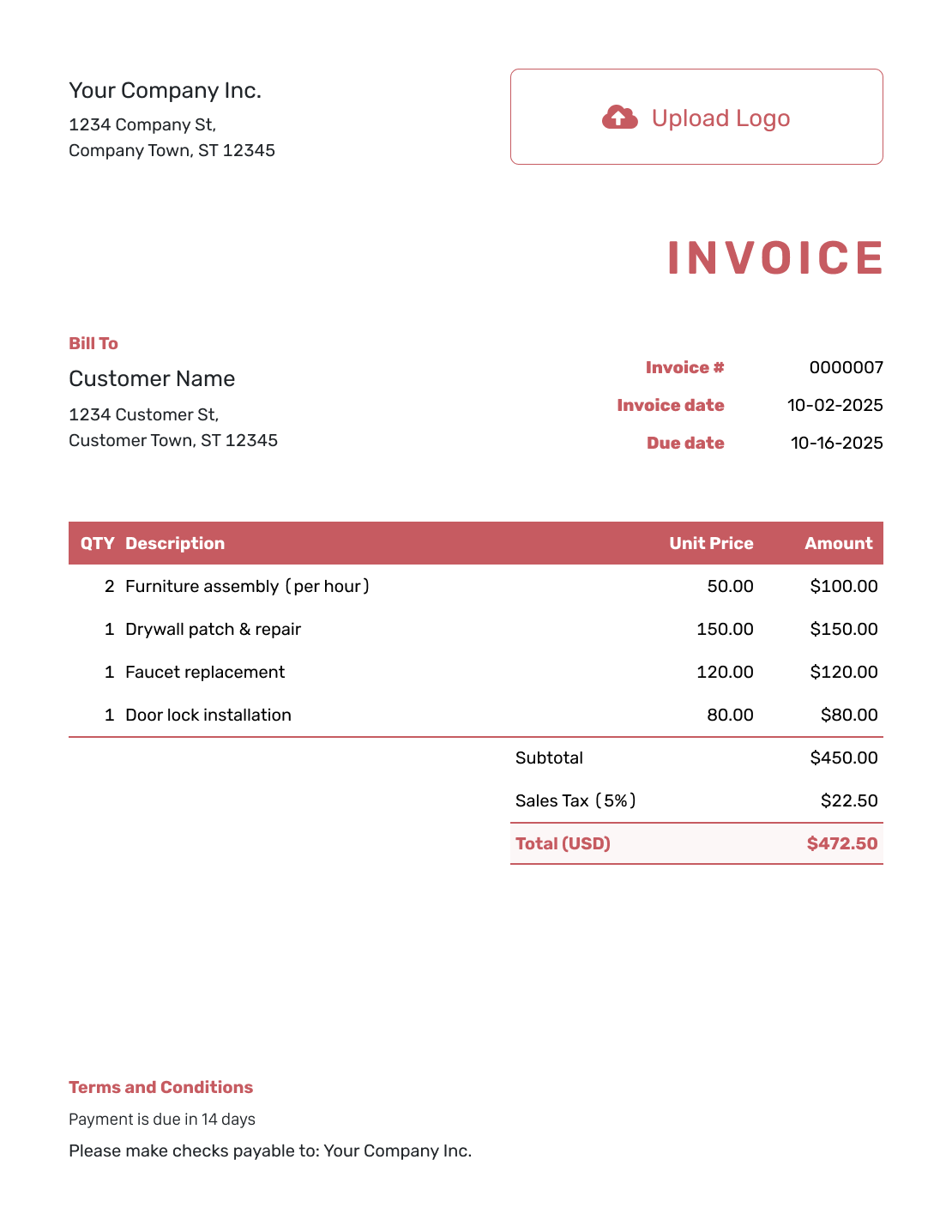
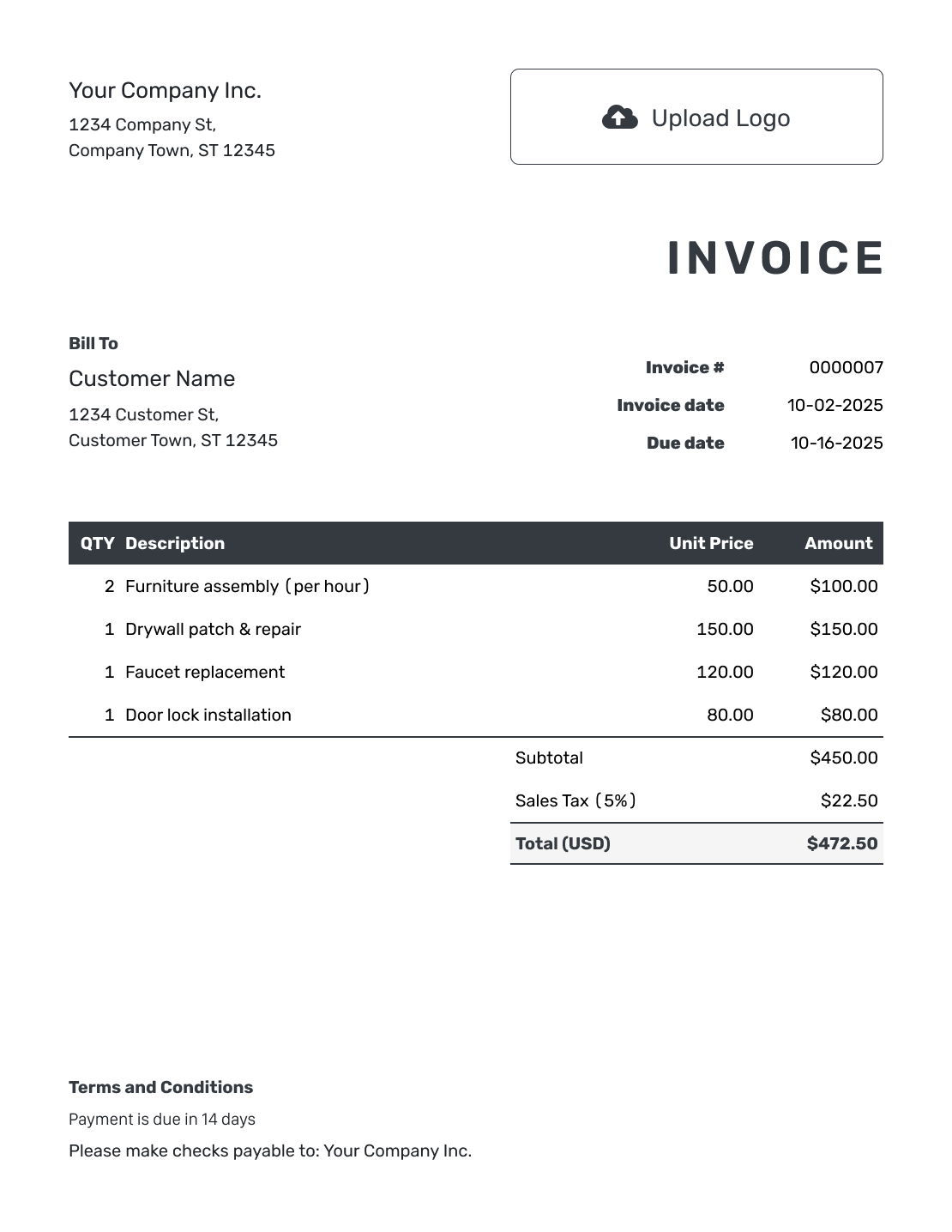
Use any of these layouts for the completed work. Keep the accepted bid and change references with the charges.
Need a File You Can Fill In Yourself?
These general invoice templates also work as a starting point. Add the accepted bid reference and check that the file shows only the charges you are billing now.
Bid Invoice FAQs
-
Is a bid invoice the same as a bid?
No. A bid presents proposed work and pricing. The invoice on this page bills completed work under an accepted bid. Use a quote or estimate when the customer still needs to review the price before work starts.
-
Which bid details should I put on the invoice?
Include the bid number or date and a recognizable job description. Use the agreed service names and prices. Add the reference for each approved change so the customer can check the extra charge.
-
How do I bill an extra that was not in the original bid?
List the approved extra on its own line with its price and change reference. Keep the original work separate. Do not include an unapproved option as though it were part of the accepted job.
-
Can Docelf create an invoice from my accepted bid?
When you create a bid as a Docelf quote or estimate, you can create an invoice from it. For a bid prepared elsewhere, enter the billing details yourself. Attach the accepted offer as a PDF or supported image when useful.
-
How do I show a payment I already received?
Record the payment amount and date on the invoice. Docelf tracks the remaining balance. A payment reduces what the customer owes. It does not change the agreed price of the work.
-
Can I send the accepted bid with the invoice?
Yes. Attach a PDF or supported image file in Docelf. Each attachment can be up to 5 MB. The customer can download the attachment with the invoice.
Bill for the Work in the Accepted Bid
Help the customer connect the finished job to the price they accepted.
- List the agreed work and approved extras
- Keep the bid reference with the invoice
- Email the invoice or download a PDF




