Free Estimate Template
Create a professional estimate in minutes
Price the job with a clear estimate that shows the expected work and likely cost. Make it easy for your customer to accept the estimate so you can get the job.
Email, print or download your estimate as a PDF.
14-day free trial. No credit card required.
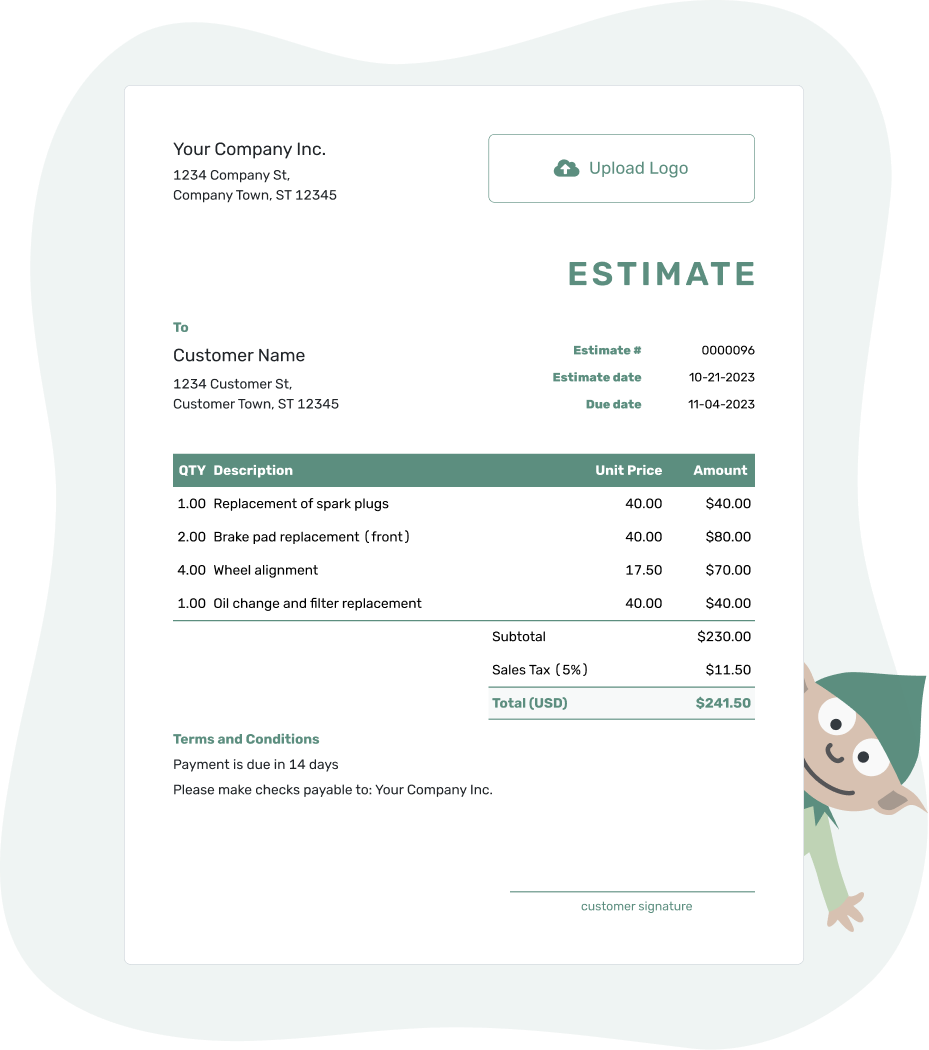
Price the job. Send the estimate. Get back to work.
Preview Estimate Templates
These previews show ways to present the work and expected price. Each button opens the same Docelf estimate editor, where you can add your details and choose colors and fonts.
-
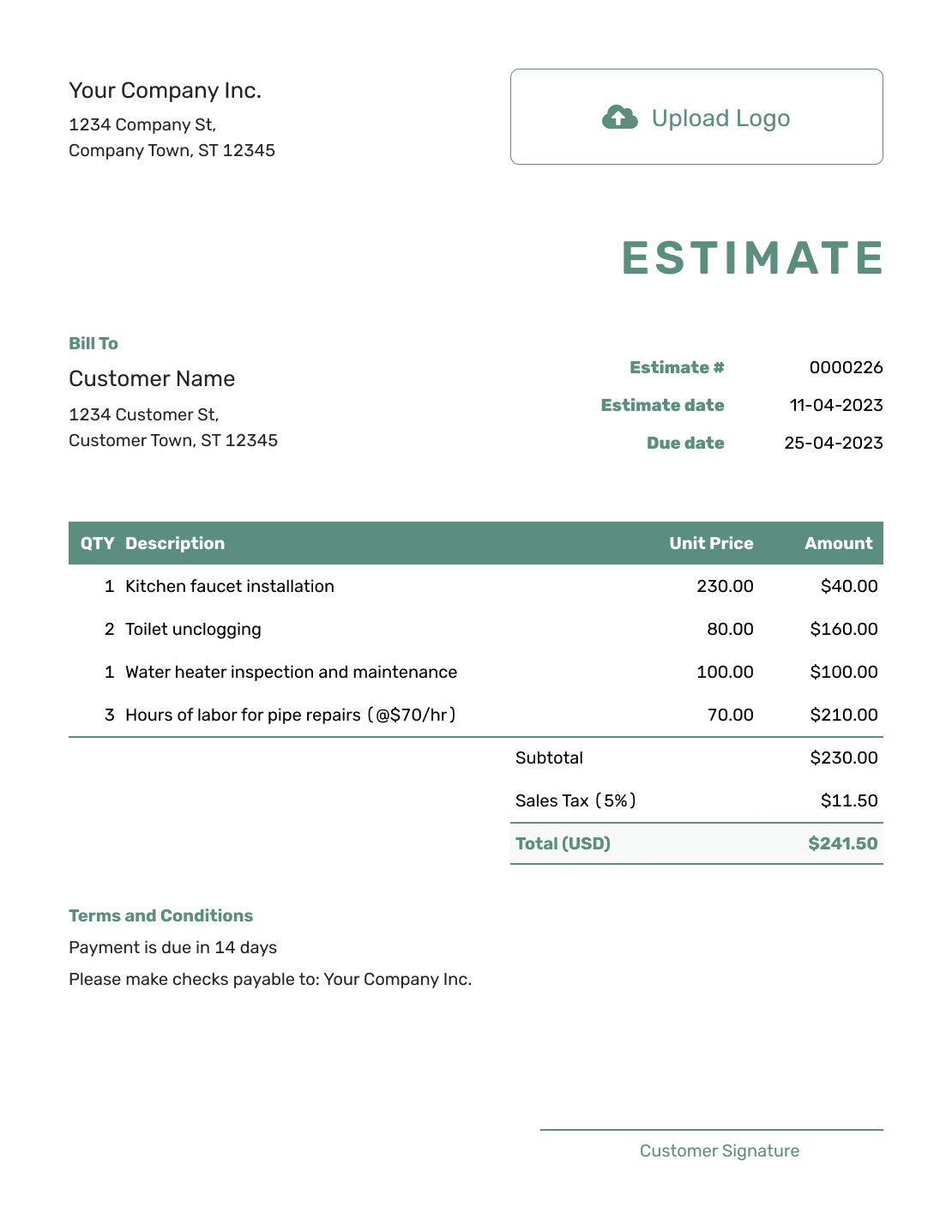
Simple Estimate Template
Use a clean, straightforward estimate for smaller jobs and services.
Create an Estimate -
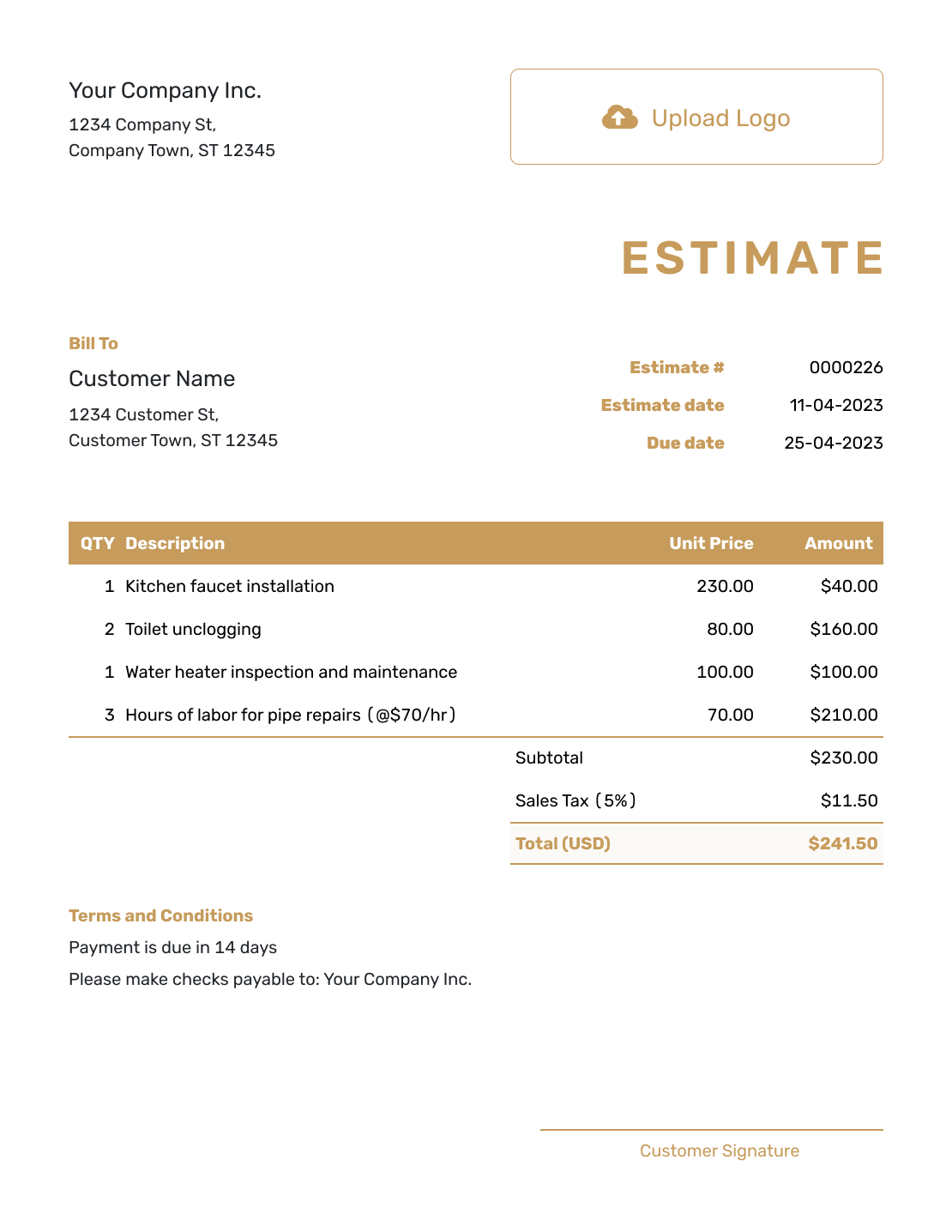
Job Estimate Template
Show the expected work and costs so your customer can understand the estimate.
Create an Estimate -
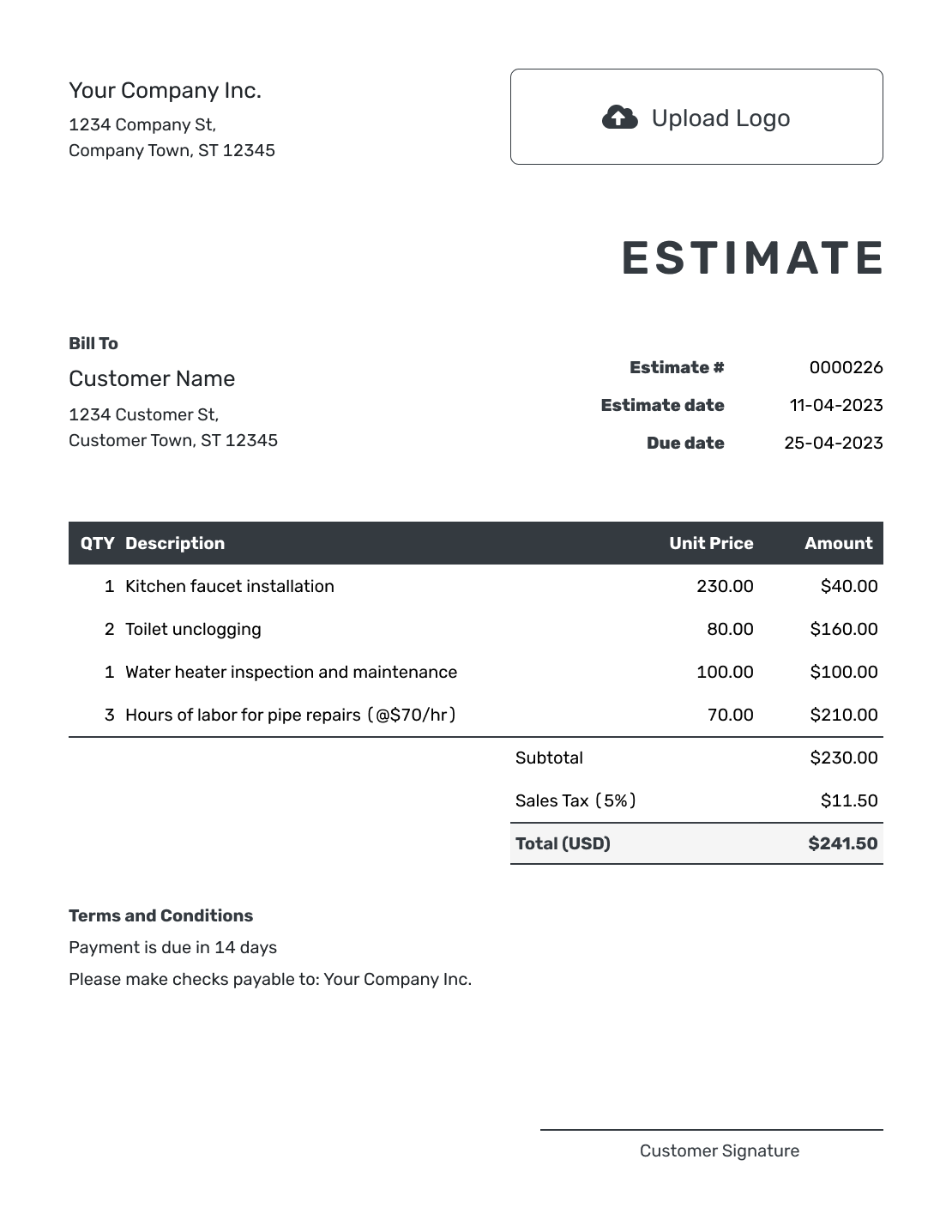
Estimate Proposal Template
Present the expected price with the main project details and terms.
Create an Estimate
See the completed and blank estimate examples farther down the page.
Estimate Templates by File Format
Choose Word or Google Docs to work on the wording and layout. You update the line amounts and total yourself when quantities or prices change.
Choose Excel or Google Sheets for built-in calculations. Check the formulas after adding or moving rows so the total still includes every item.
- Word Estimate Template
- Google Docs Estimate Template
- Excel Estimate Template
- Google Sheets Estimate Template
- Other Estimate Formats
For automatic calculations and online customer responses, create the estimate with Docelf. For job-specific guidance, browse the industry and business collections.
When to Use an Estimate
An estimate sets out the work you expect to do and what it is likely to cost. It is useful while you still need to confirm details that affect the price.
Choose the document that matches what you need from the customer now.
How to Create an Estimate
Start with your customer's request and your notes on quantities, prices, and timing. Watch the walkthrough or follow the numbered example below.
The numbered example shows where each detail belongs. Your logo is optional, and you can choose colors and fonts to match your business. Add the job address when it differs from the customer's address.
- Your Business: Enter your business name and contact details.
- Your Logo: Add your logo if you use one.
- The Customer: Choose a saved customer or enter their details.
- Number and Dates: Add a unique number, issue date, and response deadline if needed.
- Work and Prices: List the expected work, quantities, units, and unit prices.
- Estimated Total: Check tax, discounts, and the totals Docelf calculates.
- Terms and Conditions: Explain what is included or excluded, timing, and payment terms.
A Simple Estimate With a Cost Breakdown
A useful breakdown lets the customer see how you reached the price. Give separately priced labor, materials, and services their own rows.
This fictional fence repair is priced in US dollars. The two labor hours are the time expected for the repair, not time already worked.
| QTY | Description | Unit Price | Amount |
|---|---|---|---|
| 2 | Repair labor (hour) | $60.00 | $120.00 |
| 4 | Replacement boards | $15.00 | $60.00 |
| 1 | Fence fasteners (pack) | $10.00 | $10.00 |
| Subtotal | $190.00 | |
| Illustrative tax (5%) | $9.50 | |
| Estimated total | $199.50 |
These are example prices, not suggested rates. The 5% tax is only an illustration; use the tax treatment that applies to your job.
Explain What the Price Covers
Use Terms and Conditions for the details the item rows cannot explain. For the repair above, the price assumes the existing posts and rails can stay in place.
Keep the wording specific to the job. Replace [date] with your response deadline, and add only the schedule, deposit, or payment terms your business uses.
Example: Terms and Conditions
- Replace four damaged boards on an accessible fence, based on an estimated two hours of repair labor.
- Existing posts and rails are assumed to be sound. Painting and structural repairs are not included.
- Please respond by [date]. We will confirm the start date with you.
- We will agree on the price of any additional work with you before starting it.
Ready to Price the Job?
Put your job details into an estimate. Docelf calculates the totals as you enter quantities and prices. Review it, then email it or download a PDF.
Check the Estimate Before You Send It
Read it from the customer's point of view. Can they tell what you will do, what the price covers, and what they need to do next?
- Remove sample names, dates, prices, and terms that do not belong to this job.
- Match each quantity to its price unit: hours with an hourly rate, or items with a price per item.
- Check that every charge is listed and that the terms do not exclude work you have priced.
Saving the estimate does not send it to your customer. Preview it when it is ready, then choose to email it, print it, or download a PDF.
After the Customer Receives the Estimate
Use the document history to see when your emailed estimate was delivered and opened. Your customer can accept or decline it online without a Docelf account. Docelf emails you when they respond.
When the expected work or cost changes, explain why and send a revised estimate. Discuss the options with your customer: adjust the work or agree on the extra cost before you continue.
Create the Invoice When It Is Time to Bill
Open the estimate in Docelf and create an invoice from it. Docelf brings over the relevant customer and item details, so you do not have to enter them again.
Review the work and final prices on the new invoice. Update anything that changed and add the payment due date before sending it.
More Estimate Examples
Need a closer look before you start? Use a completed example to see the order of the information, or choose a layout with empty item rows.
-
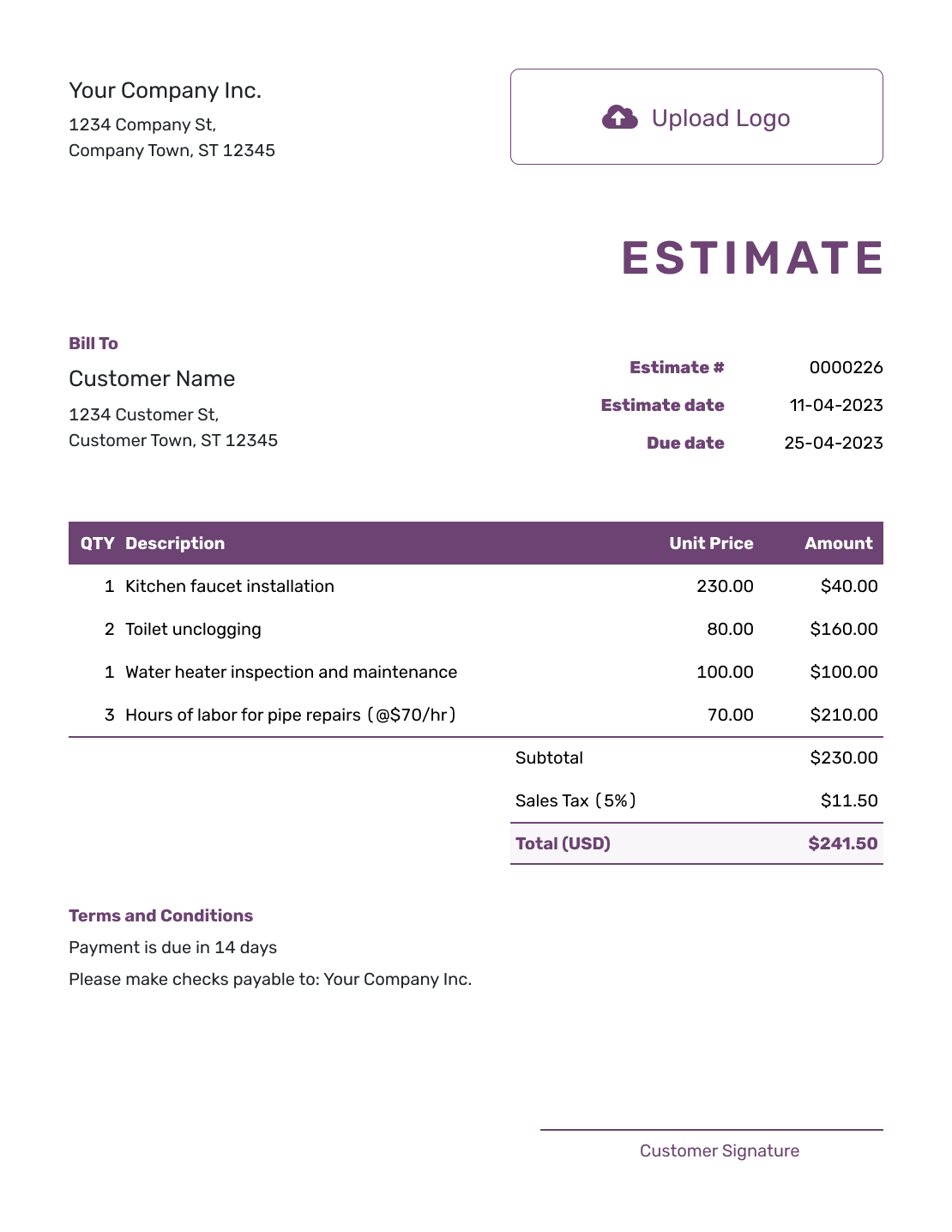
Online Estimate Template
Enter the job details in the online maker, then review the estimate before sending it.
Create an Estimate -
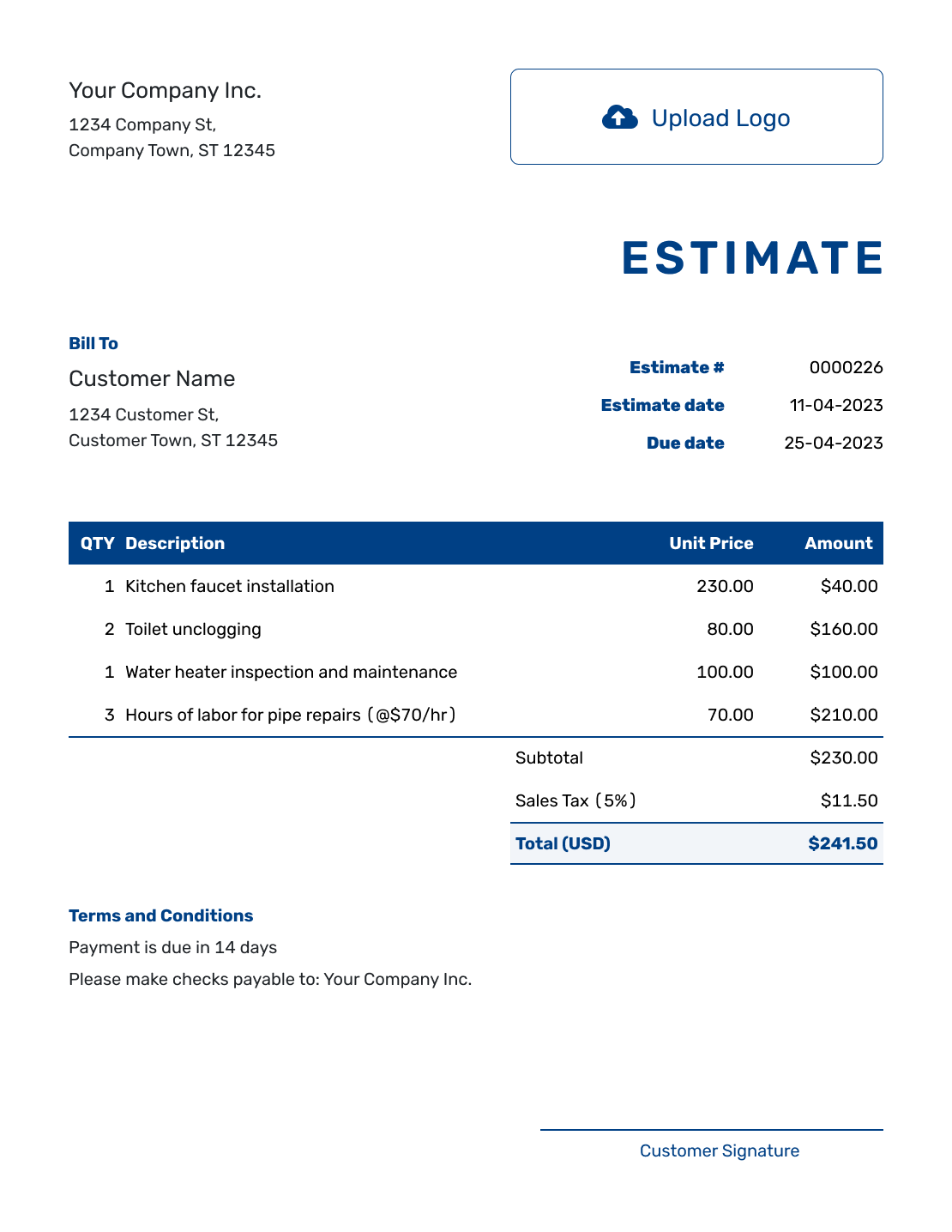
Sample Estimate Template
See the parts of a filled estimate, then use the example guide to write your own.
View Sample Estimate -
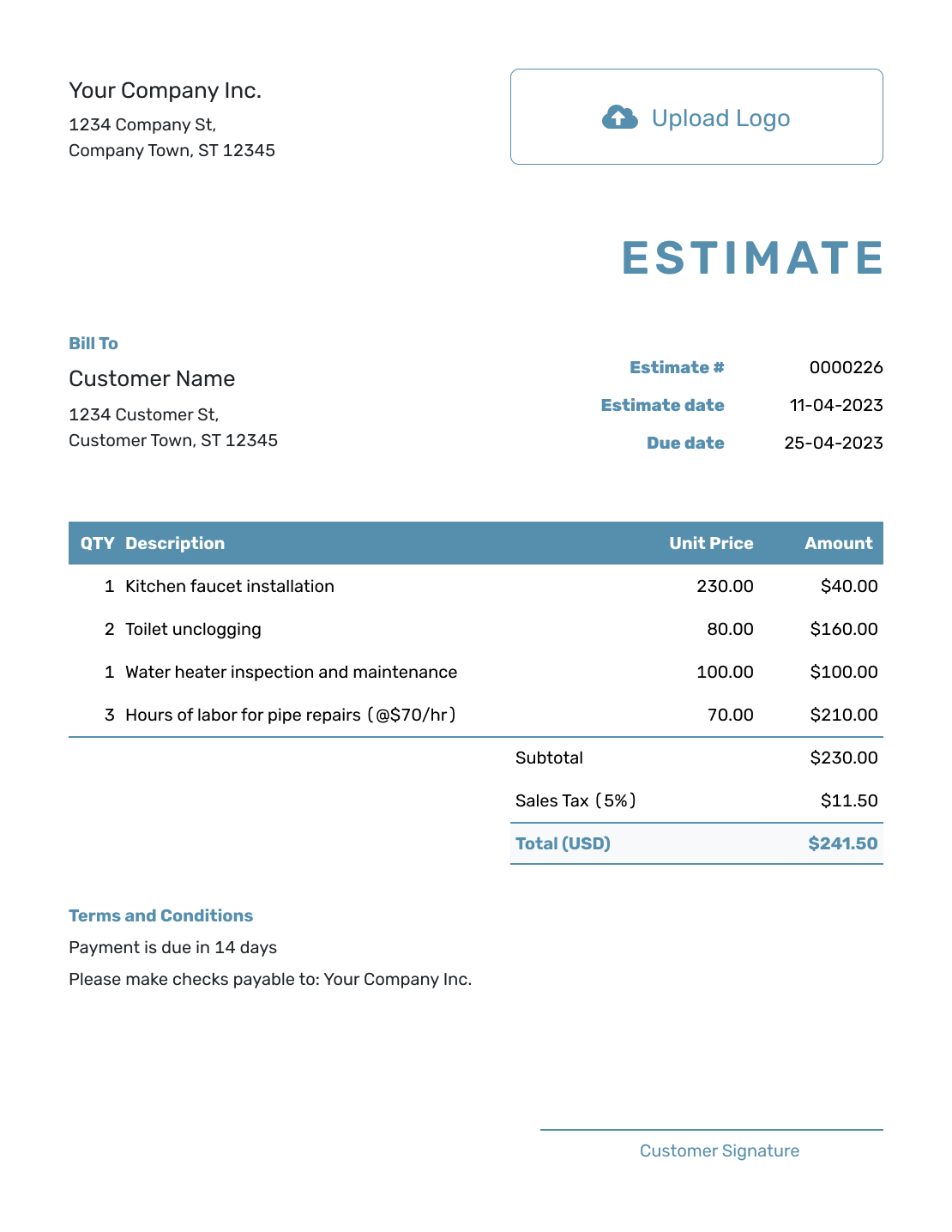
Blank Estimate Template
Use the empty item rows for your work and prices. Replace any sample dates and terms as well.
View Blank Estimate -
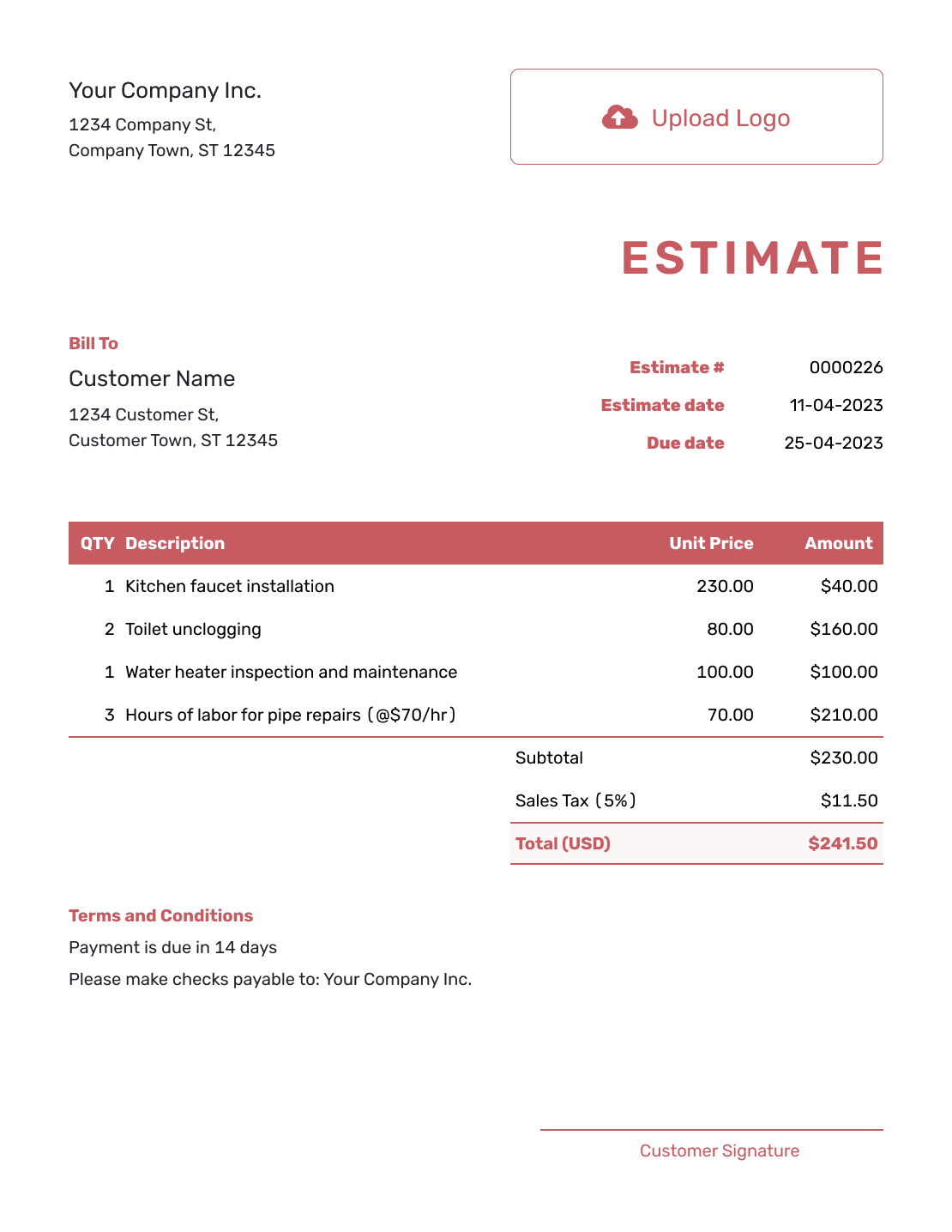
Fillable Estimate Template
Fill in the work, quantities, and prices for the job.
Create an Estimate -
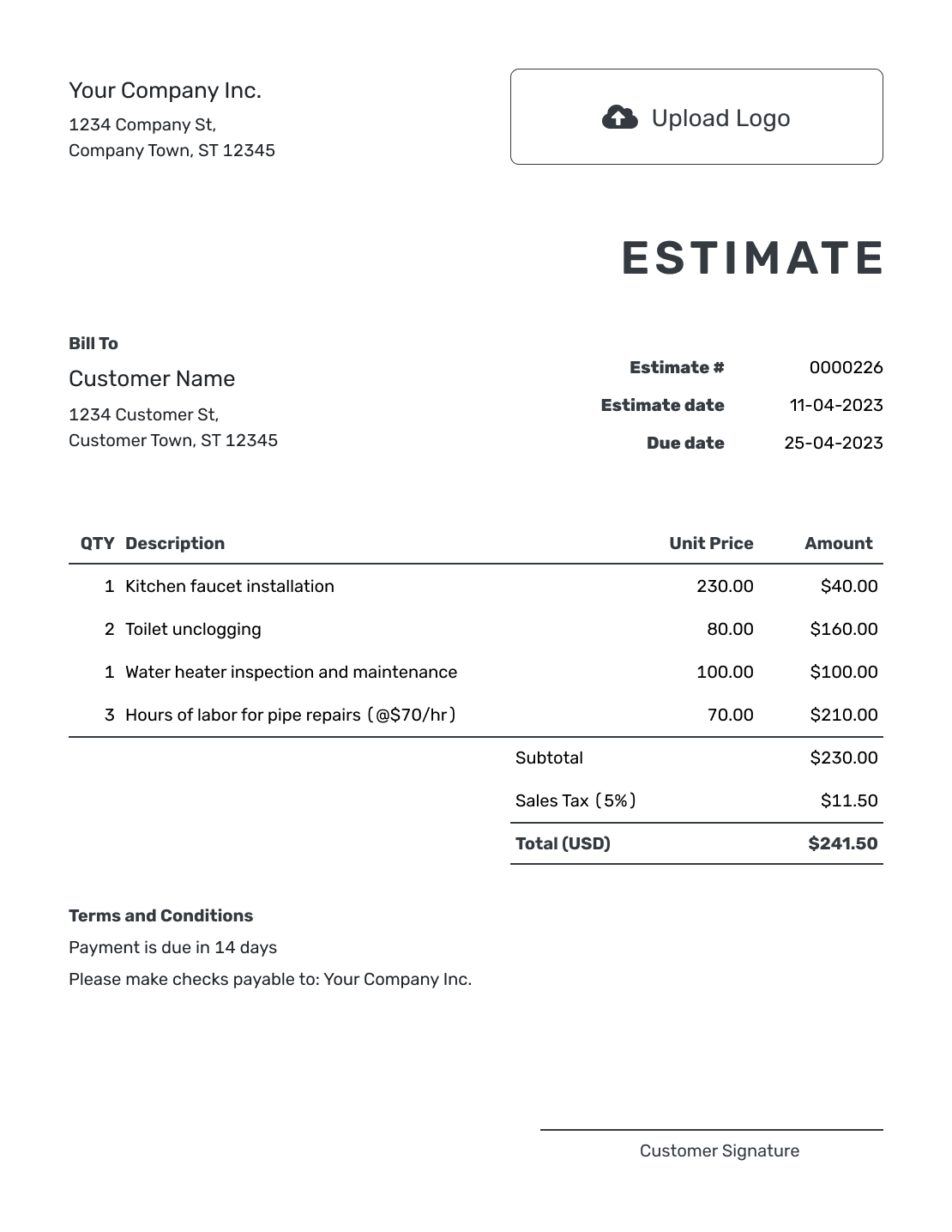
Printable Estimate Template
Prepare a clear estimate to print or share with your customer.
Create an Estimate -
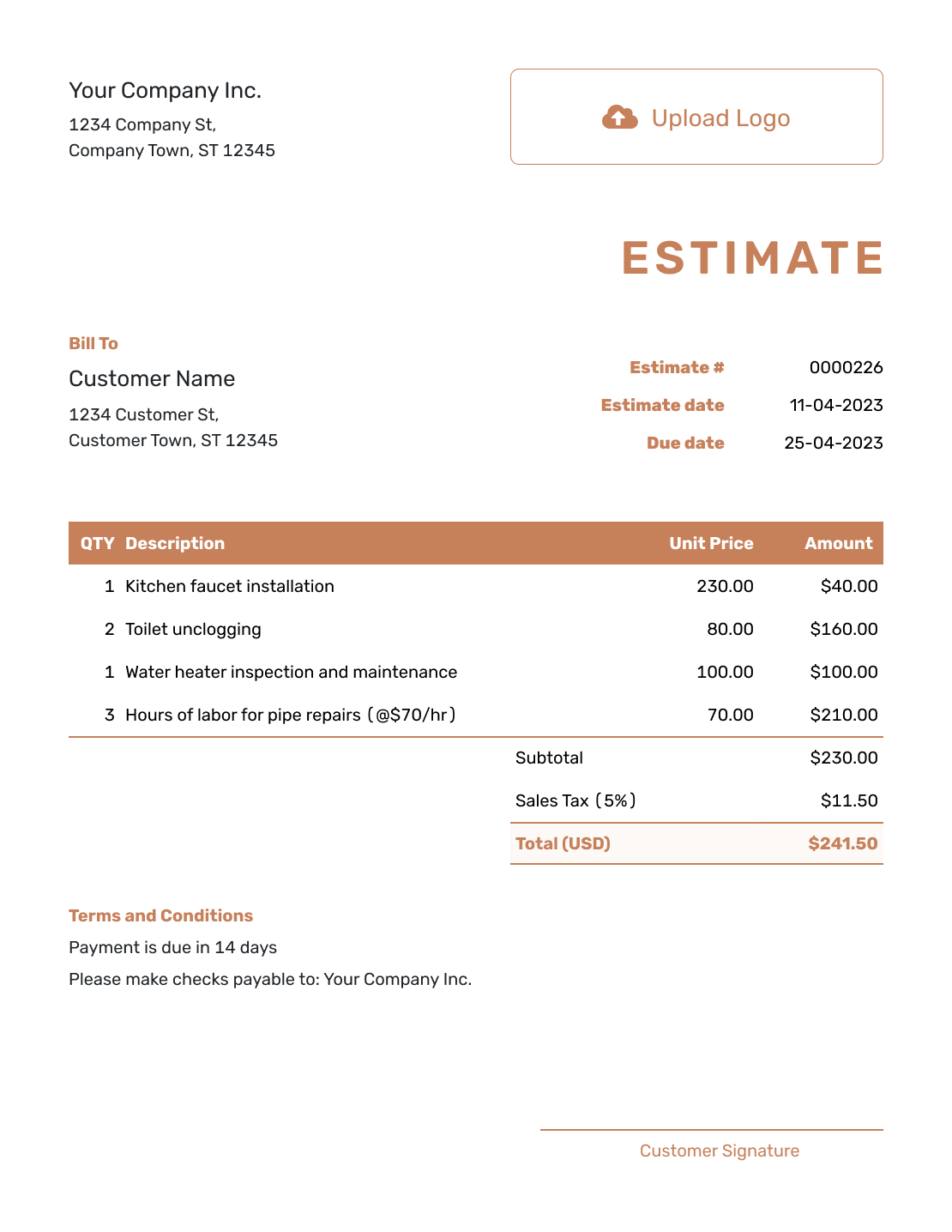
Downloadable Estimate Template
Finish the estimate online, then download the customer copy as a PDF.
Create an Estimate
Browse Estimate Templates
A general estimate works for many jobs. For trade-specific line items or a different type of project, browse the industry and business collections.
Estimate Guides
Use these guides for a closer look at estimate terminology and the difference between an estimate, a quote, and an invoice.
Estimate FAQs
-
Does an estimate show the final price?
An estimate shows the expected cost based on the scope and information you have now. Explain any assumptions or items that could change the price, rather than leaving the customer to guess what is included.
-
How long should an estimate stay valid?
Base the deadline on how long the prices and your availability are likely to hold. Once it passes, review both before confirming the work. Label it as a response deadline or valid-until date, not a payment due date.
-
What if my customer accepts by phone or email?
You can mark the estimate as accepted or declined yourself in Docelf. Check that the customer's answer refers to the version and scope you sent.
-
Should I send the editable template or a PDF?
Use a PDF for the finished customer copy and keep the editable file for revisions. In Docelf, use the PDF option to download the estimate, or email it directly from the editor.
-
Can I reuse an estimate for another job?
Yes. Duplicate the estimate to create a new draft with a new document number. Replace the customer and job details as needed, then check every quantity, price, date, and term before sending it.
-
Can I include photos, a longer scope, or signatures?
Yes. Attach a photo or a scope document when it helps the customer understand the work. Docelf supports PDF, JPG, GIF, PNG, and WebP files up to 5 MB each.
You can also add company and customer signature fields to the estimate.
Ready to Send the Estimate?
Give the customer a price they can understand and a clear way to respond.
- Itemized work and an estimated total
- Email, print, or download a PDF
- See when the customer opens or responds




