Free Draft Invoice Template
Create a professional draft invoice in minutes
Prepare the charges and payment details in a draft before anything goes to the customer. A careful review keeps the final invoice clear when it is time to request payment.
Email, print or download your invoice as a PDF.
14-day free trial. No credit card required.
Create the invoice. Send it. Get back to work.
Choose a Layout for the Invoice You Are Preparing
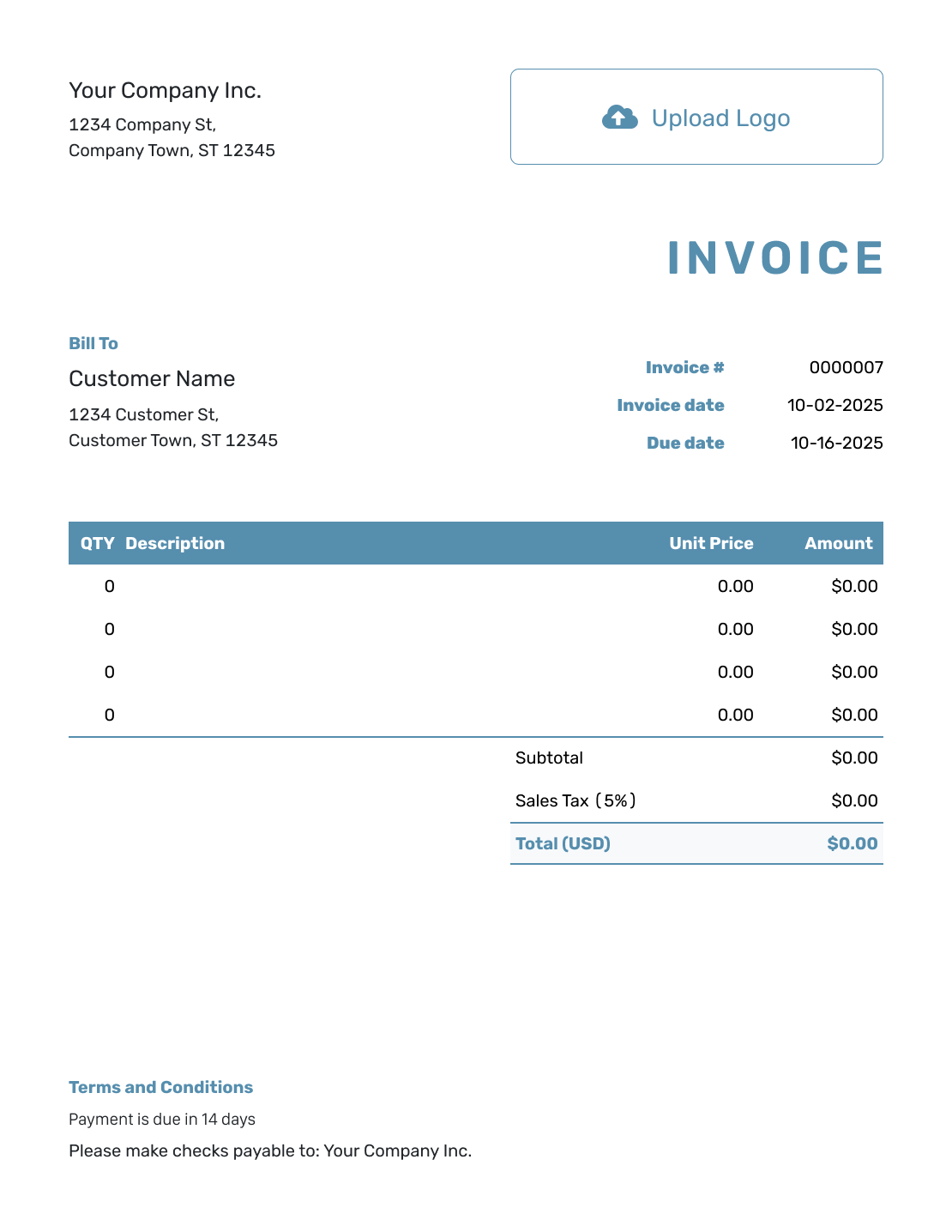
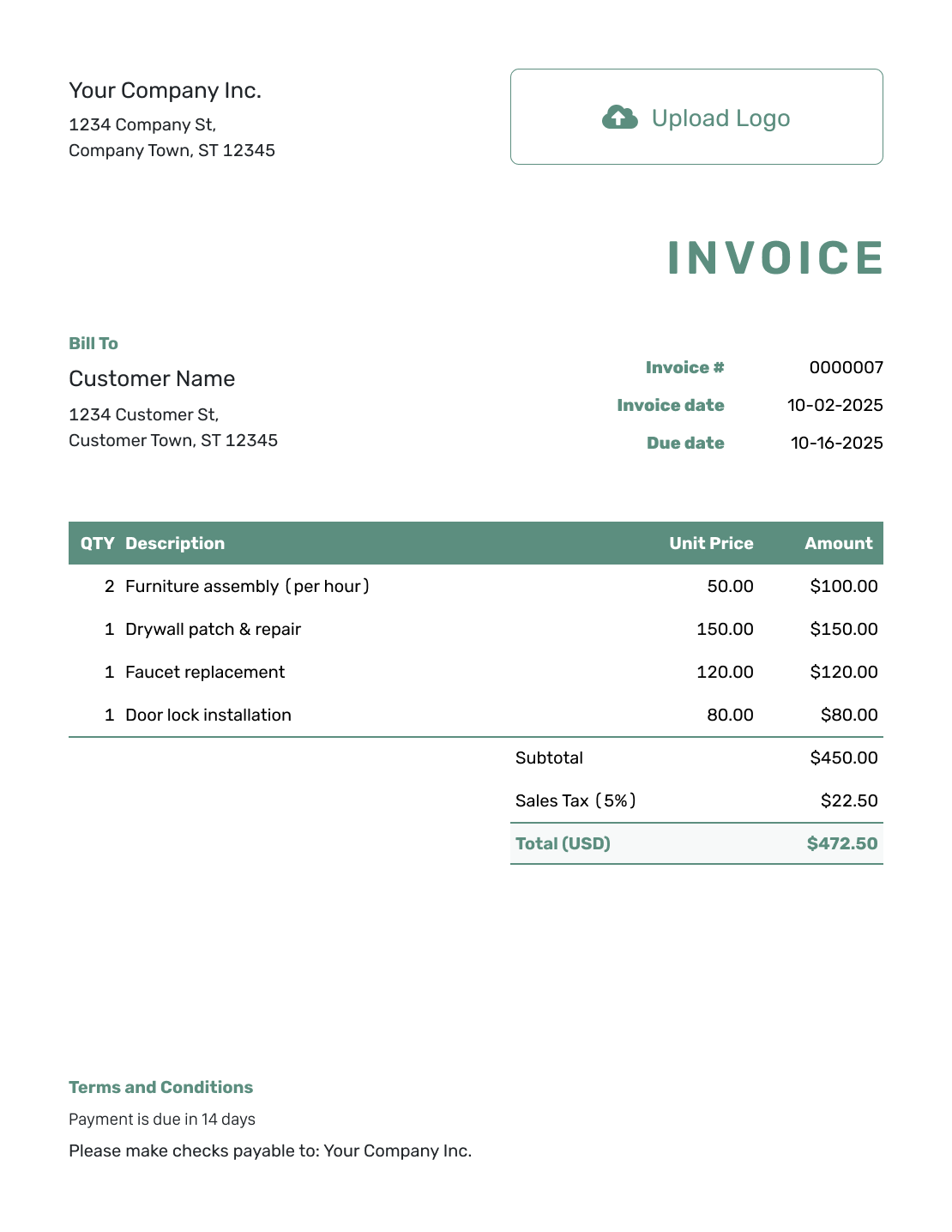
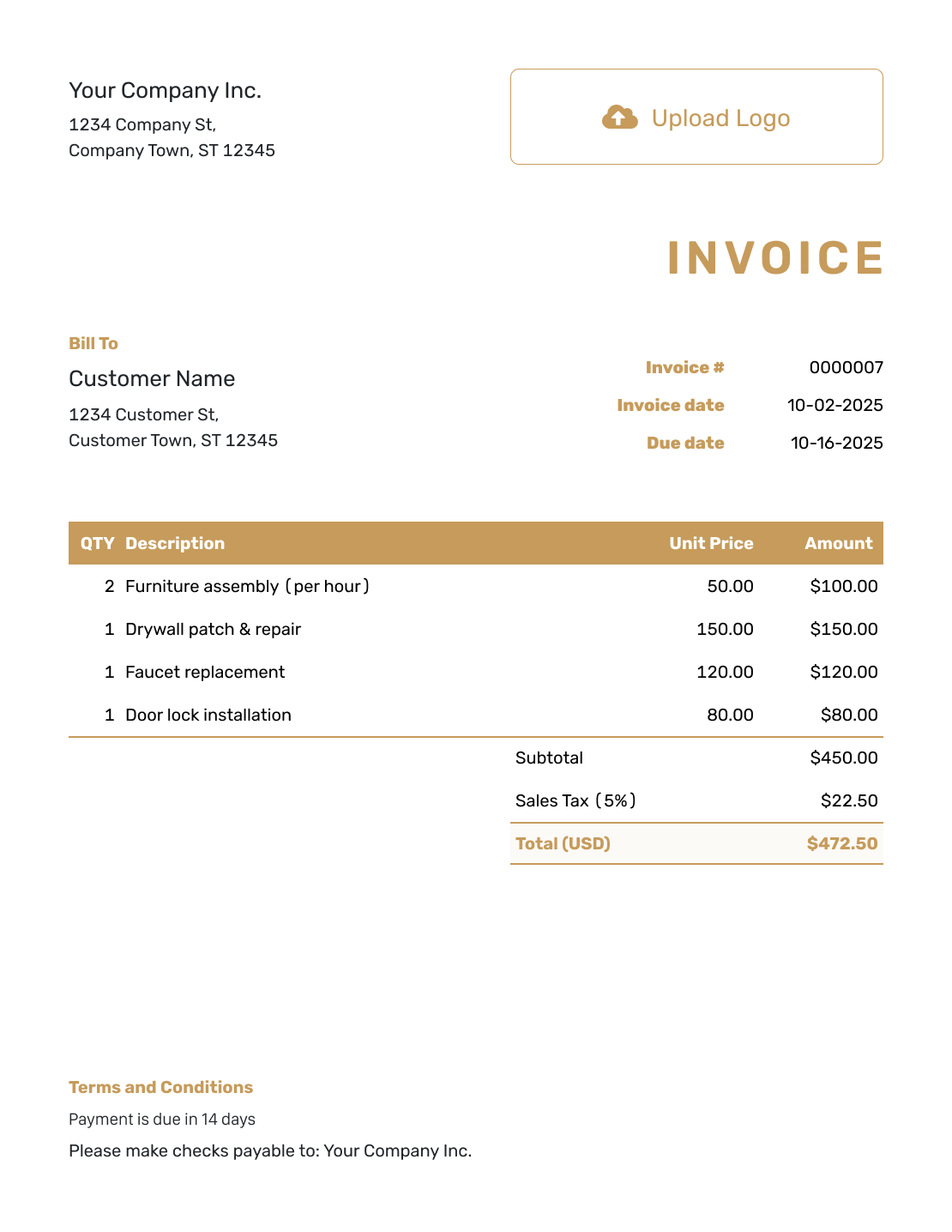
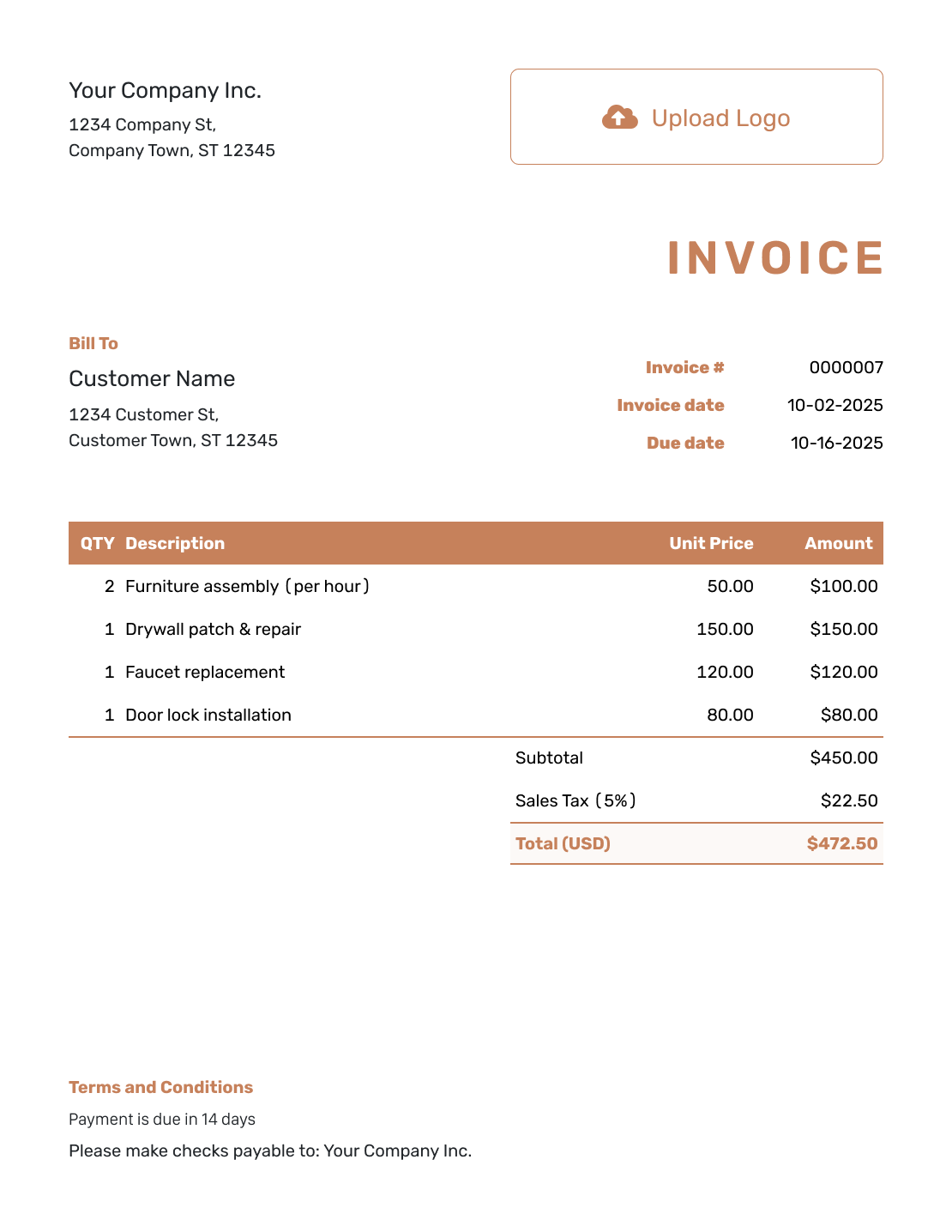
Use these invoice previews as starting points for a draft. Open the editor to enter and review your charges before you send the customer a payment request.
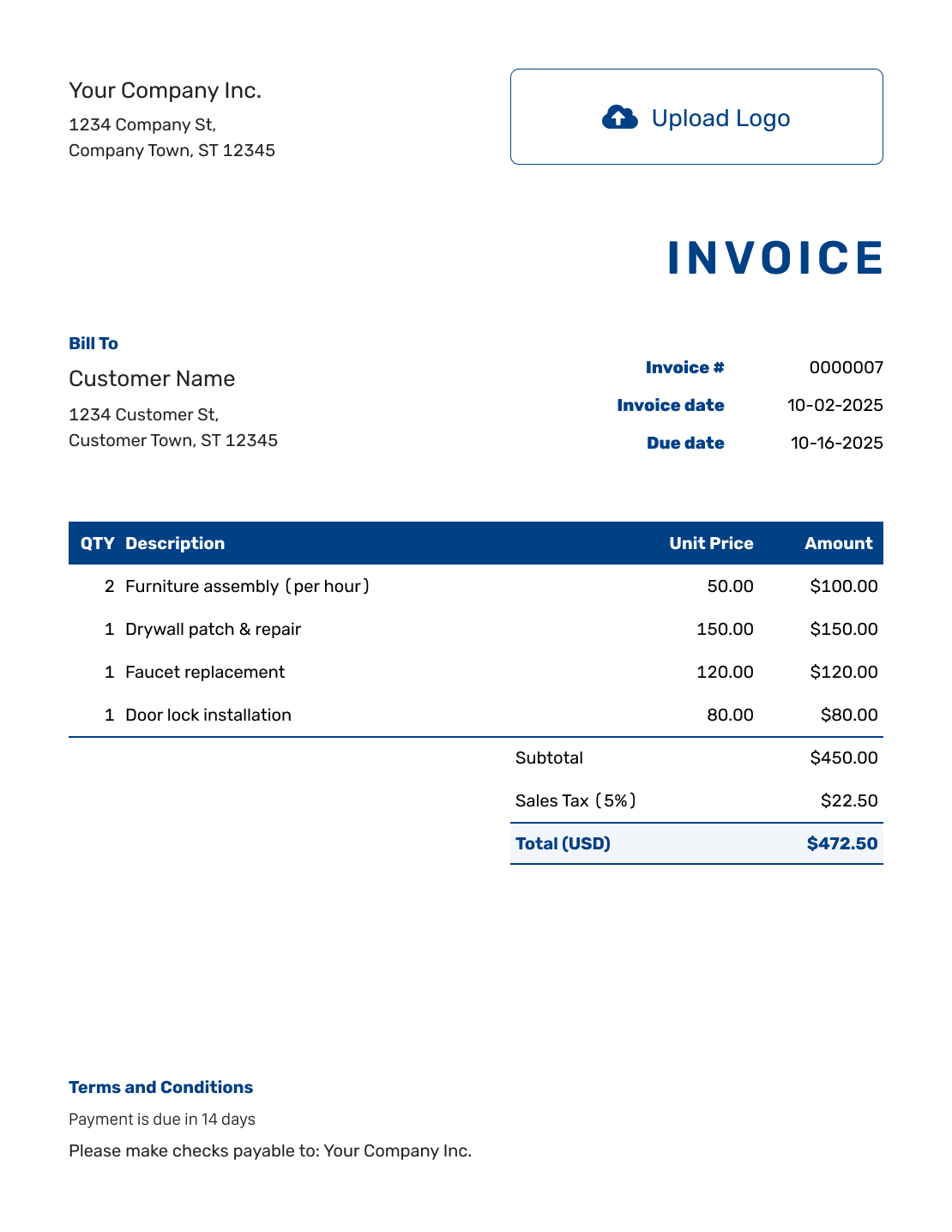
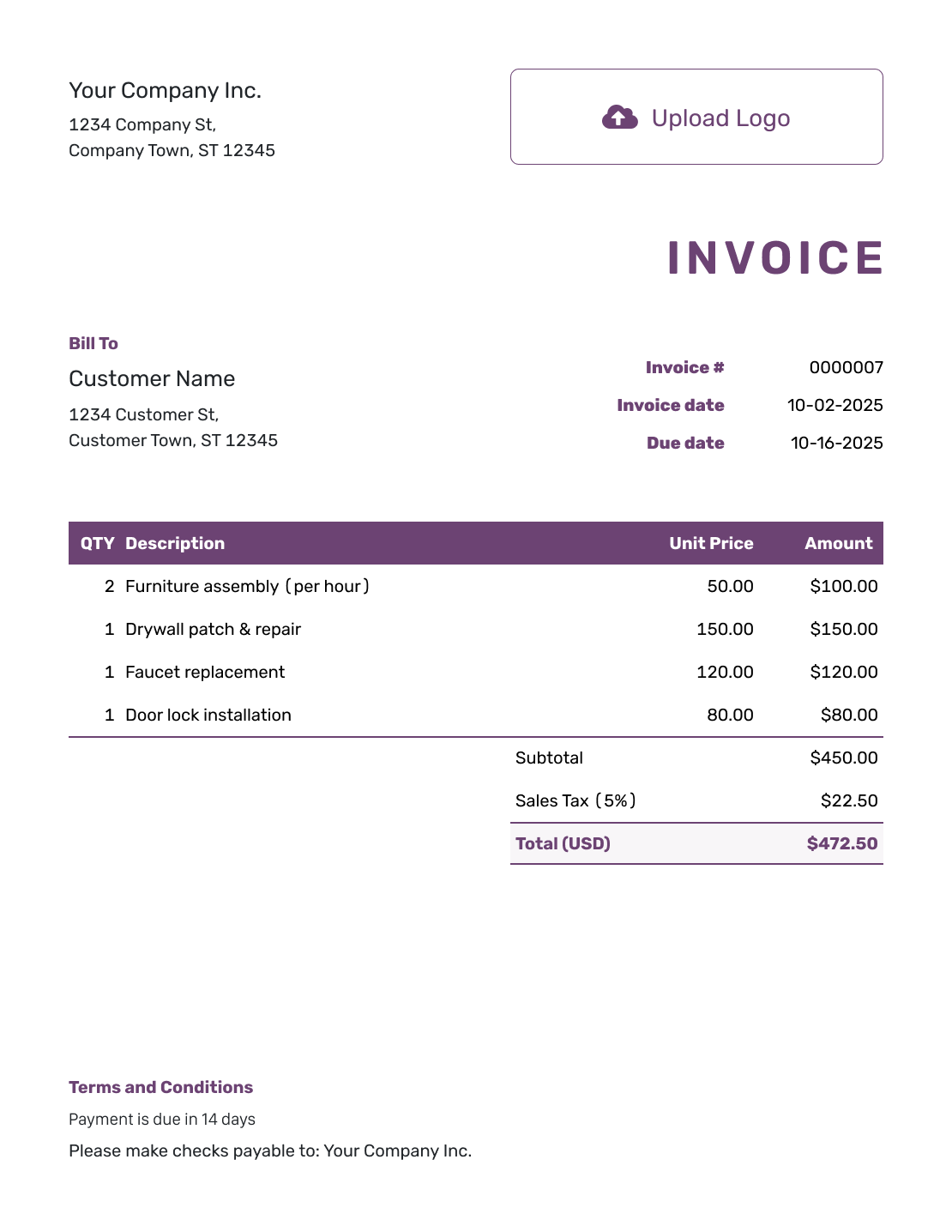
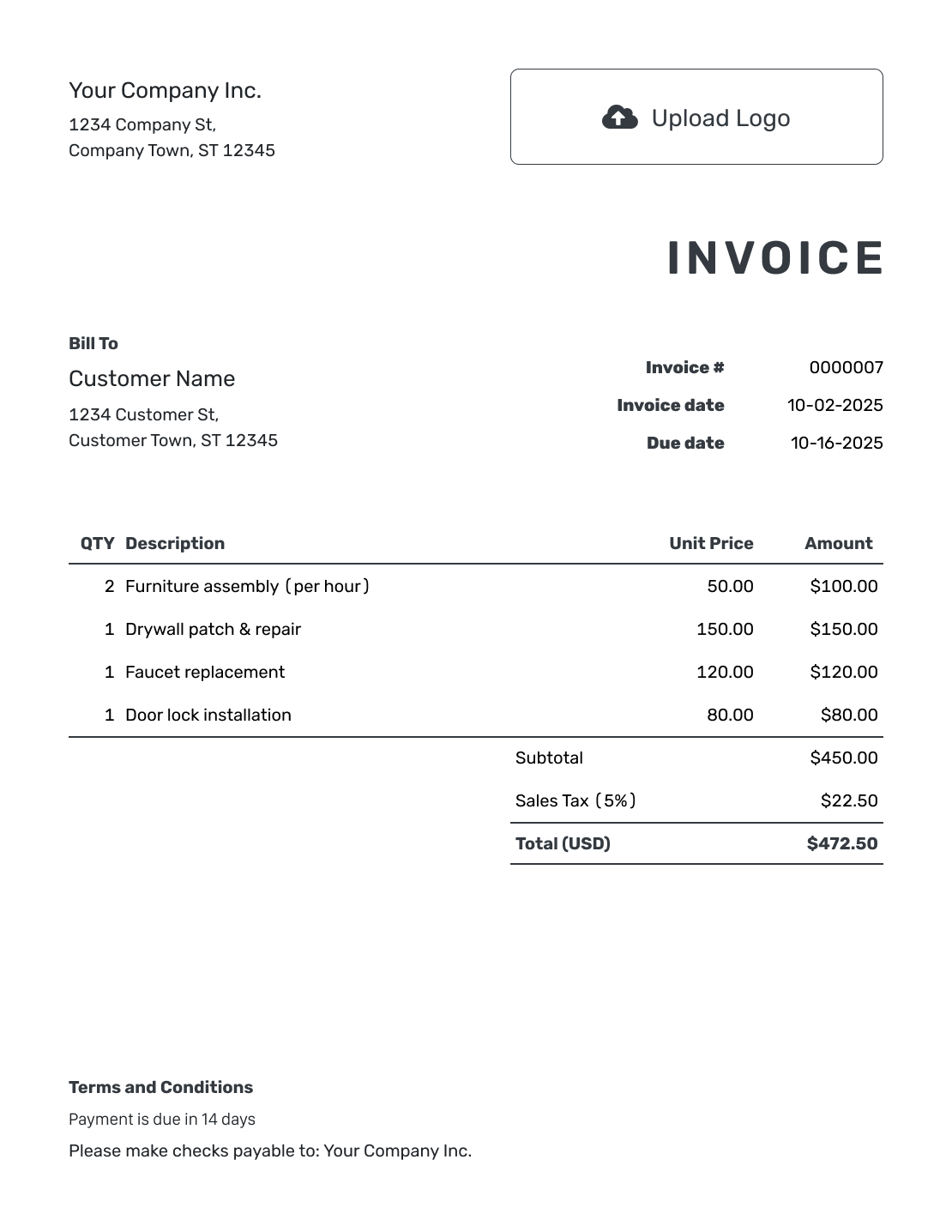
How to Create a Draft Invoice
Use the draft to check the bill against your records. Creating, editing or saving it does not email the invoice; you choose when to send it.
- Check Your Business Details: Use the business name and billing contact that should appear on the final invoice.
- Review the Logo: Add your logo and check that it fits the invoice.
- Confirm the Customer: Check the billing name and contact against the customer’s instructions.
- Review the Number and Dates: Check the invoice number. Confirm the invoice date and payment due date before sending.
- Confirm the Charges: Compare quantities and rates with the work you agreed to bill.
- Review Tax and Totals: Check applicable tax and discounts against the total Docelf calculates.
- Prepare Terms and Conditions: Add the agreed payment timing and instructions. Review the draft; email it only when it is ready.
Check Draft Line Items Before You Bill Them
Build the draft from confirmed work rather than a list of everything that might be charged. Review extra hours against the customer’s agreement before including them.
This draft lists proofreading, page layout and agreed revision time. The prices are examples in US dollars, with 8% tax on all three charges.
| QTY | Description | Unit Price | Amount |
|---|---|---|---|
| 3 | Proofreading — hours | $50.00 | $150.00 |
| 1 | Report page layout | $90.00 | $90.00 |
| 2 | Agreed revisions — hours | $45.00 | $90.00 |
| Subtotal | $330.00 | |
| Sales Tax (8% example) | $26.40 | |
| Total | $356.40 |
What to Include in Draft Invoice Terms
Use Terms and Conditions for the payment instructions that will appear on the finished invoice. The draft gives you a chance to check them against the agreement before sending.
Use this wording on the finished invoice, not as a request to pay an unfinished draft. Check the payment period and replace the bracketed details.
Example: Terms and Conditions
- Payment is due within 14 days of the invoice date.
- This invoice covers the proofreading, page layout and agreed revisions for [Project Name].
- Pay by [Accepted Payment Method] and include the invoice number.
- For questions about a charge, contact [Billing Contact].
Check the Invoice Before You Send It
Keep the draft in Docelf while you confirm the job details. Check the charges and due date before sending.
Review What Changed Since the Job Was Priced
Compare the work you agreed to bill with what is on the draft.
- Match the charges to completed work, delivery records or agreed billing milestones.
- Check extra work against the customer’s agreement before adding it.
- Confirm the billing contact and any reference the customer asked you to include.
- Review tax, discounts and any payments already recorded.
- Read the invoice preview before choosing to email, print or download it.
A Draft Invoice Is Not a Price Offer
A draft invoice is a bill you are still preparing. When the customer needs to approve a price before work begins, use a quote or estimate for that task.
Docelf can create an invoice from a quote or estimate. Review the copied charges before billing. Creating a draft does not replace the customer’s agreement to the work.
Start From a Previous Invoice Without Reusing Its Number
Duplicate a previous invoice in Docelf to create a new draft with a new number. Update the customer, service details and dates rather than treating the old bill as ready to send.
Before sending, check that the logo, colors, fonts and footer contact still fit your business. An attached job record can help explain the charges without crowding the draft.
Use the currency agreed for the new job: USD, EUR, GBP, CAD or AUD. You can also add an industry name before “Invoice” when it helps identify the work.
More Invoice Layouts
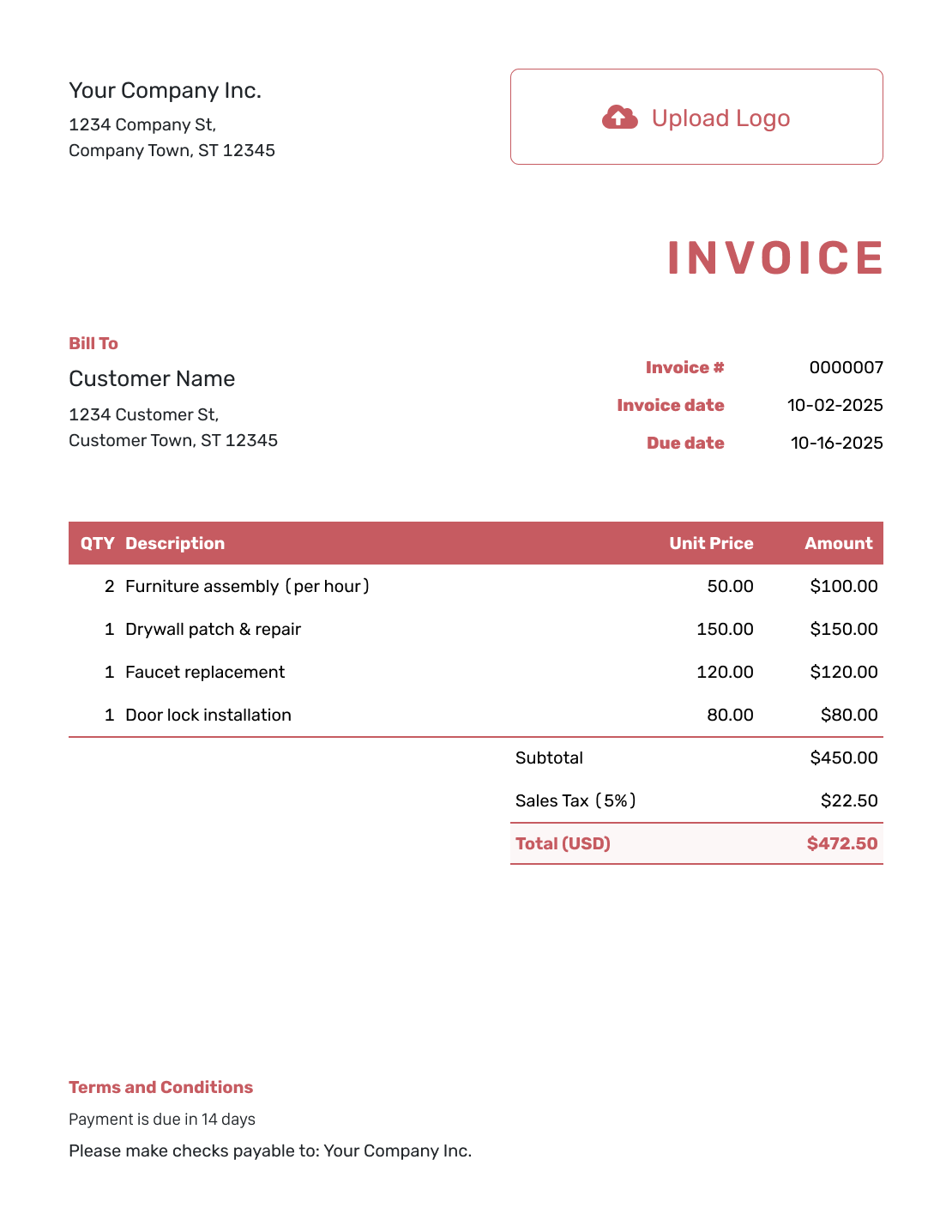
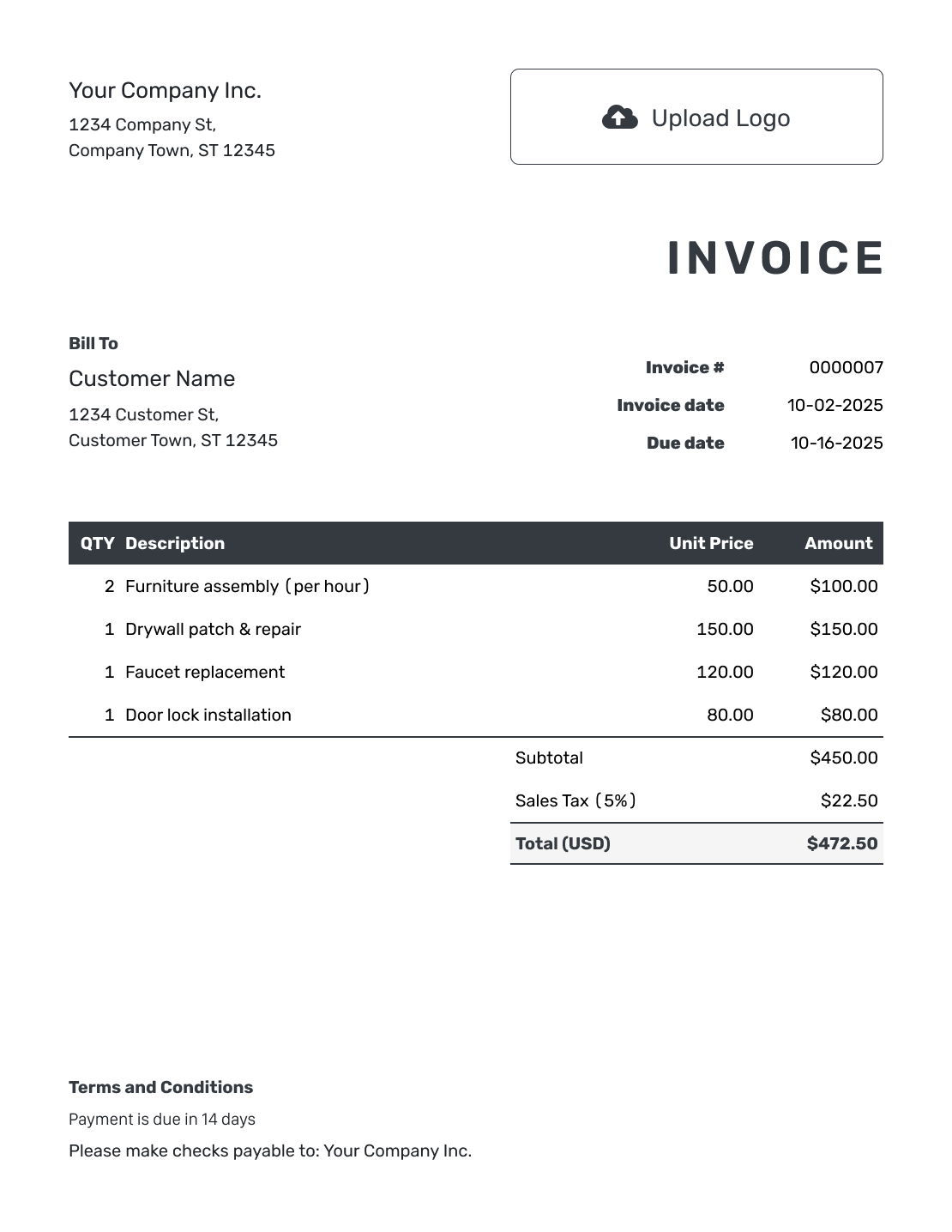
These six previews open the same invoice editor. Add your own billing details after opening it.
When the Draft Is Ready to Send
Keep review copies separate from the payment request. Send the invoice once the charges and payment details are ready for the customer.
- Email the invoice from Docelf and check its delivery and opening history.
- Keep the due date with the invoice and follow up on an unpaid balance.
- Record a payment before creating a receipt from the invoice.
Review a Draft in Your Usual File Format
Keep an editable working copy in the format you know. Check which version you are sending so the customer receives the intended bill, not your unfinished file.
Draft Invoice Template FAQs
-
What is a draft invoice for?
A draft invoice is a working version of the bill. Use it to check the charges against your records. Confirm the customer and payment details before sending.
-
Does preparing a draft mean I have sent an invoice?
No. Preparing the details and emailing the invoice are separate actions. Review the bill, then choose to email it when it is ready for the customer.
-
Should I send a draft to get approval for the price?
Use a quote or estimate when you need the customer to review pricing before work starts. Keep a draft invoice for preparing the bill. In Docelf, you can create the invoice from a quote or estimate when it is time to bill.
-
Can I use an old invoice as the starting point?
Yes. Duplicate it in Docelf to create a new draft with a new invoice number. Check the customer, dates, charges and terms. Update anything that belongs to the earlier job before sending.
-
What should I check if the draft total changed?
Compare the current quantities, rates, tax and discounts with the amounts you intended to bill. Check extra work against the agreement. A changed total should have a clear reason in the invoice details.
Prepare the Bill Without Rushing the Review
Keep the invoice ready to finish once the job details are confirmed.
- Enter the charges you plan to bill
- Review the customer, dates and total
- Email the invoice when the review is complete




