Free Ecommerce Invoice Template
Create a professional ecommerce invoice in minutes
Bill customers for products sold online and show quantities, prices and any shipping charge included in the total. Customers can check the purchase and pay the right amount.
Email, print or download your invoice as a PDF.
14-day free trial. No credit card required.
Create the invoice. Send it. Get back to work.
Choose a Layout for Your Online Order
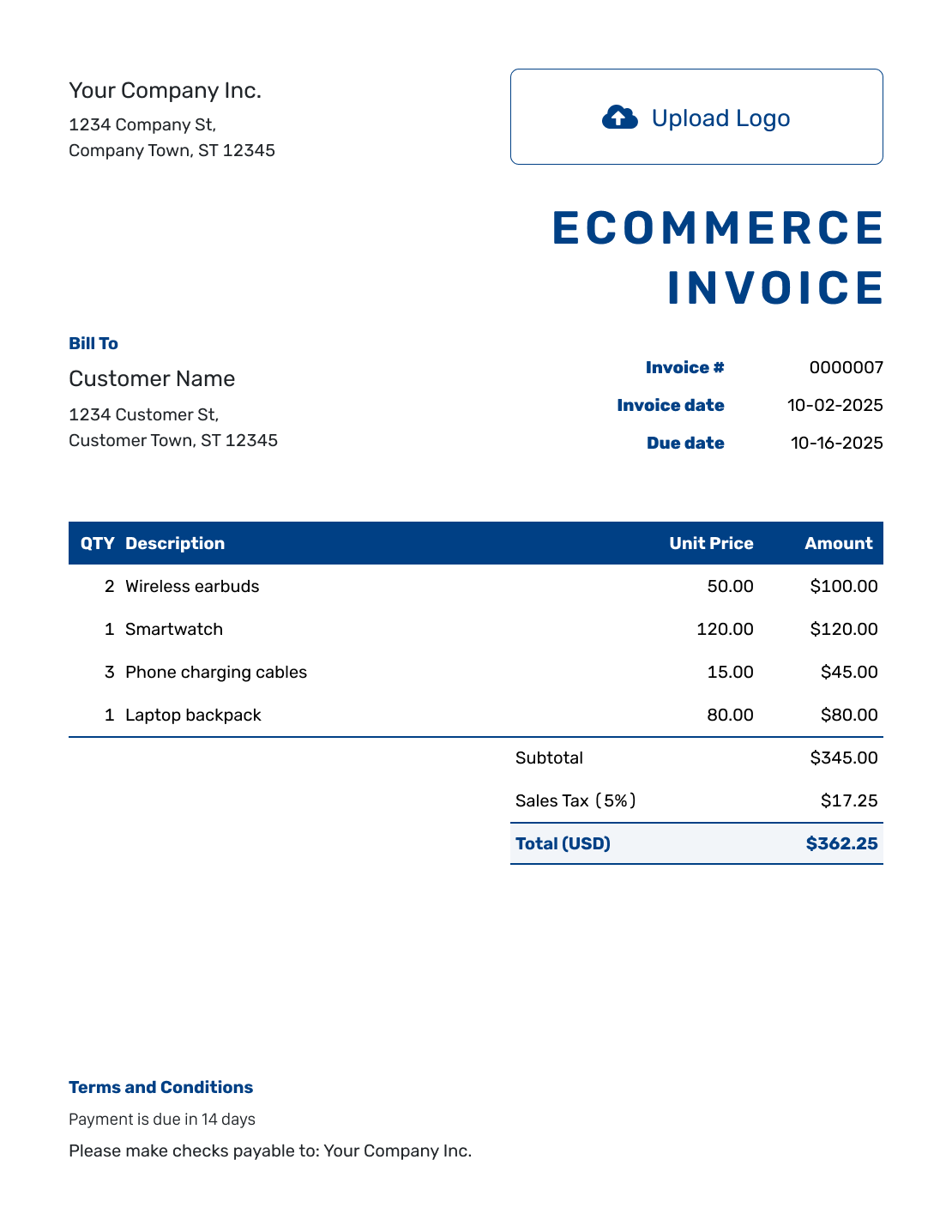
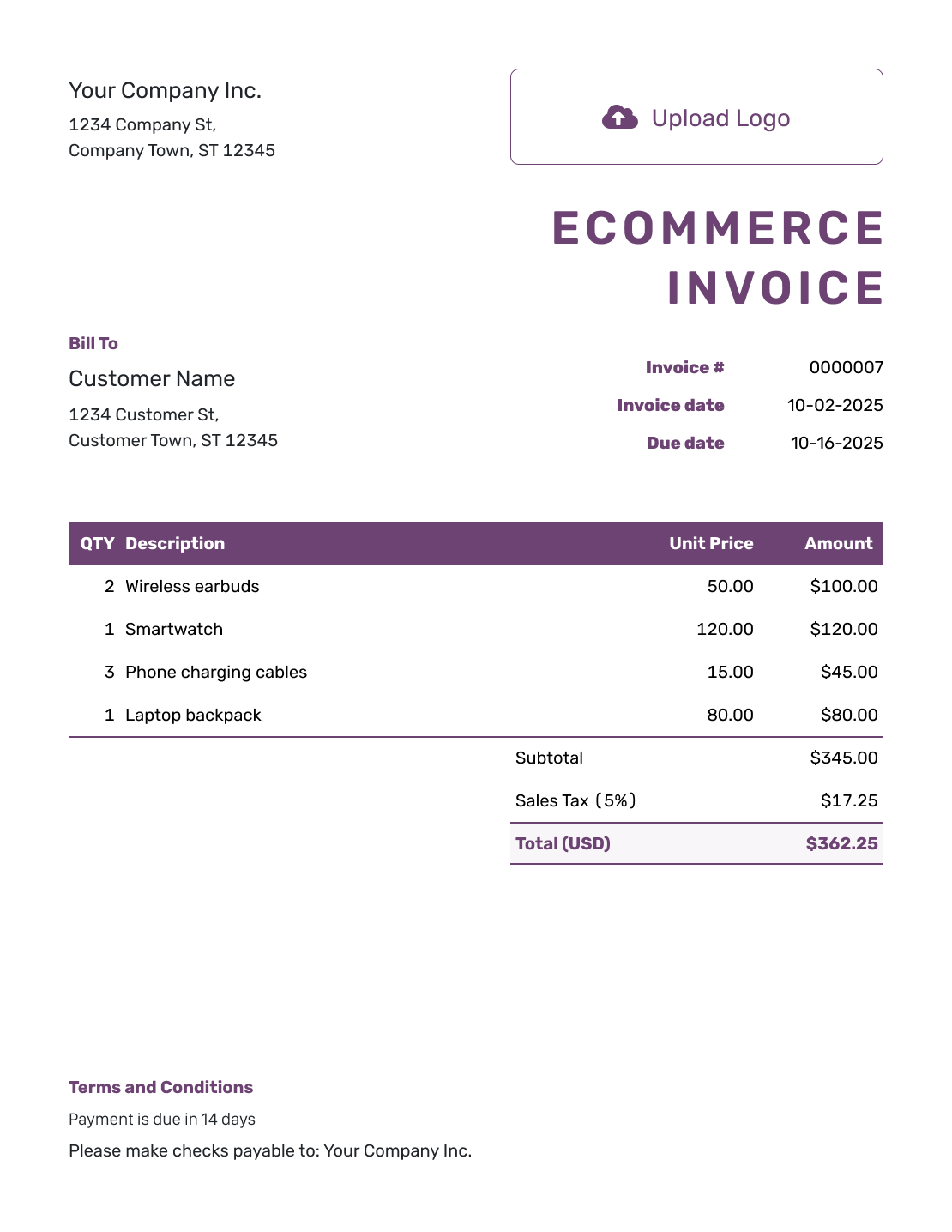
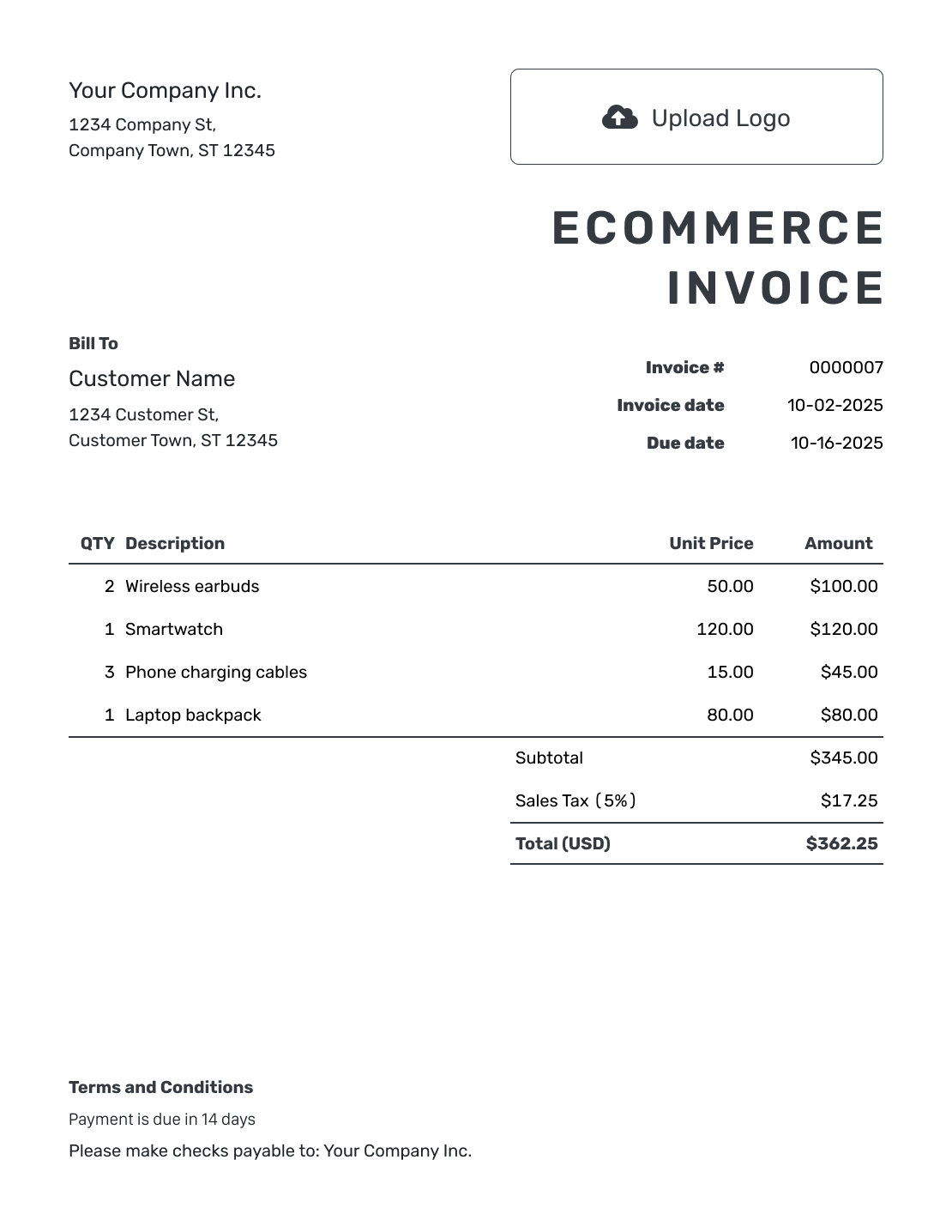
Choose a layout for the products and delivery charges on your order. Each preview opens the invoice editor, where you can add the order details and record any payment already received.
Connect the Invoice to the Online Order
An ecommerce invoice lists the goods sold online and the charges for that order. Include the store name the customer recognizes and an order reference. Product names and quantities should match what you are billing.
An invoice can request payment for an unpaid order or show the record of a completed purchase. If the buyer paid at checkout, record that payment on the invoice before sending their copy.
How to Create an Ecommerce Invoice
Use the order details and payment record together. Check that the invoice reflects this purchase rather than an earlier order.
- Identify Your Store: Use the store or business name and contact details the buyer knows.
- Add the Store Logo: Match the invoice to your storefront with your logo.
- Add the Buyer: Enter the customer’s billing details from the order.
- Set the Number and Dates: Check the invoice number and date. Use the agreed due date for unpaid orders.
- List the Order Charges: Add product quantities and prices. Put delivery on its own line.
- Check the Order Total: Add any applicable tax or discount. Compare the total with the order.
- Review and Send: Add the order reference and payment instructions in Terms and Conditions. Review the invoice, then email it or download a PDF.
How to Fill In Ecommerce Invoice Line Items
Name the product and any size or color needed to identify it. Show delivery separately from merchandise so the buyer can follow the total.
This fictional unpaid order uses USD. Its three products total $58.00, with a $6.50 delivery charge listed as an item. An illustrative 8% tax applies only to the merchandise.
| QTY | Description | Unit Price | Amount |
|---|---|---|---|
| 2 | Ceramic mug — blue, 12 oz | $18.00 | $36.00 |
| 1 | Cotton tote bag — natural | $14.00 | $14.00 |
| 1 | A5 notebook — lined | $8.00 | $8.00 |
| 1 | Order delivery charge | $6.50 | $6.50 |
| Subtotal | $64.50 | |
| Sales Tax (8% example) | $4.64 | |
| Total | $69.14 |
The $64.50 subtotal includes delivery. Adding $4.64 tax on the $58.00 merchandise gives a $69.14 invoice total. Use the tax rate and treatment of delivery that apply to your actual order.
What to Include in Ecommerce Invoice Terms
Use Terms and Conditions for payment instructions and short order-specific details. Give the customer a contact for questions. Keep shipping or return wording consistent with the policy they saw when ordering.
Include only policies your store actually uses, and check local requirements for returns or fees. Adapt this sample to the unpaid order above, replacing the bracketed payment and contact details.
Example: Terms and Conditions
- This invoice covers order EC-2048 and the delivery charge listed above.
- Pay by [Payment Method] using [Payment Details]. Include order number EC-2048 as the reference.
- Payment is due by the due date shown on this invoice.
- For order or return questions, contact [Store Support Email] and include order number EC-2048.
Send an Invoice That Matches the Order
Add the products your customer bought. Docelf calculates each charge and the total. Check the order reference before you send it.
Check for Payment Before You Send the Bill
A store order number identifies the purchase; it does not by itself tell you what was paid. Check the actual payment amount and date, including any partial payment.
Enter payments received in Docelf so the remaining balance is accurate. A fully paid invoice is marked Paid. Use the invoice receipt guide when the customer needs confirmation of payment.
Name the Exact Product the Buyer Ordered
A buyer may order the same item in several colors or pack sizes. Put enough detail on each line to distinguish those products. Keep the order reference visible even when you send a PDF.
Before sending, compare the invoice with the order:
- Product quantities and variants match the purchase.
- Any discount matches the offer for this order.
- Delivery appears once, with the agreed charge.
- The order reference matches the customer’s confirmation.
Use Your Store Name and Logo
Add your store logo and choose matching colors and fonts. Put your support email in the footer so order questions reach the right place. You can add an optional industry name before “Invoice.”
Choose the order currency from USD, EUR, GBP, CAD or AUD. Attach a PDF or image when an order summary would help. Enter the order details in Docelf yourself.
Keep the Online Order’s Payment Record Clear
Email the invoice from Docelf and check its document history. You can see when it was delivered and when the buyer opened it. Save a PDF for your own order records when needed.
If a balance remains, check the due date before following up. When another payment arrives, record it on the invoice before creating a receipt.
More Ecommerce Invoice Layouts
Browse six more layouts for your store’s invoices. Each preview opens the invoice editor, where you can add the details for this order.
-
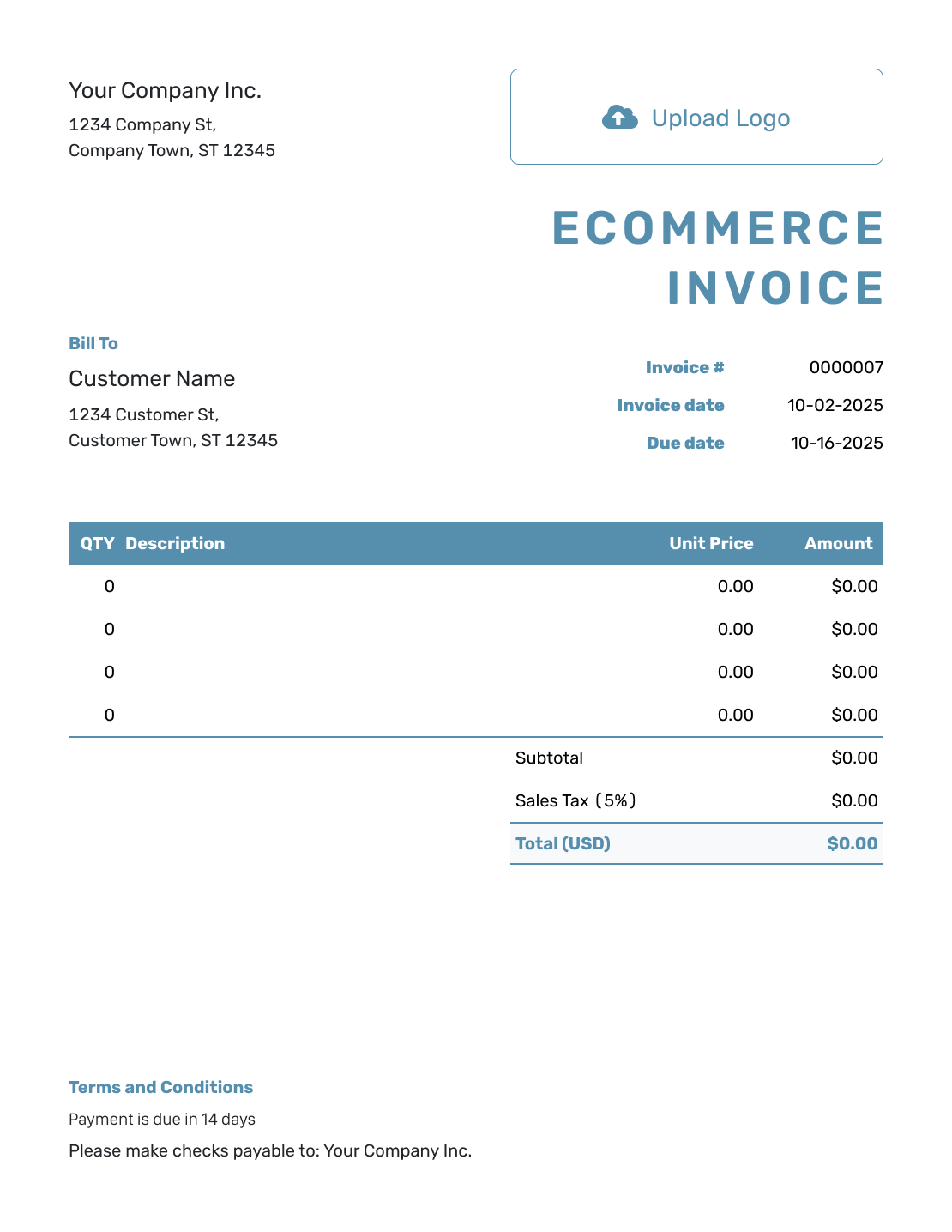
Blank Ecommerce Invoice Layout
Create Free Invoice -
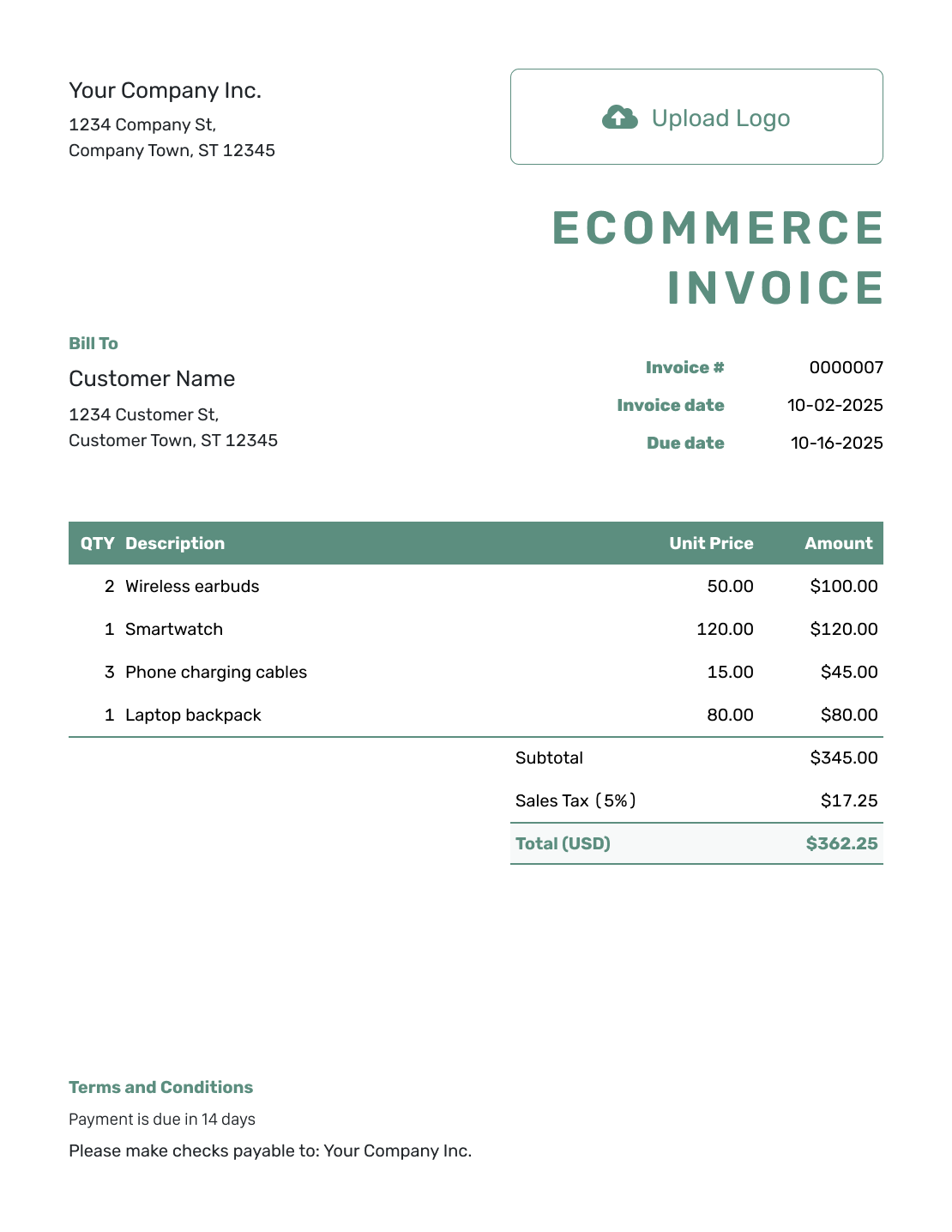
Simple Ecommerce Invoice Layout
Create Free Invoice -
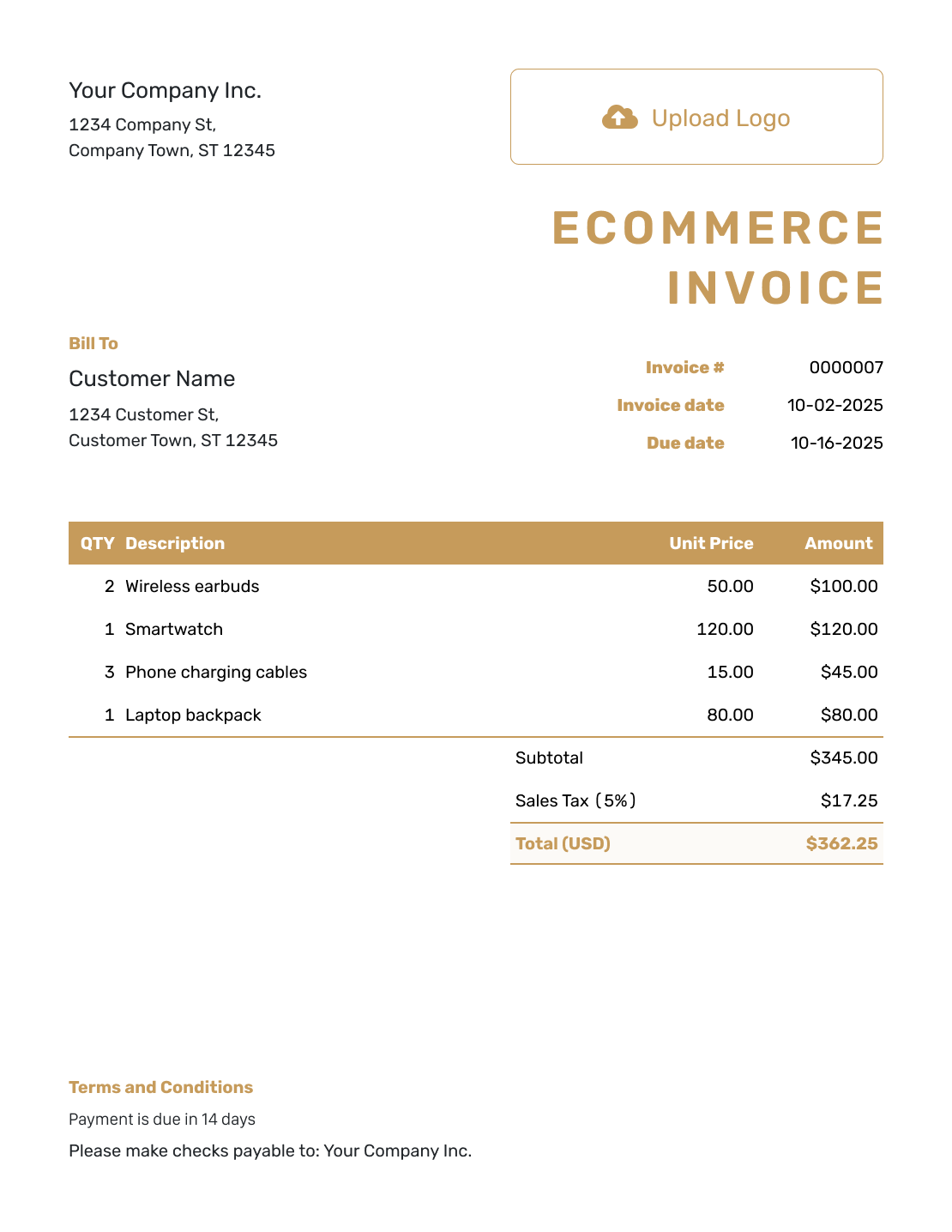
Standard Ecommerce Invoice Layout
Create Free Invoice -
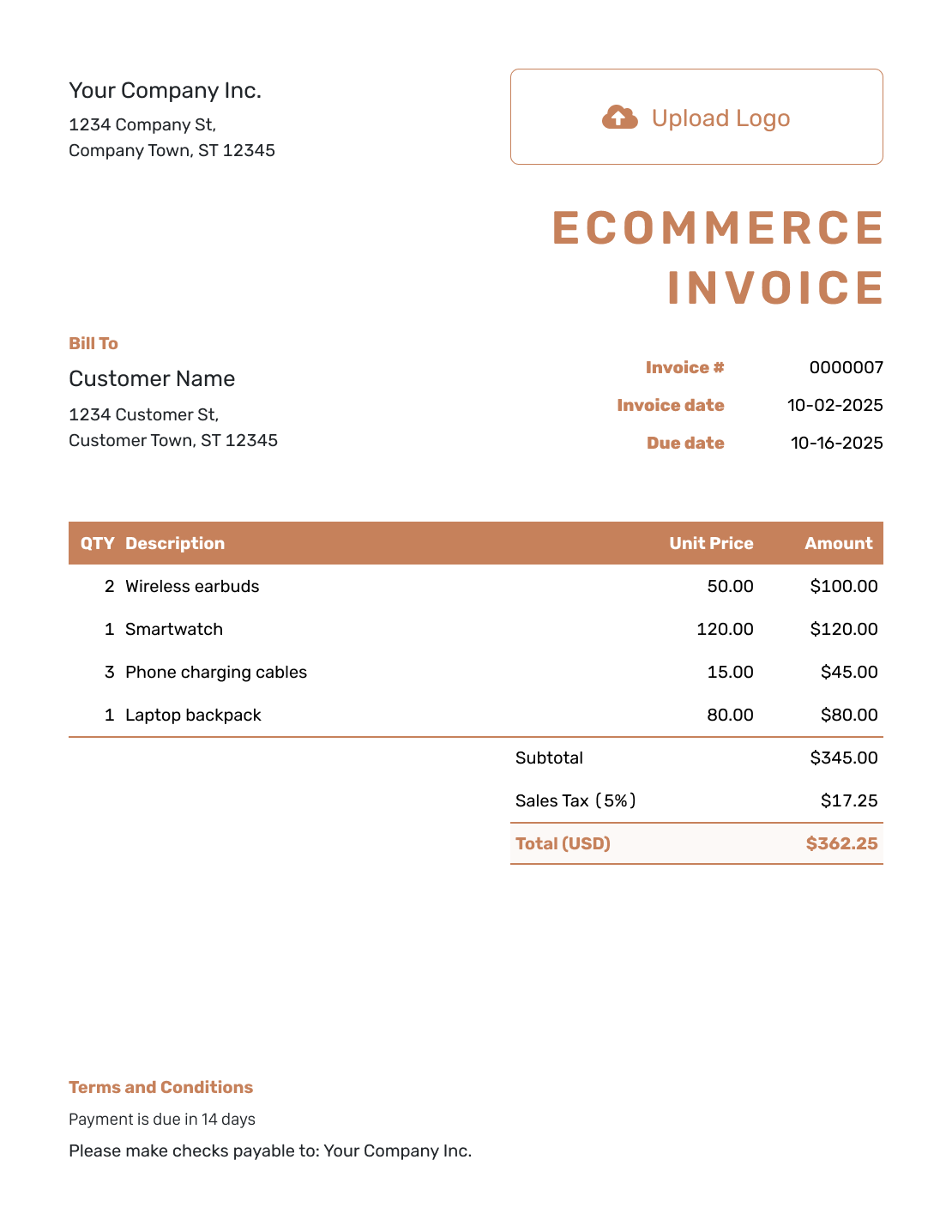
Itemized Ecommerce Invoice Layout
Create Free Invoice -
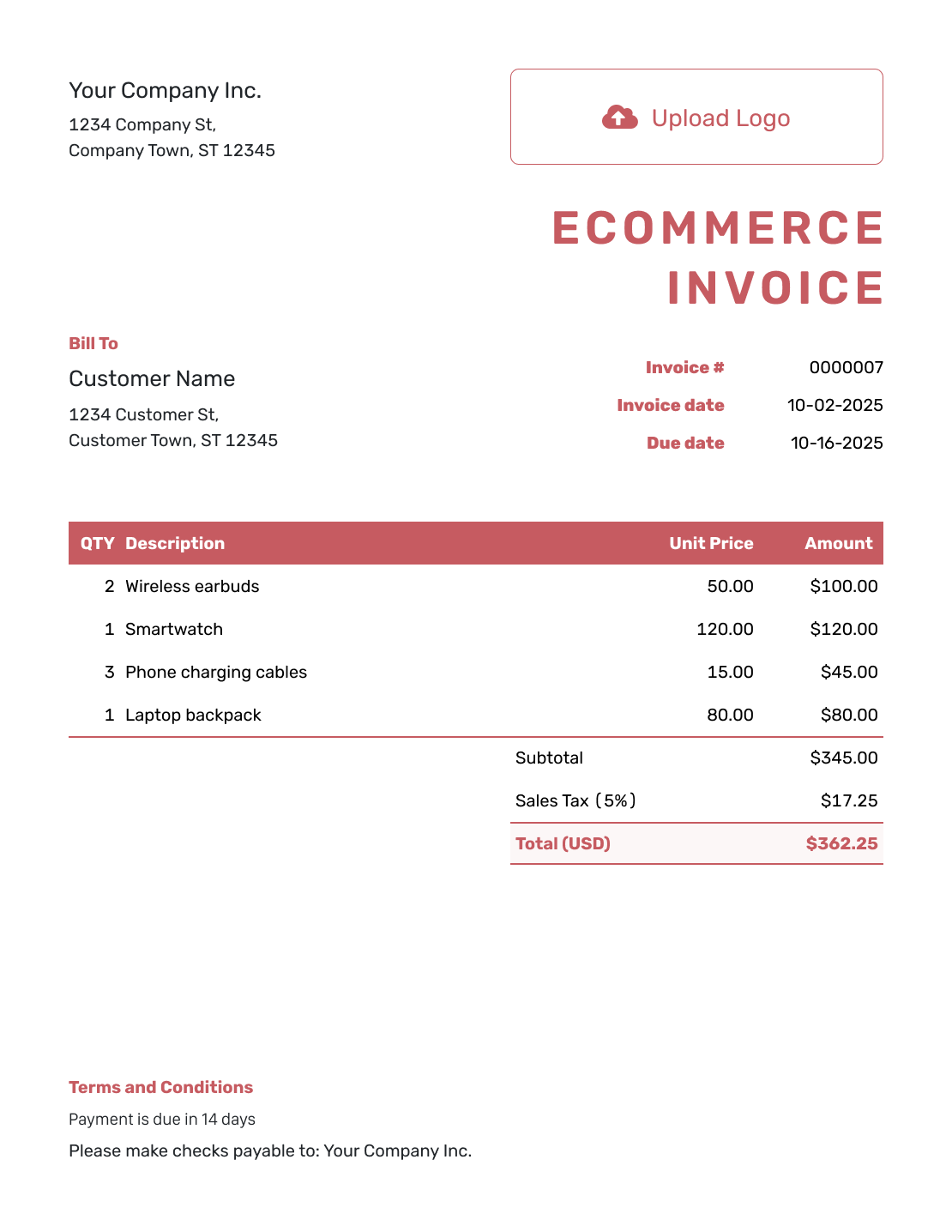
Basic Ecommerce Invoice Layout
Create Free Invoice -
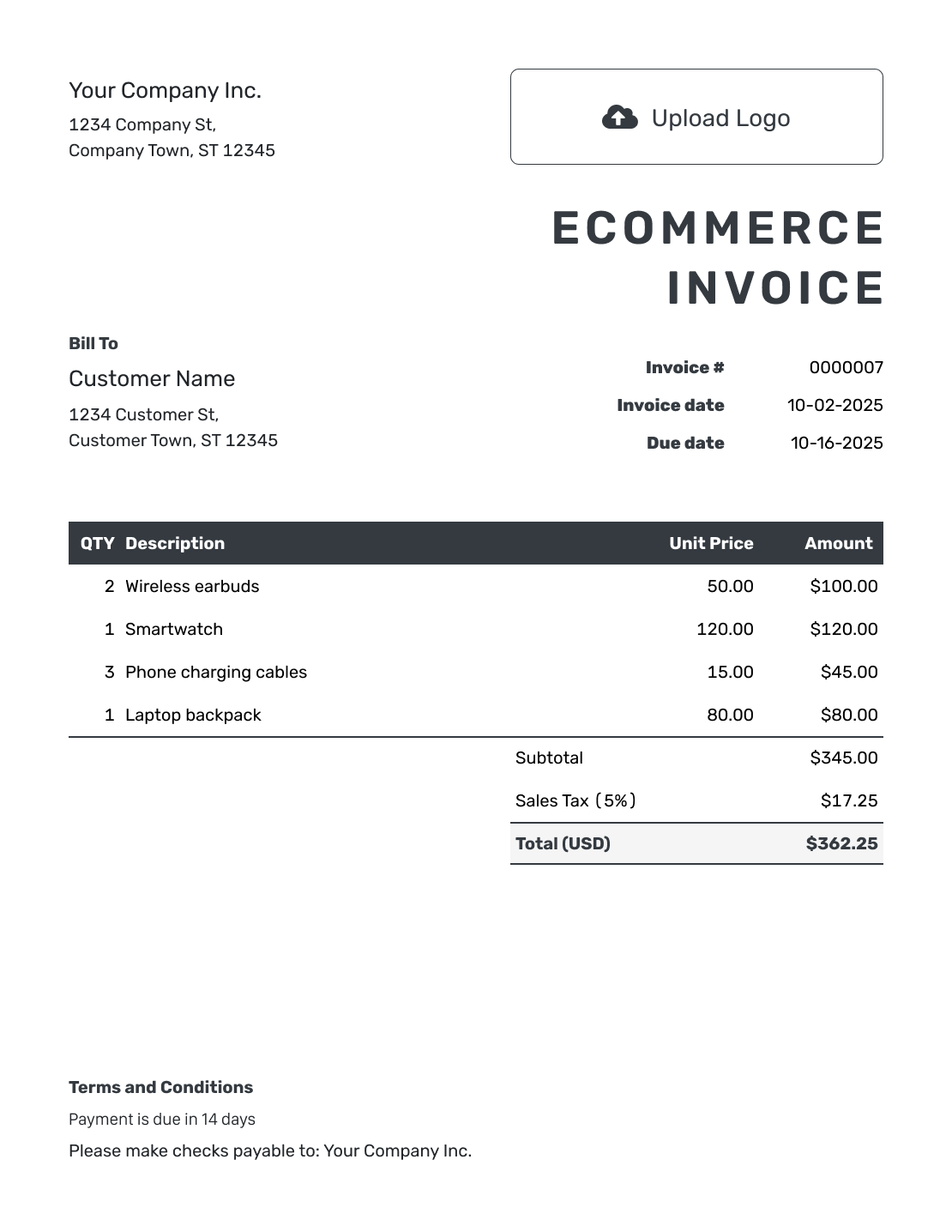
Hourly Ecommerce Invoice Layout
Create Free Invoice
Prefer an Invoice File for Your Store?
Use Word or Google Docs for an editable document, or Excel or Google Sheets for a spreadsheet layout. Add the order reference and check product quantities, delivery and totals before sending.
Ecommerce Invoice FAQs
-
What order details belong on an ecommerce invoice?
Identify your store and the customer. Include the invoice number and order reference. List each product with its quantity and price, and give delivery its own line. Show any discount and tax before the amount still due.
-
Should I send an unpaid invoice for an order paid at checkout?
No. Check the payment and record the amount received on the invoice. A fully paid invoice is marked Paid in Docelf. You can create a receipt from it after recording payment.
-
Where should I show shipping charges?
Give delivery its own invoice line with a clear description and the agreed amount. Avoid including the same charge in both product prices and a separate delivery line.
-
How should I describe different product variants?
Name the size, color or pack size the customer bought. Use separate lines when those details or prices differ. This helps the buyer compare the invoice with the order.
-
Can I add a store discount to the invoice?
Yes. Match the discount to the offer used for that order and check which charges it covers. Review the tax and total after applying it.
-
Can I use my store’s branding on the invoice?
Yes. Add your logo and choose colors and fonts that match the store. Use the footer for your support contact. Check that the business name is one the buyer will recognize.
Finish the Paperwork for This Order
Give the buyer one clear record of the purchase and what remains to be paid.
- Keep product and delivery charges clear
- Record money already received
- Email the invoice or save a PDF




