Free Handyman Invoice Template
Create a professional handyman invoice in minutes
Bill for the repairs, installations or maintenance tasks completed on the job. A straightforward service breakdown shows the customer what is due and helps you collect payment.
Email, print or download your invoice as a PDF.
14-day free trial. No credit card required.
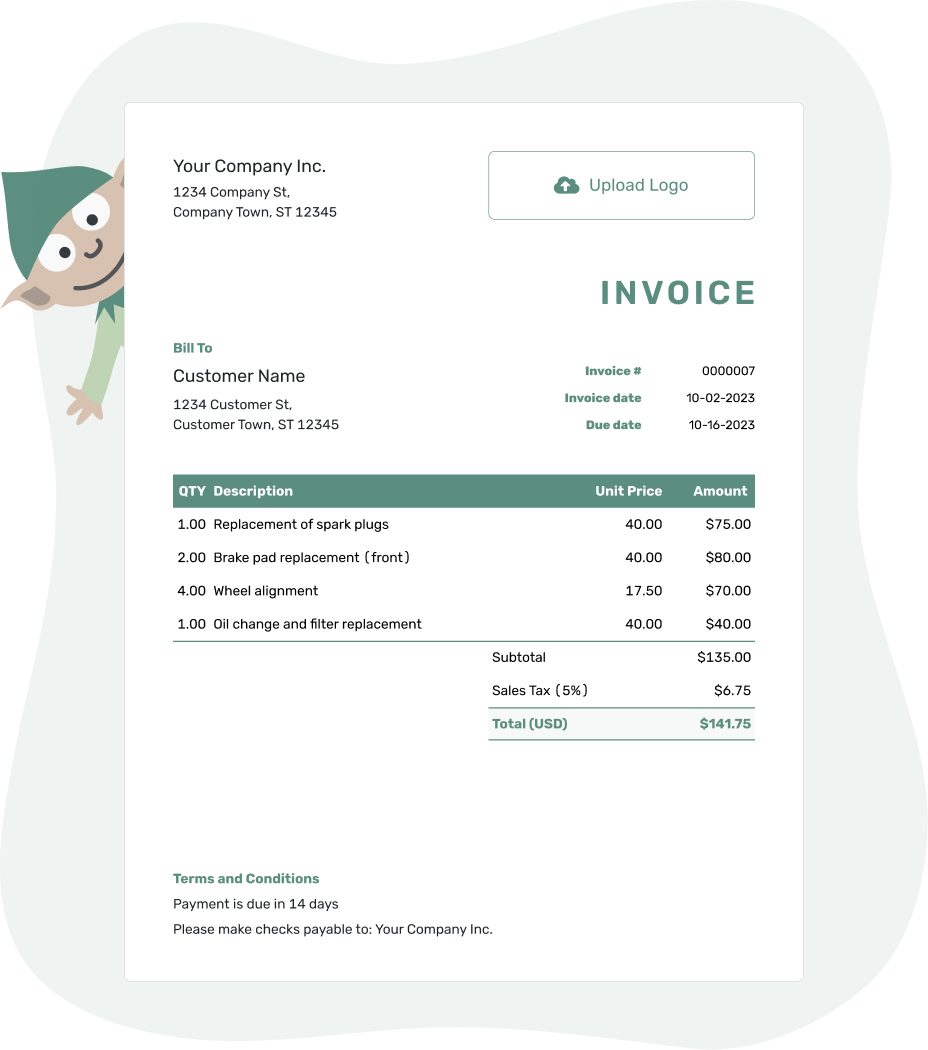
Create the invoice. Send it. Get back to work.
Pick a Handyman Invoice Layout
One visit can include several small jobs. Review the invoice layouts below, then open the editor to list what you completed for your customer.
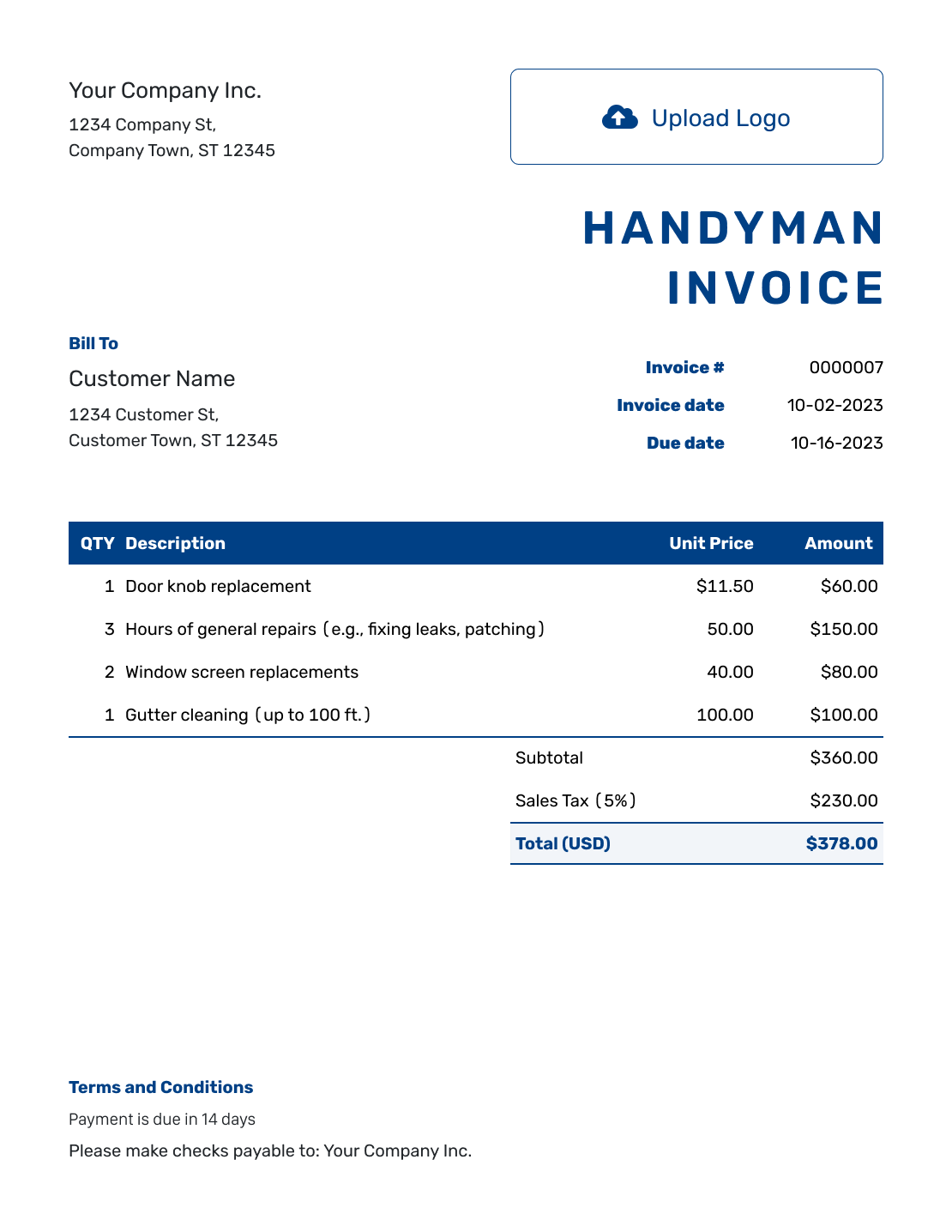
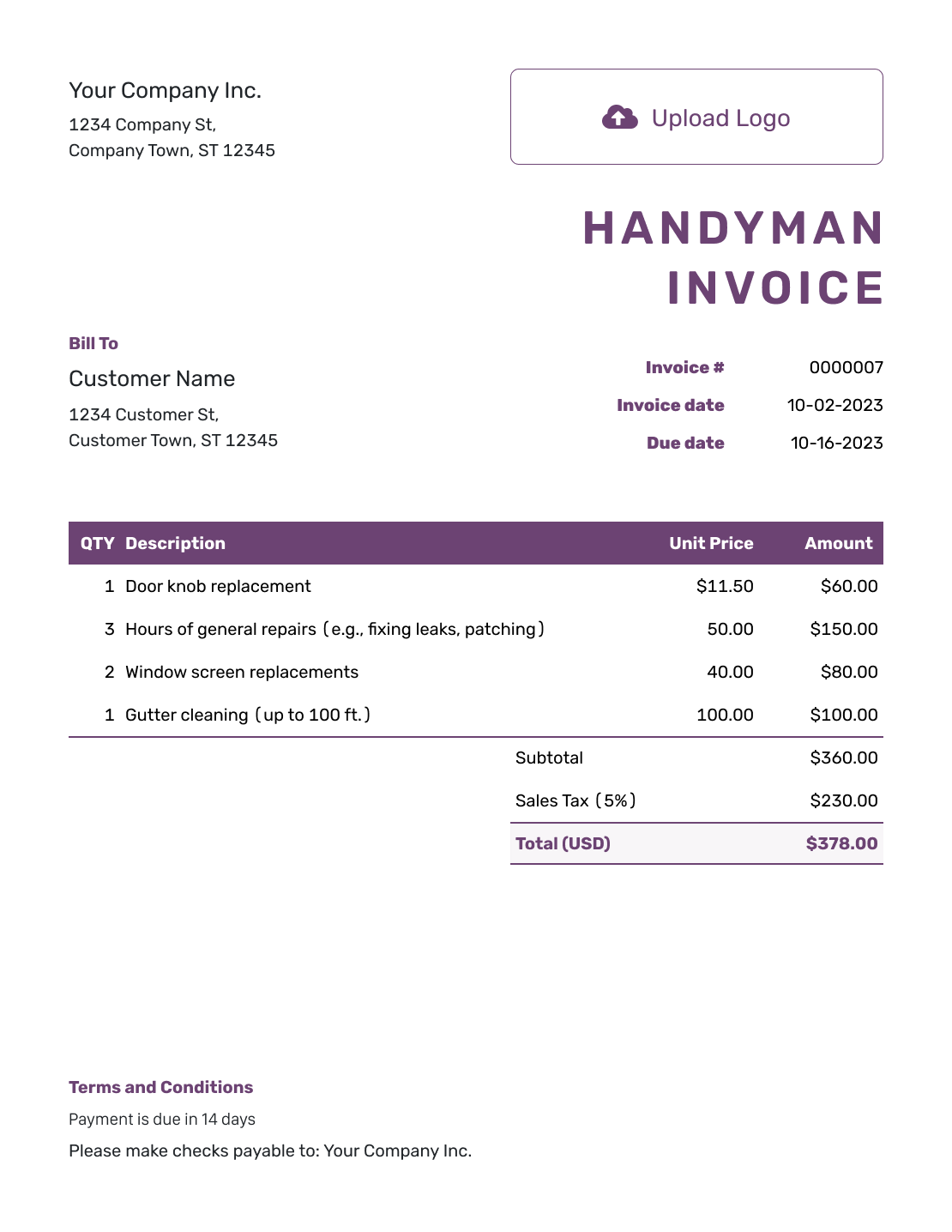
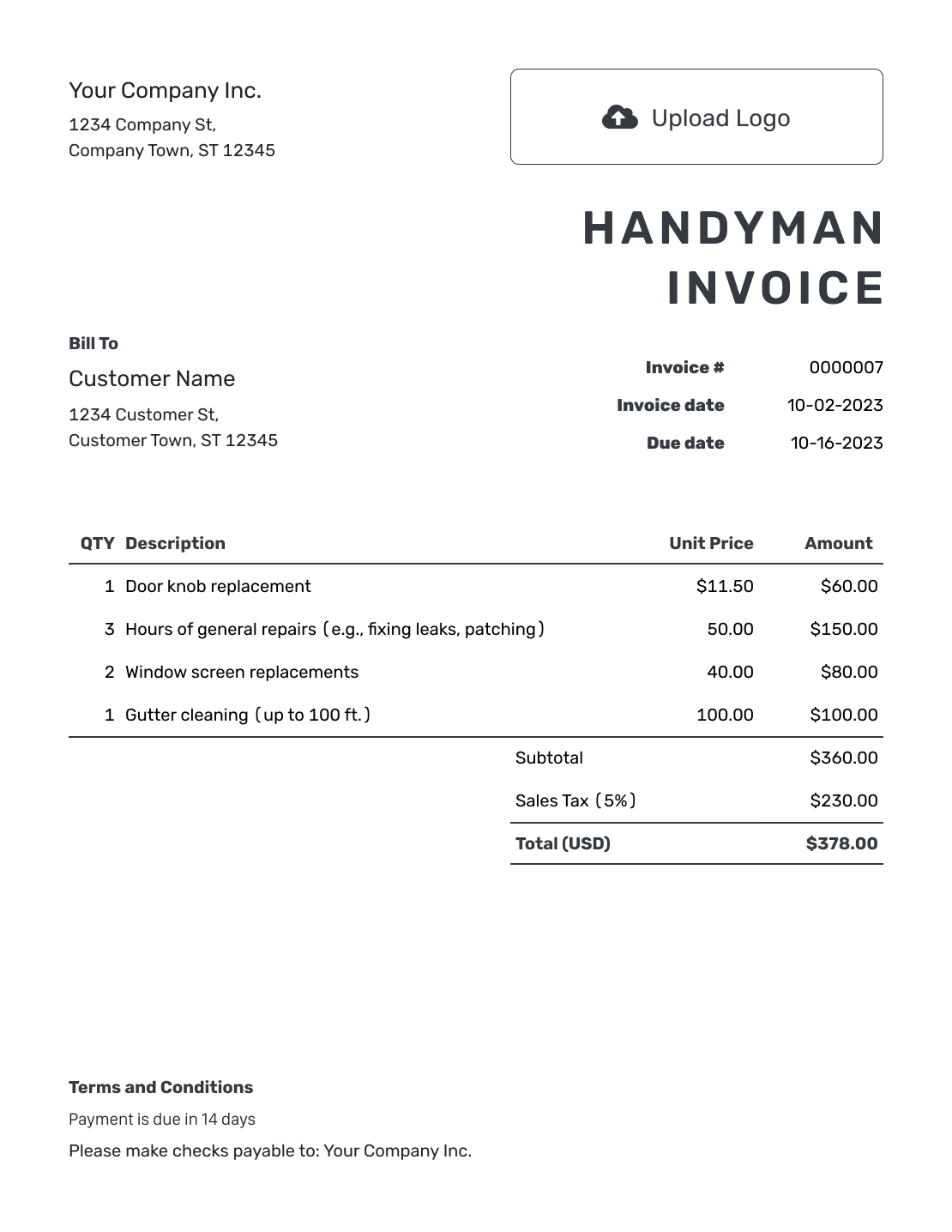
Turn a List of Small Jobs Into a Clear Bill
A handyman invoice can cover repairs, installations, carpentry, or general home maintenance from one visit. Name the completed tasks so the customer can see what you charged for.
Use one hourly labor line with a short task description, or separate fixed-price tasks. Choose the method you agreed before the work. Do not charge for the same time both ways.
How to Create a Handyman Invoice
Take your finished task list and any material costs. Add them to the numbered invoice fields below.
- Add Your Business Details: Enter your name or business name and how the customer can reach you.
- Use Your Logo: Add your business logo to keep the invoice familiar to the customer.
- Choose Who to Bill: Enter the homeowner or property manager responsible for payment.
- Add the Number and Dates: Check the invoice number and date. Set the agreed payment due date.
- List the Finished Tasks: Use agreed task prices or labor hours. Add any materials you supplied.
- Check the Amount Due: Add tax or a discount when they apply. Docelf updates the total.
- Add Payment Details and Send: Use Terms and Conditions for the visit date, job address, and payment instructions. Review, then email or download the invoice.
How to Fill In Handyman Invoice Line Items
For fixed-price tasks, use a separate line for each type of job. Put the number of shelves or curtain rods in the quantity column, not the hours you spent installing them.
This fictional USD example bills by task and includes labor in each task price. Only the anchors and screws carry the illustrative 8% tax. Apply the correct tax treatment to your own invoice.
| QTY | Description | Unit Price | Amount |
|---|---|---|---|
| 1 | Door latch adjustment | $45.00 | $45.00 |
| 2 | Shelf mounting — per shelf | $35.00 | $70.00 |
| 2 | Curtain rod mounting — per rod | $40.00 | $80.00 |
| 1 | Wall anchors and screws | $12.00 | $12.00 |
| Subtotal | $207.00 | |
| Sales Tax (8% example) | $0.96 | |
| Total | $207.96 |
What to Include in Handyman Invoice Terms
Use Terms and Conditions for the payment due date and instructions. Include the visit date and address, especially when a property manager handles several homes.
State whether materials are included in the task prices or listed separately. Refer to any agreed minimum visit charge or warranty only when it applies. Check local requirements before adding fees or warranty conditions.
These terms fit the example visit above. Adjust them to match how you charge.
Example: Terms and Conditions
- This invoice covers the listed tasks completed at [Property Address] on [Visit Date].
- Task prices include labor. Supplied materials are shown separately.
- Payment is due on [Due Date] by [Payment Method].
- Please use [Invoice Number] as your payment reference.
Finish the Bill Before the Next Visit
List the jobs you completed during the visit. Docelf adds up the charges. Send the customer one bill they can check.
Explain the Visit Without Writing a Job Diary
A few specific details are enough. Use these checks before you send the bill.
- Name the room or item repaired when several tasks sound alike.
- Leave unfinished or future tasks out of the completed-work charges.
- Show materials you supplied without charging for items the customer bought.
- Do not charge again for time covered by a minimum visit fee.
- For a property manager, include the property address and their job reference.
Keep Your Next Visit’s Invoice Simple
Reuse saved customer details and regularly used services in Docelf. For a repeat visit, duplicate an earlier invoice to create a new draft with a new number. Update the visit date and keep only the tasks completed this time.
Use your logo, colors, and fonts so each bill looks like it came from the same business. You can add an industry name before the invoice title and put contact information in the footer.
Attach a work list or relevant photo when the customer needs more detail.
Already created an estimate or quote in Docelf? Turn that document into an invoice to reuse the customer details.
Track Payment for Each Visit
Email the invoice from Docelf and check whether the customer opened it. Mention the visit date when you follow up so the customer knows which repair bill you mean.
Record the payment when it arrives. Docelf keeps the payment date, remaining balance, and status with the invoice. Create a receipt from it after recording the payment.
More Handyman Invoice Previews
These six additional previews open the same invoice editor. Add the tasks, materials, and payment details for your visit.
-
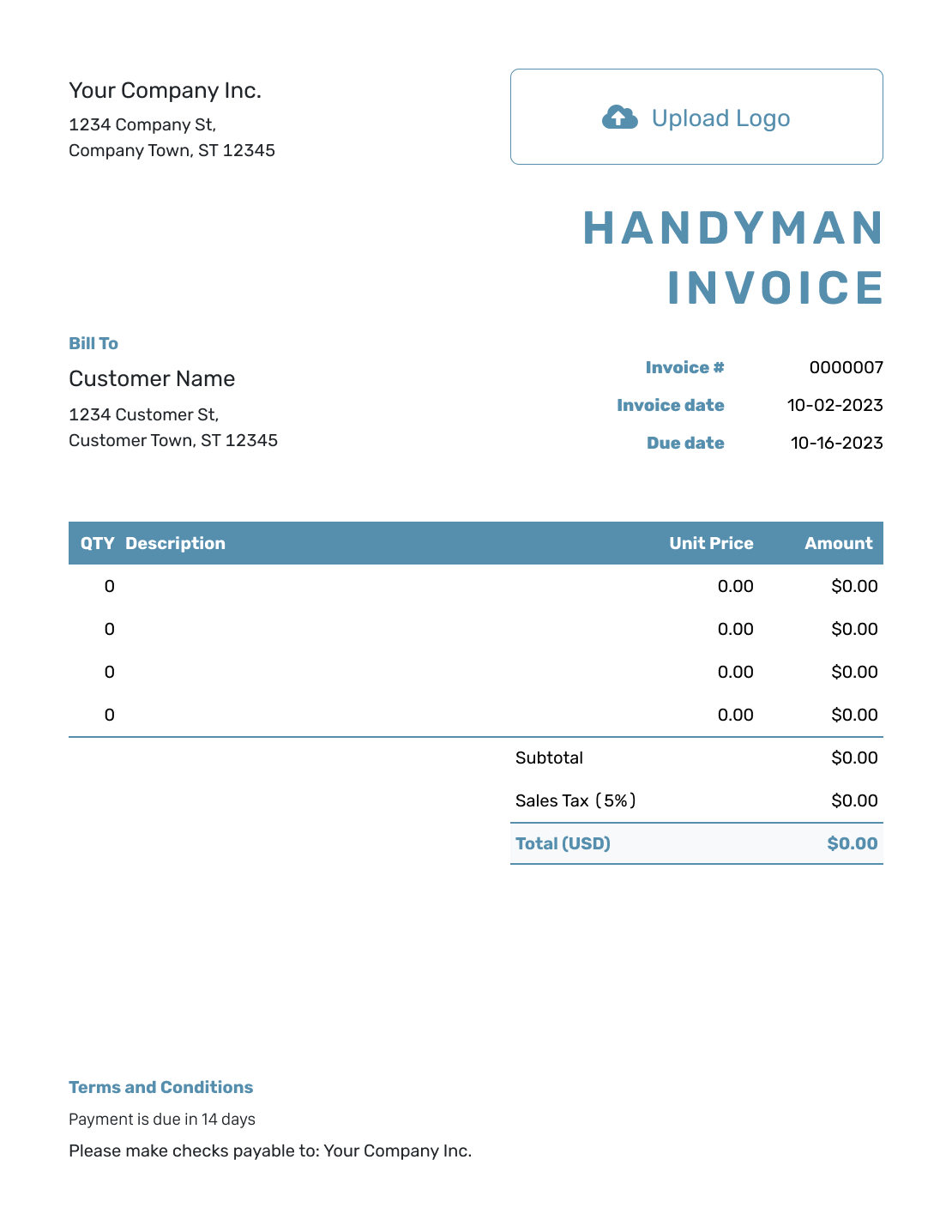
Blank Handyman Invoice Template
Create Free Invoice -
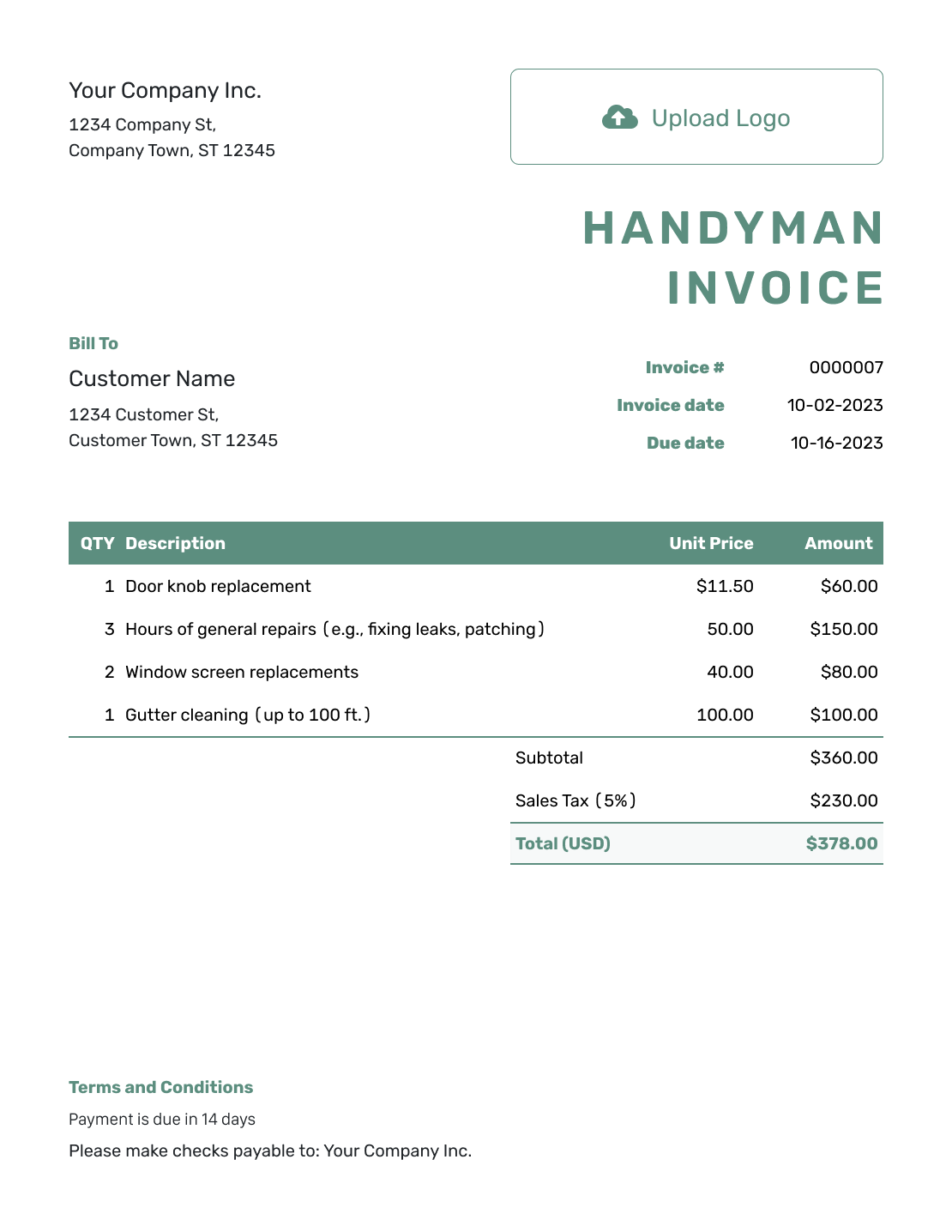
Simple Handyman Invoice Template
Create Free Invoice -
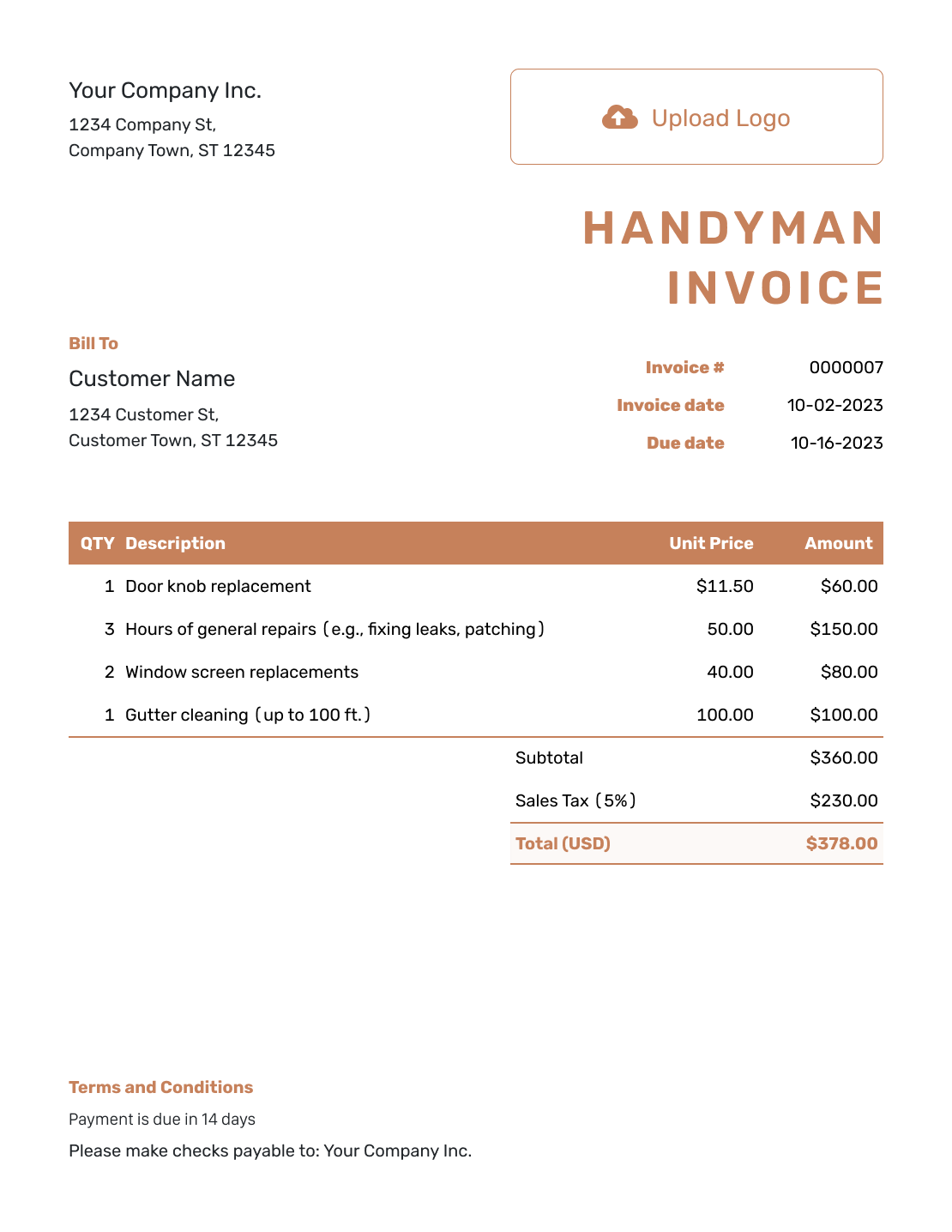
Standard Handyman Invoice Template
Create Free Invoice -
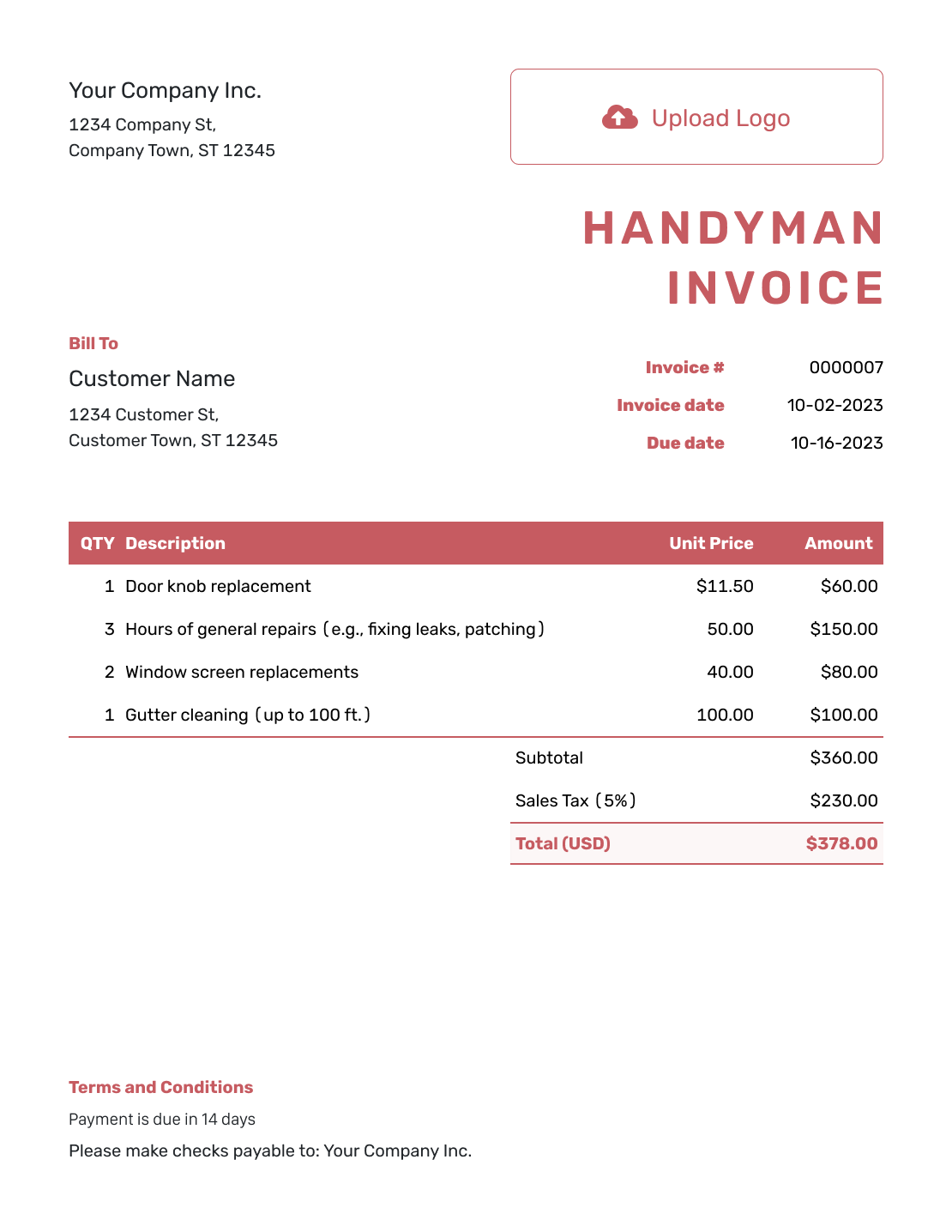
Itemized Handyman Invoice Template
Create Free Invoice -
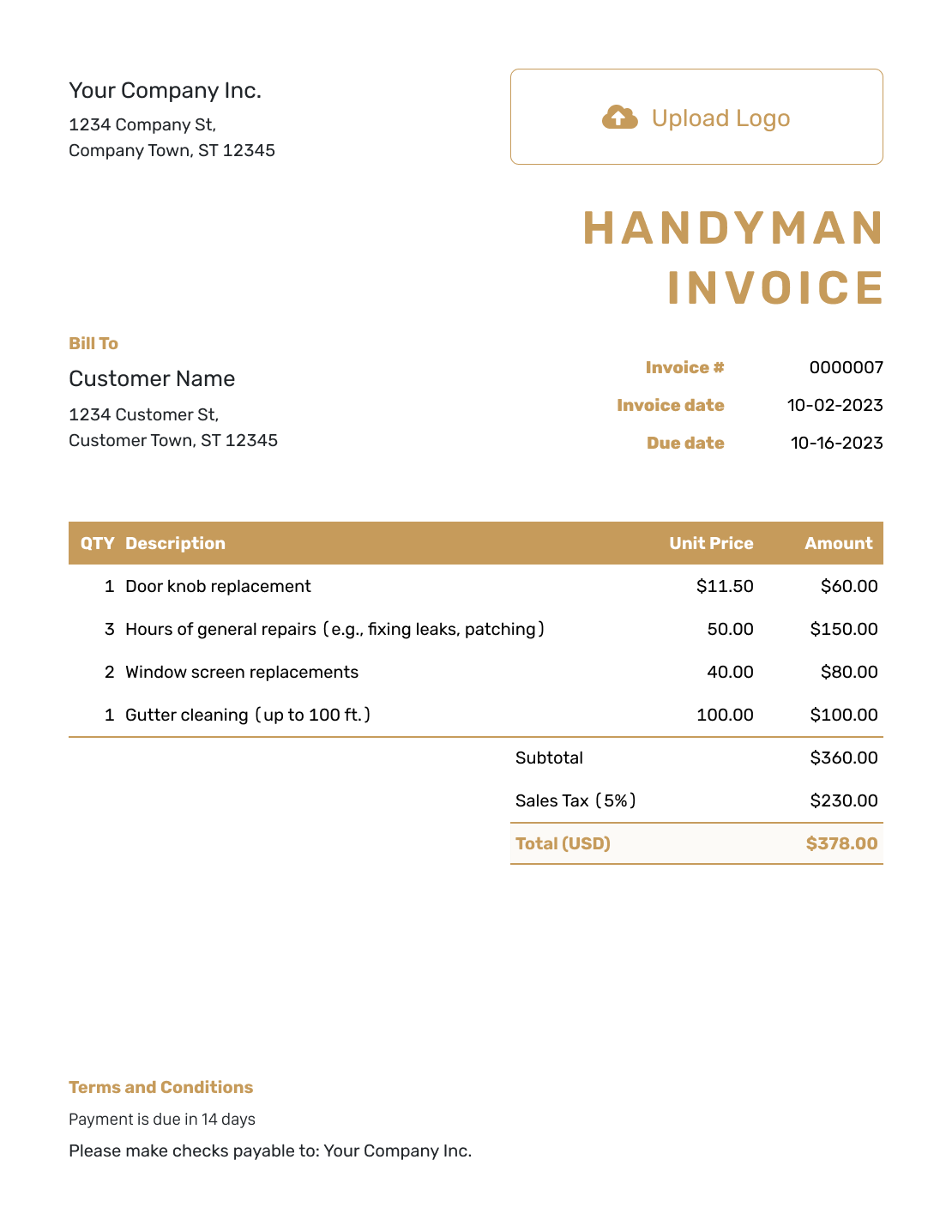
Basic Handyman Invoice Template
Create Free Invoice -
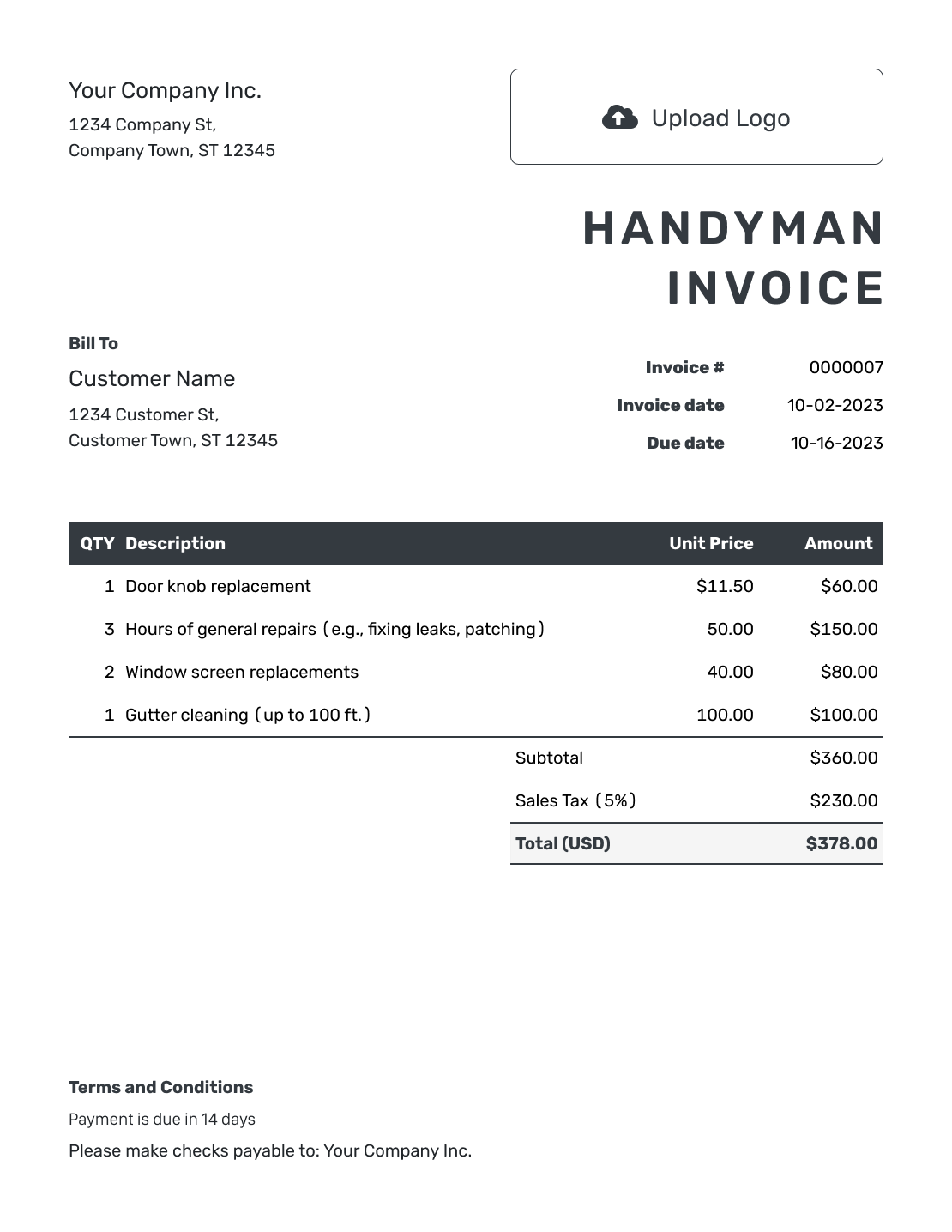
Hourly Handyman Invoice Template
Create Free Invoice
Use a Handyman Invoice in the Format You Know
Choose a free Word or Google Docs invoice template for a short task list. Use Excel or Google Sheets when you prefer to work with hours and materials in a spreadsheet.
- Word Invoice Template
- Google Docs Invoice Template
- Excel Invoice Template
- Google Sheets Invoice Template
Docelf’s online invoices also support USD, EUR, GBP, CAD, and AUD. Choose the currency you use with the customer rather than leaving an example currency in place.
Handyman Invoice FAQs
-
Can I put several handyman jobs on one invoice?
Yes. List the tasks completed for the customer during the visit. Include the property address and date. Use separate lines for different task prices or a clear description of the tasks covered by hourly labor.
-
How do I bill for an hourly handyman visit?
Enter the hours as the quantity and your hourly rate as the unit price. Describe the work included in that time. Add supplied materials separately when they are not included in the agreed rate.
-
Should I list small supplies such as screws?
List them when you charge separately for them. Related small supplies can share one clear line. Do not add a materials charge for supplies already included in the task price.
-
What should I put on an invoice for a property manager?
Use the property manager’s billing details and name the property where you worked. Add their job or work-order reference when they use one. Include the visit date and the tasks completed.
-
Can I prepare the invoice on my phone after the visit?
Yes. Docelf works on phones, tablets, and computers. Enter the finished tasks while the details are fresh. Check the total before emailing the invoice or downloading a PDF.
-
Can I keep the same design for repeat customers?
Yes. Add your logo, fonts, and colors in Docelf. Duplicate a previous invoice for a new visit. Update its tasks and quantities, then check the prices and dates before sending.
Get the Handyman Bill Off Your To-Do List
Keep the paperwork for a small job small, too.
- List the tasks from this visit
- Let Docelf calculate the total
- Send the bill from your phone or computer




