Free Invoice Email Template and Examples
Send your invoice with a clear next step
Use the email to introduce the invoice and make the next payment step clear. The amount and due date tell the customer what to pay and when.
Create the invoice first, then use the email example below when you send it.
14-day free trial. No credit card required.
Create the invoice. Send it. Get back to work.
Invoice Layouts to Send With Your Message
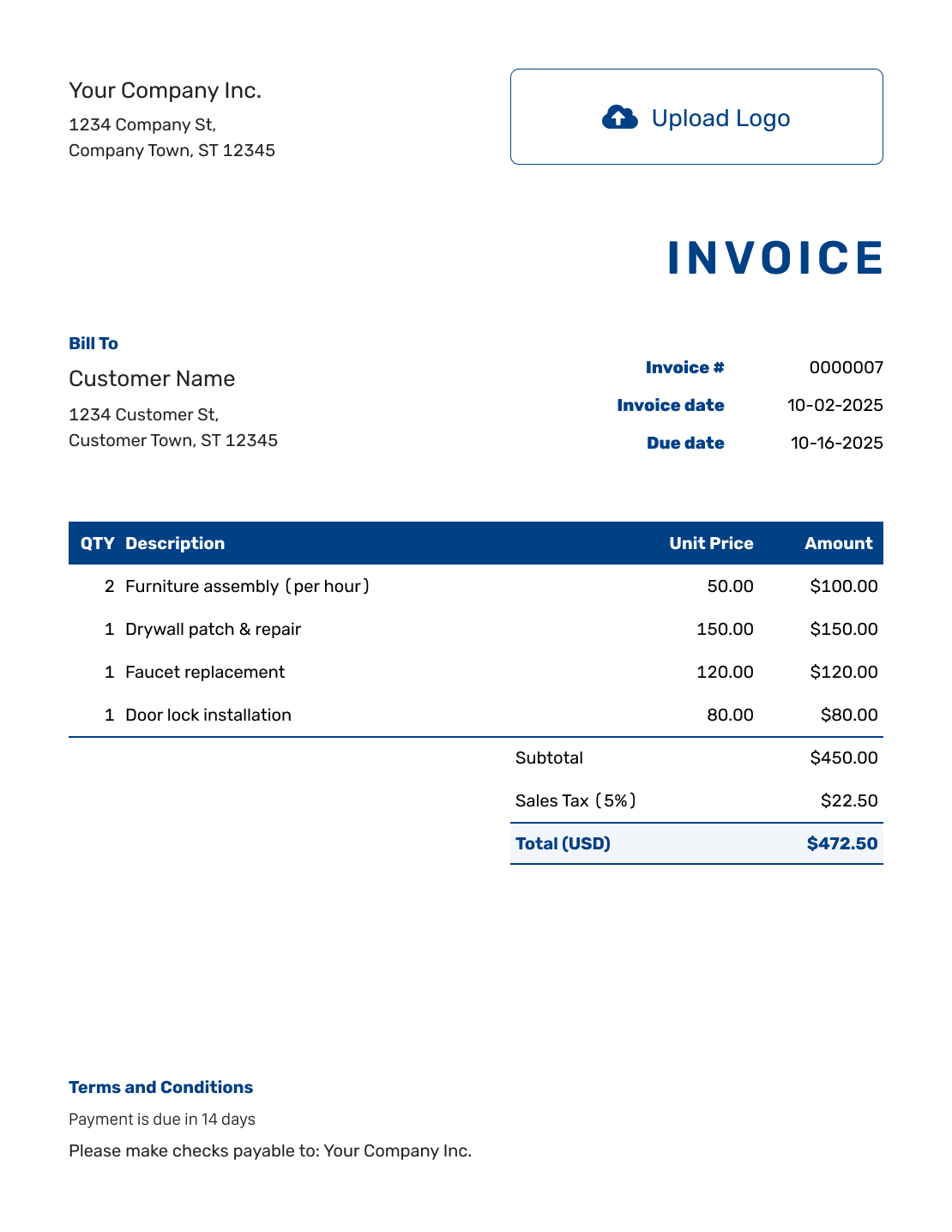
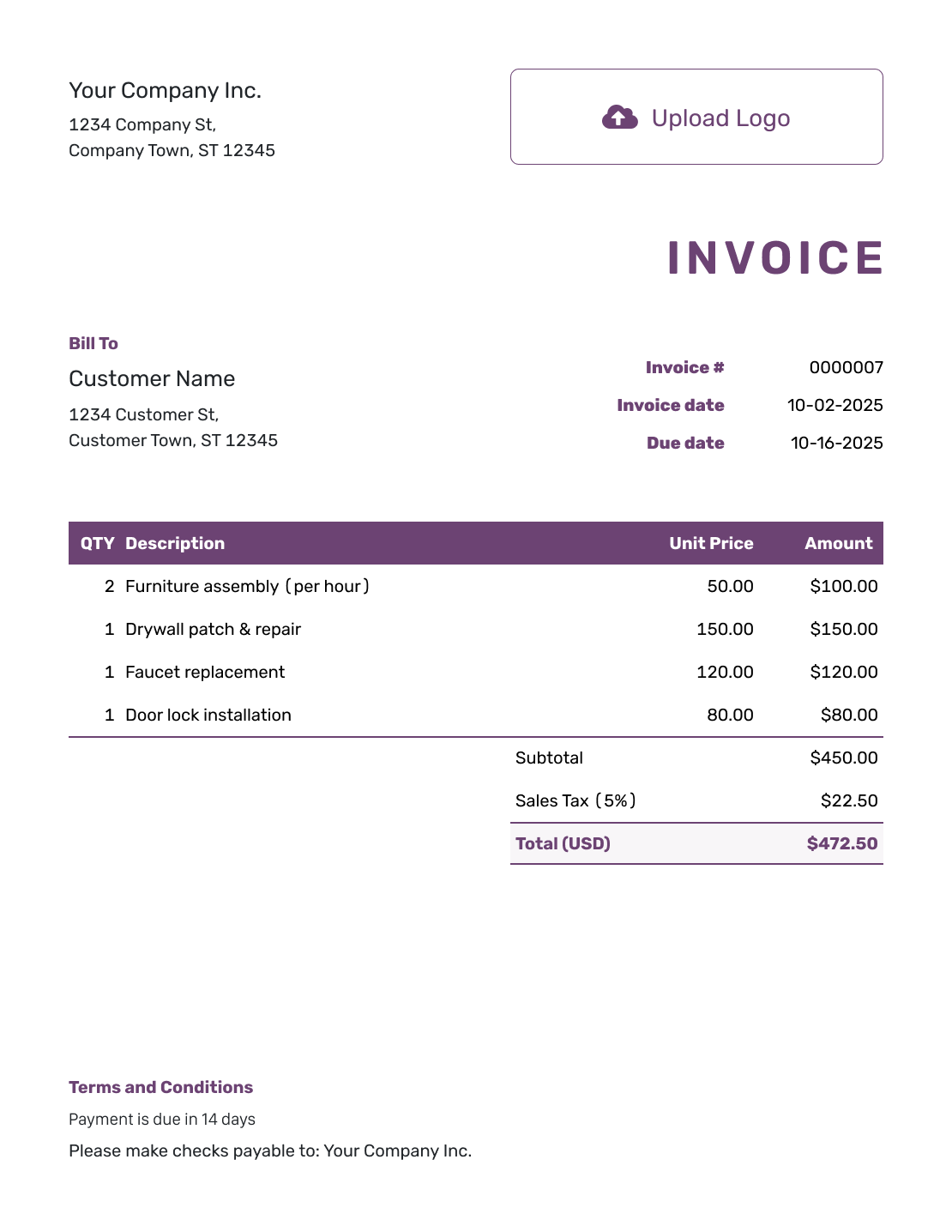
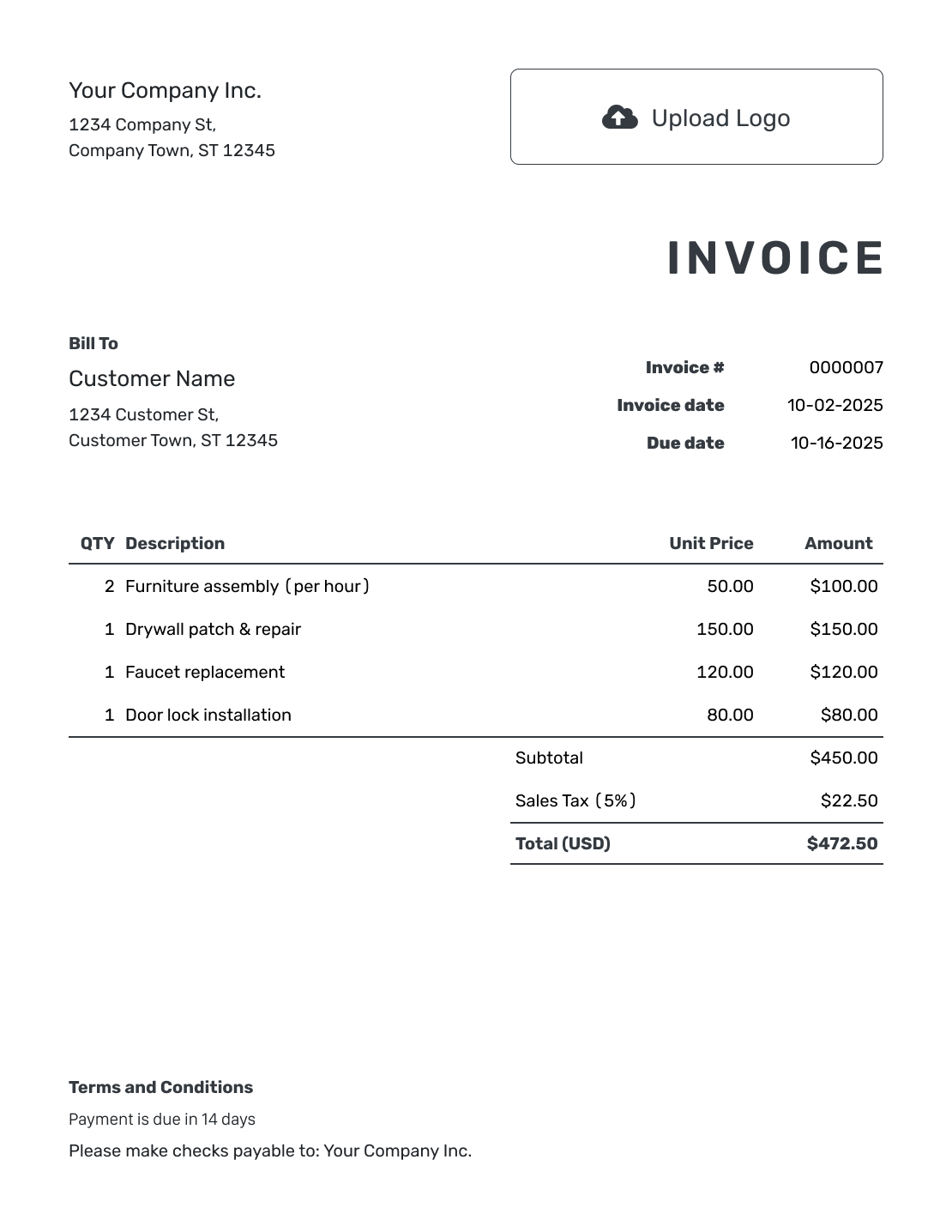
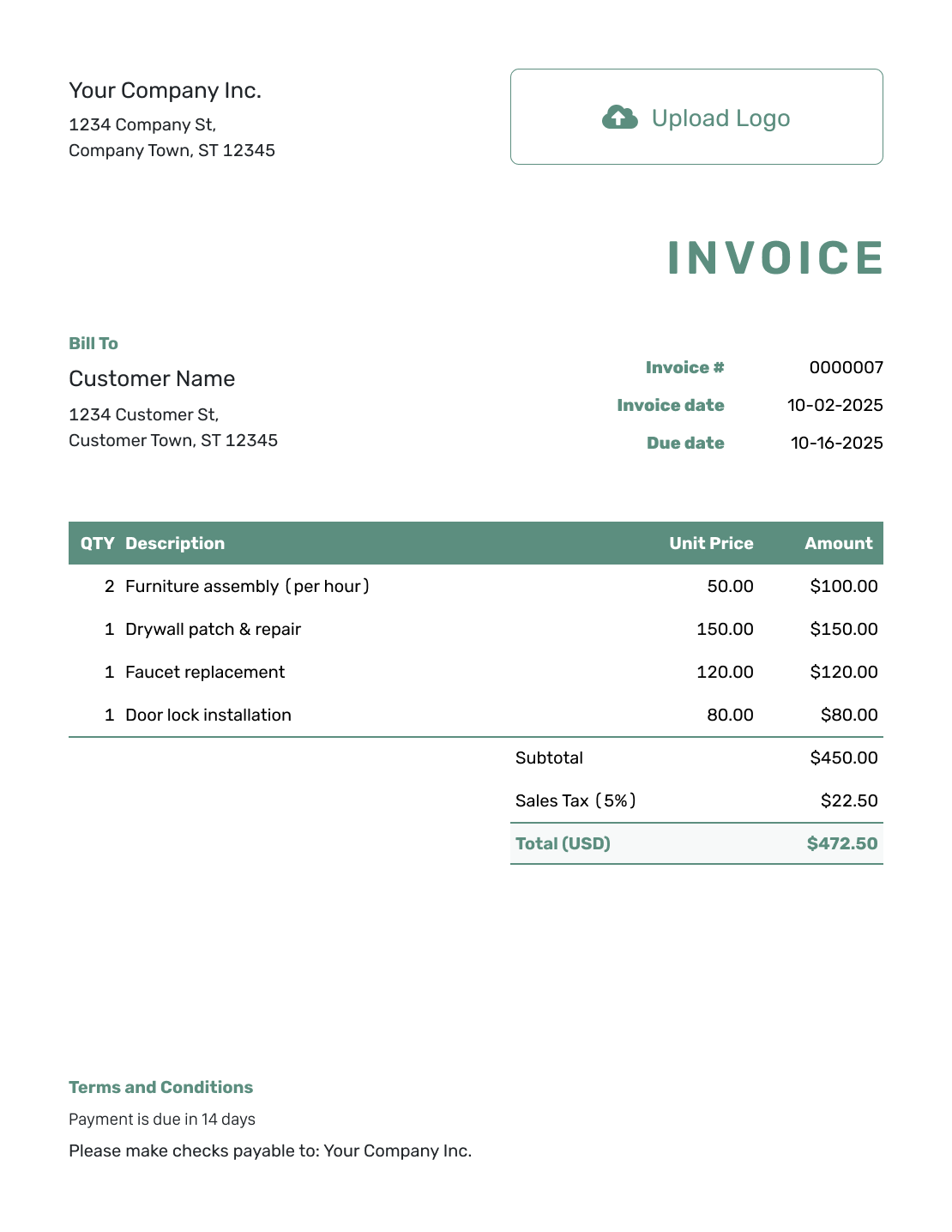
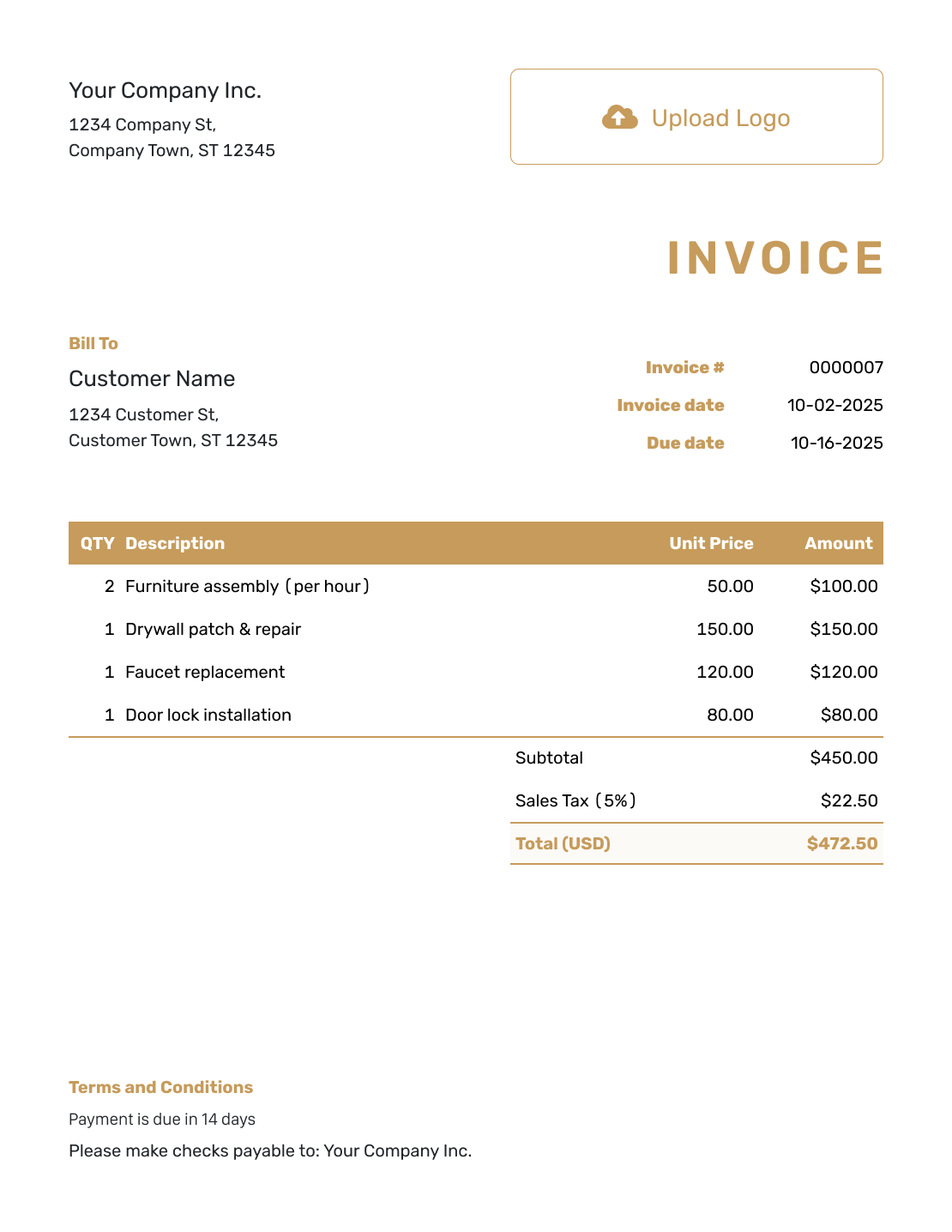
Create the invoice you will send with your message. These previews show invoice layouts, not email designs. Add your logo, colors and fonts in Docelf. Already have the invoice? Go straight to the email template.
Copy-and-Paste Invoice Email Template
Use this message when you attach a PDF invoice in your usual email app. Replace the bracketed text and check the amount and due date against the invoice.
Example: Email With a PDF Invoice
Subject: Invoice [Invoice Number] from [Business Name]
Hi [Customer Name],
I’ve attached invoice [Invoice Number] for [Work or Order]. Please pay [Amount] by [Due Date].
Please use the payment instructions on the invoice and include [Invoice Number] as your payment reference.
Reply with any questions about the charges. Thank you for your business.
Best,
[Your Name]
[Business Name]
Use a Subject Line the Customer Can Find Again
Include the invoice number and your business or job name. For repeat work, the billing period can help the customer recognize the charge.
- Invoice INV-1042 from [Business Name]
- Your Invoice for [Job or Order]
- Invoice INV-1042 — [Month] Services
- Payment Reminder: Invoice INV-1042 Due [Date]
How to Send the Invoice With Your Own Message
Use these steps to attach the invoice to a message in your usual email app. If you prefer to email the invoice directly from Docelf, check the invoice and recipient’s email address, then choose to send it. Creating or saving the invoice does not send it.
- Complete the Invoice: Check the customer, charges, total and due date.
- Add Payment Details: Put payment instructions and agreed terms in Terms and Conditions.
- Download the PDF: Save the finished invoice so you can attach it to your message.
- Check the Recipient: Use the customer’s billing email address.
- Write the Message: Replace the example’s placeholders with the invoice details, amount due and due date.
- Review and Send: Attach the correct PDF. Check the recipient, message and attachment, then send the email.
Create the Invoice Before You Write the Email
Give the customer a clear document to refer to. Docelf calculates the total and keeps the due date with the invoice. Email it from Docelf or download a PDF.
Keep the Message Short and the Invoice Complete
Use the email to introduce the bill, not repeat every charge. Put the detailed items and payment terms on the invoice.
The amount and due date should match in both places. If the customer has already paid part of the bill, ask for the remaining balance.
Give payment instructions your business actually uses. The email examples do not include a way to take payments through Docelf.
Friendly Payment Reminder
Use this message before the due date when a reminder would help. Check your payment records before sending it.
Example: Reminder Before the Due Date
Subject: Reminder: Invoice [Invoice Number] Due [Due Date]
Hi [Customer Name],
A quick reminder that invoice [Invoice Number] for [Work or Order] is due on [Due Date]. The remaining balance is [Amount Due].
I’ve attached the invoice again. Please follow the payment instructions on it.
If you have already paid, please reply with the payment date or reference so I can check our records.
Thank you,
[Your Name]
[Business Name]
After You Send the Invoice Email
After emailing the invoice from Docelf, check its history to see whether it arrived and the customer opened it. You still need to check whether payment has arrived.
Check the Invoice, Then Follow Up
- Check whether the customer has paid before sending a reminder.
- Record each payment amount and date so the remaining balance stays clear.
- After recording payment, create a receipt from the invoice for the customer.
Overdue Invoice Follow-Up
Use this message after the due date has passed and you have checked that a balance remains. Keep the request direct without assuming why the payment is late.
Example: Follow-Up After the Due Date
Subject: Payment Follow-Up: Invoice [Invoice Number]
Hi [Customer Name],
Invoice [Invoice Number] for [Work or Order] was due on [Due Date]. Our records show a remaining balance of [Amount Due].
I’ve attached the invoice again. Please let me know when we can expect payment.
If you have already paid, please send the payment date or reference. Reply with any questions about the invoice.
Thank you,
[Your Name]
[Business Name]
Check the Email Before You Send It
Check that the customer has the right invoice and everything they need to pay.
- Replace every bracketed placeholder.
- Use the correct invoice number, amount due and due date.
- Attach the right PDF when using your own email app.
- Remove payment methods or policies you do not use.
- Check the billing contact’s name and email address.
For more help after the due date, use the past-due invoice email guide.
More Invoice Layouts to Send
Choose another layout for the invoice you will send. Each preview opens the same invoice editor.
Prefer to Create the Invoice in a File?
Use a file template for the invoice, then check the finished document before attaching it to your message.
More Help With the Invoice Itself
Check a finished example, write the payment terms or start with the simplest layout.
Invoice Email Template FAQs
-
What should an invoice email say?
Name the invoice and the work or order it covers. State the amount due and the due date. Tell the customer where to find the invoice and payment instructions, then offer a way to ask questions.
-
What is a good invoice email subject line?
Use a subject the customer can recognize and search for, such as “Invoice INV-1042 from [Business Name].” Add the job or billing period when it helps distinguish this invoice from another one.
-
Should I put all the line items in the email?
Keep the breakdown in the invoice. Use the email for a short introduction and the next payment step. Make sure any amount and due date you mention match the attached invoice.
-
Can I send the invoice directly from Docelf?
Yes. Email the invoice from Docelf and check its history to see whether the customer opened it. Or download a PDF and attach it to one of these messages in your usual email app.
-
Does an opened invoice mean the customer has paid?
No. It means the customer viewed the invoice. Check whether you received a payment, then record its amount and date in Docelf. The payment record shows what is still owed.
-
How should I remind a customer about an unpaid invoice?
First check whether the payment has arrived. Mention the invoice number, due date and remaining balance. Include the invoice again and ask the customer to confirm when they expect to pay. Keep the message calm and easy to answer.
-
Can I use the same message for a partial payment?
Adjust it to show the remaining balance rather than asking for the full total again. Record the payment you received, check the updated invoice and make sure the email uses the same amount.
Ready to Send the Invoice With a Clear Message?
Send the invoice with a short message that tells the customer when and how to pay.
- Create the invoice with a clear due date
- Email it from Docelf or download a PDF
- Keep the payment record with the invoice




