Free Medical Invoice Template
Create a professional medical invoice in minutes
Present consultations, treatments or other care provided in a straightforward bill. Patients can see what care they were billed for and what they owe, helping your practice get paid.
Email, print or download your invoice as a PDF.
14-day free trial. No credit card required.
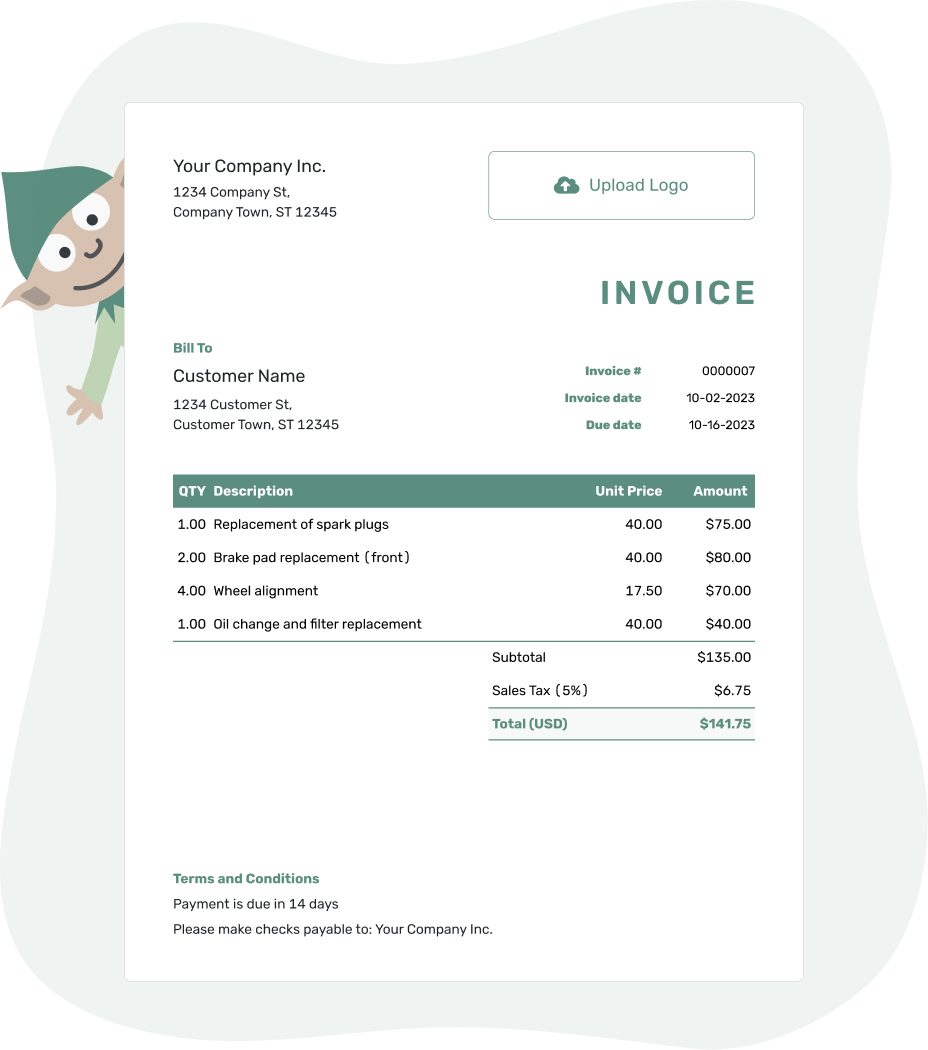
Create the invoice. Send it. Get back to work.
Choose a Medical Invoice Layout
Use these previews to choose a layout for your practice’s bill. Each opens the same invoice editor. Before entering patient details, check that Docelf and your delivery method meet your practice’s privacy requirements.
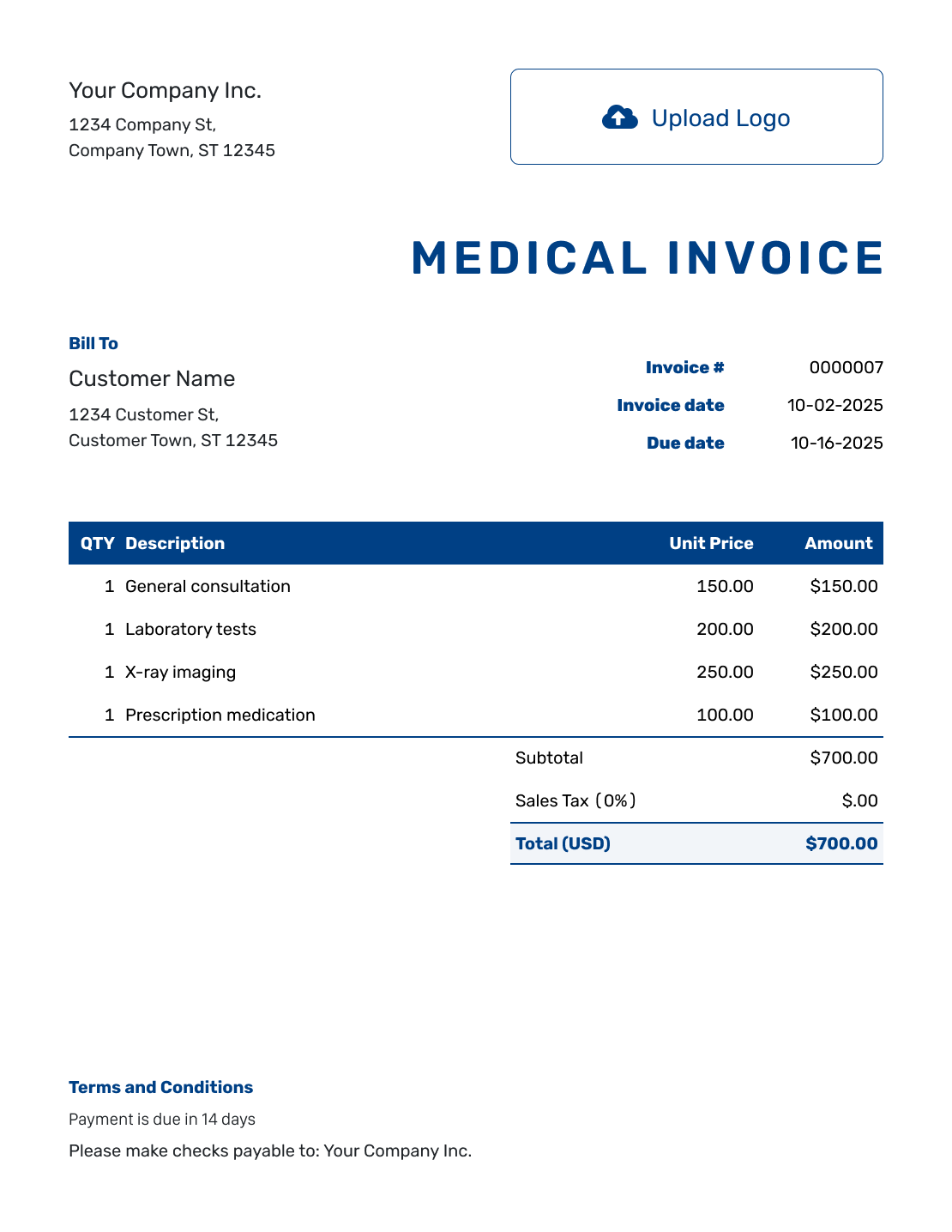
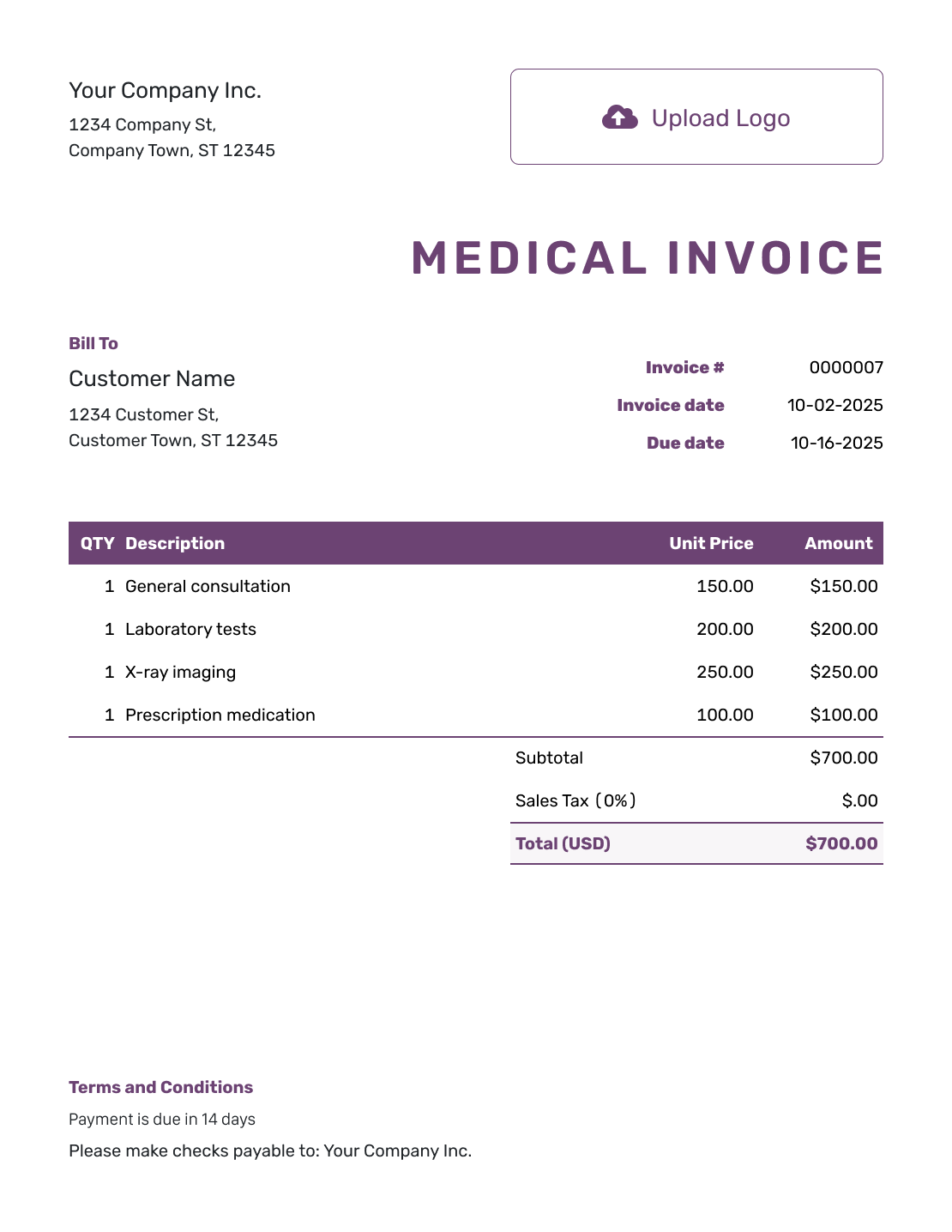
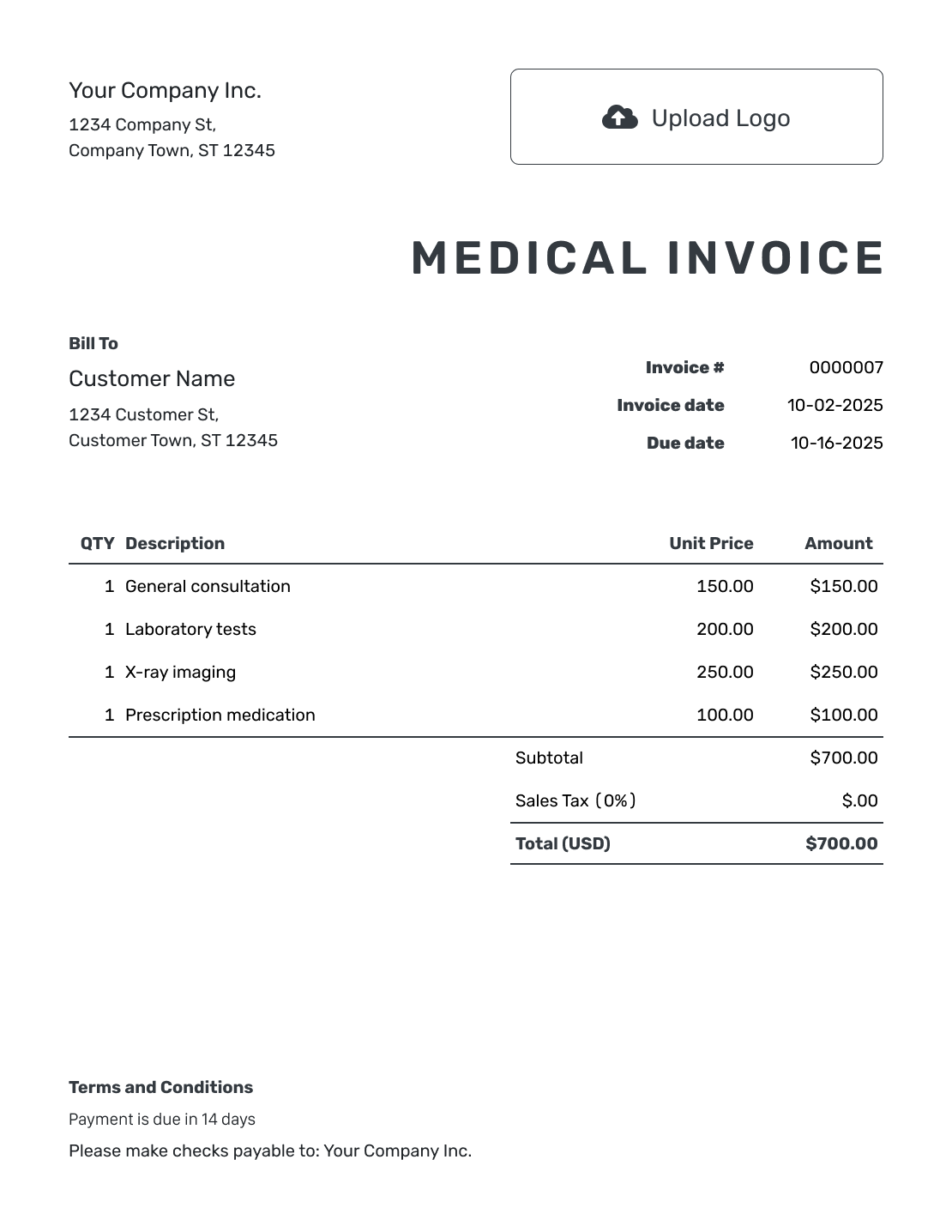
Show the Patient What This Bill Covers
A medical invoice asks for payment for care you provided. Dated service descriptions help the patient match each charge to a visit, especially when the bill covers more than one appointment.
The example on this page is for direct patient billing. Use your practice’s established process for insurance claims and clinical records. Do not assume a general invoice replaces those documents.
How to Create a Medical Invoice
Start with the services and charges in your billing records. Fill in the invoice, then check who will receive it.
- Identify the Practice: Enter the practice name and a contact for billing questions.
- Add Your Logo: Use the practice logo and a readable design.
- Check Who Will Receive the Bill: Enter only the patient or payer details needed for this invoice.
- Set the Number and Dates: Check the invoice number, issue date and payment due date.
- List the Services: Name each service and its date. Add the quantity and agreed price.
- Review the Charges: Check the prices and any tax or discount that applies. Docelf calculates the total.
- Explain How to Pay: Add payment instructions in Terms and Conditions. Check the invoice before sending.
How to Fill In Medical Invoice Line Items
Give each visit or separately billed service its own line. Quantity shows how many services you provided; a treatment code is not a quantity. A short service name and date usually give the patient enough detail to recognize the charge.
This fictional patient invoice uses US dollars. It bills a consultation, a follow-up visit and a separately priced dressing change during September 2–9, 2026.
| QTY | Description | Unit Price | Amount |
|---|---|---|---|
| 1 | Consultation — Sep 2, 2026 | $125.00 | $125.00 |
| 1 | Follow-up visit — Sep 9, 2026 | $80.00 | $80.00 |
| 1 | Dressing change — Sep 9, 2026 | $65.00 | $65.00 |
| Subtotal | $270.00 | |
| Total Due | $270.00 |
The three charges total $270.00. These are illustrative fees, not recommended rates. No tax is included in this fictional bill; use the tax treatment that applies to your own services.
What to Include in Medical Invoice Terms
Use Terms and Conditions to explain when and how to pay. A billing contact gives the patient somewhere to ask about a charge or a payment they have already made.
The sample below goes with the $270 bill above and assumes an agreed due date of September 23. Adapt the dates and payment instructions to the arrangements your practice uses.
Example: Terms and Conditions
- This invoice covers the services listed for September 2–9, 2026.
- Payment of $270.00 is due on September 23, 2026.
- Please pay by bank transfer using invoice number MED-1041 as the reference. Use the bank details supplied by [Practice Name].
- For questions about a charge or payment, contact [Billing Contact].
Create a Bill the Patient Can Check
List the visits and any separately billed services. Docelf calculates the total. Check the patient’s balance before sending the bill.
Keep Service Charges and Payments Clear
The invoice total adds up the charges for care. If the patient later pays part of the bill, record the payment against the invoice so you can see the amount still due.
An expected insurance payment is not money received. Follow your practice’s billing process to confirm any insurance adjustments before presenting the patient’s balance.
For dental treatment, chiropractic care or other separately billed procedures, use service names the patient recognizes. When a procedure is included in the visit fee, describe it within that charge so it is not billed twice.
Keep the Bill Focused on the Charges
Routine invoice descriptions need enough detail to identify the service and explain its price. Diagnoses, test results and treatment notes belong in your practice’s clinical records.
If a billing attachment helps the recipient check a charge, include only the relevant information through your practice’s approved process. Docelf supports PDF, JPG, GIF, PNG and WebP files up to 5 MB each.
Keep the Patient’s Payment Record Clear
After you email an invoice from Docelf, check its history to see whether it was delivered and opened. That helps you decide whether to follow up through your practice’s usual billing process.
When payment arrives, record its amount and date on the invoice. You can then create a receipt from the invoice. Docelf marks a fully paid invoice as Paid. After a partial payment, you can still see the remaining balance.
More Medical Invoice Previews
Choose a layout that suits your practice, then use your logo, fonts and colors so patients recognize the bill. You can add an industry name before “Invoice” and put your billing contact in the footer. Choose the agreed currency: USD, EUR, GBP, CAD or AUD.
-
Blank Medical Invoice Template
Create Free Invoice -
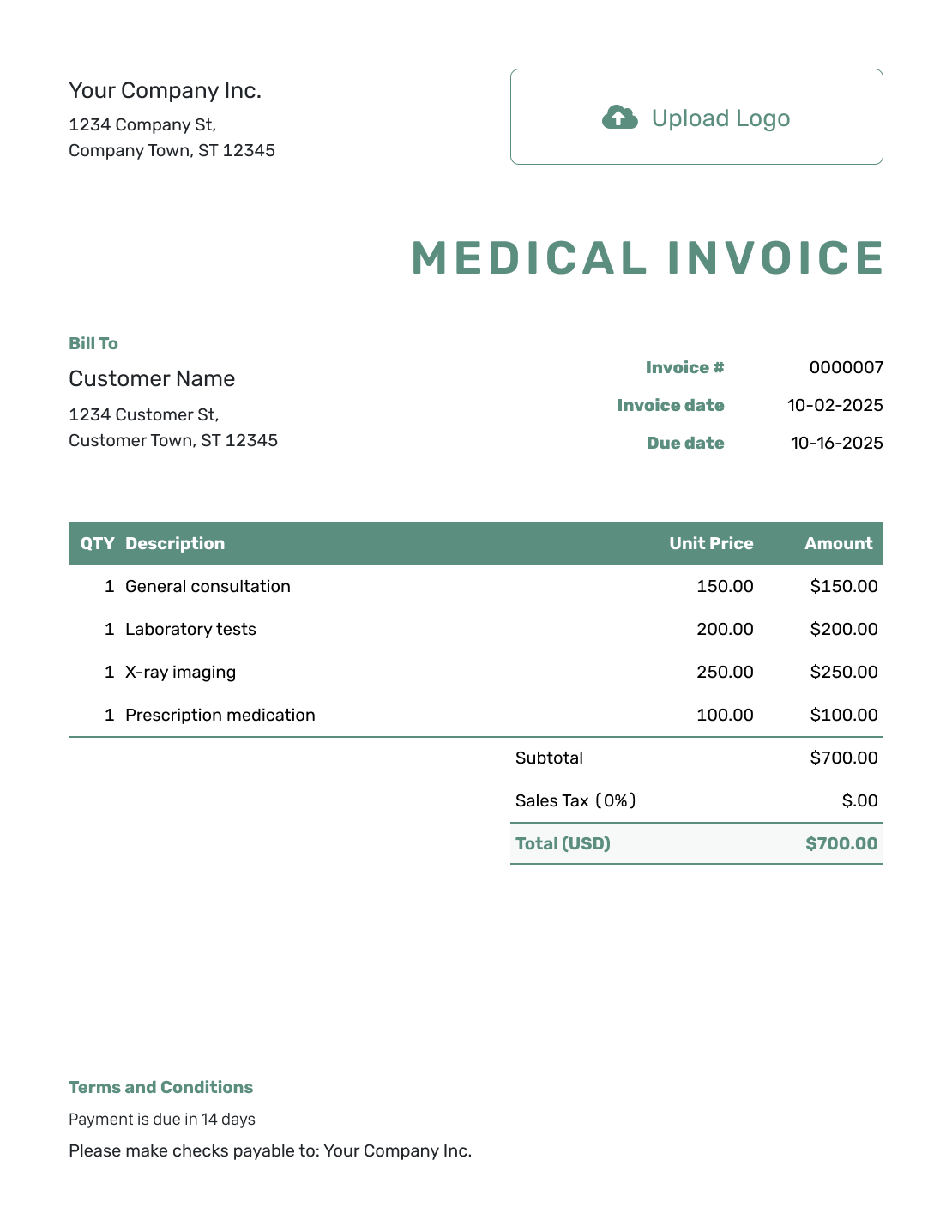
Simple Medical Invoice Template
Create Free Invoice -
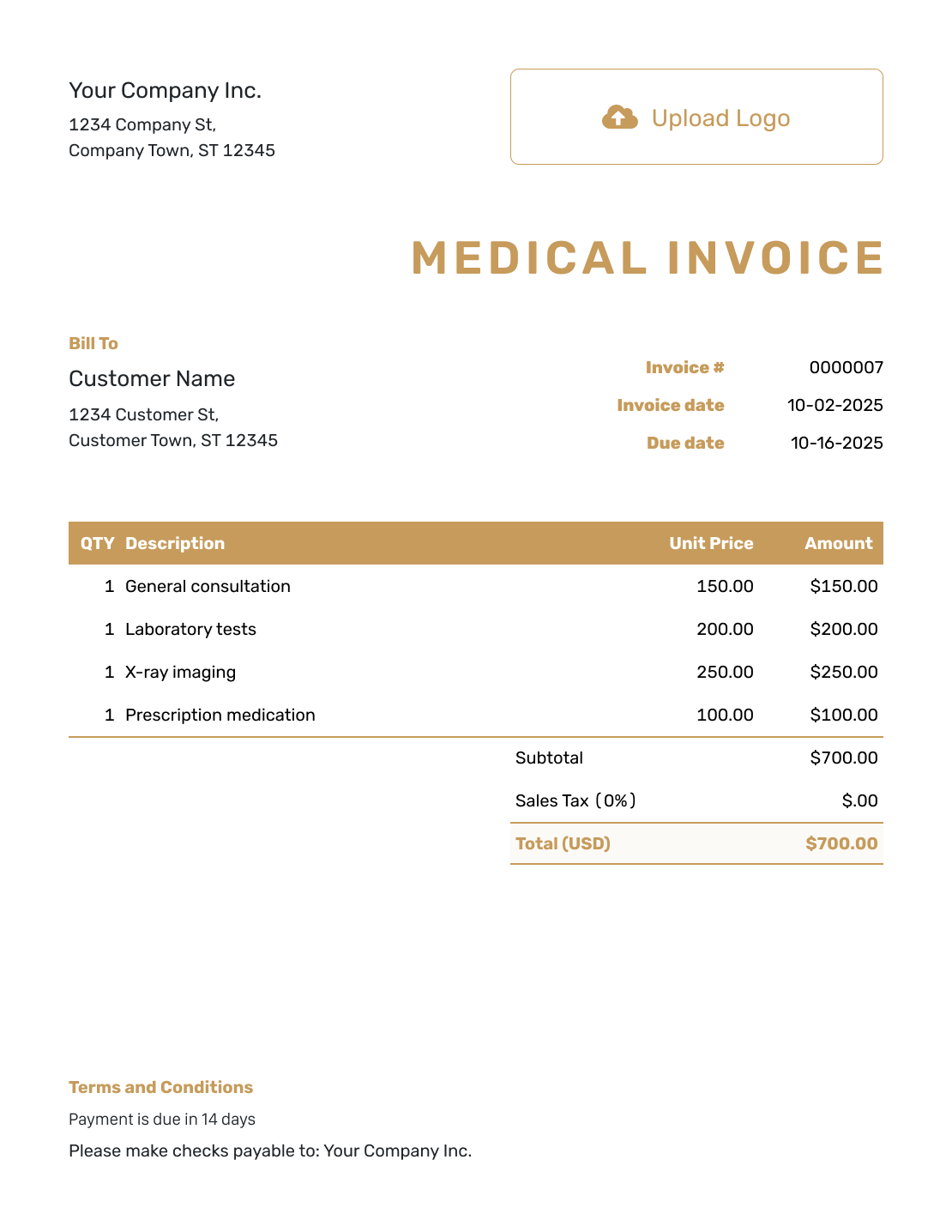
Standard Medical Invoice Template
Create Free Invoice -
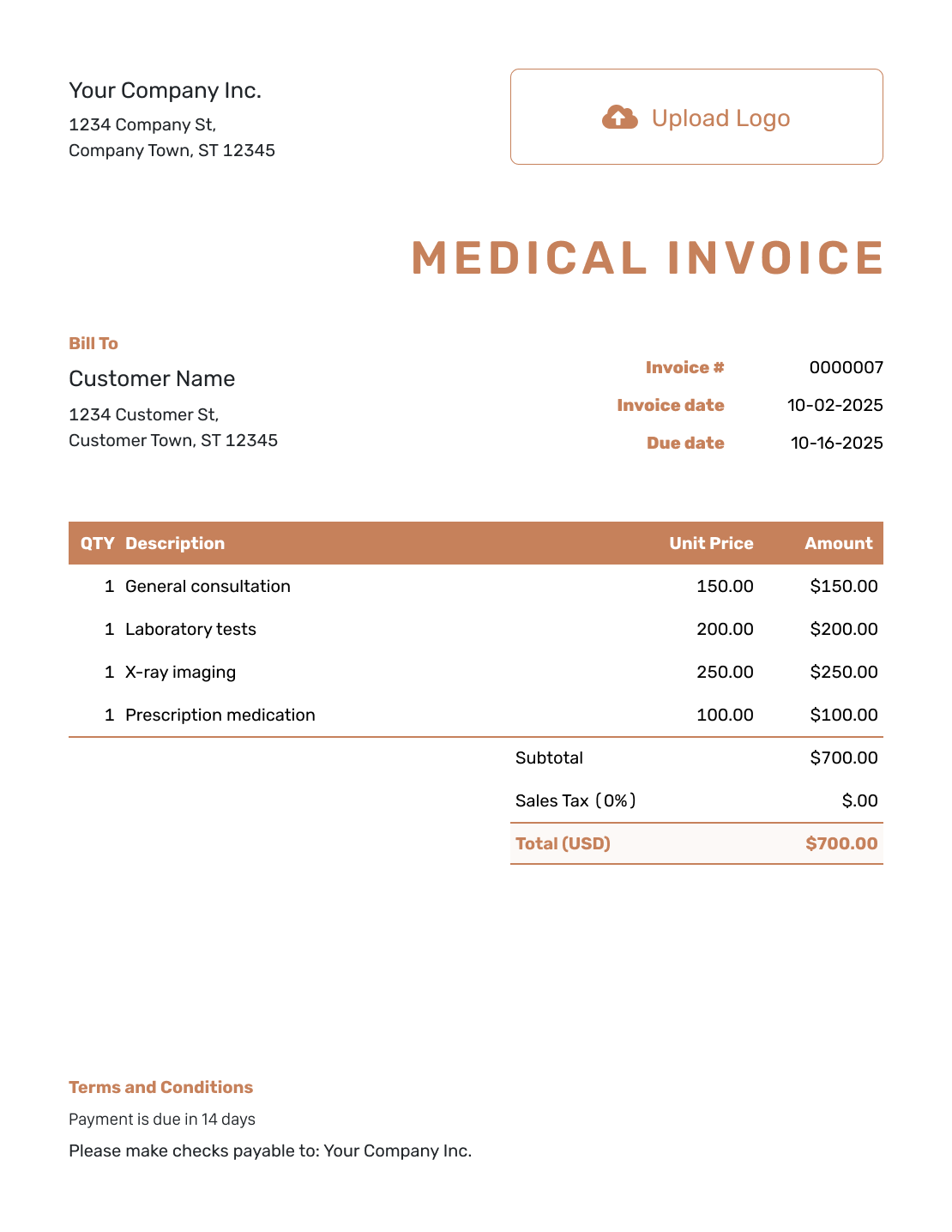
Itemized Medical Invoice Template
Create Free Invoice -
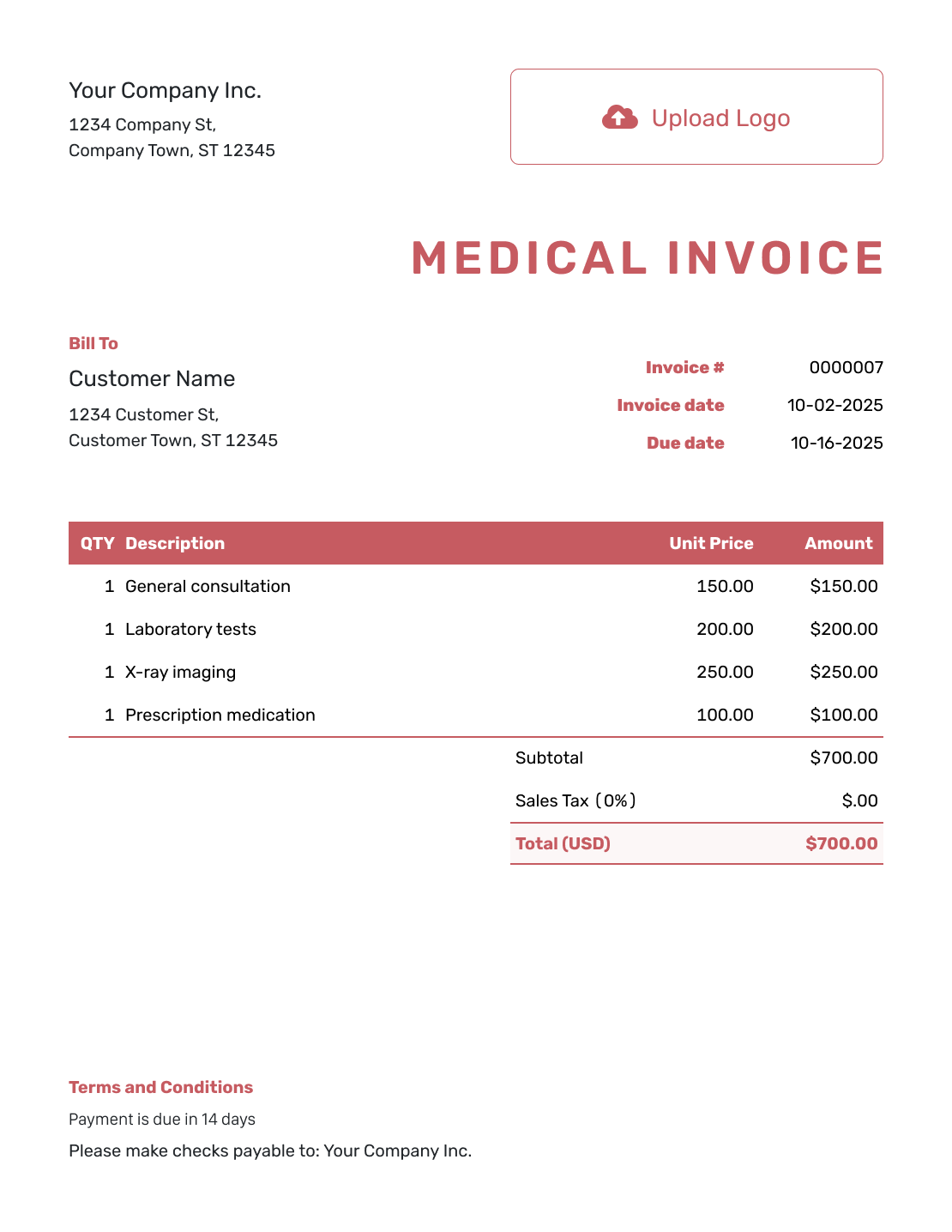
Basic Medical Invoice Template
Create Free Invoice -
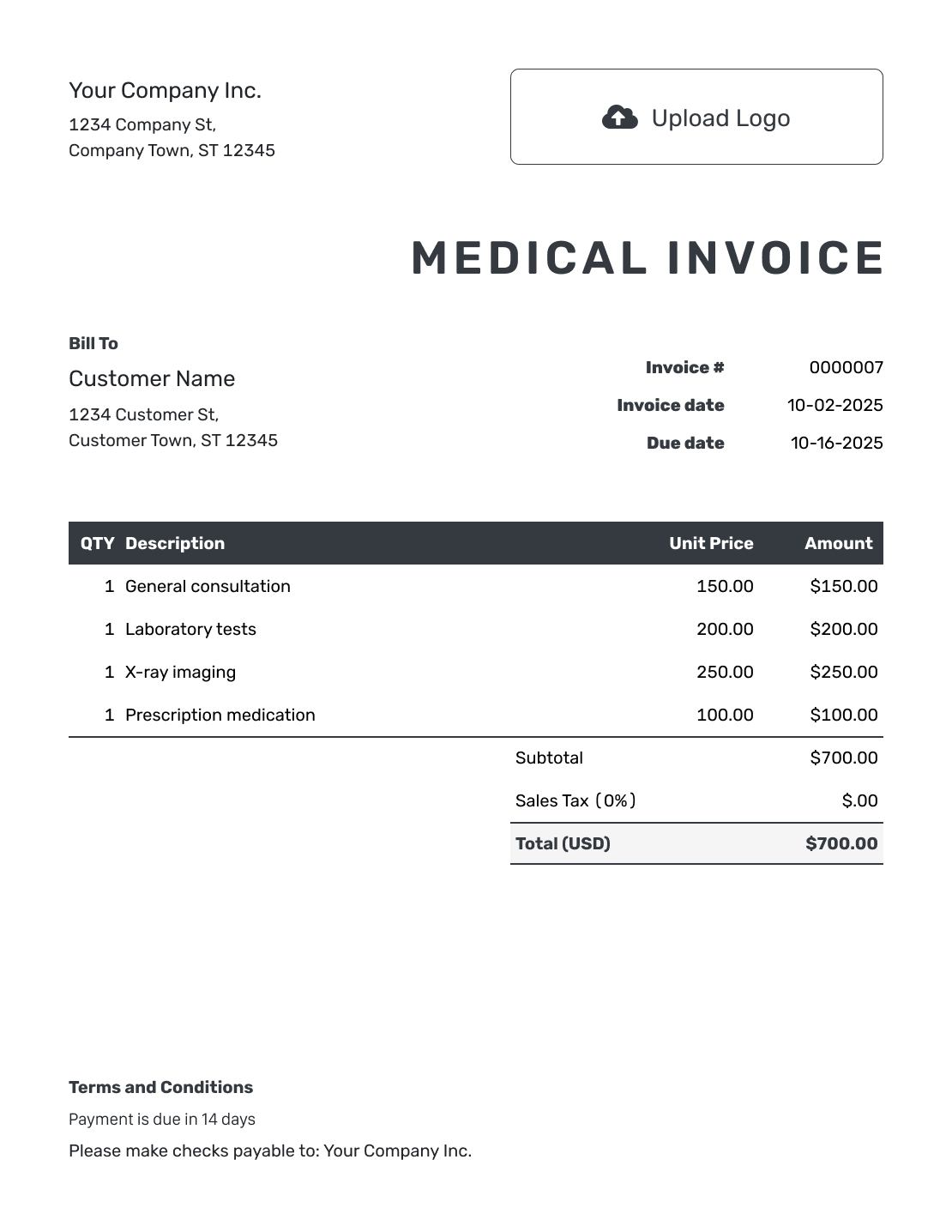
Hourly Medical Invoice Template
Create Free Invoice
Prefer a Medical Invoice File?
Adapt one of these general invoice files for your practice’s billing needs. Word and Google Docs suit a bill you want to edit as a document. Excel and Google Sheets suit quantities and prices you want to calculate in a spreadsheet. Use your practice’s approved storage and sharing process for either format.
Medical Invoice FAQs
-
What should a medical invoice show?
Name the practice and the person or organization you are billing. List each service with its date, quantity and price. Add the invoice number, issue date and due date. Explain how to pay. Show any payments received and the balance left to pay.
-
Can I put several visits on the same invoice?
Yes. Give each visit its date and a clear description. Keep separately billed procedures on their own lines. Check that the billing period and charges match your records.
-
Does this medical invoice replace an insurance claim form?
No. This page provides a patient invoice layout, not an insurer’s claim form. Use your practice’s established insurance-billing process and confirm what the payer requires.
-
Should I include diagnoses or treatment notes?
Keep routine billing descriptions focused on the service, date and charge. Store clinical notes in your practice’s record system and use its approved process for sharing any additional information.
-
How do I show that the patient has paid part of the bill?
Record the payment amount and date against the invoice. Docelf keeps the remaining balance with that record. For a separate partial-payment example, receiving $70 toward a $270 bill would leave $200 to pay.
-
Can I create proof of payment for the patient?
Yes. After recording the payment, create a receipt from the invoice. The receipt confirms the amount received. It does not ask the patient to pay that amount again.
-
Can I prepare the bill before sending it?
Yes. Creating, editing or saving an invoice does not email it. Check the charges and recipient details, then choose to send it using a delivery method that fits your practice’s policy.
Ready to Prepare the Patient’s Invoice?
Give patients the details they need to check and pay the bill.
- Identify the services and dates
- Show the confirmed charges and balance
- Check the recipient before sharing




