Free New Zealand Invoice Template
Review a New Zealand invoice example
Review how a New Zealand invoice organizes charges, taxes and payment details. Use the example to decide what to include before creating the invoice in a supported currency.
Email, print or download your invoice as a PDF.
14-day free trial. No credit card required.
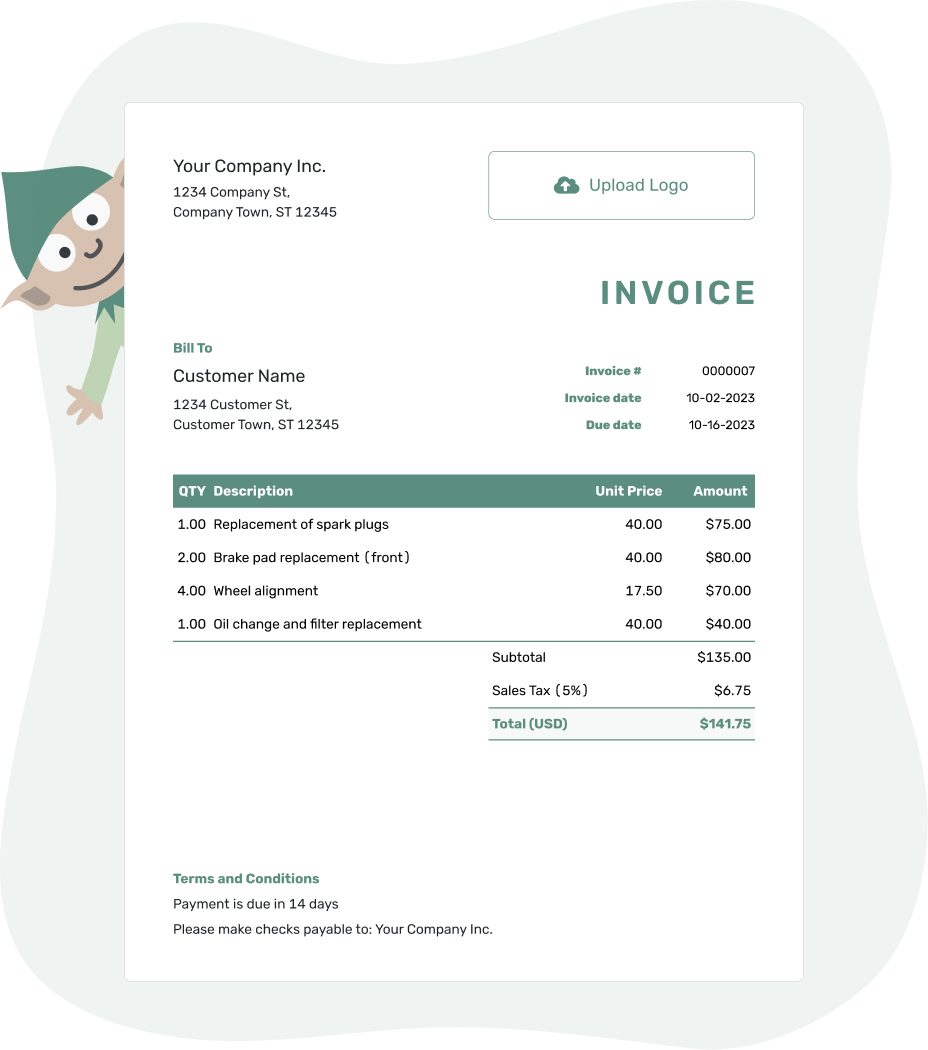
Create the invoice. Send it. Get back to work.
Review the New Zealand Invoice Layouts
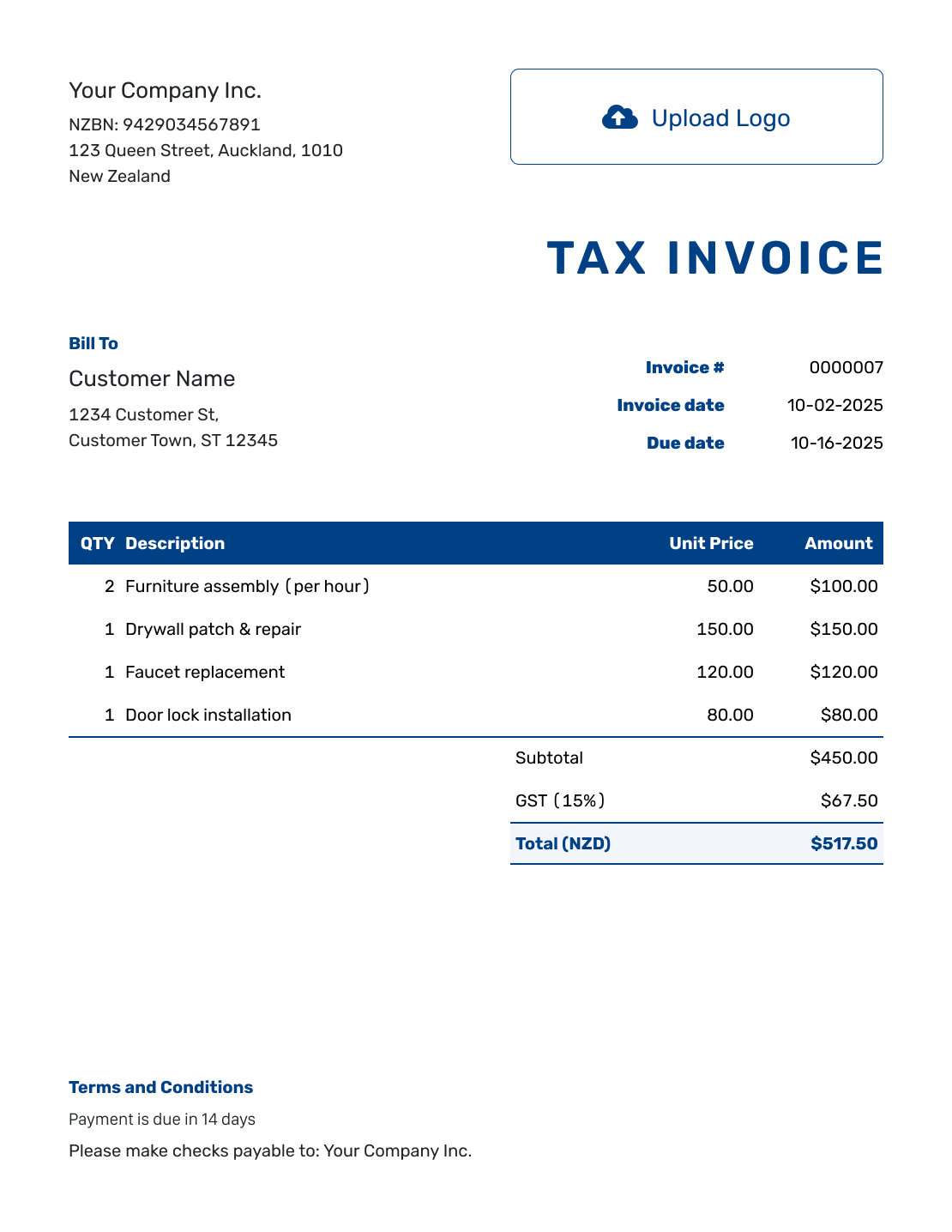
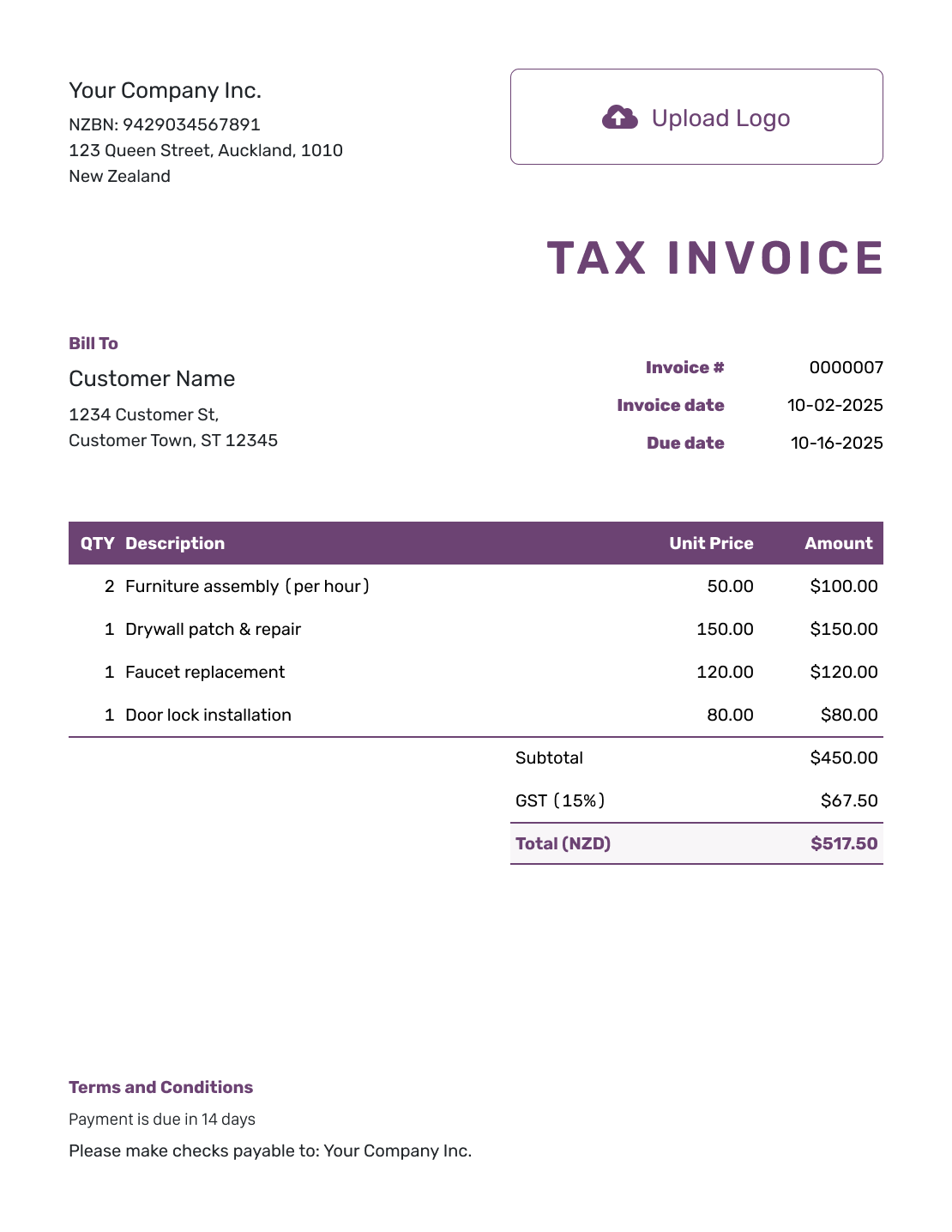
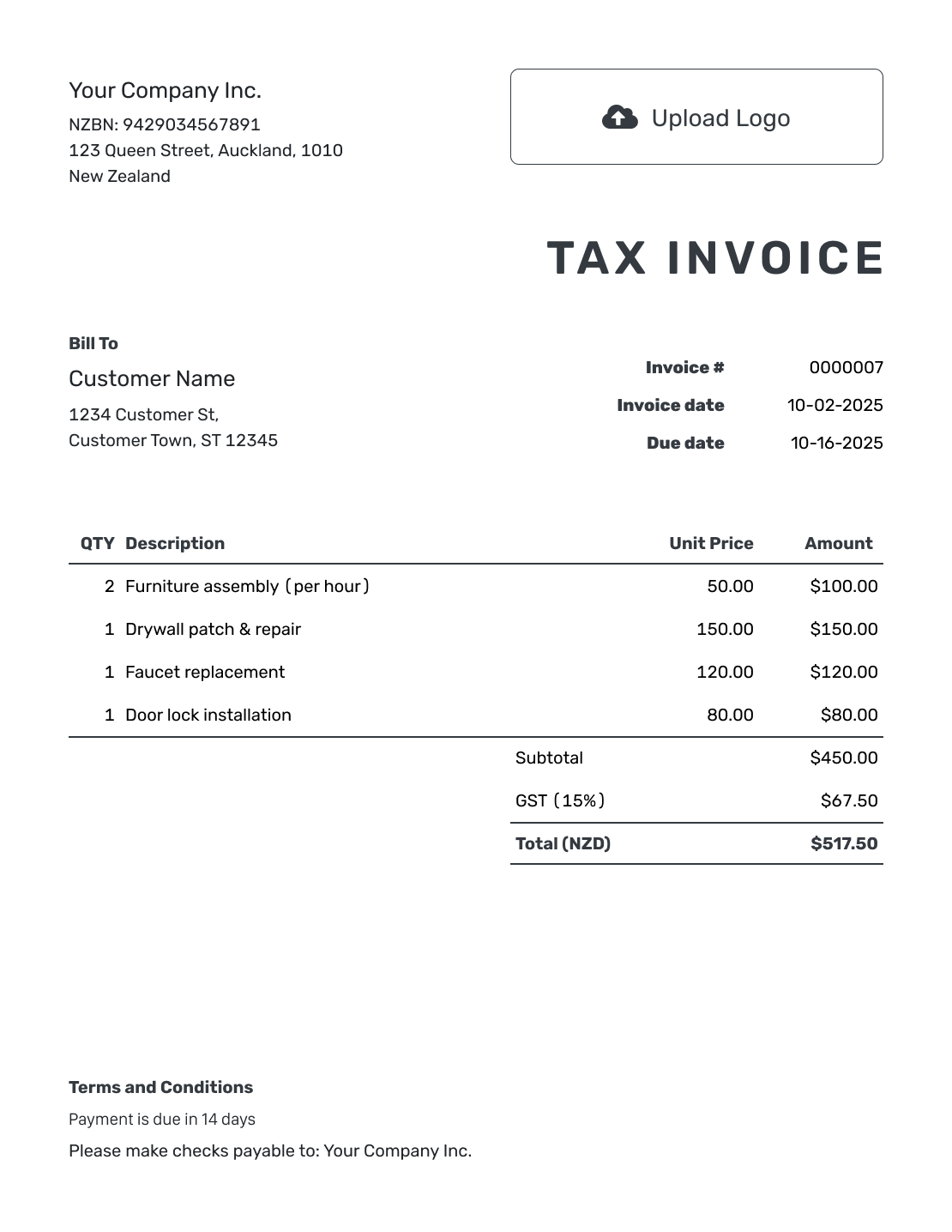
Use these layouts to see how a sale or completed job can be presented. The preview buttons open Docelf, which supports USD, EUR, GBP, CAD, and AUD, but not NZD.
For an NZD invoice, choose an editable file template. For online billing, first agree on a supported currency with your customer and check the GST records you need.
Need an Editable File for an NZD Invoice?
Start with a general invoice template in the software you use. Word and Google Docs are useful for editing descriptions and payment wording. Excel and Google Sheets let you work with quantities, prices, and formulas.
Save your own copy, set the currency to NZD, and replace the sample details. Check spreadsheet formulas after changing rows. Keep the editable file for your records and export a PDF for the customer.
How to Create an Invoice for a New Zealand Customer
Use these steps in your chosen file template or in Docelf for a supported currency. Add the details for the actual sale, then check the customer’s copy before sending.
- Add Your Business: Add your business name and contact details. Include your GST number when required.
- Add Your Logo: Add your logo to help the customer recognize your business.
- Add the Customer: Enter the customer’s billing details. Include their order reference to help them match the bill to the order.
- Set the Number and Dates: Check the invoice number and invoice date. Set the due date you agreed on with the customer.
- List the Work or Goods: Enter quantities and unit prices in the agreed currency. Explain each charge.
- Check GST and the Total: Apply GST only when required. Check whether your prices include it, then review the total in the agreed currency.
- Add Payment Terms: Explain how to pay and which reference to use. In Docelf, use Terms and Conditions. Review the invoice, then send it.
How to Show New Zealand Invoice Charges and GST
Put goods and delivery on separate lines. State whether the prices include goods and services tax (GST) so the customer can follow the total.
This fictional print order uses NZD and prices before GST. It assumes a GST-registered seller who adds 15% GST to all three charges. Check Inland Revenue’s GST guidance for the rate that applies to your sale.
Use this NZD breakdown in an editable file. The full invoice also needs the business details, date, and payment instructions described below.
| QTY | Description | Unit Price | Amount |
|---|---|---|---|
| 4 | A4 flyers — pack of 100 | $45.00 | $180.00 |
| 2 | A3 counter sign | $35.00 | $70.00 |
| 1 | Local delivery | $10.00 | $10.00 |
| Subtotal | $260.00 | |
| GST (15% example) | $39.00 | |
| Total (NZD) | $299.00 |
What to Include in New Zealand Invoice Terms
Use payment terms to tell the customer when and how to pay. In Docelf, enter them in Terms and Conditions. For bank transfers, include the account name, bank details, and payment reference.
For payments from overseas, agree on the currency and who pays any bank transfer fees before billing. Only include fees you agreed on with the customer. Check local requirements before adding fees or other conditions.
These sample terms match the NZD print order above. Replace the placeholders and sample due date with your own agreed details.
Example: Terms and Conditions
- Payment is due on 24 September 2026.
- The total of NZD 299.00 includes NZD 39.00 GST.
- Please pay by bank transfer to [Account Name] at [Bank Account Number].
- Use [Invoice Number] as the payment reference. Send billing questions to [Billing Email].
Invoice Online in a Supported Currency
Enter the agreed charges and applicable tax in Docelf. It calculates the total as you edit. Review the invoice, then email it or download a PDF.
Check What Your GST Records Need to Show
If you are GST-registered, check your records against the value and type of sale. Since 1 April 2023, the required records have been called taxable supply information. You may still use “Tax Invoice” as the heading; Inland Revenue explains the change.
For an ordinary taxable sale, the information builds up as the total increases. The amounts below are in NZD, including GST.
| Sale total | Details to record |
|---|---|
| NZD 200 or less | Your name or trading name, invoice date, goods or services supplied, and total charged. |
| Over NZD 200, up to NZD 1,000 | The details above, your GST number, and the subtotal before GST, the GST amount, and the total including GST. Alternatively, show the total with a statement that GST is included when all items use the standard rate. |
| Over NZD 1,000 | The details above. If the buyer is GST-registered, also include their name and an identifying detail, such as an address, phone number, email address, or NZBN. |
The NZD 299.00 print order belongs in the middle band. Its totals show NZD 260.00 before GST, NZD 39.00 GST, and NZD 299.00 including GST. Add the seller’s name, GST number, and invoice date to complete that record.
An invoice can work together with other records, such as an agreement or bank statement. Check Inland Revenue’s full requirements for your sale. Keep the invoice number, due date, and payment instructions clear so the customer can pay the right bill.
If you bill in another currency, check how to show and retain the NZD amounts needed for GST. Inland Revenue’s foreign-currency guidance covers conversion. Ask your tax advisor which records you need; Docelf is document software, not accounting software.
Show Your NZBN and GST Number Separately
Your New Zealand Business Number (NZBN) identifies your business. It does not replace your GST number. Include your NZBN when it helps the customer identify you. Label each number clearly.
In Docelf, put the NZBN under your business name in the company address details. Check the preview to make sure it is readable. The business registration number guide explains where to add it.
If you are not GST-registered, do not add GST to your charges. Inland Revenue’s GST overview explains registration. Ask a tax advisor if you are unsure whether to register or charge GST.
Add Your Branding and Supporting Details
In Docelf, add your logo, colors, and a readable font. Put your contact details in the footer and add an optional industry name before the invoice title.
Attach an approved print proof, delivery confirmation, or other useful supporting file when it helps the customer check the bill. Docelf supports PDF, JPG, GIF, PNG, and WebP attachments up to 5 MB each.
More New Zealand Invoice Layouts
Compare six more layouts for your invoice. Each preview opens the online editor; use the file-template links above when you need NZD.
-
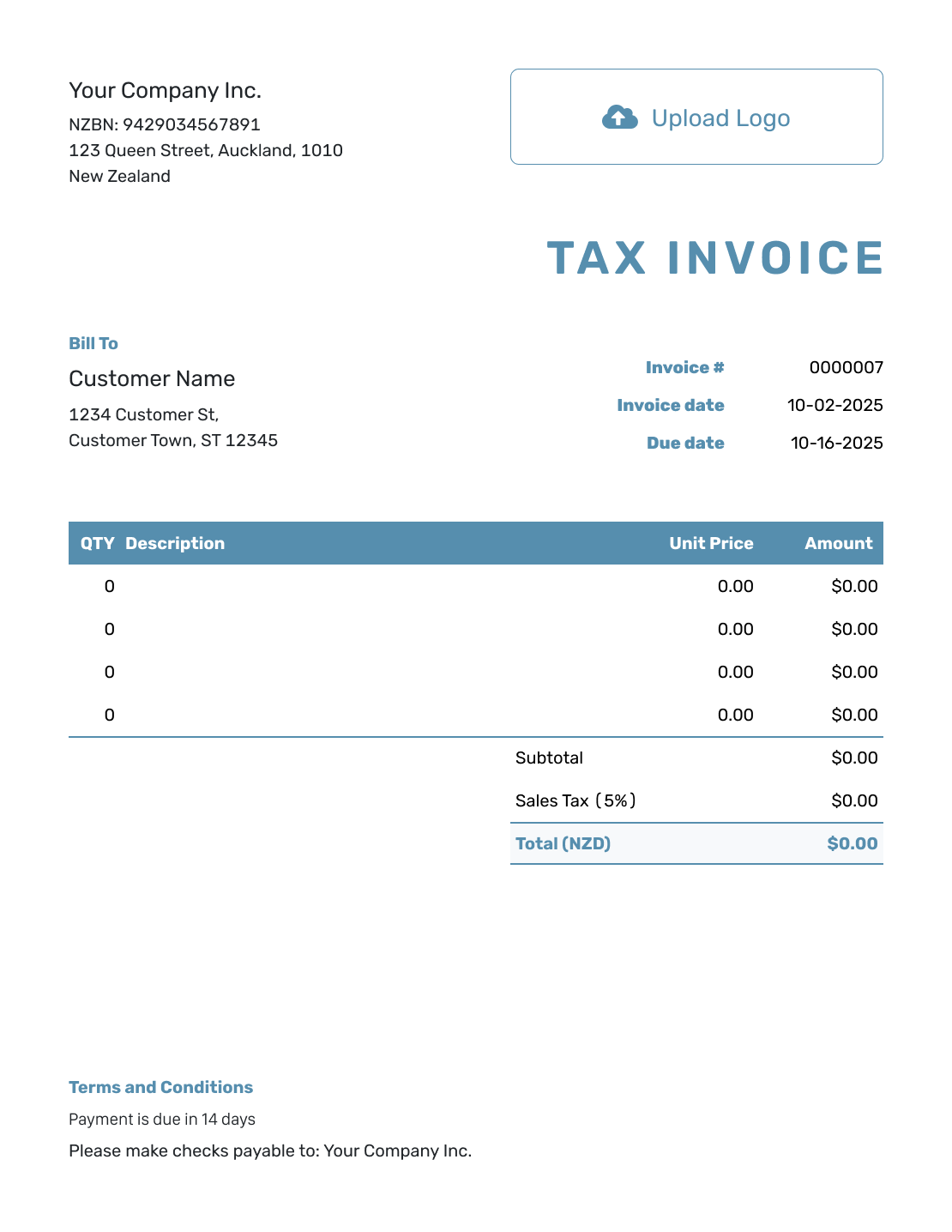
Blank New Zealand Invoice Template
Create Invoice Online -
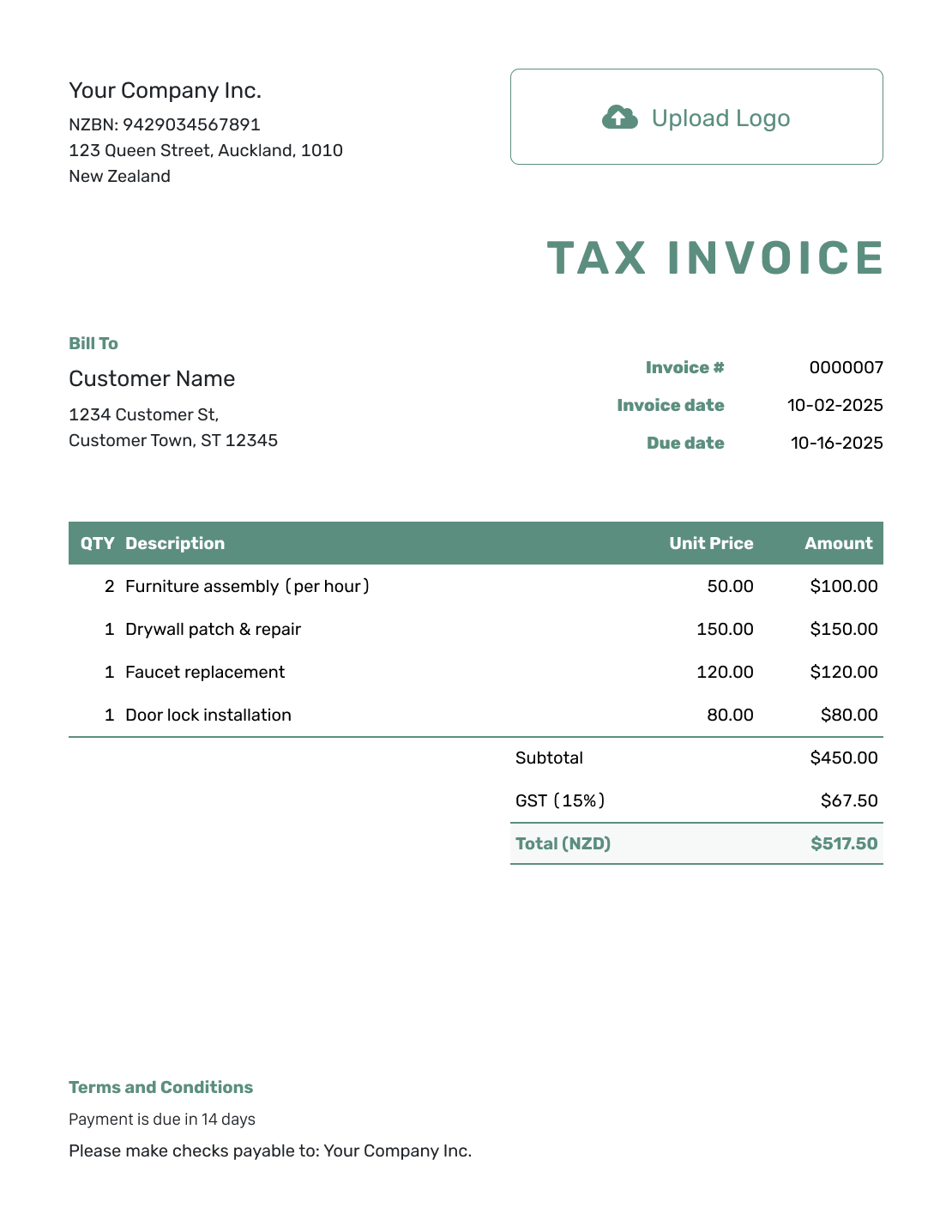
Simple New Zealand Invoice Template
Create Invoice Online -
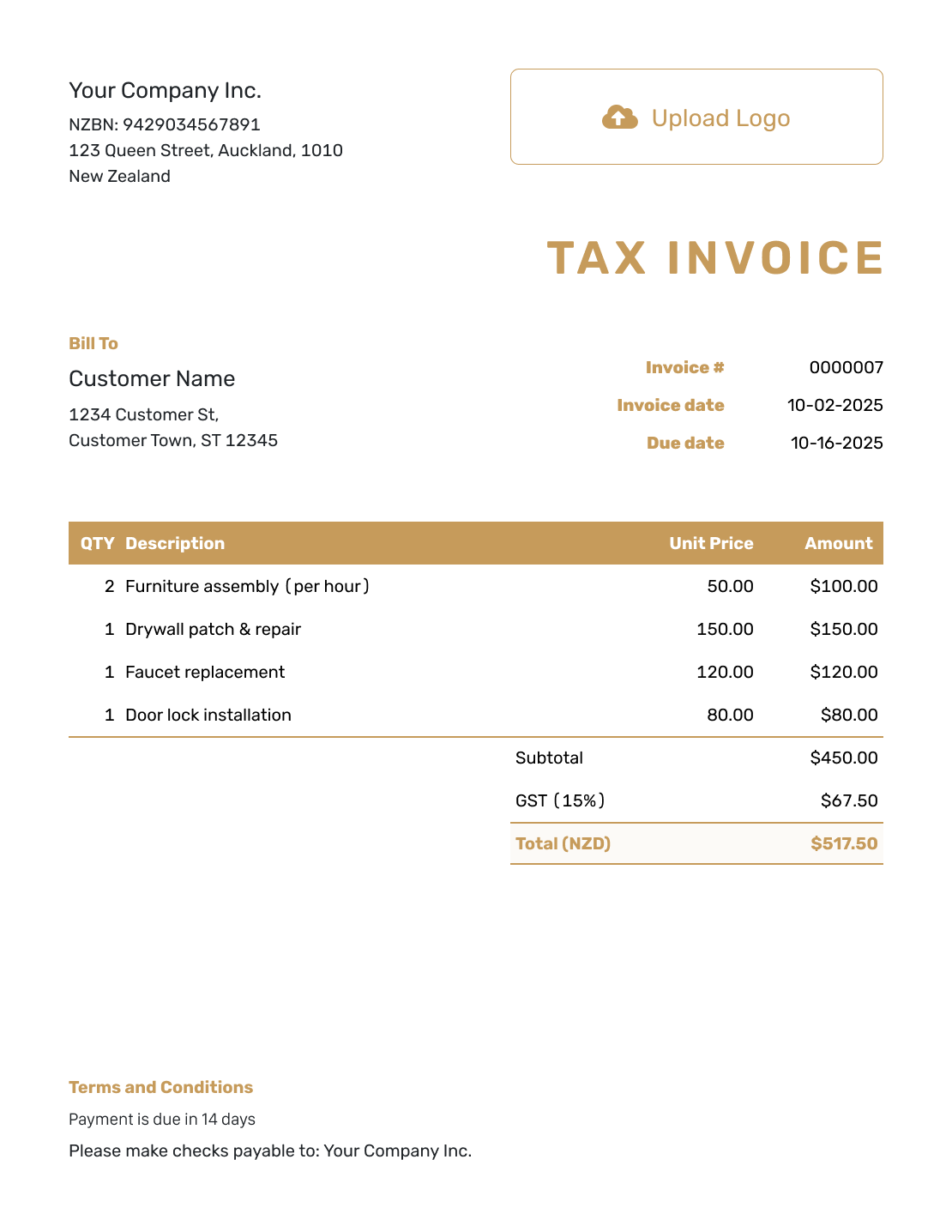
Standard New Zealand Invoice Template
Create Invoice Online -
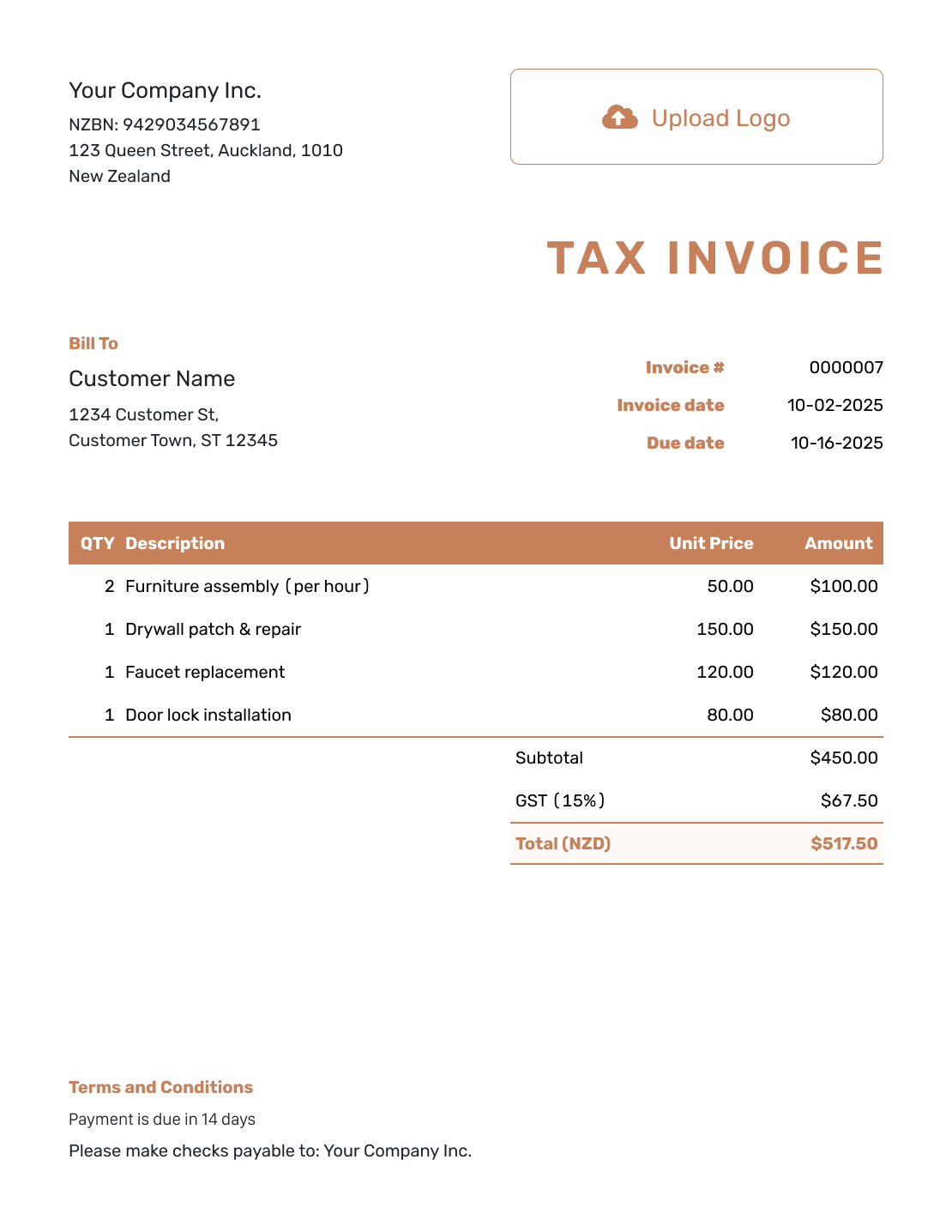
Itemized New Zealand Invoice Template
Create Invoice Online -
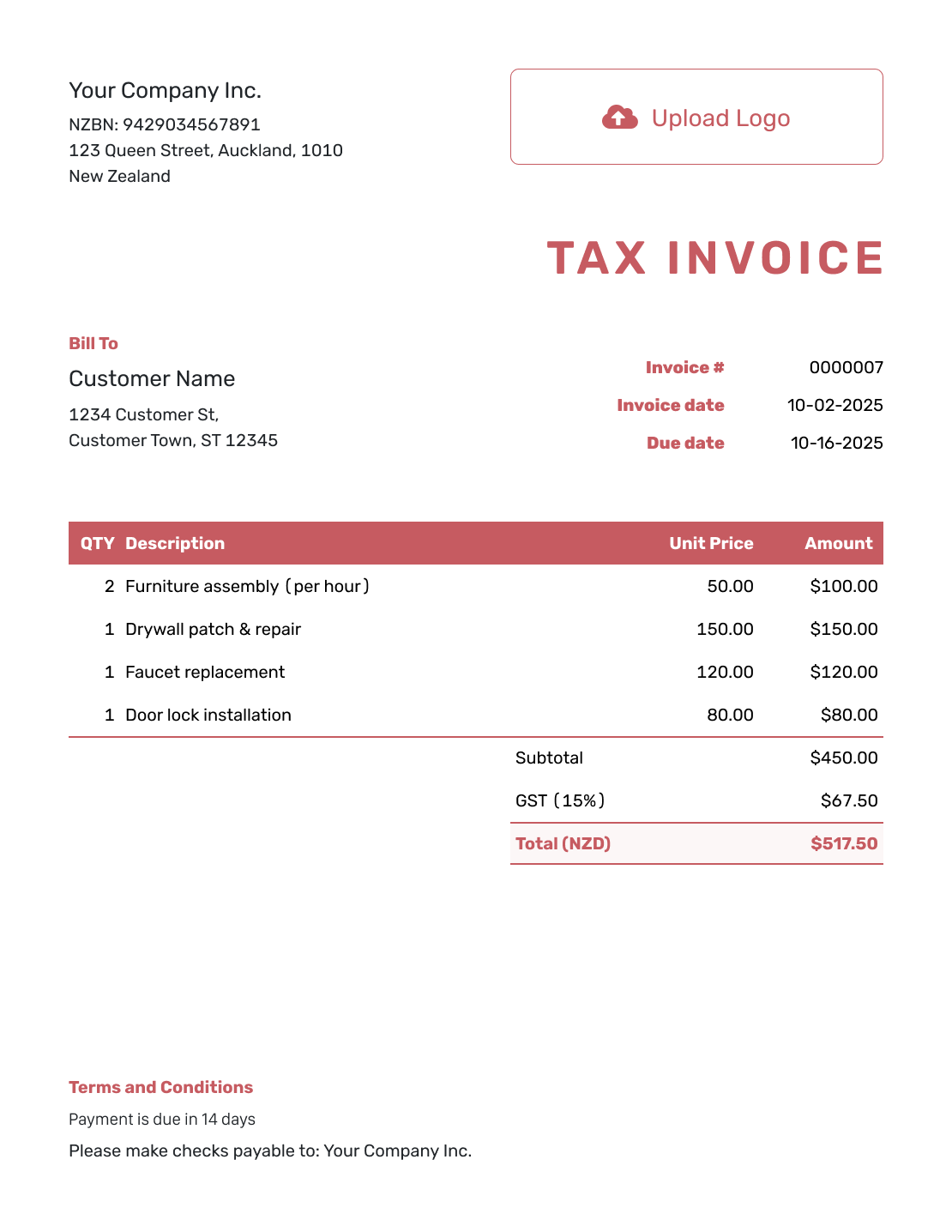
Basic New Zealand Invoice Template
Create Invoice Online -
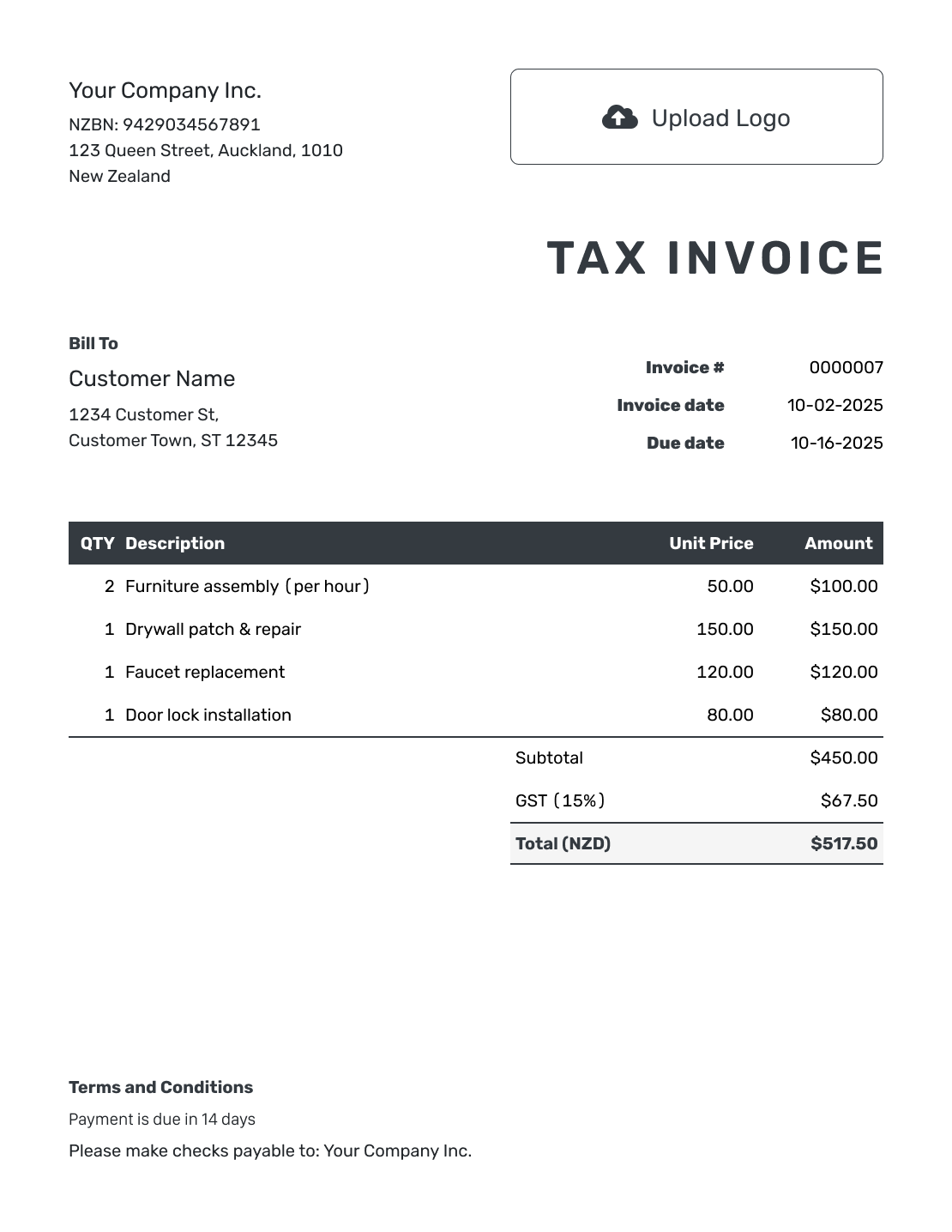
Hourly New Zealand Invoice Template
Create Invoice Online
Keep the Invoice With the Payment Details
For a file-based invoice, keep the PDF you sent with the order and payment records. For invoices you email from Docelf, the document history shows when they were delivered and opened. Follow up if the due date passes without payment.
When a customer pays a Docelf invoice, record the amount and payment date. Docelf shows any remaining balance. You can then create a receipt from that invoice.
Billing the same customer again in Docelf? Duplicate the previous invoice and update it for the new order. The copy is a new draft with a new invoice number. You can also create an invoice from an estimate or quote.
New Zealand Invoice Template FAQs
-
Can I create an NZD invoice in Docelf?
No. Docelf supports USD, EUR, GBP, CAD, and AUD, but not NZD. Use an editable file template for an NZD bill. Use Docelf only when the customer has agreed to one of its supported currencies. AUD is not a substitute for NZD.
-
Must a New Zealand invoice say “Tax Invoice”?
No. Since 1 April 2023, the rules have required taxable supply information: the records that support your GST return. You may still use the heading “Tax Invoice.” Check Inland Revenue’s explanation for the details.
-
Is my NZBN the same as my GST number?
No. An NZBN identifies your business. Use your GST number for the GST details required by Inland Revenue. Label each number clearly rather than using one in place of the other.
-
Should I add GST if I am not GST-registered?
No. You need to register for GST before charging it. Show the agreed amount and payment details. Check Inland Revenue’s GST registration guidance before billing if you are unsure whether to register.
-
Should I add 15% again if the agreed price already includes GST?
No. The agreed price already includes the GST. The example on this page uses prices before GST, so it adds the tax. Check Inland Revenue’s GST guidance for prices that already include GST.
-
Are the linked files ready to use as New Zealand tax invoices?
No. They are general Word, Excel, Google Docs, and Google Sheets invoice templates. For an NZD bill, change the currency in the file. Add your business and sale details, then check the GST records your sale needs.
-
Does a New Zealand invoice template guarantee tax compliance?
No. The details you need depend on the sale and whether you are GST-registered. Compare your records with Inland Revenue’s taxable supply information requirements. Ask a tax advisor if you are unsure how to show GST or report amounts in another currency.
Ready to Invoice in a Supported Currency?
Keep this invoice and its payment details together in Docelf.
- Choose the agreed currency from Docelf’s options
- Review the charges and any GST
- Send the invoice with clear payment instructions




