Free Painter Invoice Template
Create a professional painter invoice in minutes
Show the completed interior or exterior painting and the labor or materials included in the price. Help customers match the bill to the finished work so you can collect payment.
Email, print or download your invoice as a PDF.
14-day free trial. No credit card required.
Create the invoice. Send it. Get back to work.
Painter Invoice Templates for the Finished Job
See how a painting bill can show the finished rooms or surfaces. Create your own invoice in Docelf using the price you agreed with the customer.
How to Create a Painter Invoice
Use the agreed price and your notes from the job. Name the finished rooms or surfaces so the customer knows what this bill covers.
- Add Your Business: Enter your painting business name and contact details.
- Add Your Logo: Match the invoice to the logo on your painting estimate or quote.
- Add the Customer: Choose the homeowner, business, or contractor paying for the painting.
- Check the Number and Dates: Check the invoice number, invoice date, and agreed payment due date.
- List the Finished Areas: Name the rooms or surfaces. Enter the agreed price or hours and materials.
- Review the Amount: Add applicable tax or discounts. Check the total and any payment already recorded.
- Explain How to Pay: Add the job address and payment instructions in Terms and Conditions. Review the invoice, then email it or download a PDF.
How to Fill In Painter Invoice Line Items
Use descriptions such as “Living room walls and trim” instead of “Painting work.” Separate preparation, painting labor, and materials when you bill by time and materials. With a fixed project price, do not charge again for work it already includes.
This fictional living room repaint is priced in USD. The example applies an illustrative 8% tax to $224.00 of paint and trim finish, with labor untaxed. Use your own prices and the tax treatment required for the job.
| QTY | Description | Unit Price | Amount |
|---|---|---|---|
| 6 | Wall preparation and patching — hours | $55.00 | $330.00 |
| 12 | Living room walls and trim — painting hours | $55.00 | $660.00 |
| 4 | Interior wall paint — gallons | $45.00 | $180.00 |
| 2 | Trim finish — quarts | $22.00 | $44.00 |
| Subtotal | $1,214.00 | |
| Sales Tax (8% on materials) | $17.92 | |
| Invoice Total | $1,231.92 |
What to Include in Painter Invoice Terms
Use Terms and Conditions to identify the completed areas and refer to the painting agreement. State when payment is due and how the customer should pay.
Refer to the customer’s approval for extra coats, a color change, or added rooms. Include only terms your business uses. Check the agreement and local requirements before setting late fees or limits on touch-ups and warranty coverage.
Use this example as a starting point for the job you have finished.
Example: Terms and Conditions
- This invoice covers the completed painting listed for [Rooms/Surfaces] at [Job Address].
- Payment of the invoice total is due on [Due Date] by [Payment Method].
- Any extra work on this invoice was approved under [Change Reference].
- For questions about the completed finish or agreed touch-ups, contact [Business Contact] and include [Invoice Number].
Send the Bill for the Finished Painting
Enter the agreed painting charges in Docelf without setting up a document from scratch. Docelf calculates the total. Review the invoice, then send it to your customer.
Describe the Areas, Not Just the Hours
For an interior job, identify the rooms and whether you painted walls, ceilings, or trim. For exterior work, name the surfaces, such as siding, doors, or a stained deck. A commercial job may also need a floor, suite, or project reference.
Bill by room, area, or hour as agreed with the customer. Do not use more than one method to charge for the same work.
- Name the preparation covered, such as patching or sanding.
- Note the number of coats or type of finish included in the price.
- Distinguish customer-supplied paint from materials you sold.
- Give an extra room or special finish its own line when the customer approved an extra charge.
Check Extra Work and Earlier Payments
List extra painting work at the price the customer approved. Attach the revised work record as a PDF or image when it helps explain the charge.
Check whether an earlier payment belongs to this invoice or to a separate deposit invoice. Record it against the correct bill so you do not deduct the same payment twice. The invoice payment guide explains how to record a payment.
Already created an estimate or quote in Docelf? Use it to create the invoice. Check the copied descriptions against the work you completed, including approved extras.
Match the Invoice to Your Painting Business
Use your logo, colors, and fonts across the estimate and invoice. You can add an optional industry name before “Invoice.” Keep your billing contact details in the footer.
Docelf supports USD, EUR, GBP, CAD, and AUD. Choose the currency agreed for the project. You can attach a job record or reference photo as a PDF, JPG, GIF, PNG, or WebP file up to 5 MB.
Keep Track of the Painting Payment
Check the invoice history in Docelf to see whether the emailed invoice was delivered and opened. Use the room name or approved change to explain any charge the customer asks about.
- Keep the agreed due date with the invoice.
- Record each payment and check the balance still due.
- After recording payment, create a receipt from the invoice for the customer’s records.
More Painter Invoice Templates
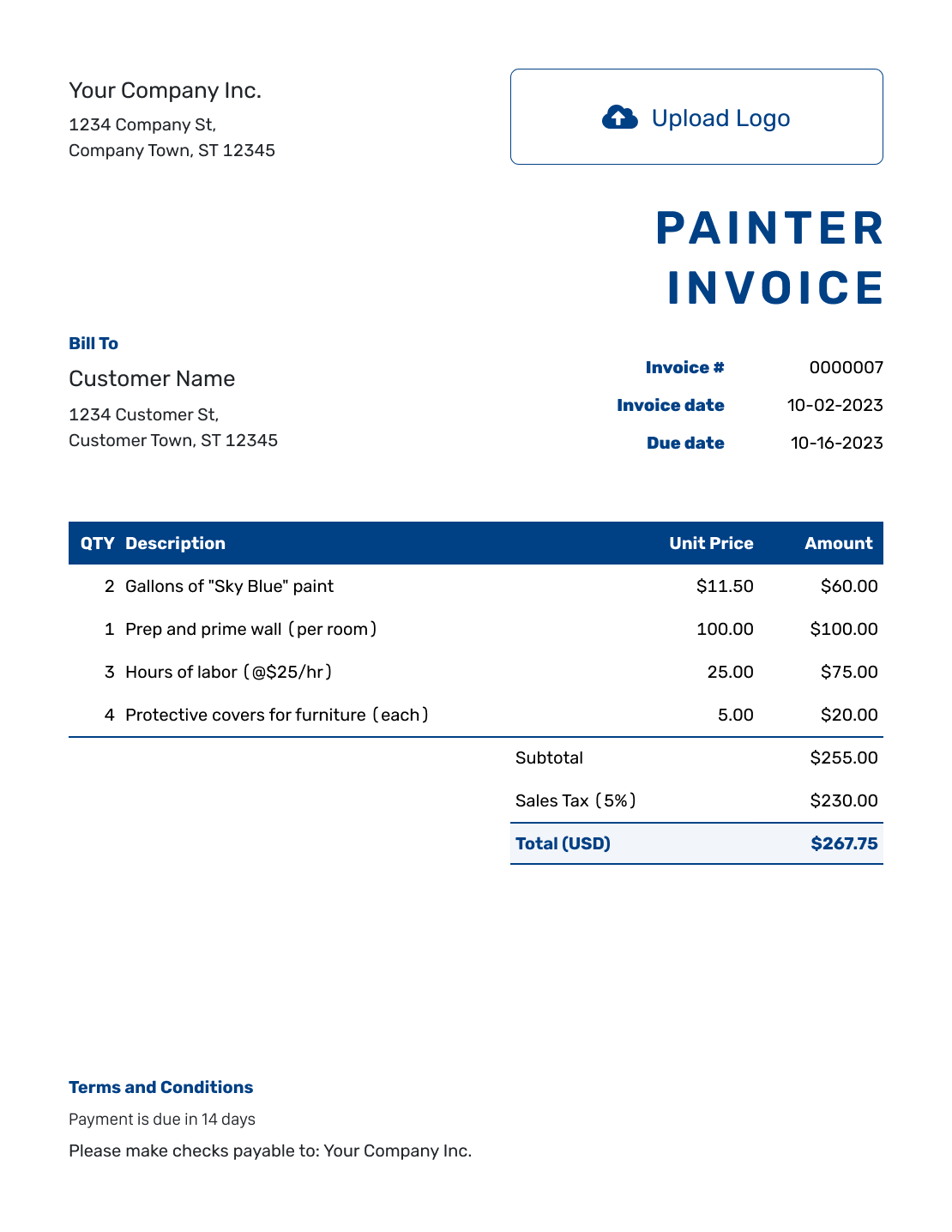
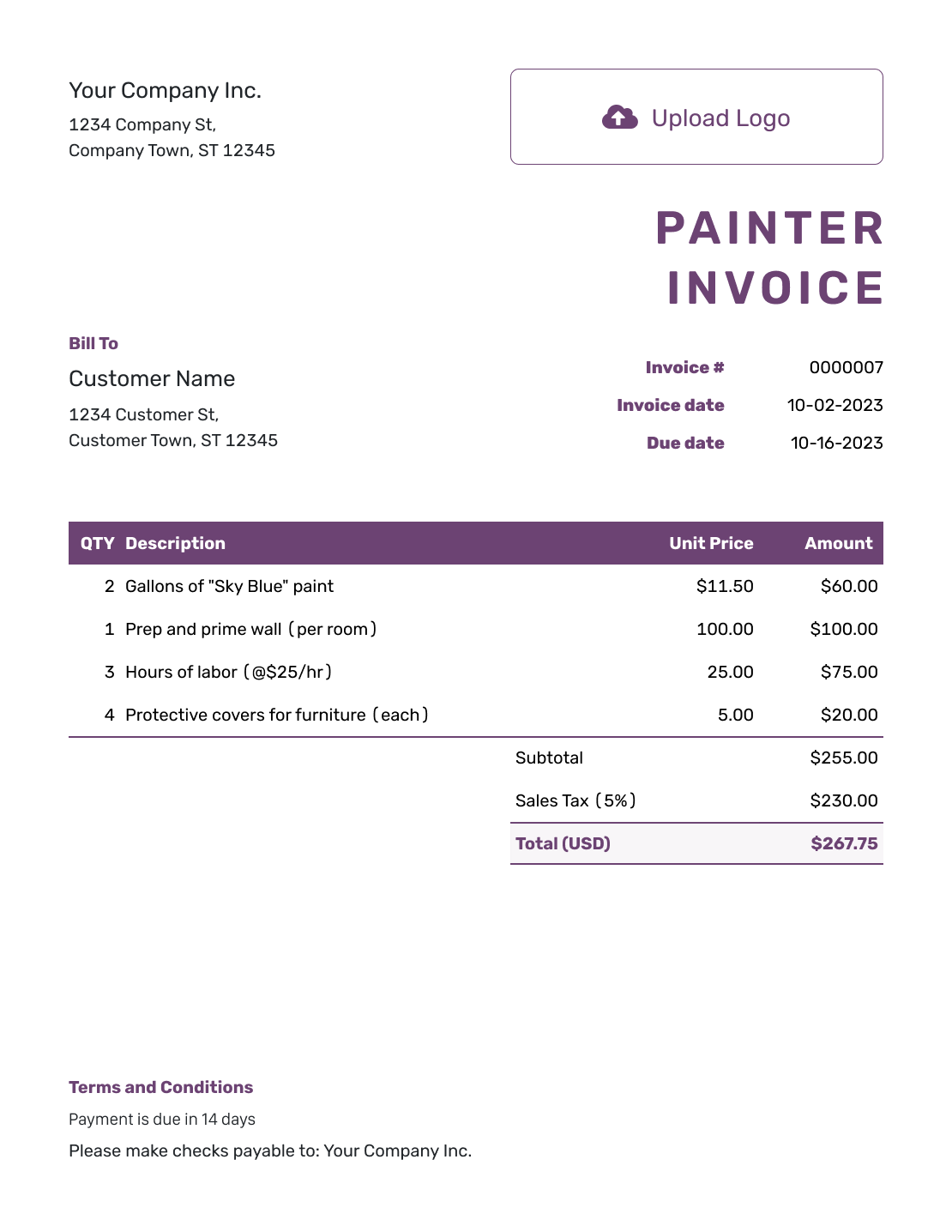
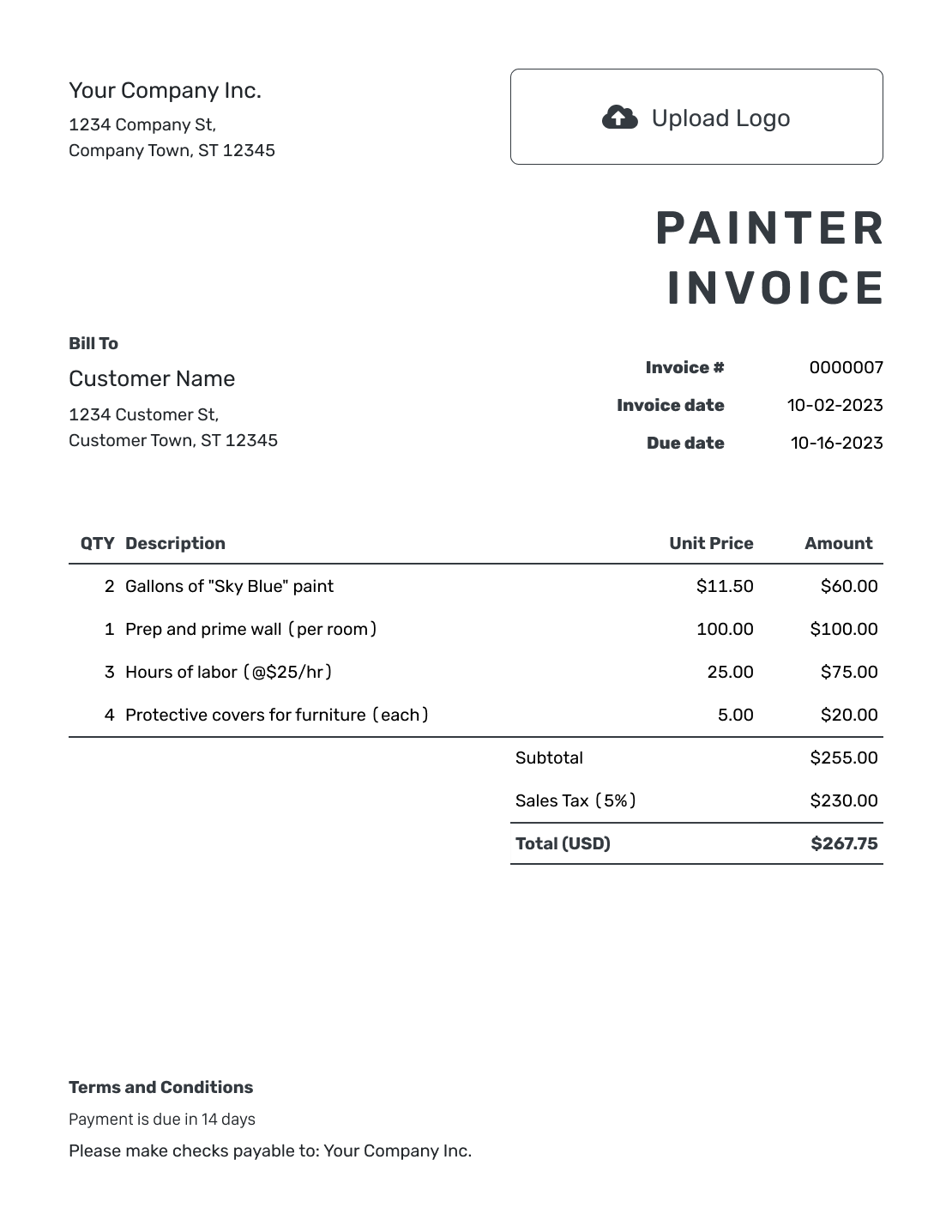
These six previews also open the invoice editor. Add your own rooms, surfaces, and agreed charges.
-
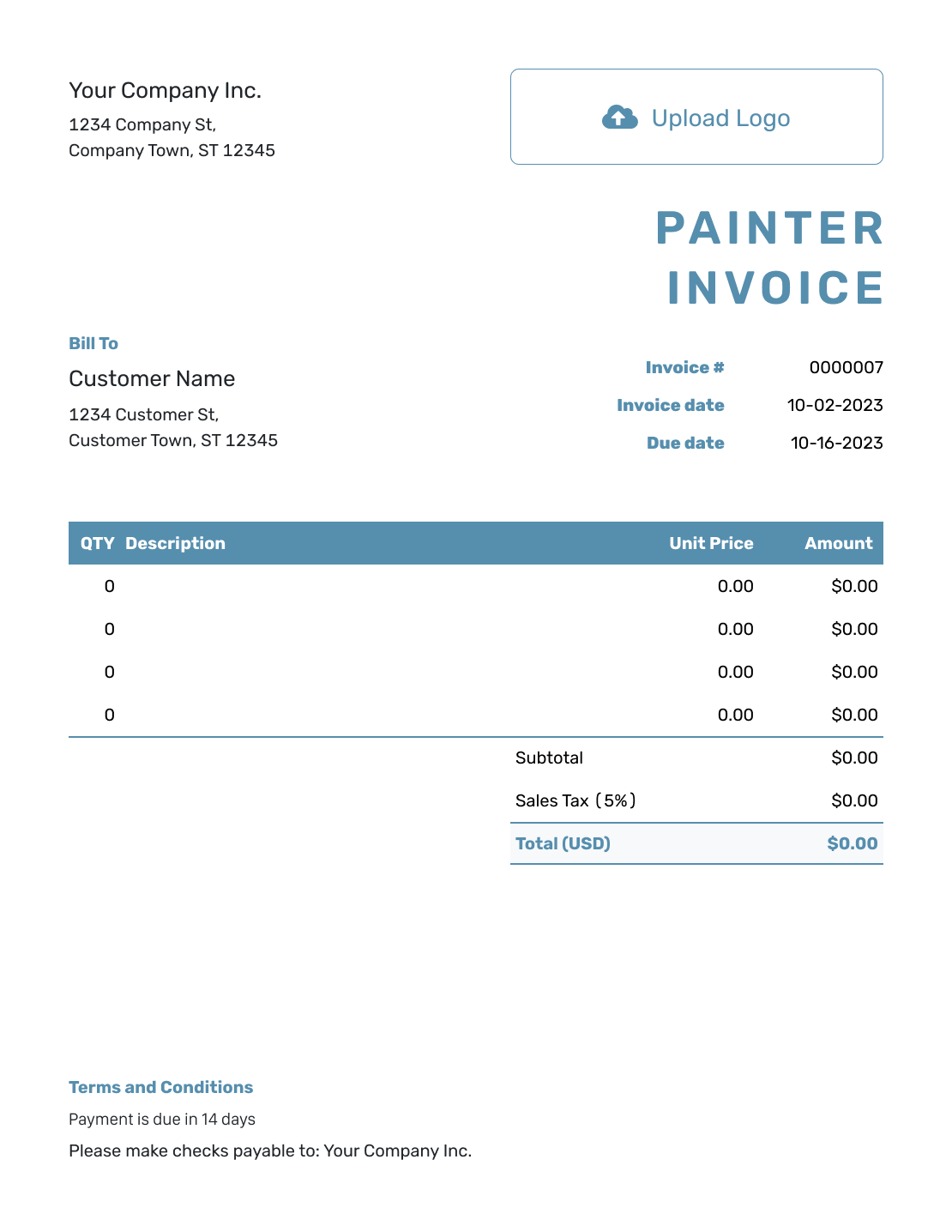
Blank Painter Invoice Template
Create Free Invoice -
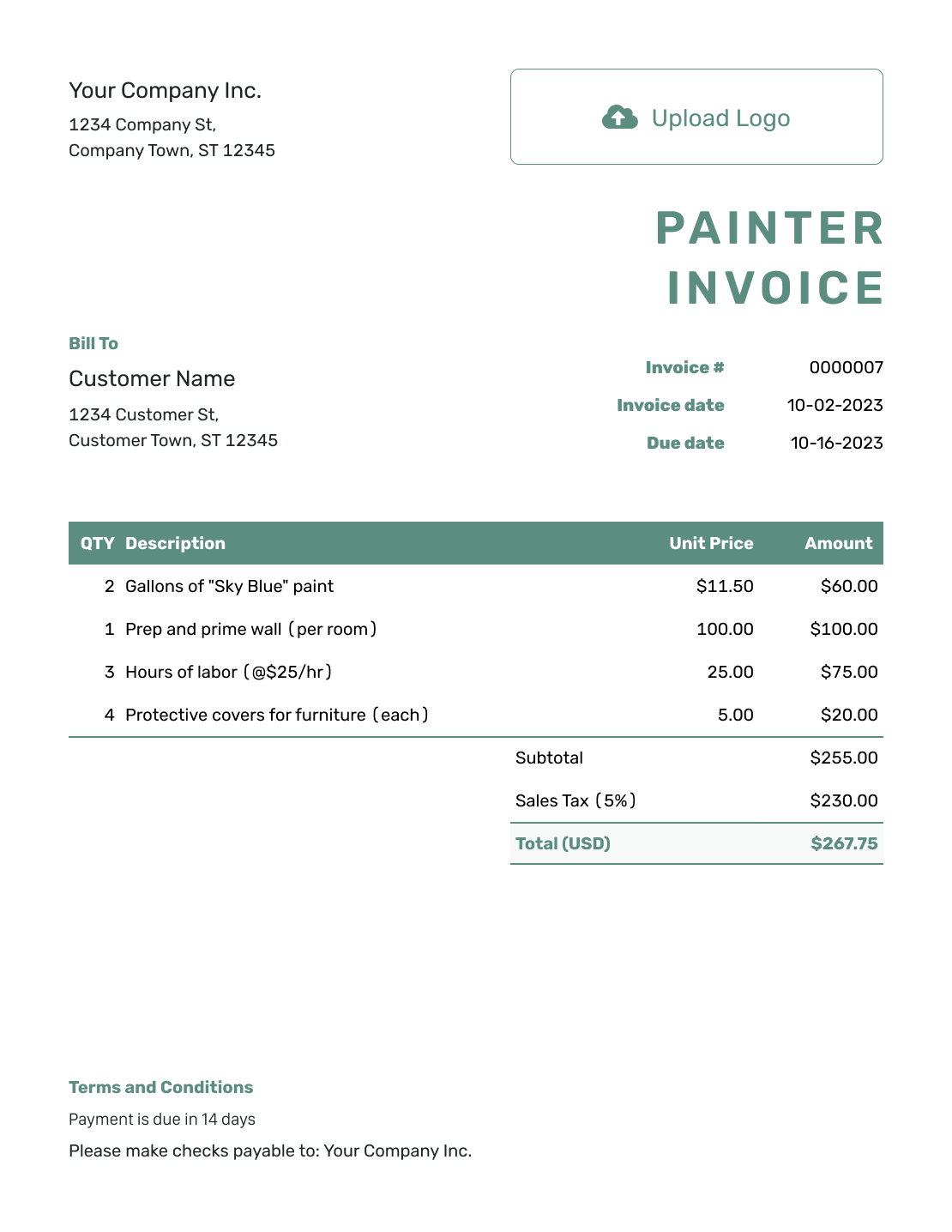
Simple Painter Invoice Template
Create Free Invoice -
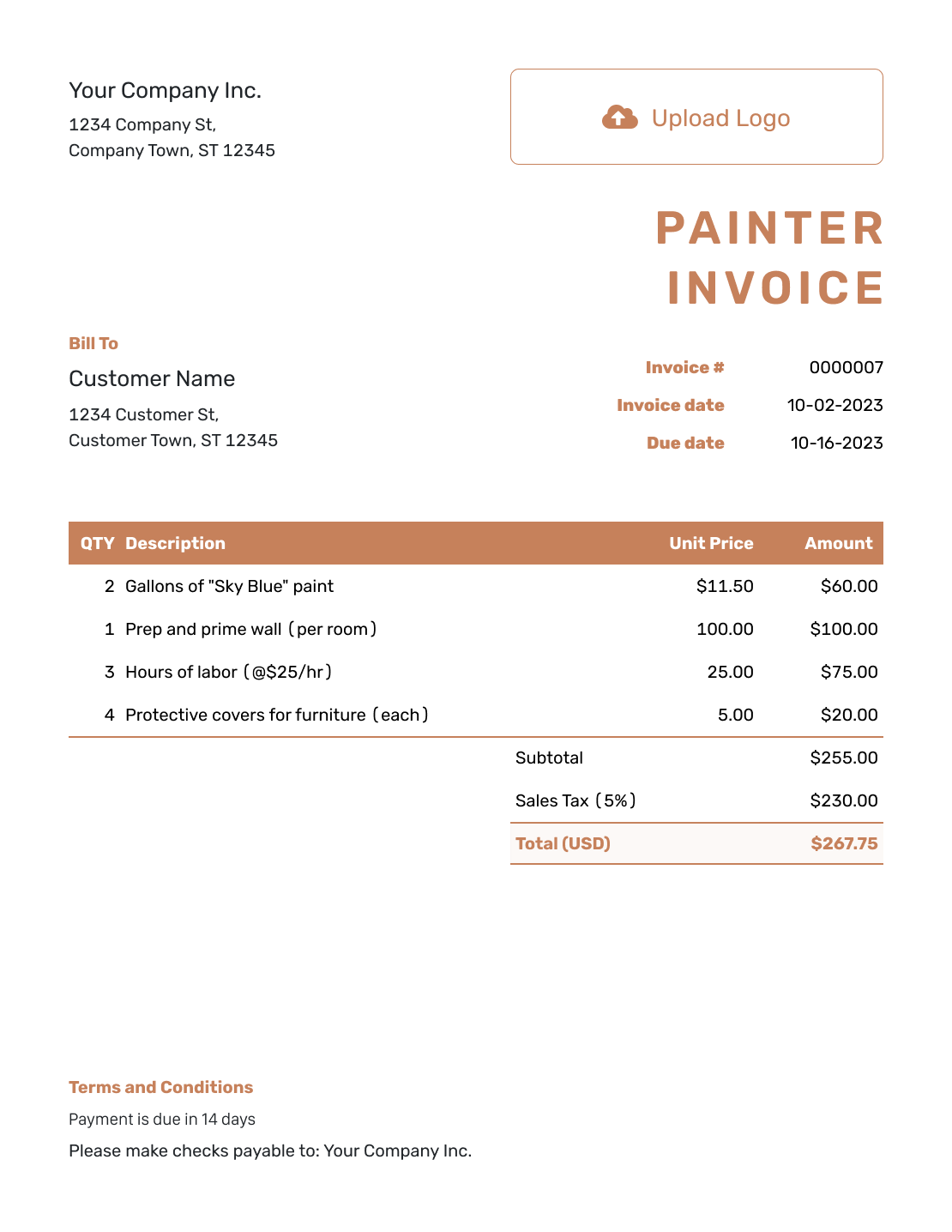
Standard Painter Invoice Template
Create Free Invoice -
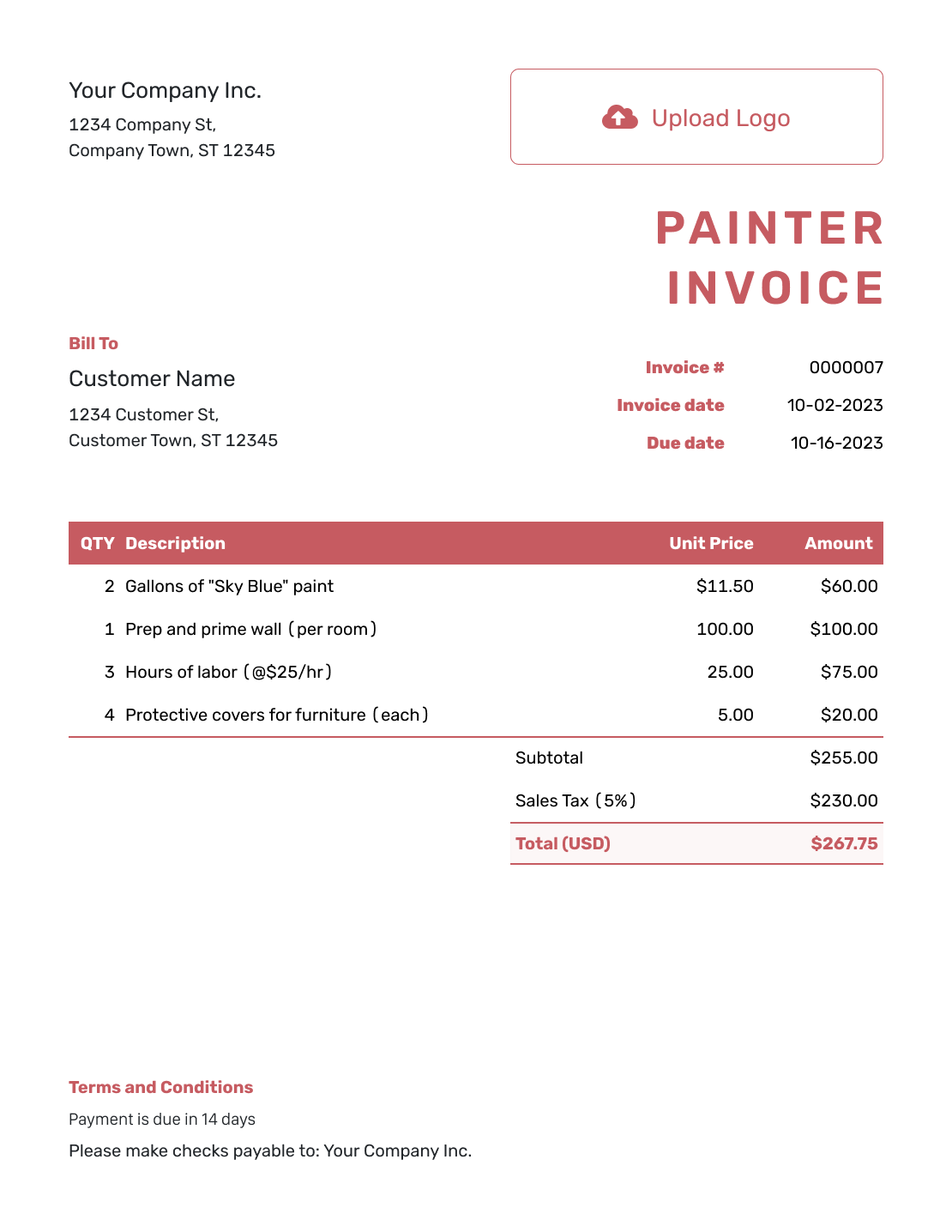
Itemized Painter Invoice Template
Create Free Invoice -
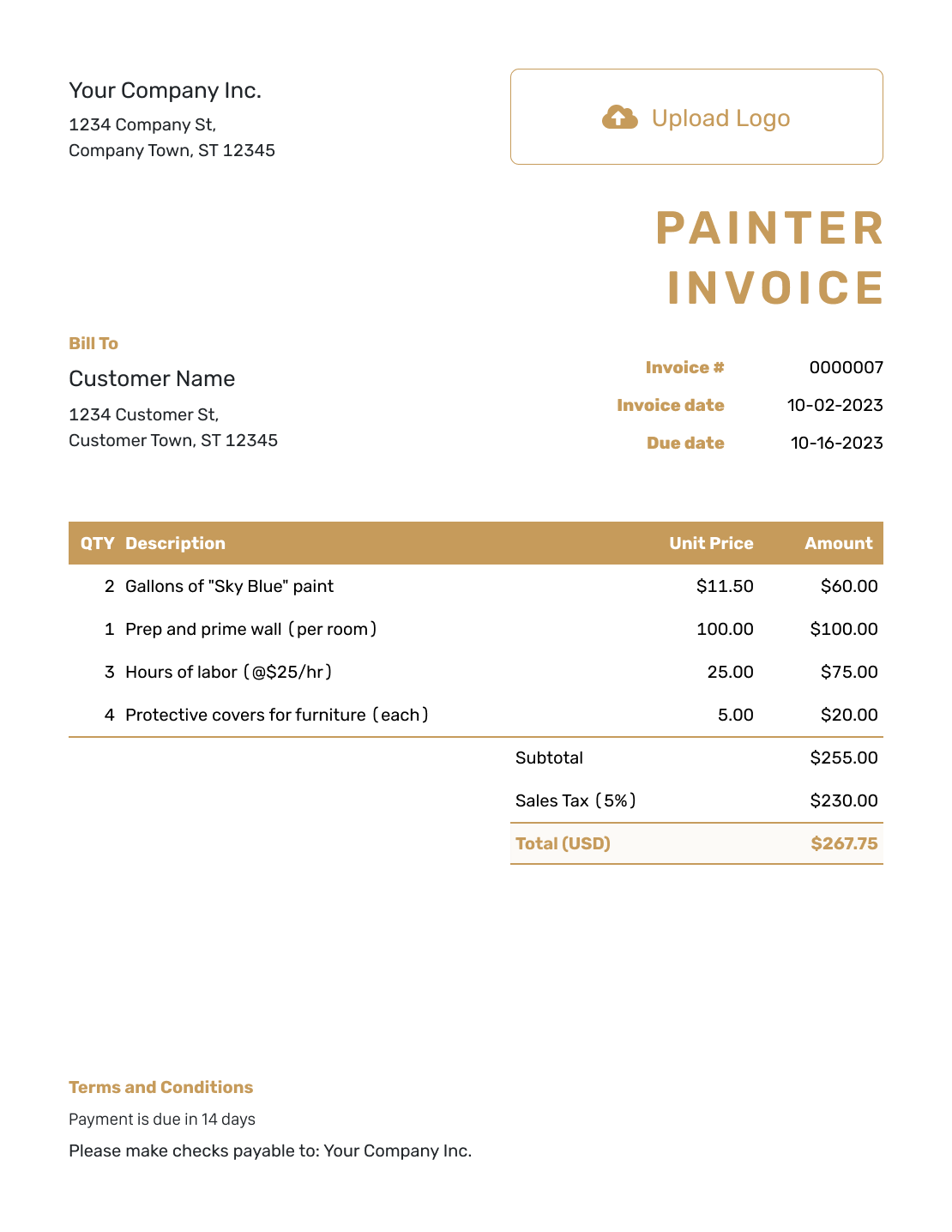
Basic Painter Invoice Template
Create Free Invoice -
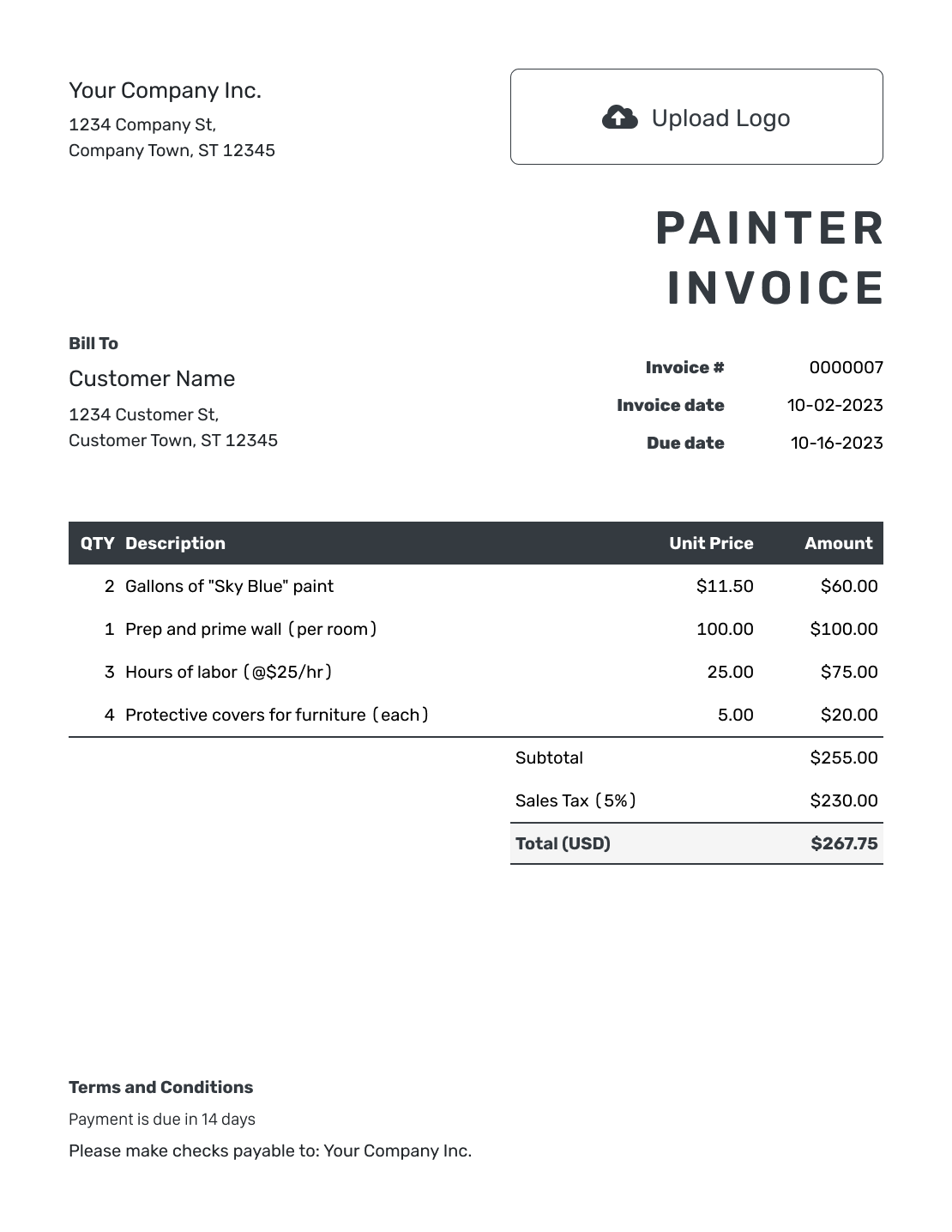
Hourly Painter Invoice Template
Create Free Invoice
Painter Invoice Templates in Word and Other Formats
Use these general templates for your painting job. Word and Google Docs work well for room and surface descriptions. Check your formulas in Excel or Google Sheets after adding rows.
Painter Invoice FAQs
-
Should I list every room on a painter invoice?
List rooms or surfaces separately when they have different prices or help explain the bill. For one agreed project price, describe the included areas on that line. Avoid adding extra charges for areas already covered.
-
How do I show extra coats or a color change?
Describe the approved addition on its own line and use the agreed charge. Add the approval or change reference so the customer can connect it to the original painting price.
-
What if the customer supplied the paint?
State that the customer supplied the paint. Bill for the labor and materials you provided. Add a paint charge only when you supplied more paint at an agreed price.
-
How do I show a payment received before the job was finished?
First check which invoice the payment belongs to. Record it against that invoice and review the remaining balance. If you issued a separate deposit invoice, do not also record the same payment as a new payment on the final bill.
-
Can I use this template for deck staining or decorative finishes?
Yes. Name the deck, surface, or decorative finish instead of using a general painting description. Show preparation and materials where they help explain the agreed price.
-
Can I send the customer a PDF painter invoice?
Yes. Check the completed areas, prices, and balance in Docelf. Then download a PDF. You can also print the invoice or email it directly from Docelf.
Ready to Send the Painter Invoice?
Finish the paperwork while the details of the painting job are still fresh.
- Describe the completed rooms and surfaces
- Check the total and payment due date
- Send a clear invoice from Docelf




