Free Production Assistant Invoice Template
Create a professional invoice in minutes
List the film, television, event or set work you completed, along with the hours and approved expenses. Clear details help the production team check the amount and pay you.
Email, print or download your invoice as a PDF.
14-day free trial. No credit card required.
Create the invoice. Send it. Get back to work.
Invoice Templates for Production Assistant Work
Use these previews when a production asks you to invoice for set work, preparation, logistics, or administrative support. Open the invoice creator to enter your work dates and approved charges. Keep the production name visible.
-
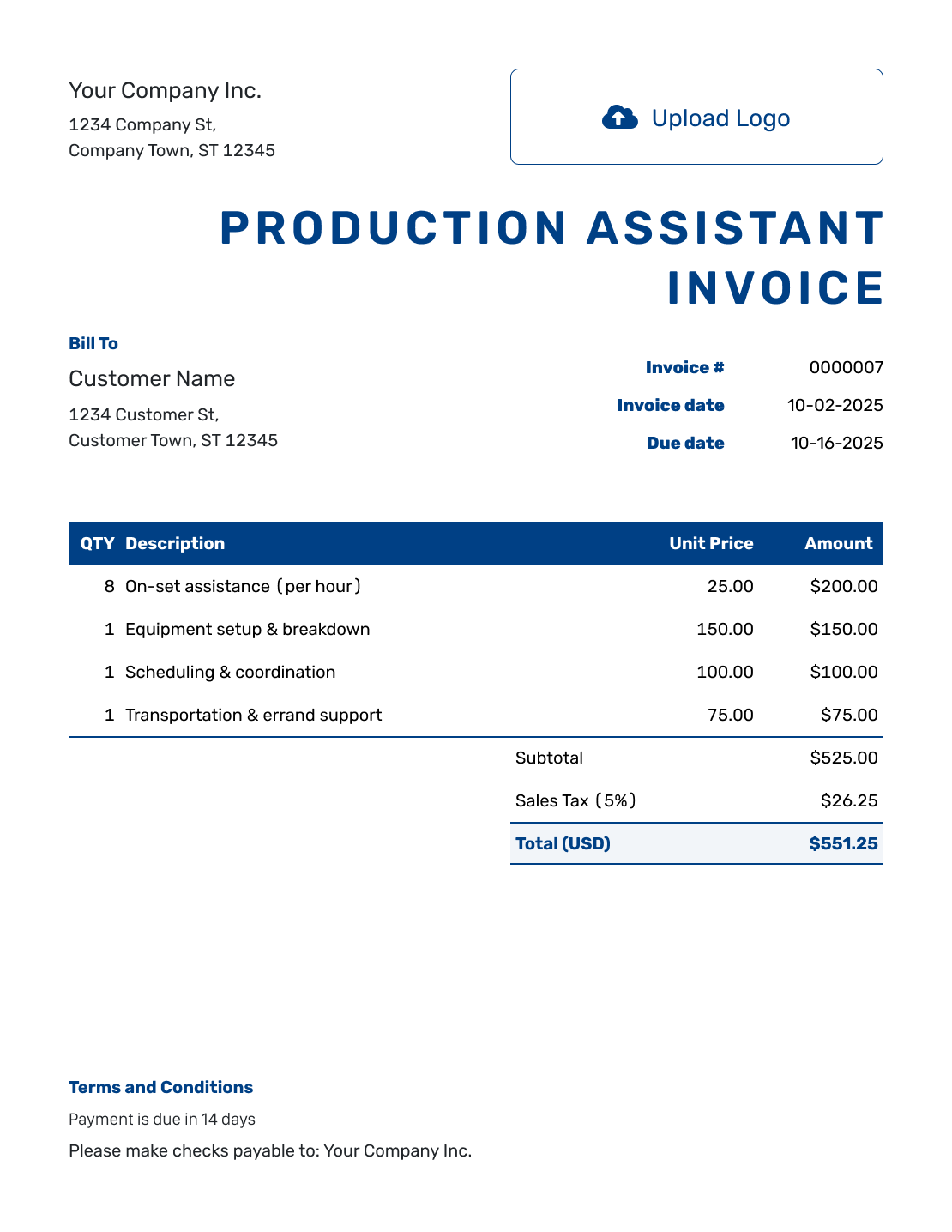
Sample Production Assistant Invoice Template
Create Free Invoice -
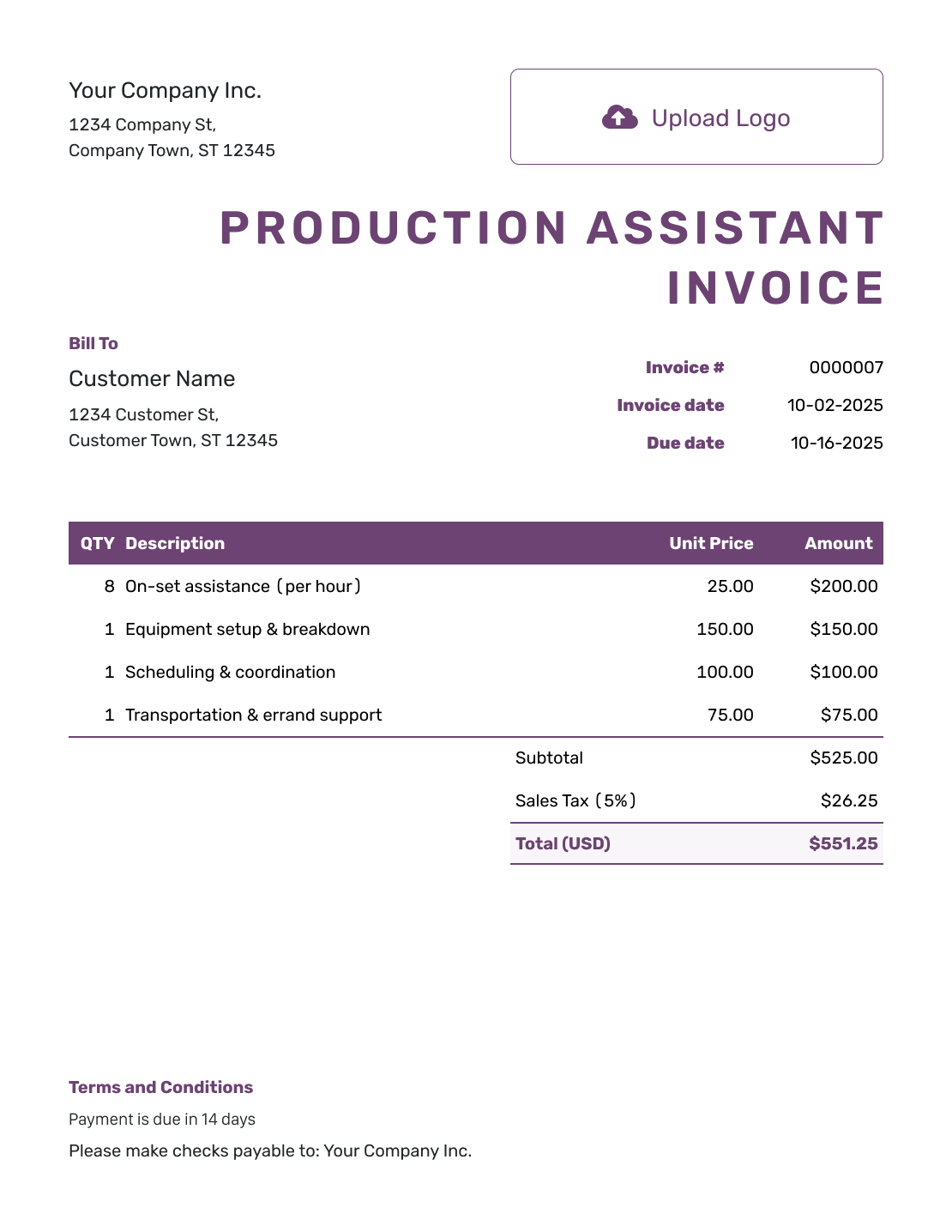
Free Production Assistant Invoice Template
Create Free Invoice -
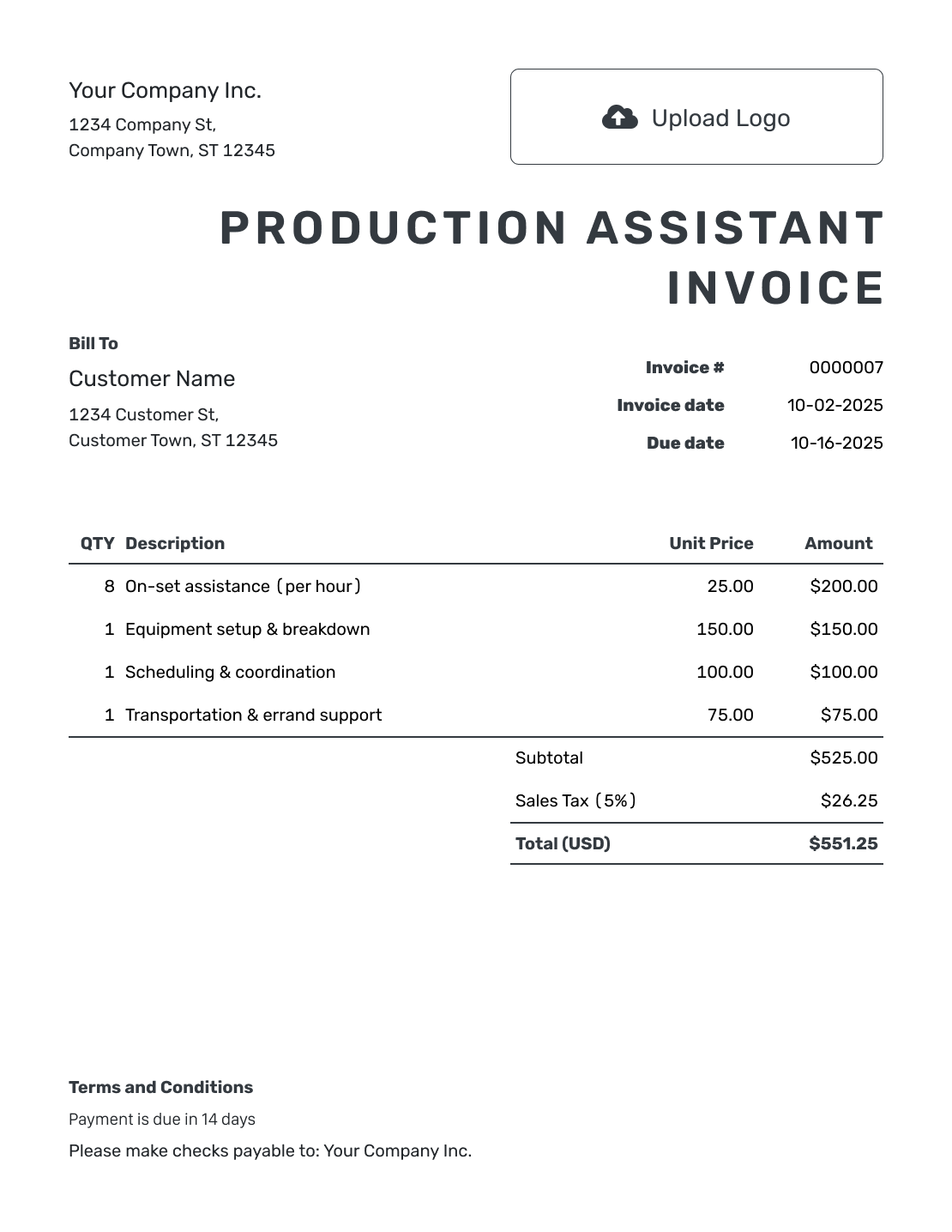
Printable Production Assistant Invoice Template
Create Free Invoice
See six more invoice previews below the billing guidance.
How to Create a Production Assistant Invoice
Bring together your work dates, agreed rate, and approved expenses. Use the production’s billing details so the team can match the invoice to the job.
- Add Your Billing Details: Enter your name or business name and a current billing email.
- Add Your Logo: Add a business logo when you use one for your freelance work.
- Add the Production Company: Use the production company’s billing name and the contact who handles payment.
- Set the Number and Dates: Check the invoice number. Add the invoice date and agreed payment deadline.
- List the Work and Expenses: Show the production name and work dates. List day fees, hourly work, and approved expenses.
- Review the Charges: Check day and hourly rates. Add any applicable tax or agreed discount.
- Explain Payment and References: Add payment instructions and any job or purchase order number the production team gave you.
How to Fill In Production Assistant Invoice Line Items
Keep day fees, separately billed preparation hours, and approved expenses on different lines. Label the work dates so the production team can compare the charges with its records.
This sample invoice uses US dollars (USD). It covers two days of set work, three separately billed preparation hours, and approved parking. The day fees do not include the preparation hours. The example adds 5% tax to the full $573.00 subtotal. Use your agreed rates and the tax rules that apply to your work.
| QTY | Description | Unit Price | Amount |
|---|---|---|---|
| 2 | Set support — Sept. 7–8, agreed days | $240.00 | $480.00 |
| 3 | Pre-production prep — Sept. 6, hours | $25.00 | $75.00 |
| 1 | Approved parking — receipt attached | $18.00 | $18.00 |
| Subtotal | $573.00 | |
| Tax (5% example) | $28.65 | |
| Total | $601.65 |
What to Include in Production Assistant Invoice Terms
Add the production reference and payment deadline in Terms and Conditions. State whether each rate is per day or per hour. Refer to your agreement for preparation or wrap work charged outside the day fee.
Only include charges and policies that match your arrangement with the production. Check local requirements before adding fees or other payment conditions. Replace the placeholders in this example with the job details.
Example: Terms and Conditions
- Payment is due on [Due Date] using [Payment Instructions].
- This invoice covers the listed work dates for production [Production Name or Code].
- Day fees, hourly work, and additional time follow [Agreement Reference].
- Listed expenses were approved by [Production Contact]; supporting receipts accompany the invoice.
Help the Production Team Check Your Bill
Create an invoice for the agreed work dates and charges. Docelf calculates the total. Check the invoice, then email it to the production’s billing contact.
Match the Invoice to the Production’s Records
A useful production assistant invoice lets the billing team identify both the job and the work being charged.
- Use the production company’s billing name, not just the shoot location.
- Include the project title or production code provided to you.
- Show each work date and whether you are billing days or hours.
- Describe separately agreed preparation, set, logistics, or wrap tasks.
- Identify approved expenses and attach the relevant supporting receipts.
Show Day Fees and Hourly Work Clearly
Use the daily or hourly rate in your agreement with the production team. For two fixed day fees, enter 2 as Quantity and the daily rate as Unit Price. For an hourly task, enter the hours and hourly rate.
Use the agreed rate for extra time. Do not assume the template sets the length of a paid day. Check which hours the day fee already covers before adding separate charges for preparation, wrap work, or other time.
Make Expense Receipts Easy to Check
Describe each approved expense and include its date or receipt number. Put parking, supplies, and travel on separate lines from your labor charges. Attach clear receipts so the billing team can check the charges.
Docelf supports PDF, JPG, GIF, PNG, and WebP attachments up to 5 MB each. Include only the records that explain your charges, not the full set of production documents.
Use the Billing Process Agreed for the Job
This template is for work the production has asked you to invoice. If the job uses payroll, follow the production’s payroll process instead. An invoice template does not decide which arrangement applies.
When you need to send an invoice, add your logo and choose readable colors and fonts. Put your billing email in the footer. You can add an industry name before “Invoice.”
Choose the agreed currency from USD, EUR, GBP, CAD, or AUD.
Send the Invoice with the Production Reference
Confirm the billing contact, especially when your usual contact works on set. When you email the invoice from Docelf, you can see when the recipient opens it. Include the production code when you follow up so the billing team can find the job.
When production pays, record the amount and date against the invoice. Docelf tracks any remaining balance. You can create a receipt from the invoice after recording payment.
More Production Assistant Invoice Previews
These six previews open the same invoice editor. Add your own services, charges, and payment details.
-
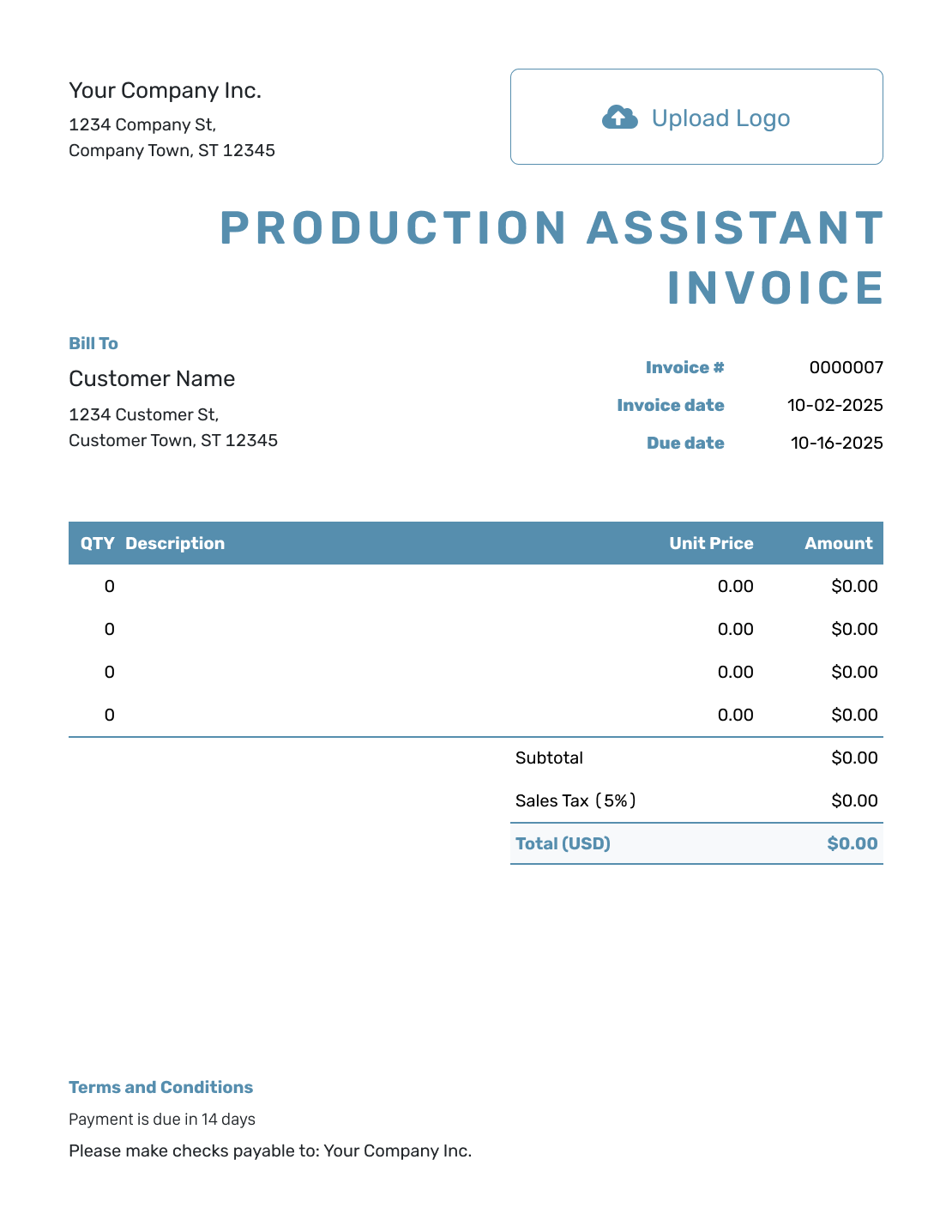
Blank Production Assistant Invoice Template
Create Free Invoice -
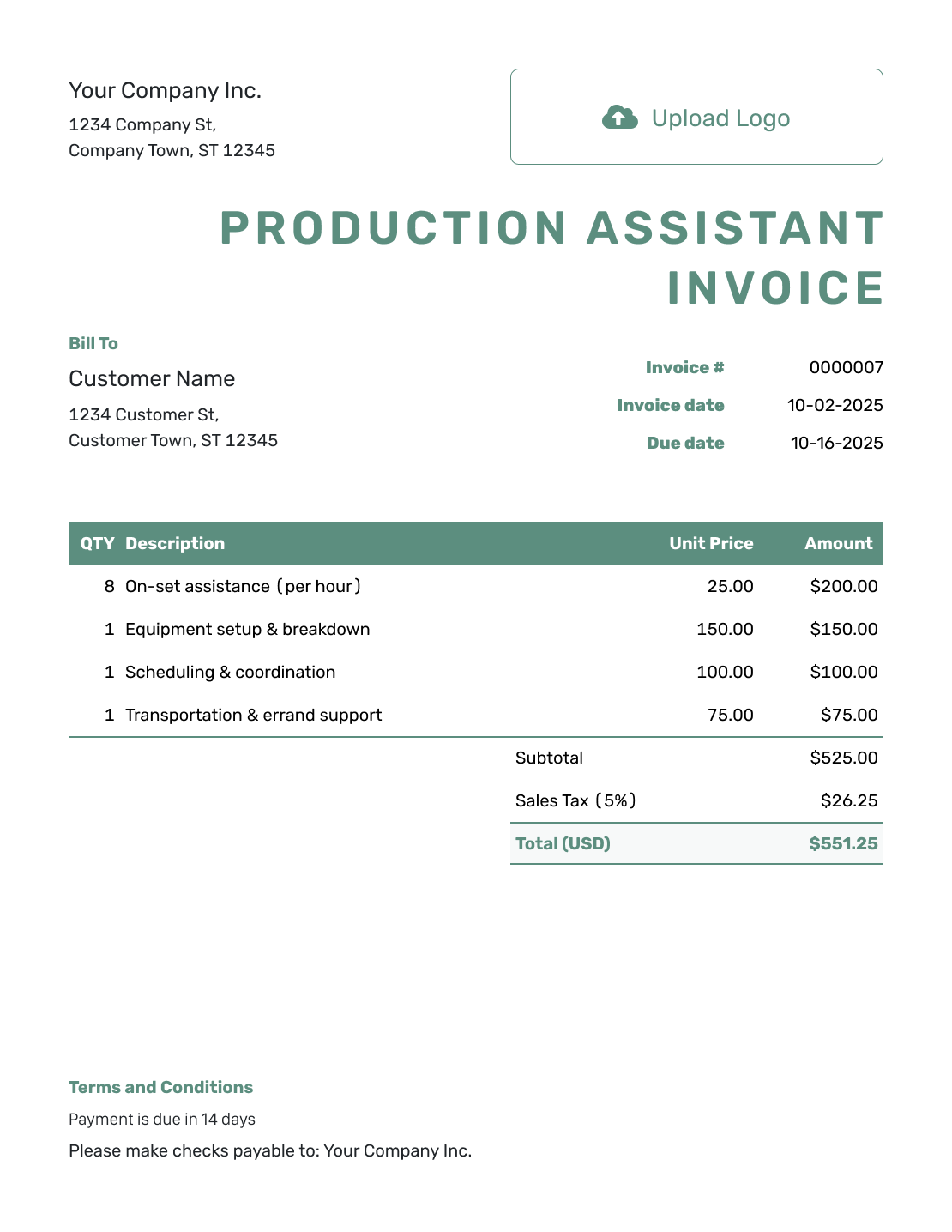
Simple Production Assistant Invoice Template
Create Free Invoice -
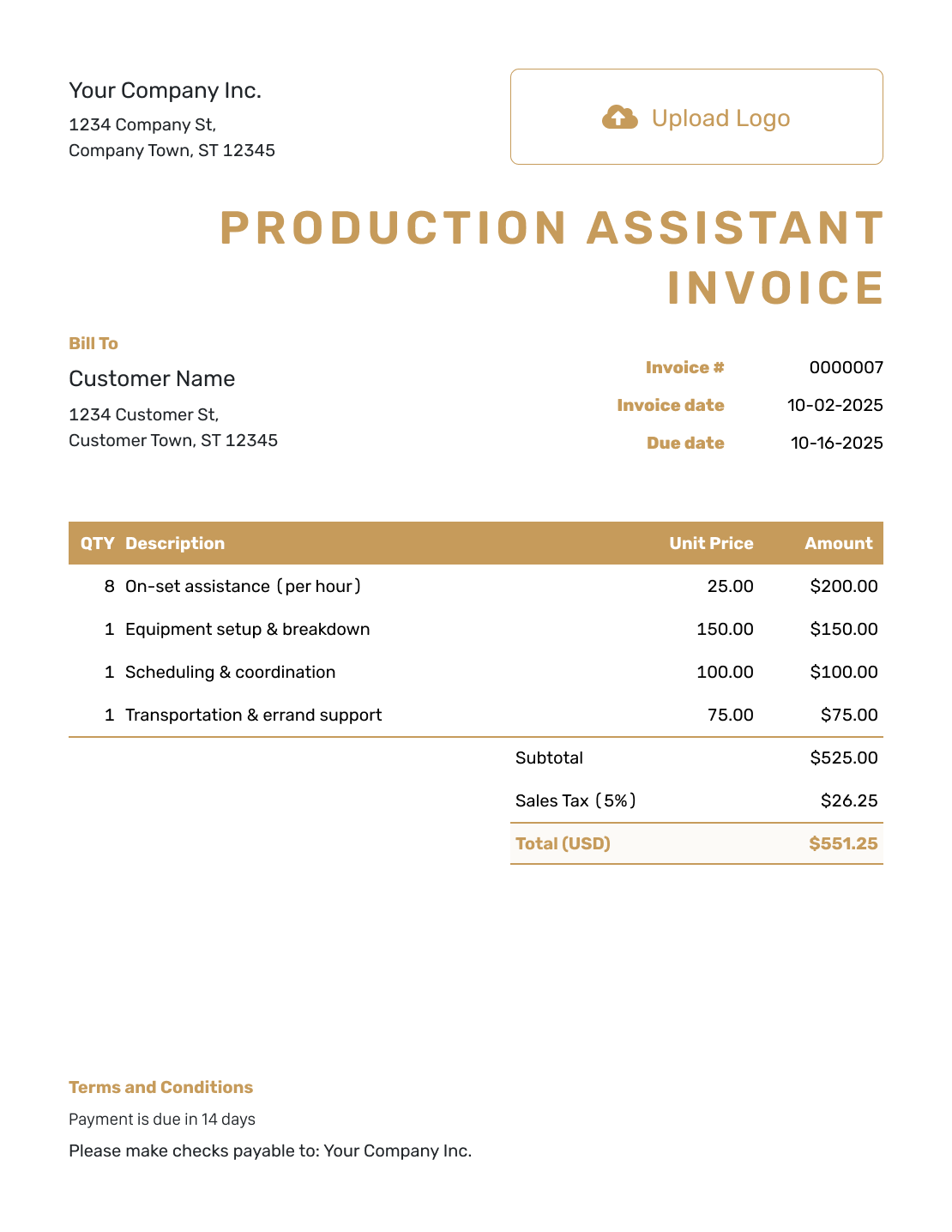
Standard Production Assistant Invoice Template
Create Free Invoice -
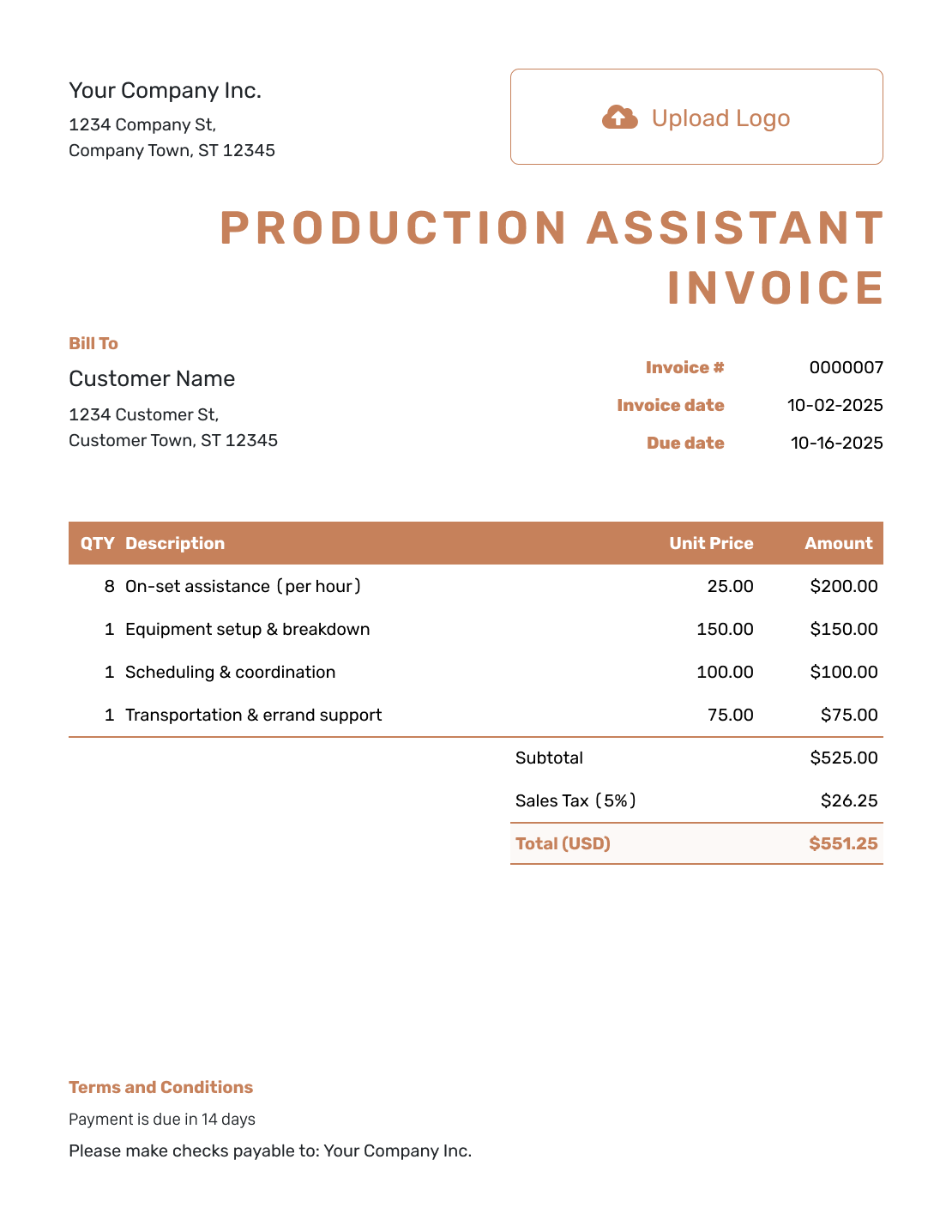
Itemized Production Assistant Invoice Template
Create Free Invoice -
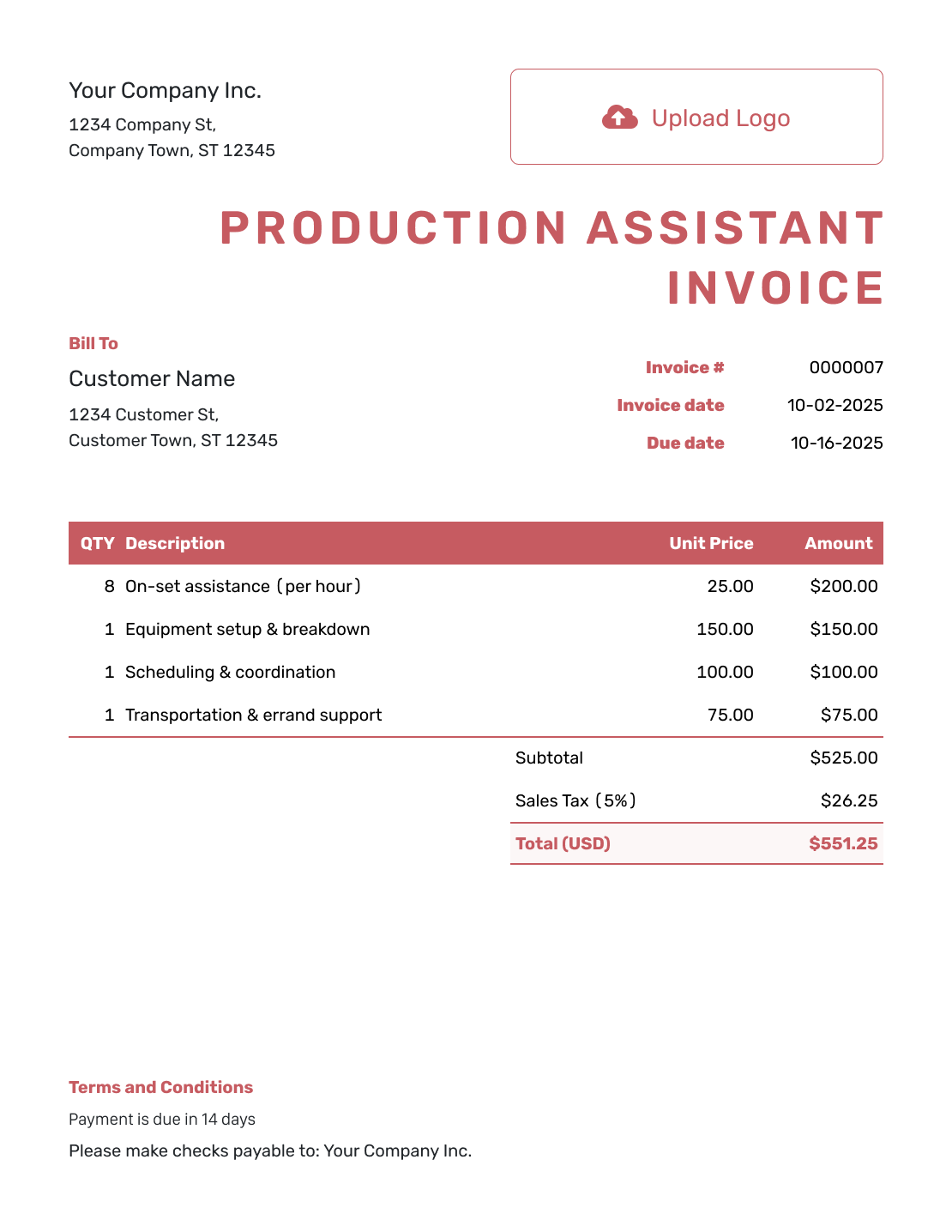
Basic Production Assistant Invoice Template
Create Free Invoice -
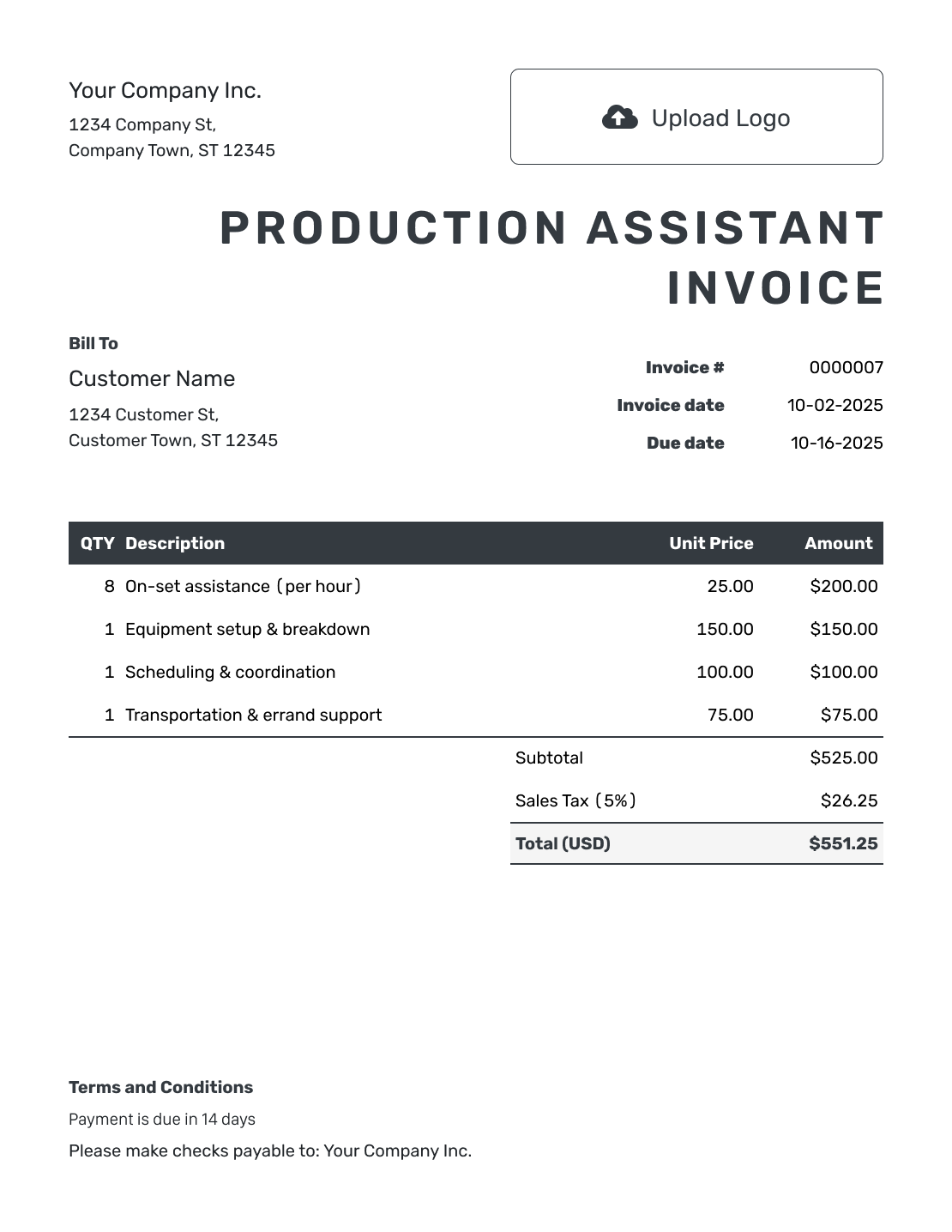
Hourly Production Assistant Invoice Template
Create Free Invoice
Production Assistant Invoice File Formats
Need an editable file for the production’s billing process? Start with one of the general invoice formats below. Keep work dates and expense references intact when you fill it in.
Production Assistant Invoice FAQs
-
What production details belong on my invoice?
Include the company’s billing name, the project title or production code, and the work dates. Add the purchase order or job number the production team gave you. The billing team can use it to match the invoice to the job.
-
Can I use day rates and hourly rates on the same invoice?
Yes, when they cover separately agreed work. Label the units and dates clearly. Do not bill hours again for time already covered by a day fee.
-
How do I include approved expenses?
Give each expense a clear description and amount. Add its date or receipt reference and attach the supporting receipt. Keep expenses separate from your labor charges.
-
Does Docelf work out my overtime or extra-time rate?
Enter the rate and hours that apply to your agreement with the production team. Docelf calculates line amounts and totals from those entries. It does not decide which extra-time rules apply.
-
Should I send this invoice for a payroll job?
Follow the production’s agreed payroll process for payroll work. Use this invoice template when production has asked you to submit an invoice. The template does not decide your employment or billing status.
-
Can I attach a work log or expense receipts?
Yes. Attach them as PDF, JPG, GIF, PNG, or WebP files up to 5 MB each. Use only the relevant job records and check that the dates match the invoice.
Finish the Invoice for Your Production Work
Give the billing team a clear record of the work you are asking them to pay for.
- Identify the production and work dates
- Keep work fees and approved expenses separate
- Set the due date and send the invoice




