Free Quotation Email Template and Examples
Send your quotation with a clear next step
Introduce the quotation in a short email and tell the customer how to respond. A clear message keeps the offer moving and helps them choose you.
Create the quotation first, then use one of the email examples below when you send it.
14-day free trial. No credit card required.
Price the job. Send the quote. Get back to work.
Quote Templates to Send With Your Email
These previews show the quote that accompanies your message. Each opens the same Docelf quote editor. For the email itself, use the copy-and-paste wording below.
-
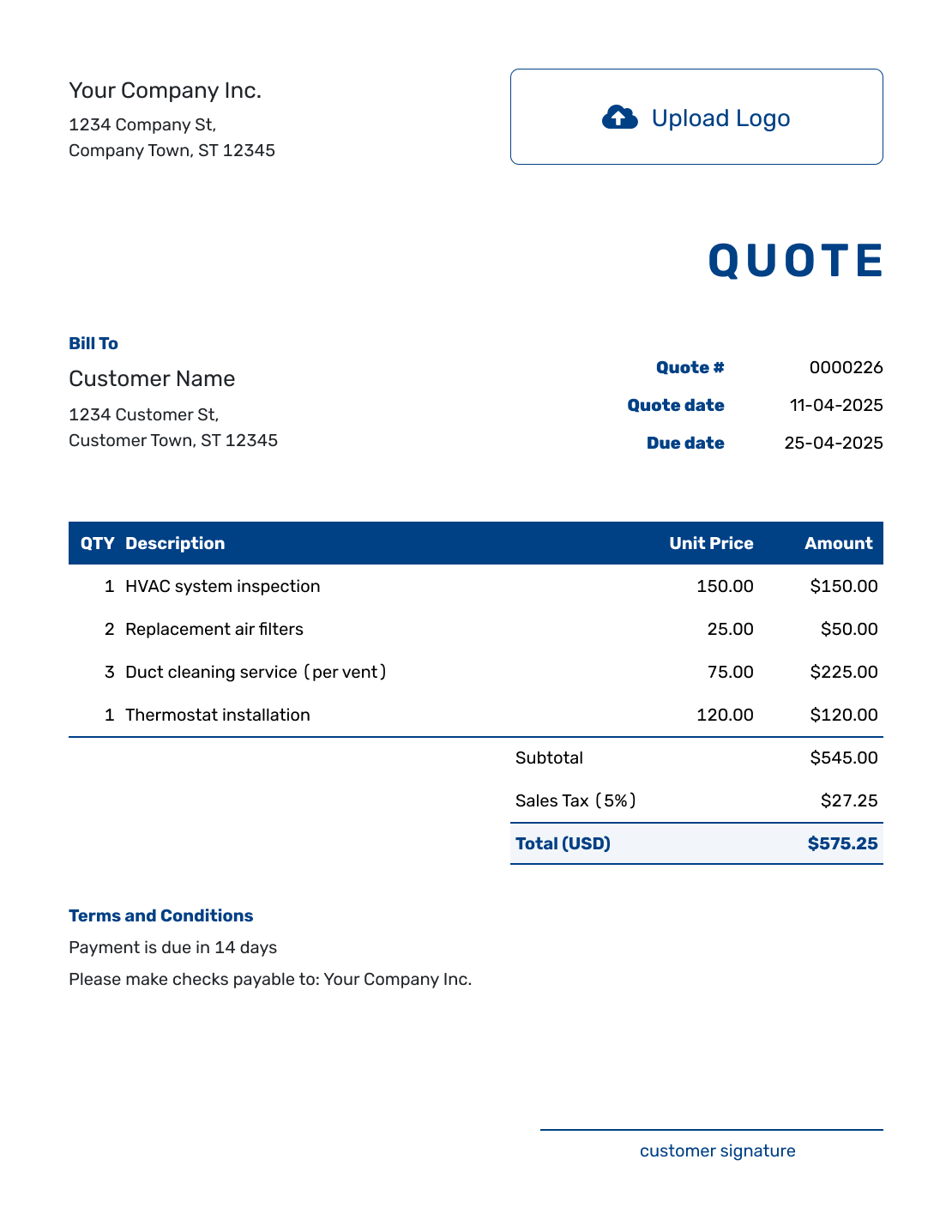
Sample Quote Template
Create Free Quote -
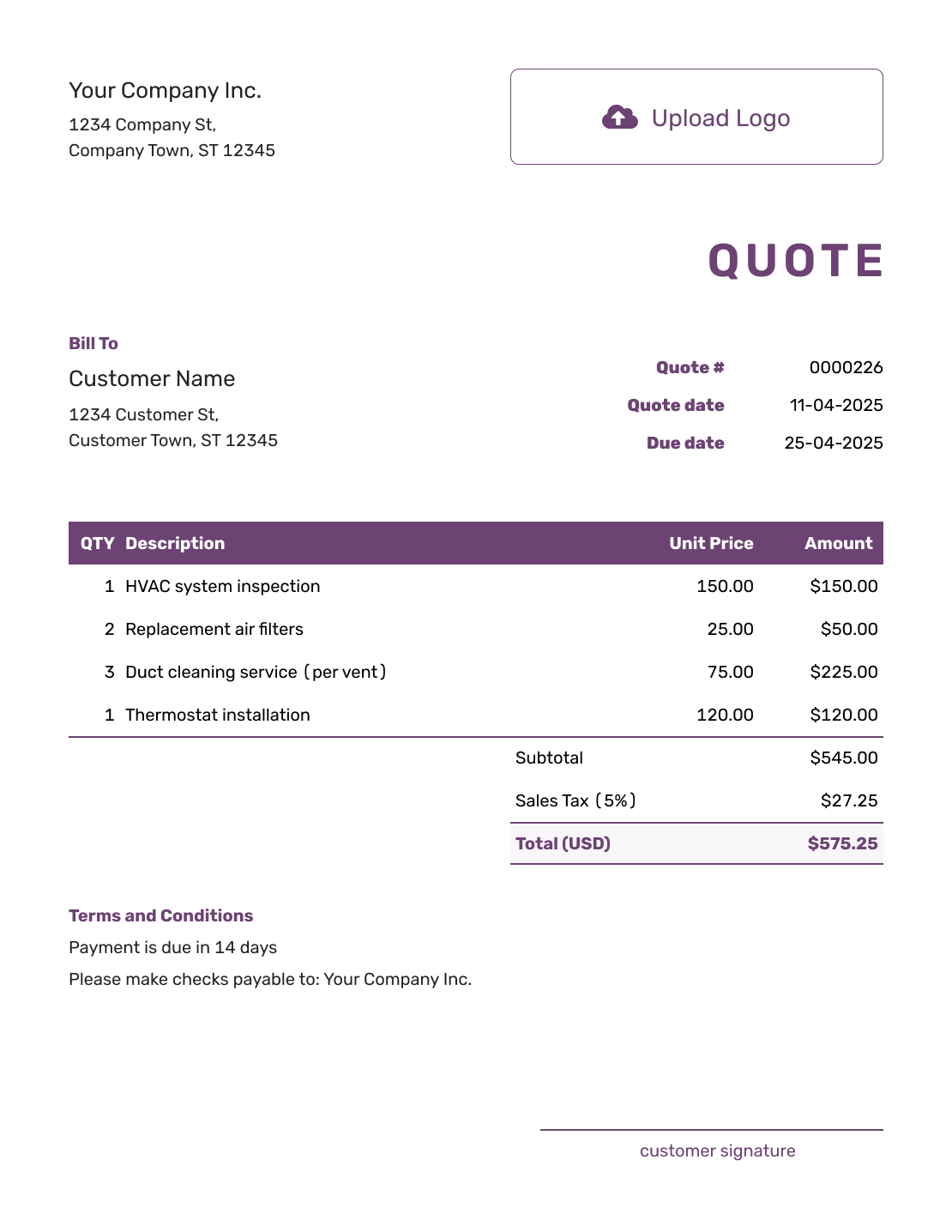
Free Quote Template
Create Free Quote -
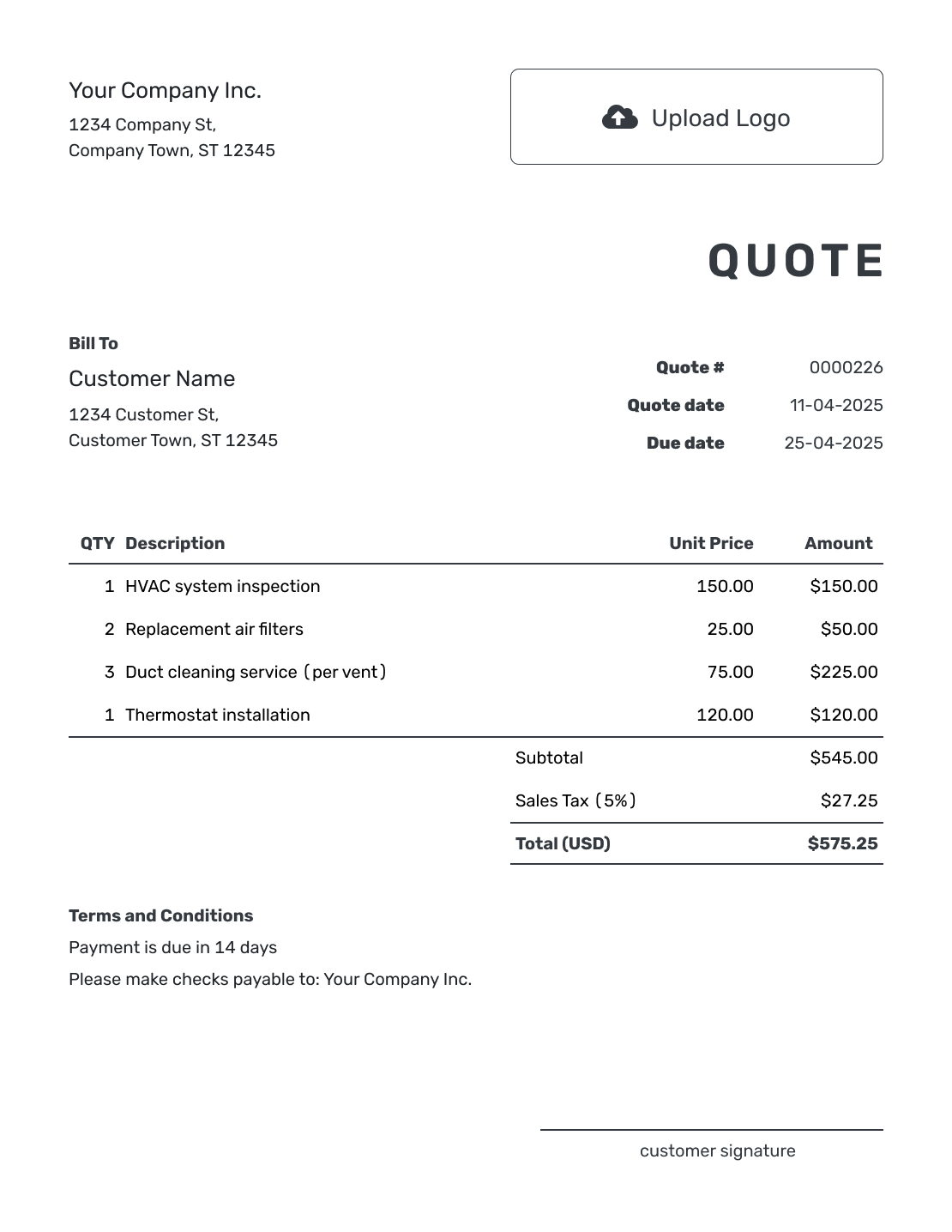
Printable Quote Template
Create Free Quote
See six more quote previews farther down the page.
Copy-and-Paste Quotation Email Template
Use this message in your usual email app with the quote PDF attached. Replace the bracketed text and check that the amount, currency, and valid-until date match the quote. Leave out the date sentence if the offer has no expiry date.
Example: Sending a Quote PDF
Subject: Quote [Quote Number] for [Project or Service]
Hi [Customer Name],
Thank you for asking [Business Name] to quote for [project, product, or service]. I've attached quote [Quote Number] with the scope, price, and terms.
The quoted total is [Amount and Currency]. The offer is valid until [Date].
Please reply to confirm you would like to go ahead, or let me know if you have any questions. We can then agree on the start or delivery date.
Thanks,
[Your Name]
[Business Name]
Quotation Email Subject Line Examples
Use a subject line that the customer can recognize later in a busy inbox. A quote number helps when you are discussing more than one job; “Revised” makes an updated offer easier to spot.
- Quote Q-1048 for Office Painting
- Your Quote for the Website Refresh
- Revised Quote Q-1048 – Updated Scope
- Checking In on Quote Q-1048
Choose How to Send Your Quotation
A quotation email introduces the price quote and tells the customer how to respond. Keep the detailed offer in the quote so the email is easy to read.
Sending from your email app: Download the quote as a PDF, attach it, and use the wording above. Ask the customer to reply to your email so you have a clear response to that version.
Sending from Docelf: Email the finished quote directly. Your customer can view, download, accept, or decline it online without a Docelf account. The document history shows delivery and viewing information for the email sent through Docelf.
Need help with the quote itself? Start with the free quote template or review the quote terms examples.
Create a Quote Ready to Email
Add the customer and describe the offer. Docelf calculates the total. Review the quote, then email it or download a PDF.
How to Write and Send a Quotation Email
Finish the quote first, then check the message against it. Saving or editing a quote in Docelf does not email it; you choose when to send.
- Create the Quote: Finish the offer, price, and terms before writing the email.
- Check the Customer: Use the customer name and the email address tied to the request.
- Write the Subject: Name the job, service, or quote number.
- Add Context: Thank the customer and identify the work or order you have quoted for.
- Point to the Quote: Attach the correct PDF when using your email app, or send the document directly from Docelf.
- Give a Clear Response Option: Ask for a reply when emailing a PDF. A quote sent through Docelf can be accepted or declined online.
- Review and Send: Check the recipient, quote number, attachment, and any total or date repeated in the message. Then send it.
Quotation Follow-Up Email Example
A short follow-up is usually easier to answer than a second sales pitch. Follow the timing you discussed with the customer, or allow them time to review the offer before checking in. Check the valid-until date before attaching the quote again.
Example: Checking In on a Quote
Subject: Checking In on Quote [Quote Number]
Hi [Customer Name],
I wanted to check whether you had any questions about quote [Quote Number] for [project or service]. I've attached it again for reference. It is valid until [Date].
Reply here if you would like to change the scope or talk through any part of the quote.
Thanks,
[Your Name]
Explain What Changed in a Revised Quote
When the customer asks for a change, update the quote before replying. A short summary helps them see what changed and which version to use. Attach the revised PDF, and check its price and validity before copying them into the message.
Example: Sending a Revised Quote
Subject: Revised Quote [Quote Number] – Updated Scope
Hi [Customer Name],
I've attached the revised quote for [project or service]. It now includes [agreed change], bringing the quoted total to [Amount and Currency]. The offer is valid until [Date].
This version replaces the quote I sent on [Previous Date]. Please review the updated scope and reply if you would like to go ahead.
Thanks,
[Your Name]
After Your Customer Responds
With a Docelf quote, the status updates and you receive an email notification when the customer accepts or declines online. If they reply to your own email instead, you can mark the quote as accepted or declined manually.
Confirm any start or delivery arrangements with the customer. If they request another change, revise the offer and send it for review before starting the changed work.
More Quote Templates to Send With Your Email
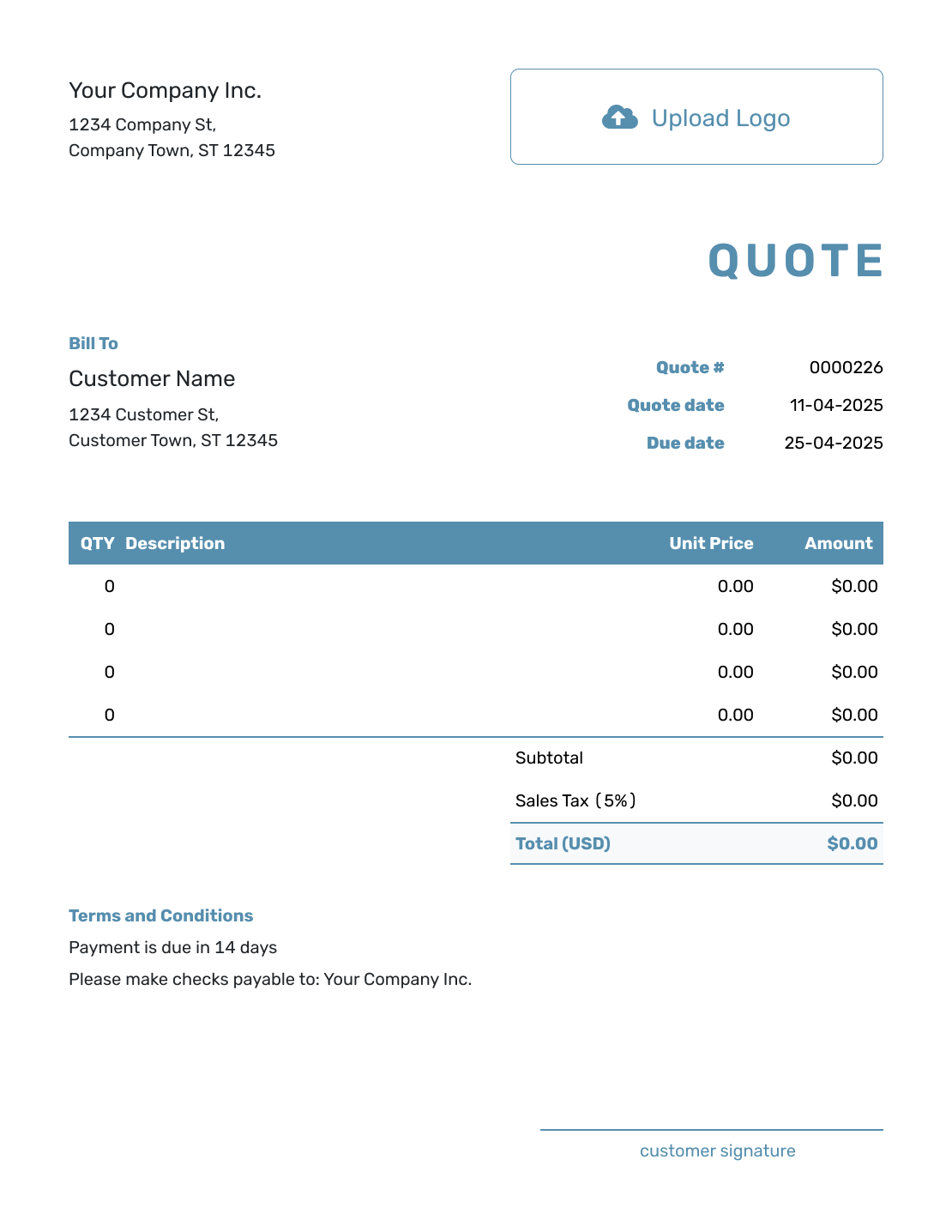
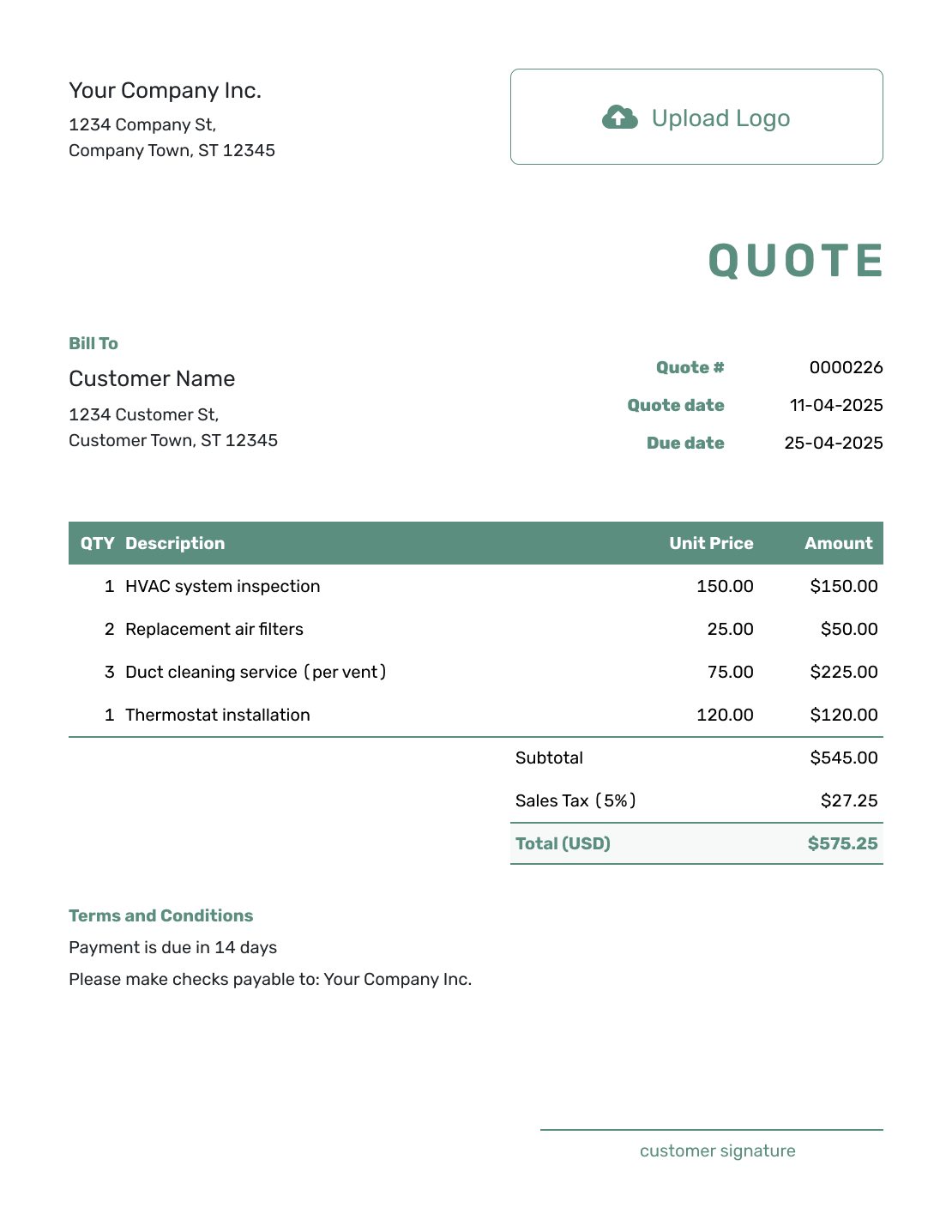
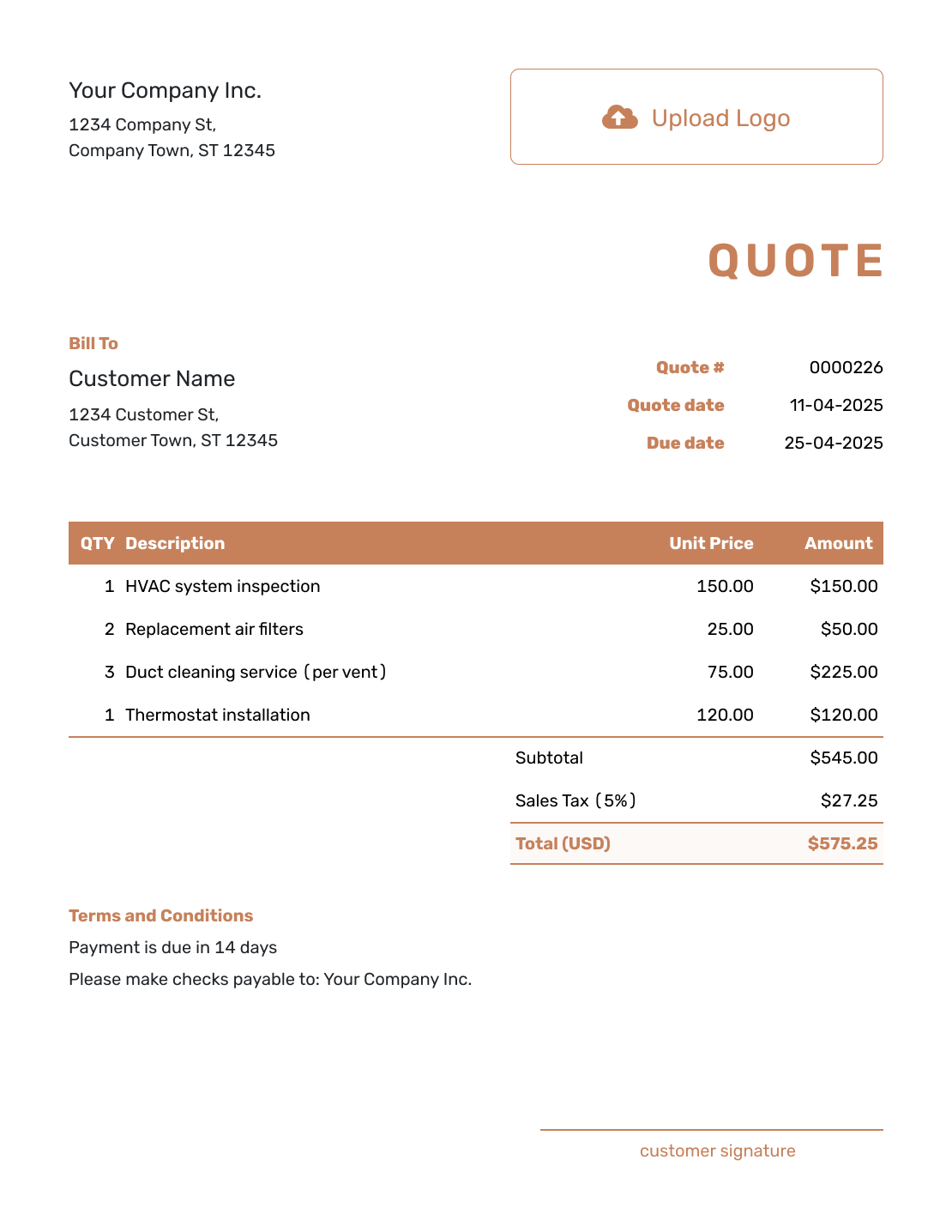
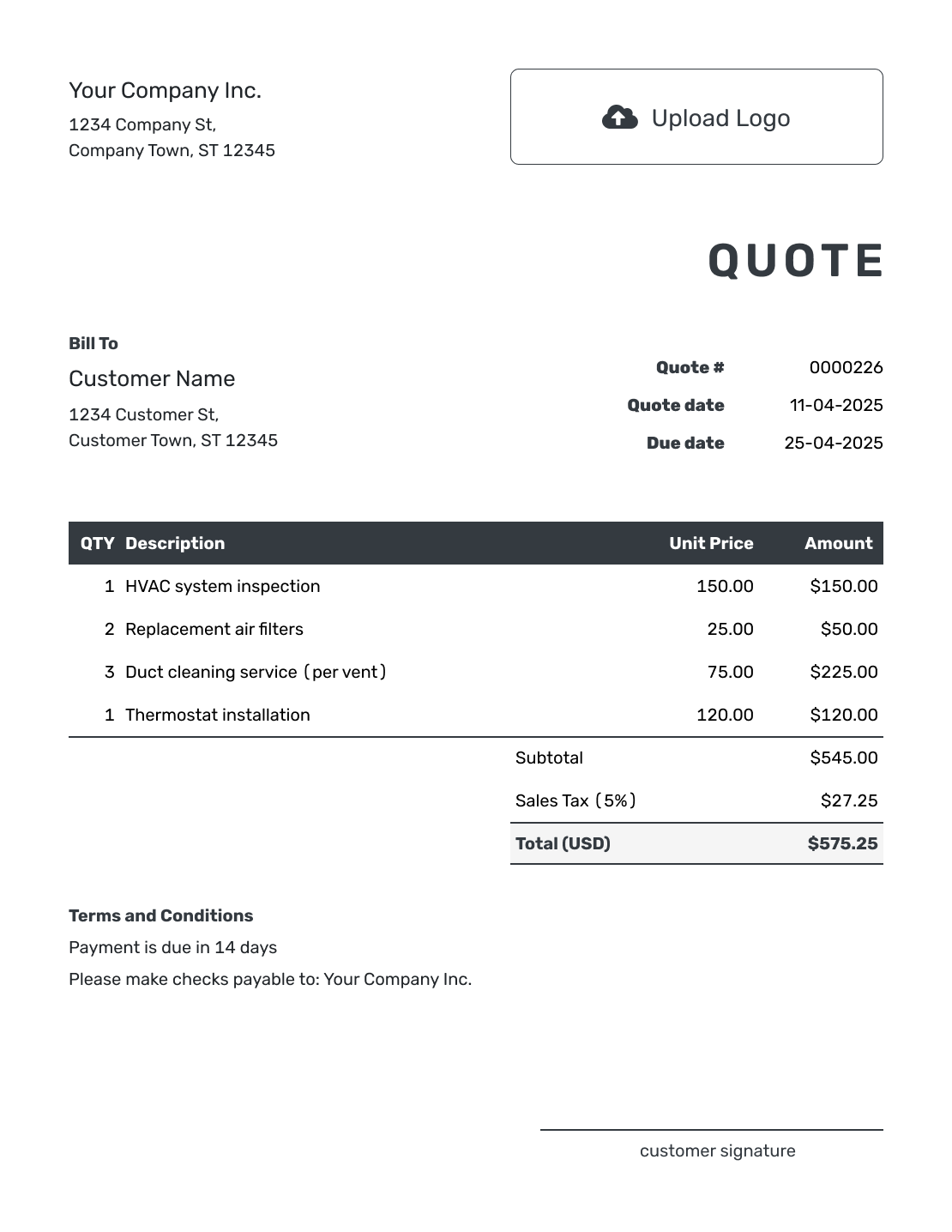
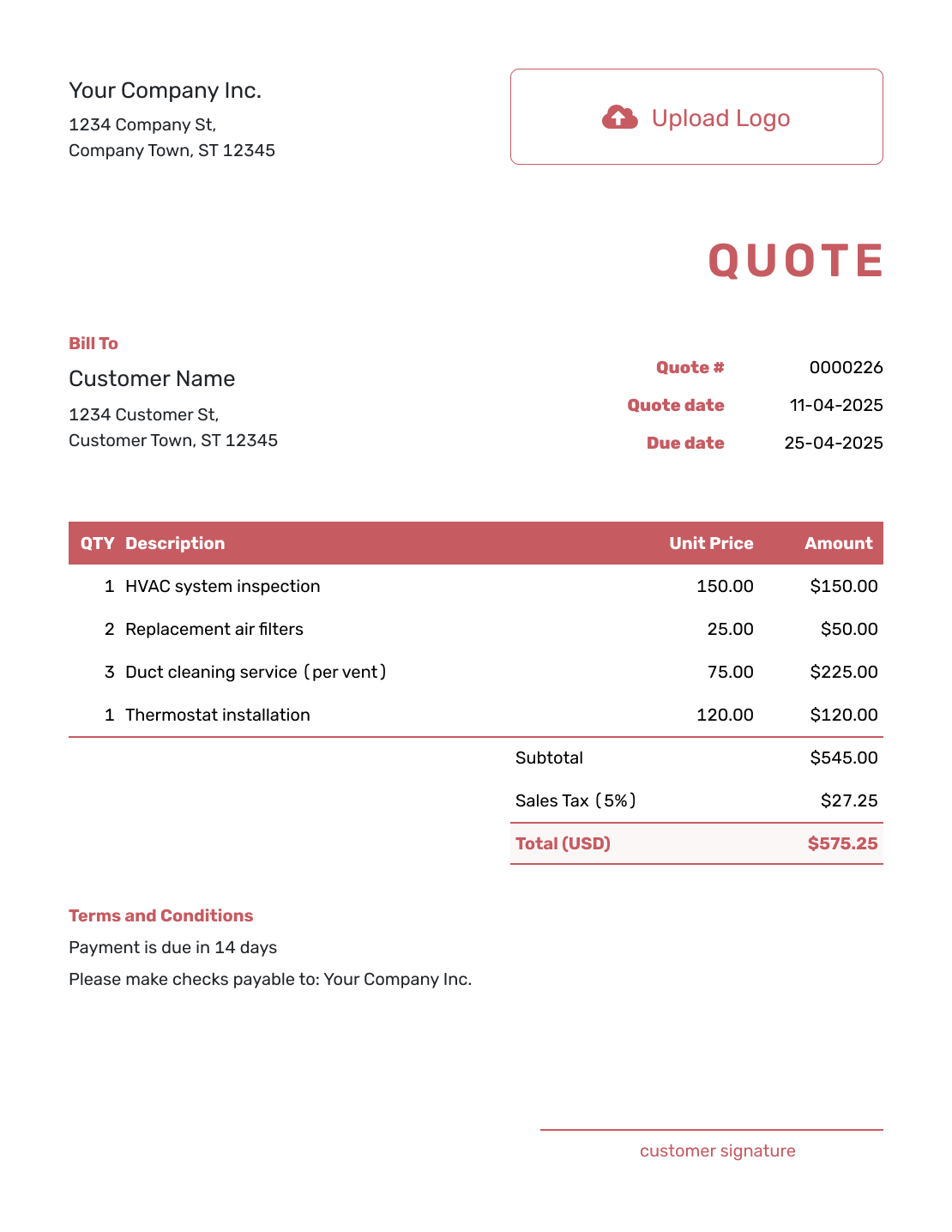
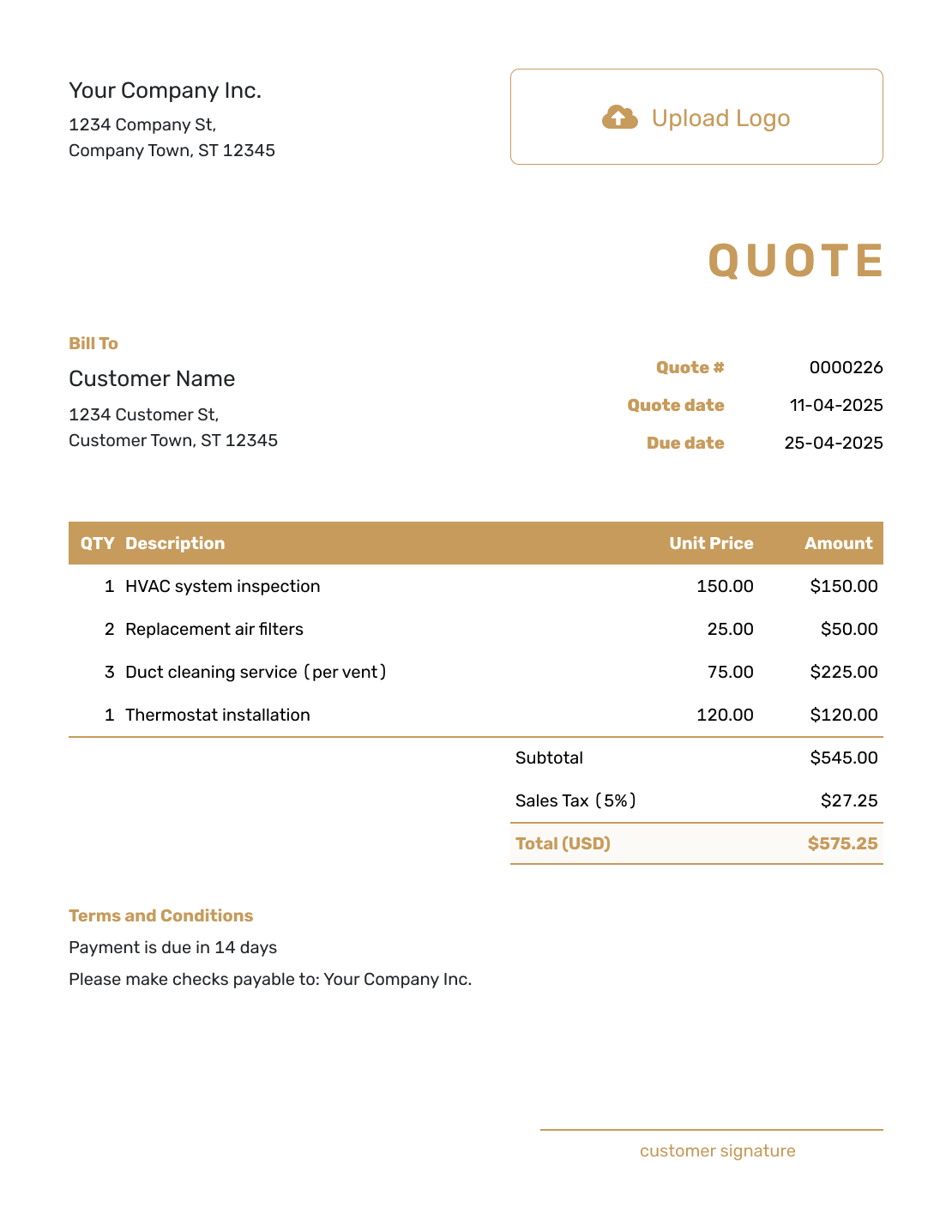
Use these layouts for ideas on presenting the offer. Add your own customer, scope, price, and terms in the quote editor.
Related Quote Guides
Use the next guide that matches the part of the quote you are working on.
Quotation Email FAQs
-
What should a quotation email say?
Say why you are writing, identify the quote, and tell the customer what to do next. Keep the detailed offer in the quote itself. The email only needs the context and next step.
-
What is a good subject line for a quotation email?
Use the project or service name and, when useful, the quote number. For example: Quote Q-1048 for Office Painting.
-
Should I put the full quote in the email?
Usually, no. A short email is easier to scan. Send the full quote as a Docelf document or PDF. This keeps the scope and total together with the dates and terms.
-
Can I email the quote from Docelf?
Yes. You can email the quote directly from Docelf. To use the copy-and-paste messages on this page, download a PDF and attach it in your usual email app.
-
Does my customer need a Docelf account?
No. Your customer can view, download, accept, or decline a quote sent through Docelf without a Docelf account.
-
When should I follow up on a quotation email?
Use any timing you agreed with the customer, allowing them time to review the offer. Check the quote expiry date before following up. If it has expired, confirm the price and availability before renewing the offer.
-
How formal should a quotation email be?
Use the level of formality you normally use with that customer. A clear greeting, a few short paragraphs, and a direct next step work for most business quotes.
-
Can I turn an accepted quote into an invoice?
Yes. When you are ready to bill, create an invoice from the quote. Docelf copies the customer, item, and price details. Check them against the agreed offer and add the due date before sending.
Ready to Email Your Quote?
Give your customer the complete offer behind your message.
- Use a subject line the customer can recognize
- Keep the detailed scope and price in the quote
- Email through Docelf or download a PDF




