Letterhead Templates & Examples
Put your business at the top of every letter
Download a Word letterhead template or copy a design into Google Docs. Add your business name, logo, and contact details, then write the letter below the heading.
Keep a blank copy to reuse for your next letter. You can also create a letter online, then print it or download a PDF.
14-day free trial. No credit card required.
6 Free Business Letterhead Templates
Choose a letterhead style that suits your business and leaves room for the message. The previews show fictional businesses; the editable files give you placeholders for your own details.
Download the Word file or open the Google Docs template in a new tab and save your own copy. These are the same six designs on the Word and Google Docs pages.
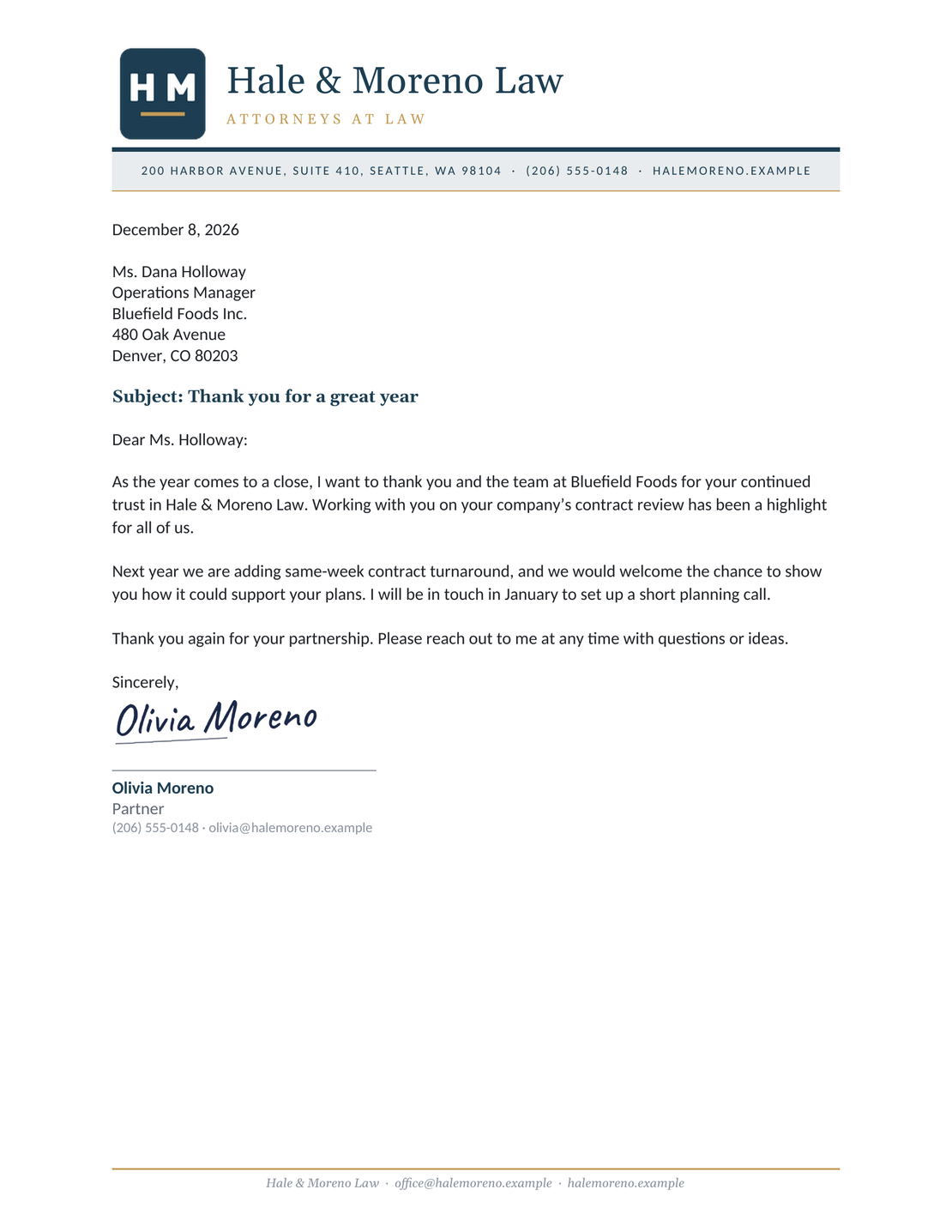
Classic Letterhead
A traditional business heading with navy and gold accents, shown for Hale & Moreno Law.
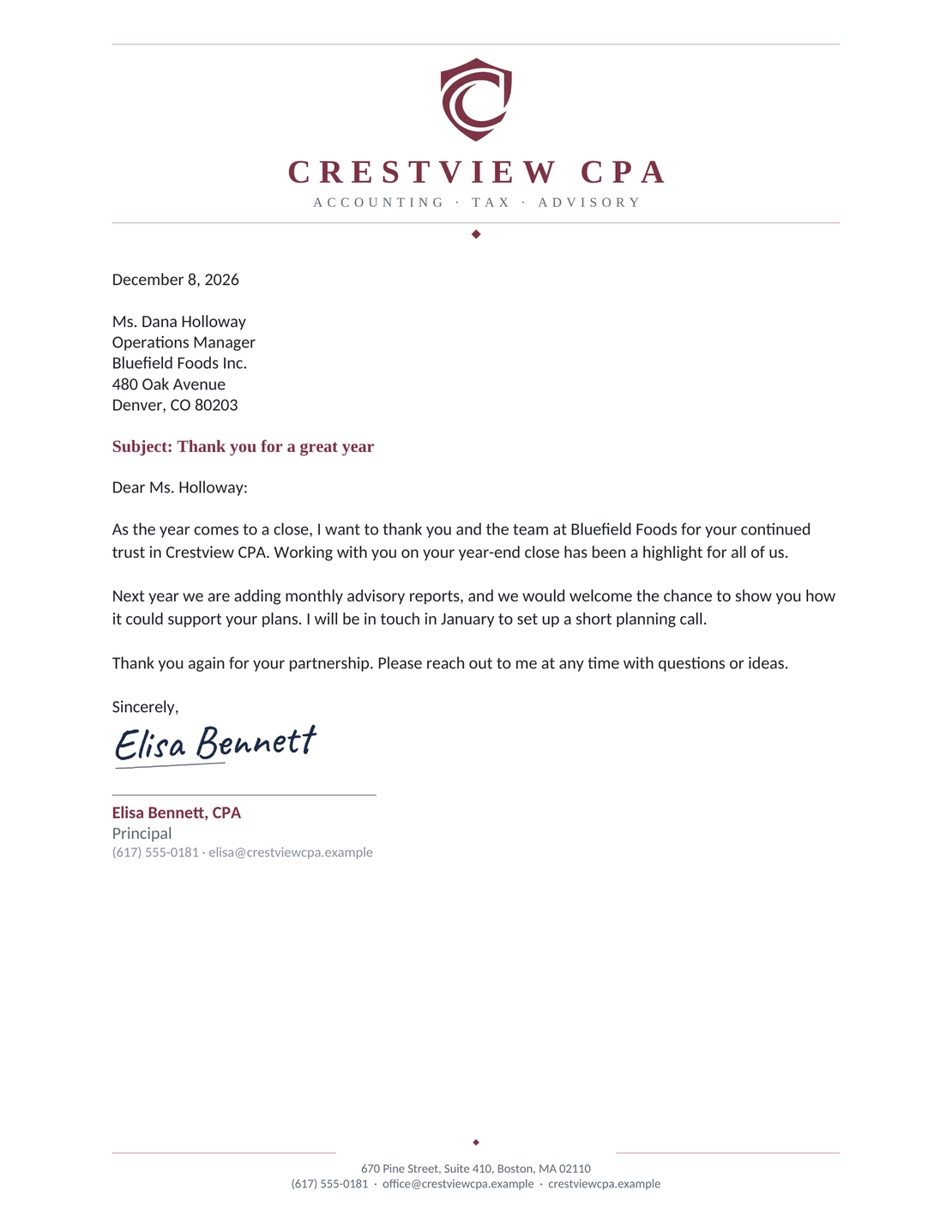
Centered Letterhead
A centered business name and burgundy accents, shown for Crestview CPA.
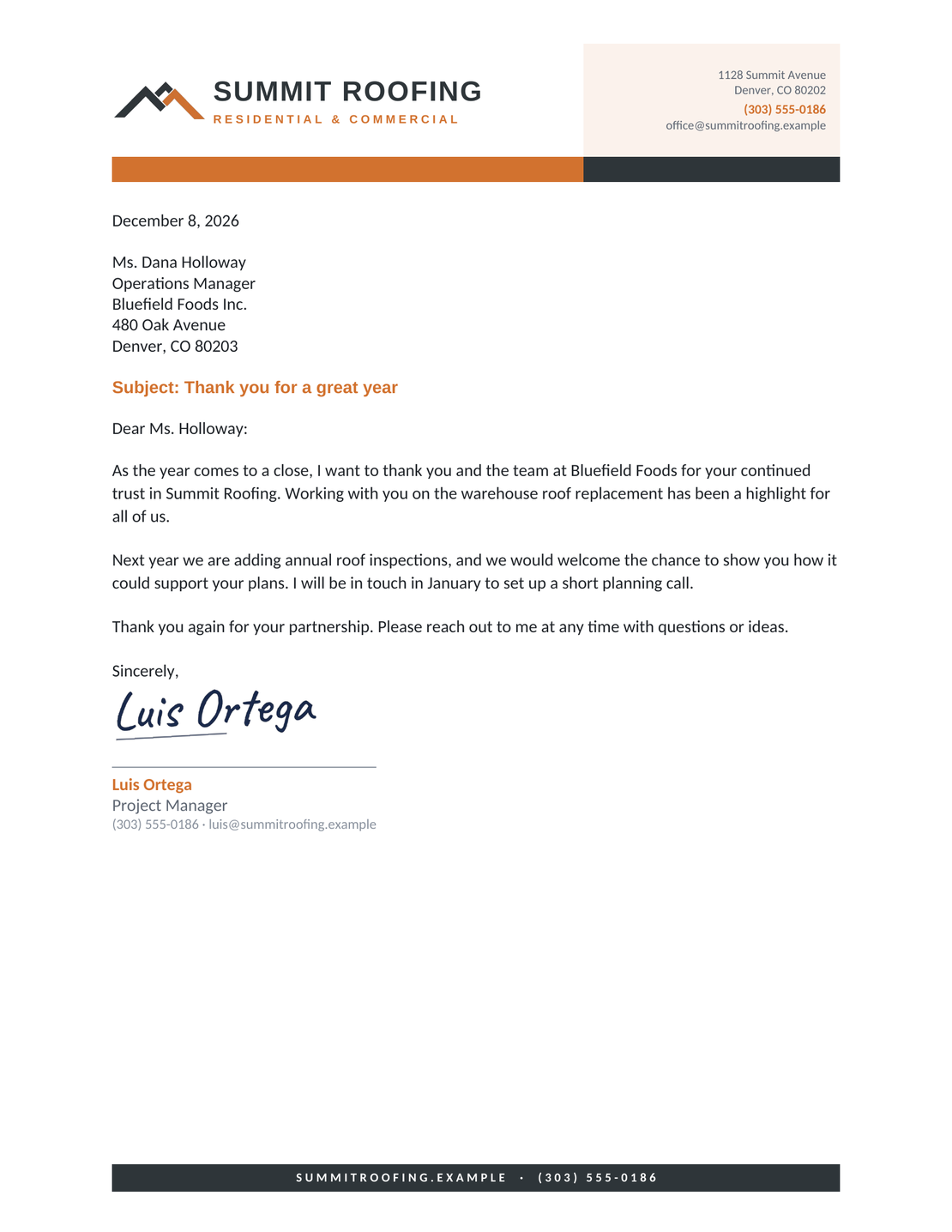
Split Letterhead
A logo on the left and contact details on the right, with orange and charcoal accents.
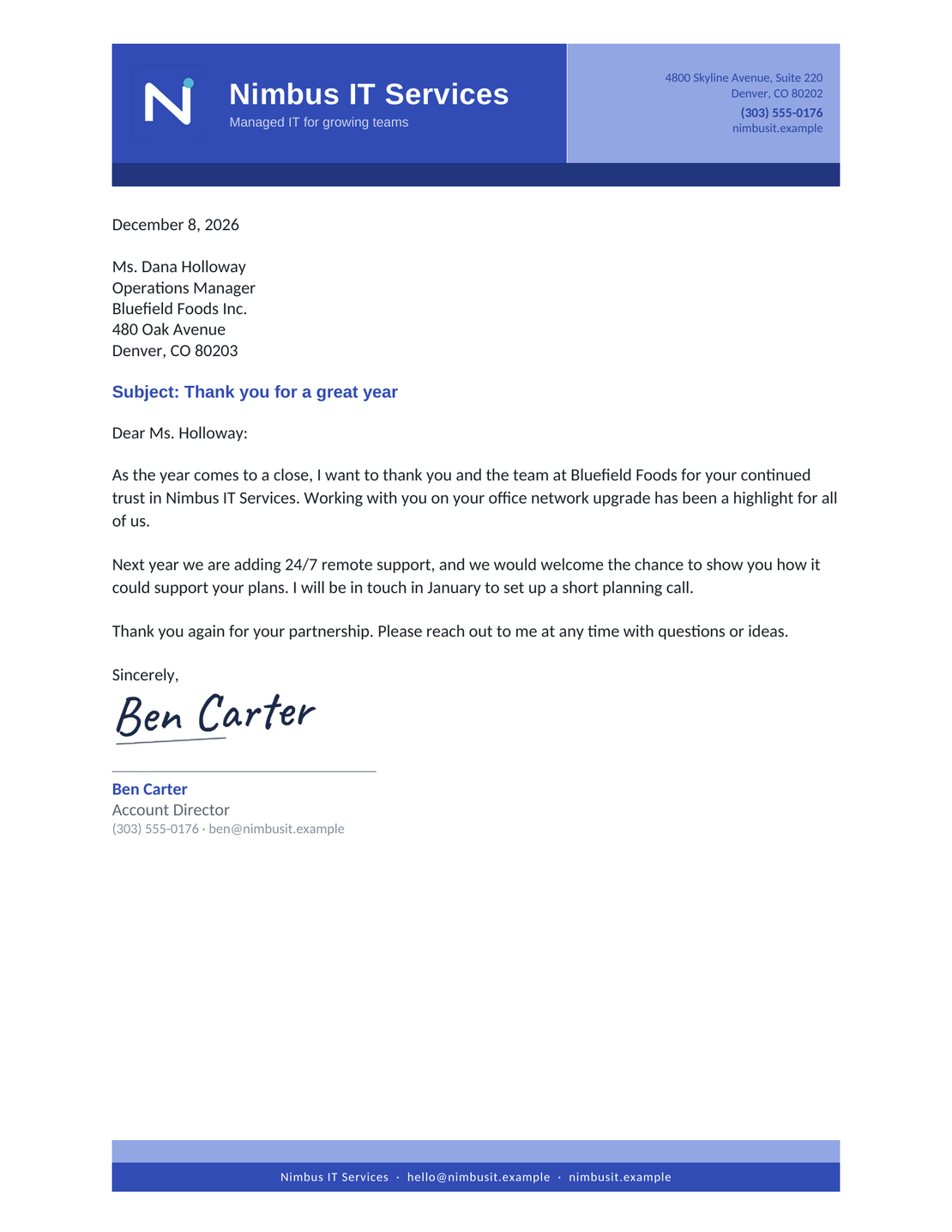
Color Band Letterhead
A blue band across the heading and a matching footer, shown for Nimbus IT Services.
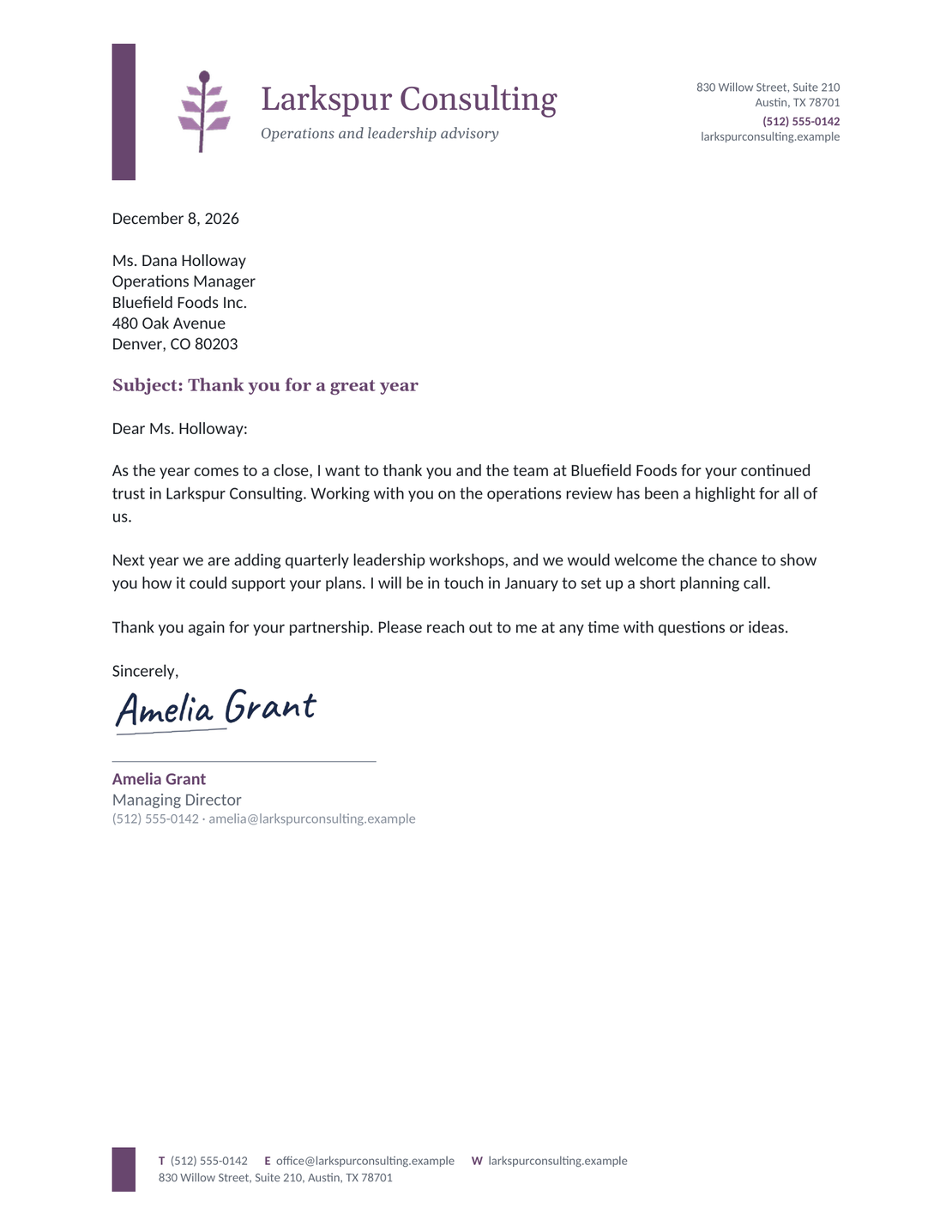
Sidebar Letterhead
A narrow plum accent beside the heading and footer, shown for Larkspur Consulting.
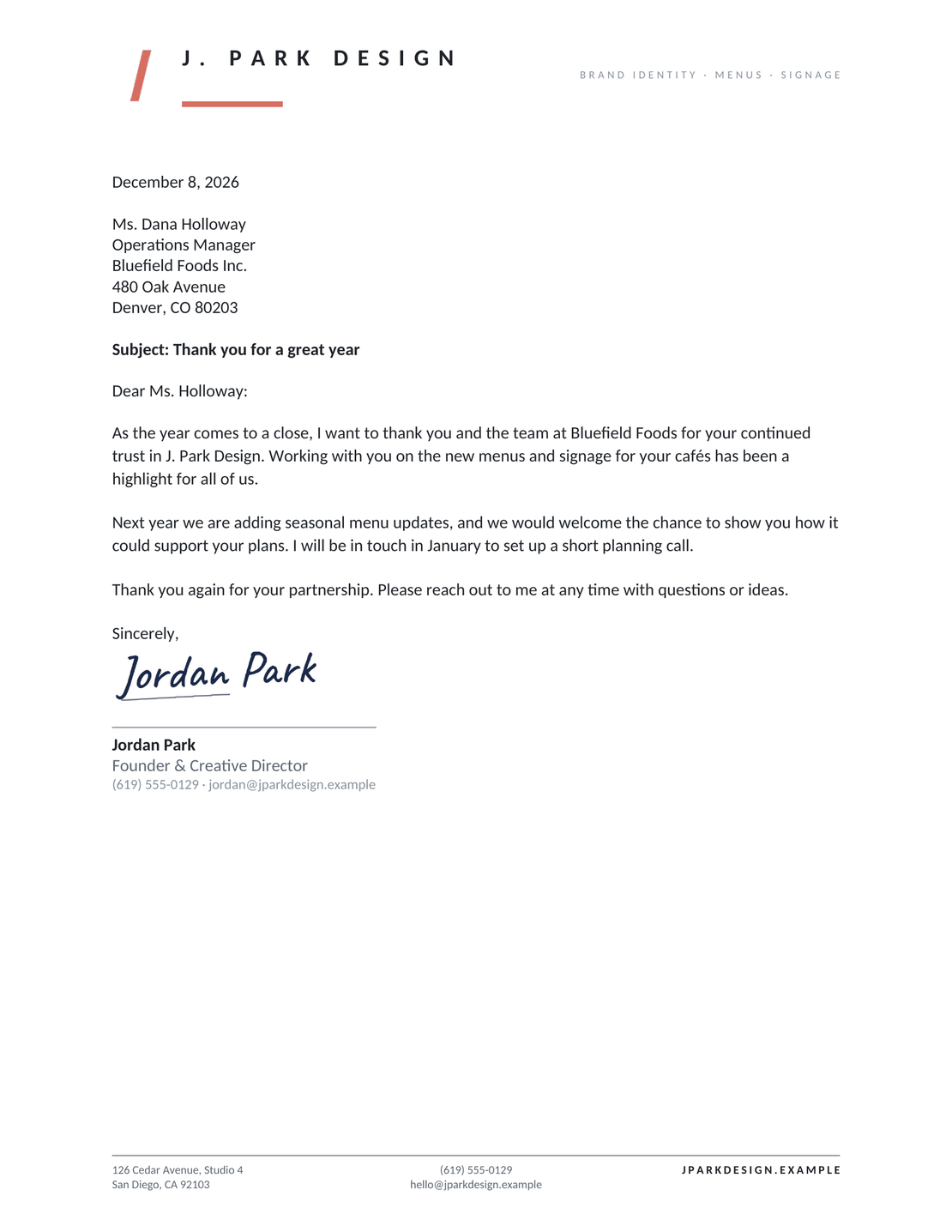
Minimal Letterhead
Charcoal text and a small coral accent keep this J. Park Design heading simple.
Choose a Letterhead That Fits Your Business
Start with the details you need to show. A long business name or address needs more room than a short name and website. Keep contact details as editable text so they stay sharp and are easy to update.
Classic and centered styles give the heading a traditional feel. A split layout gives the logo and business details their own space. Choose a color band or sidebar for a stronger accent, and check that it leaves the message easy to read.
For everyday printing, a minimal design uses less color. Any of the six styles can suit your business: choose by the space you need, not the industry shown in the preview.
What Goes on a US Letterhead?
Letterhead is the part of the page that identifies your business. Use your business name and mailing address, including the city, state, and ZIP code. Add a phone number, email address, and website so the reader can reach you.
A logo is optional. Keep the main business details near the top, and move contact details to the footer if the heading feels crowded. Your recipient, date, greeting, and message belong in the letter itself.
For a full letter around that heading, start with the business letter template. The parts of a business letter guide explains where each detail belongs.
How to Set Up Your Business Letterhead
This meeting follow-up shows how business details and a logo sit around the message. Use the four marked areas to check your own letterhead.
- Add Your Business Details: Use your business name and mailing address so the reader knows who is writing.
- Place Your Logo: Add your logo if you have one. Resize it without stretching it or crowding the business details.
- Leave Room for the Letter: Keep the message clear of the heading and footer. Leave space for the closing and signature.
- Add Contact Details: Put your phone, email, and website in a clear contact line. This example uses the footer.
Before You Send Your Letter
Check the finished page at its printed size. If you need to zoom in to read the contact details, make them larger before printing.
- Your business and contact details are up to date.
- The logo is sharp, and the contact details are easy to read.
- The heading and footer leave enough space for the message and signature.
- The recipient and date are correct, and any requested response date is clear.
- The PDF or print preview shows every page without clipped details or blank pages.
After You Send Your Letter
For letters emailed from Docelf, check the document history to see when the letter is delivered and opened. If you asked for a reply, follow up after the response date in your letter.
Keep a copy of the finished letter so you can refer to the same wording in your follow-up.
Keep your follow-up easy to answer. Mention the original letter's subject or reference, repeat the response you need, and give the reader a way to contact you.
Create a Letter With Your Business Details
Add your business details to Docelf's letter layout, then write your message. Review the finished page and print it or download a PDF.
Keep Your Letterhead Inside the Print Area
Use US Letter paper, measuring 8.5 × 11 inches. Keep the letter body within one-inch margins, with a compact heading above it and contact details in the footer if needed.
- Safe area: Keep logos, text, and color bands at least 0.5 inch from the paper edges. Allow more space if your printer needs it.
- Body space: Keep the heading and any side accent clear of the message. Leave room above your typed name for a signature.
- Readable type: Use an easy-to-read body font around 11 or 12 points. Keep body text black and use color sparingly in the letterhead.
- Print check: Preview the PDF and print one test page at actual size. Check the footer and try grayscale if you expect black-and-white printing.
Letterhead describes the business heading; block format describes how the letter parts line up. Docelf uses a slightly modified block format. The date and reference sit on the right, while the recipient details and body stay on the left.
Write out US dates, such as September 30, 2026, and leave clear space between paragraphs. For greeting, closing, and spacing examples, use the business letter format guide.
Set Up Letterhead in Word
The downloads keep your letterhead in the header and contact details in the header or footer. Replace those details once, then save a blank copy to reuse. Use the steps below to edit an existing design or start your own.
- Set the Page: Choose US Letter paper and one-inch body margins.
- Open the Header: In desktop Word, double-click the existing header to edit it. For a blank document, choose Insert > Header. Use Different First Page if page one needs its own heading.
- Add the Letterhead: Enter your business name and address, then add a logo if you use one. Align the heading with the paragraph controls. Put extra contact details in the footer.
- Check Later Pages: For a longer letter, check the later-page header and footer too. Replace any remaining placeholders, then check every page in the finished PDF.
The Word business letter templates use these same six designs and include steps for the rest of the document. For a separate first-page heading, see Microsoft's first-page header instructions.
Set Up Letterhead in Google Docs
Save your own copy of the design before editing. Keep it in Pages format so the header and footer remain visible, then update the business details.
- Choose Pages: Open File > Page setup, select Pages, and choose US Letter paper with one-inch margins.
- Open the Header: Click the existing header to edit it. For a blank document, choose Insert > Page elements > Header. Use Different first page if page one needs its own heading.
- Add the Letterhead: Enter your business name and address, then add a logo if needed. Use paragraph alignment to position the heading. Contact details can go in the footer.
- Review the Pages: If you selected Different first page, edit the later-page header and footer separately. Check the header, footer, and letter text on every page of the PDF.
The Google Docs template guide covers page setup and the letter text. For header controls, see Google's header and footer instructions.
Letterhead Questions
-
Do I need a logo on my letterhead?
No. A clear business name and contact details are enough. If you add a logo, keep it sharp at the size you will print and leave room for the letter itself.
-
Should I repeat my address above the date?
You do not need a second sender-address block when your letterhead already shows that address. Keep the recipient's name and address in the letter body so it is clear who the letter is for.
-
Should the same letterhead appear on every page?
You can keep the full letterhead on page one and use a smaller heading on later pages, with the business name and a page number. In Word or Google Docs, enable Different first page before adding your heading. Edit the first-page and later-page headers and footers separately, then check both pages in the PDF.
-
How do I use the Word and Google Docs letterhead templates?
Choose a design above. Download Word Template saves an editable DOCX file; Copy Google Docs Template opens Google Docs so you can save your own copy. Replace the sample business details before writing your letter. The setup instructions above explain how to edit the header and footer.
-
Can I print my letter or download a PDF?
Yes. Create your business letter in Docelf, then print it or download it as a PDF. If you write in Word or Google Docs, export the finished letter as a PDF and check the header, footer, and page breaks before sharing it.
Ready to Write Your Business Letter?
Open the letter editor and give your message a clear business heading.
- Add your business and recipient details
- Write your message and closing
- Print your letter or download a PDF




