Free Google Docs Business Letter Template
Your message, in a Google Doc you can reuse
Copy one of the six free Google Docs business letter templates and edit it in your browser. Add your message, then print your letter or download a PDF.
Keep a blank copy for your next letter, or use the online letter editor to write and send your message in one place.
14-day free trial. No credit card required.
Copy a Free Google Docs Business Letter Template
Choose one of six letterhead designs to open Google Docs in a new tab. Follow Google's prompt to save your own copy, then replace the sample details and letter wording.
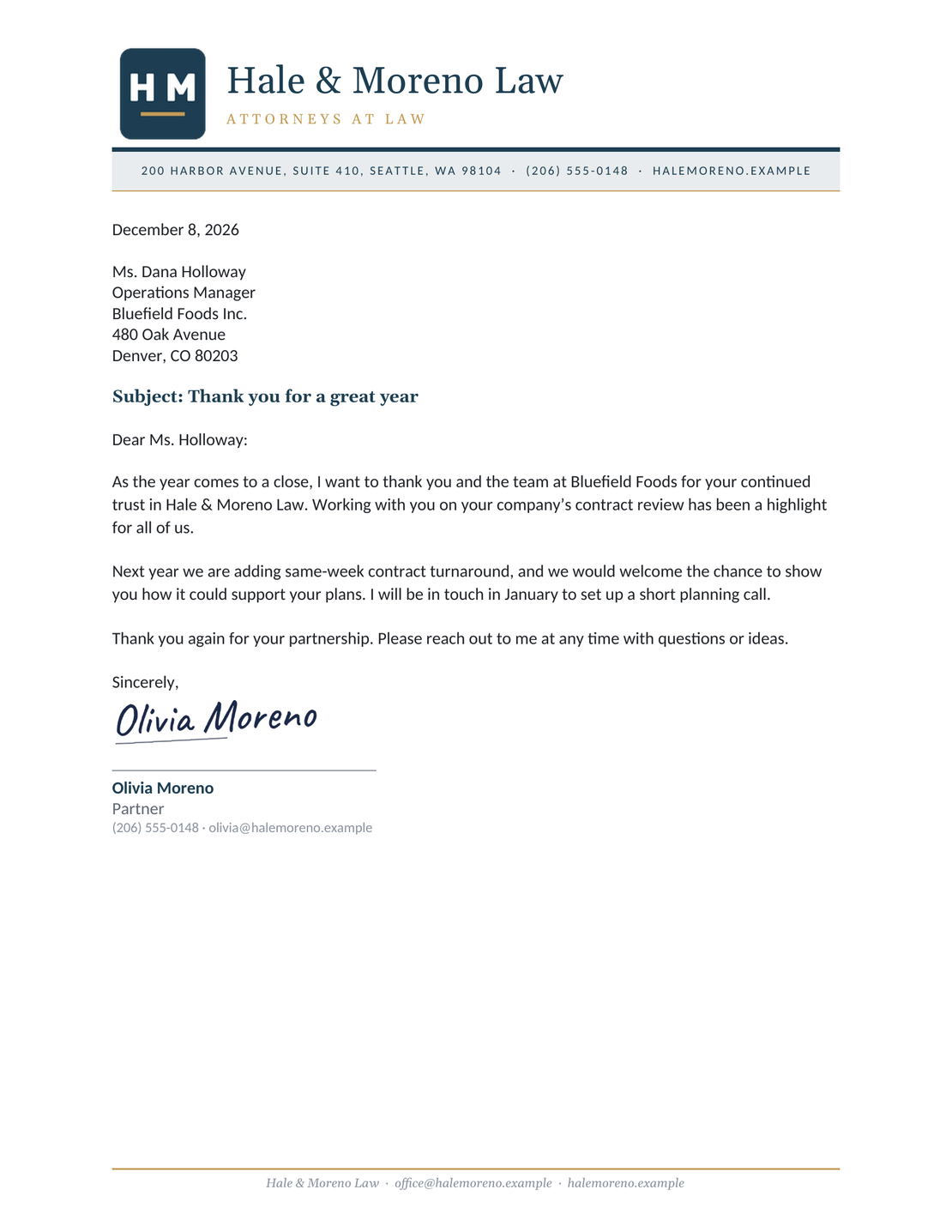
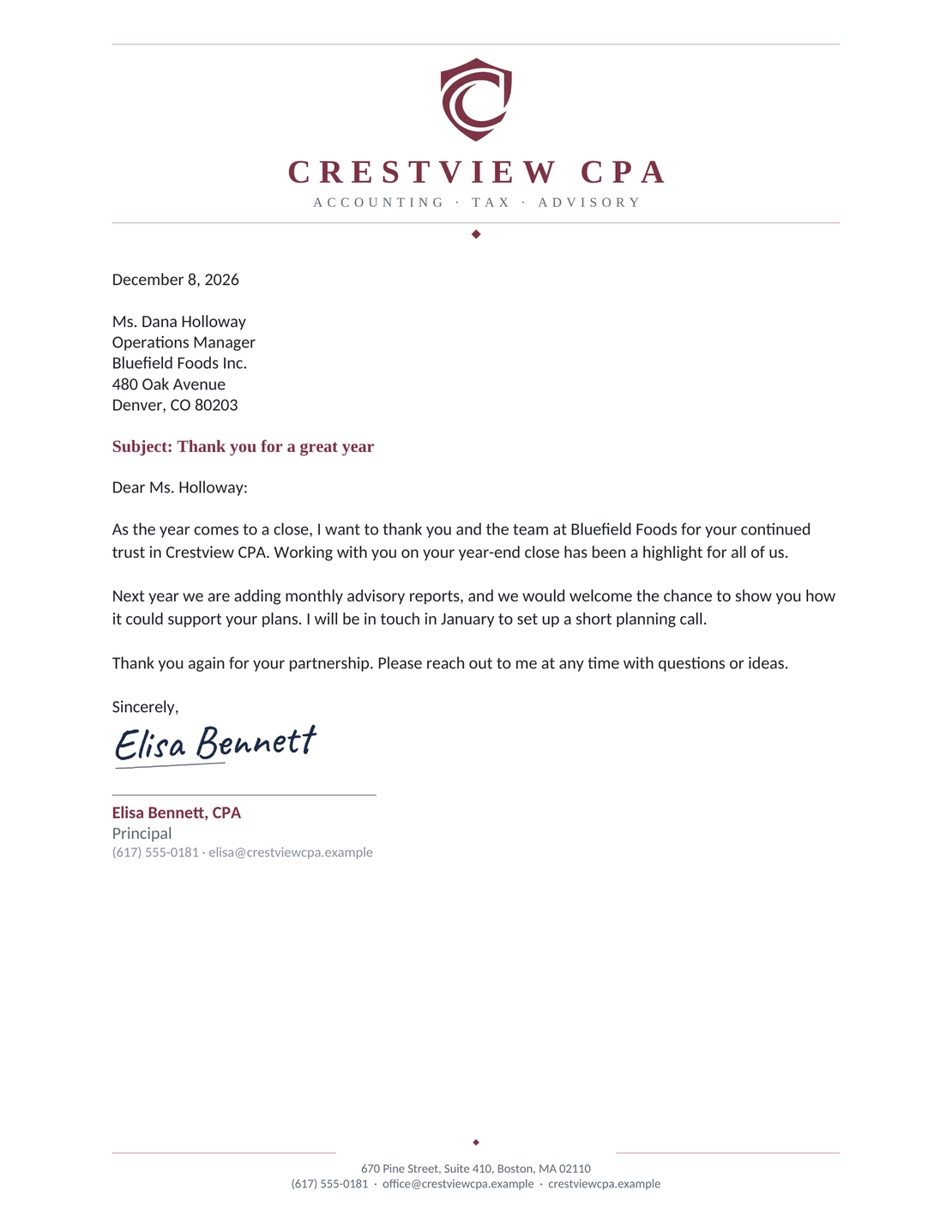
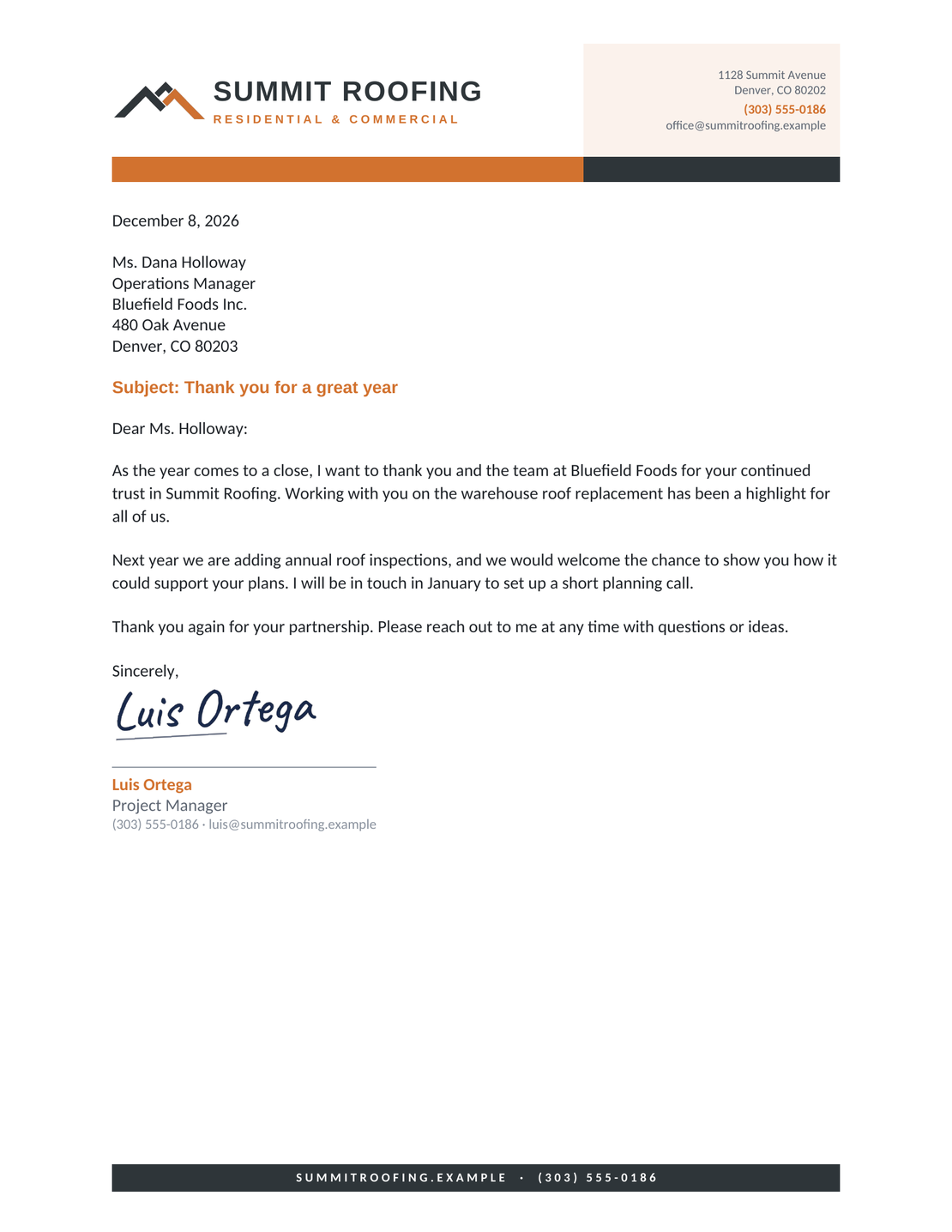
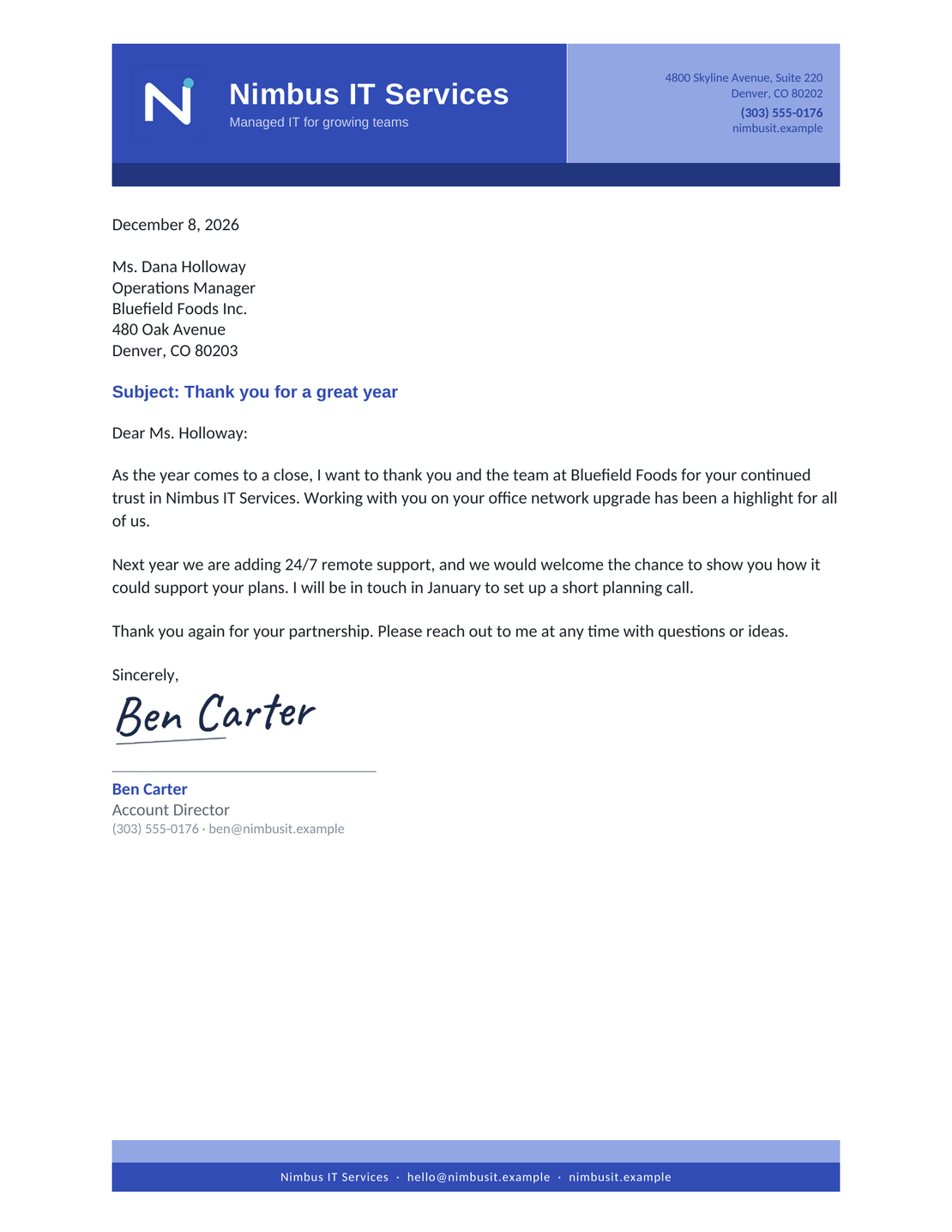
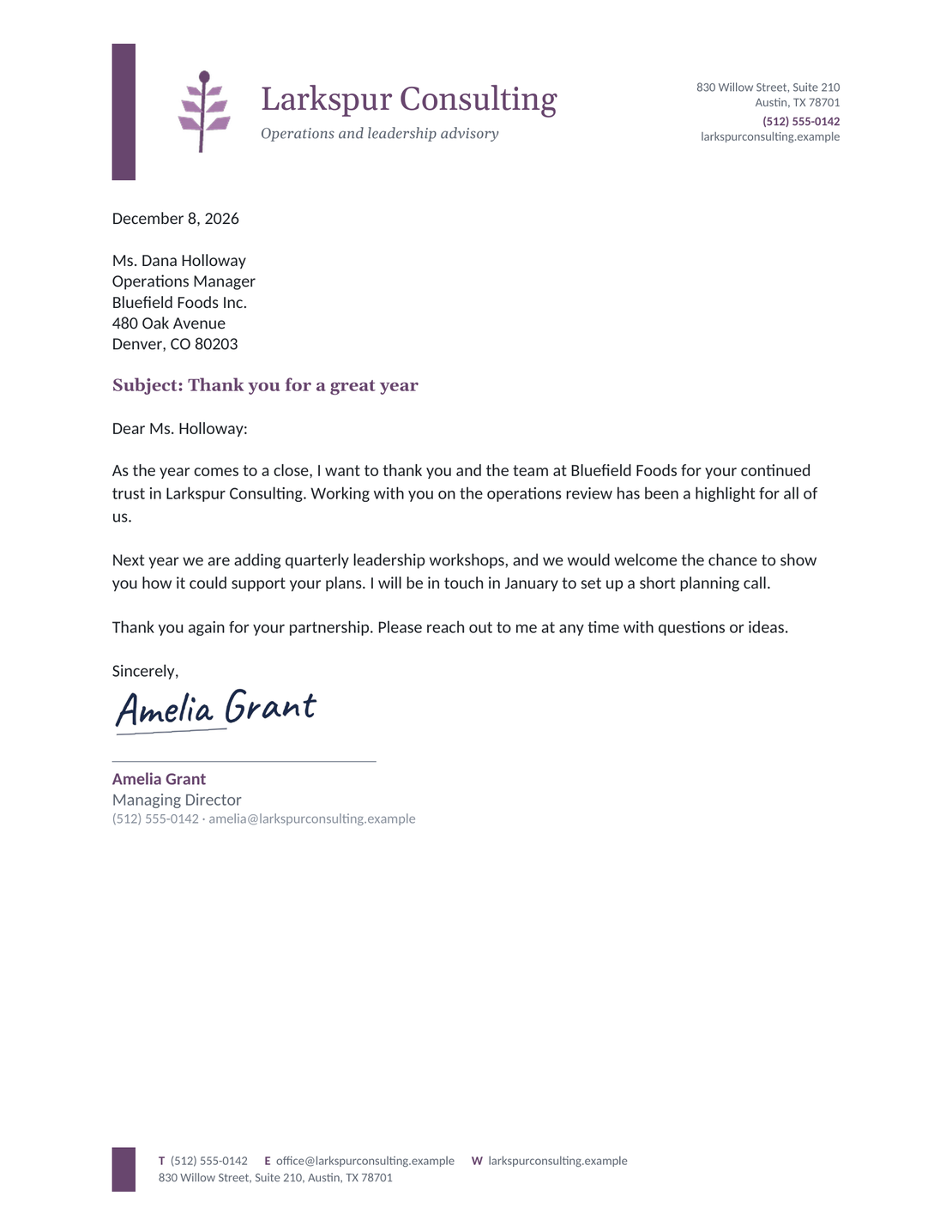
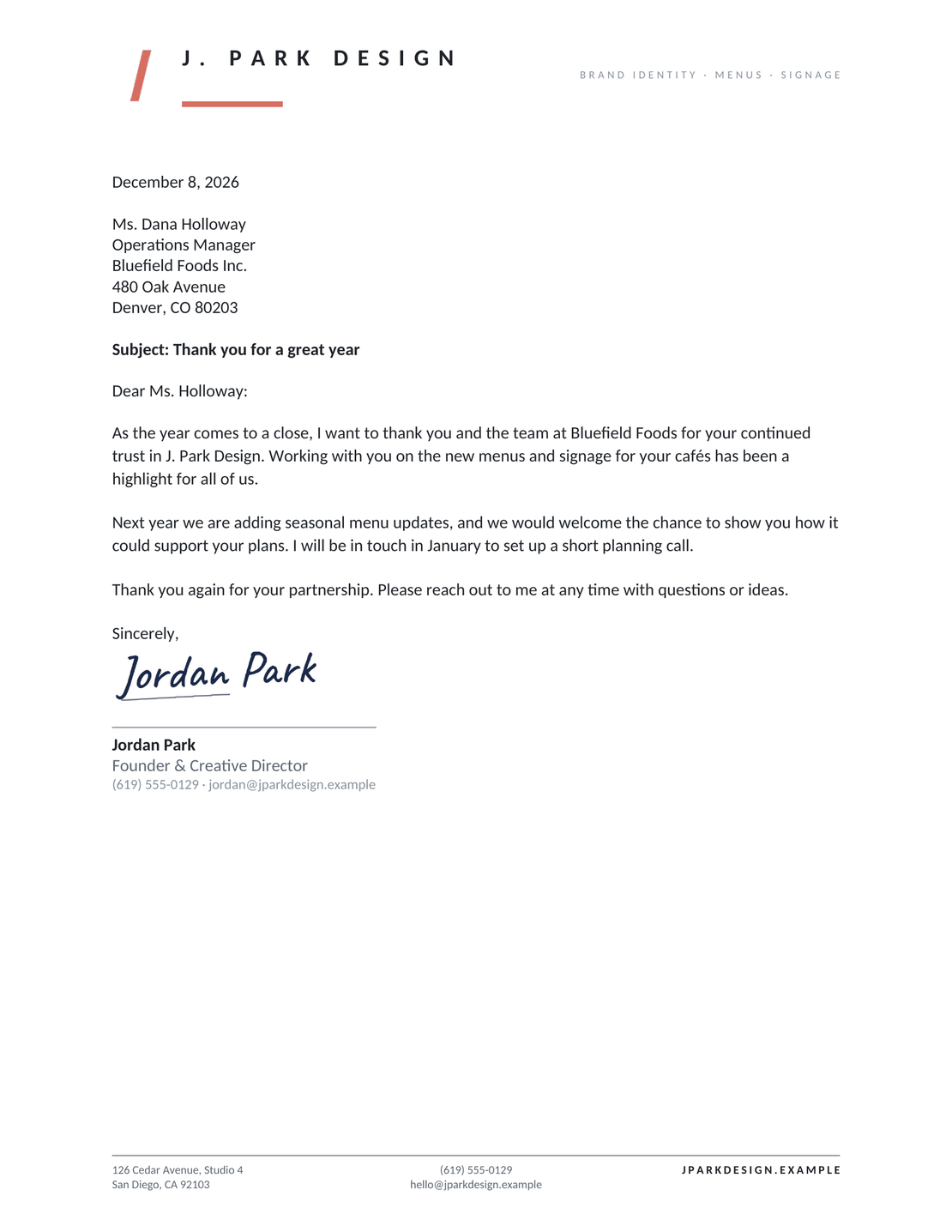
Keep a blank copy with your business name and contact details for the next letter. Each design uses US Letter paper and a full block layout below the letterhead.
These are the same six designs on the Word template page and letterhead page. The wording below gives you another starting point for your message.
Free Letter Text to Paste into Google Docs
Copy the wording below into your Google Doc and replace the bracketed text. If your letterhead already shows your business details, leave out the sender block. Remove the subject or reference line when you don’t need it.
Use the opening for your purpose, the middle for the details, and the final paragraph for the next step. For wording that fits a particular situation, choose a business letter type below.
Business Letter Template to Copy
[Your business name]
[Street address]
[City, State ZIP]
[Phone number]
[Email address]
[Month day, year]
[Recipient name]
[Recipient company]
[Street address]
[City, State ZIP]
Reference: [Reference, if needed]
Subject: [Reason for writing]
Dear [Recipient name]:
I’m writing to [state the purpose of your letter].
[Explain the relevant facts, background, or proposal. Include the dates or details the reader needs.]
Please [state the action or response you need, including a deadline if helpful]. You can reach me at [phone number] or [email address] if you have questions.
Thank you for your time.
Sincerely,
[Signature]
[Your name]
[Job title]
If you’re sending an update that needs no reply, replace the request paragraph with what happens next. Keep your contact details so the reader can ask a question.
Set Up the Page in Google Docs
The templates already include a page layout. If you are starting with a blank document or adjusting a copy, use these settings on a computer. Pages format shows the paper edges and page breaks as you write.
- Choose the Paper: Open File > Page setup and select Pages. Choose US Letter, portrait orientation, and 1-inch margins, then apply the settings.
- Set the Type: Use a readable font such as Arial or Times New Roman at 11 or 12 points. Keep the body text dark and left aligned.
- Check the Spacing: Under Format > Line & paragraph spacing, choose Single. Add space after body paragraphs, but keep address lines together. Use paragraph spacing instead of extra blank lines.
- Keep a Blank Version: Save a version with your business details and placeholders. For each new letter, choose File > Make a copy and give it a clear name.
If pasted text brings in unwanted fonts or colors, paste without formatting and apply your document’s style. Google’s page setup and paragraph spacing instructions explain the controls.
Edit Letterhead in Google Docs
The six designs include letterhead for your business name and contact details. Edit the header to use your own branding, and keep it compact so the letter has room for the message.
- With the document in Pages format, click the existing header to edit it. For a blank document, choose Insert > Page elements > Header.
- Replace the company and contact placeholders in the header and footer. Replace the sample logo with your own, or delete it.
- If your letter runs to a second page, check its header and replace any recipient or date placeholders there. Use Different first page when you want the first-page and later-page headings to differ.
When the header already contains your address and contact details, remove the repeated sender block from the pasted text. Keep the recipient address in the body. See the letterhead examples for design ideas and Google’s header instructions for the controls.
How to Fill In Your Business Letter
Work through the letter from your business details to your signature. The numbers show the same parts on a finished Docelf letter; arrange them to suit the layout you choose in Google Docs.
- Add Your Business Details: Enter your business name, address, and contact details. Put them in the header if you use letterhead.
- Name the Recipient: Add the recipient’s name, company, and mailing address. Keep this block left aligned.
- Set the Date and Reference: Write out the date, such as October 1, 2026. Add a reference only when it helps identify the letter.
- Add a Subject and Greeting: Add a short subject if it helps explain the message. Address the reader by name when you can.
- Write the Message: Explain why you’re writing and give the details. If you need a reply, say what you need and when.
- Finish with Your Signature: Add a suitable closing, your name, and job title. Leave space for a handwritten signature if you’ll sign a printout.
Before You Send Your Letter
- Replace all bracketed text and remove any lines you don’t need.
- Check names, dates, any reference, and your contact information.
- Give the reader a clear response date when you need a reply.
- Accept or reject suggestions before preparing the final letter. If you share the Google Doc, check who can view or edit it.
- Open the finished PDF or print preview and check the letterhead, page breaks, and signature space.
After You Send Your Letter
- Keep the final letter with the related customer or project records.
- For a letter emailed from Docelf, check the document history to see when it is delivered and opened.
- If you need a reply and the response date passes, follow up with the subject or reference and the answer you need.
Keep the follow-up short and specific. Ask whether the reader can confirm a date, send the information you requested, or answer the question in your letter.
Have the Wording? Finish the Letter Online
Add your message in Docelf’s ready-made letter layout. Review the finished letter, then print it or download a PDF.
Choose a Layout for Your Google Docs Letter
The six designs use different letterheads with a full block letter body. Keep that arrangement for everyday business letters, or adjust it when the recipient requests a particular style.
| Starting Point | How to Use It |
|---|---|
| Standard Full Block | Keep the date, recipient address, message, and closing aligned left below the letterhead. Use it for everyday business letters. |
| With Letterhead | Replace the sample business details and any logo in the header. Follow the header steps above. |
| Formal | Use a clear purpose, a respectful greeting, and a suitable closing. The formal letter guide helps with the wording. |
| Modified Block | Move the date and closing to the right half of the page while keeping the body left aligned. Use paragraph settings or tab stops instead of repeated spaces. |
| Semi-Block | Use a modified block arrangement with indented first lines in the body. Keep the indents consistent. |
Docelf uses a slightly modified block format. The date and reference sit on the right; the recipient and body stay left aligned. The numbered illustration shows that layout. In your Google Doc, use a written-out date and follow any layout instructions from the recipient.
For a closer comparison, see the block format guide. The US business letter format guide explains spacing and the order of the letter parts.
Find Wording for Your Letter Type
Choose the page for your situation, then adapt its wording in Google Docs. Each guide explains the details to include and gives you a starting point for the message.
Download a PDF or Print Your Google Docs Letter
When the wording is final, choose File > Download and select PDF Document. Open the PDF and check that the closing and signature stay together. To print from Docs, choose File > Print and review the pages before printing.
If the closing and signature split across pages, select the paragraphs from the closing through your typed name. Choose Format > Line & paragraph spacing > Keep with next, then check the PDF again.
Keep the Google Doc as your editable version. For feedback on a draft, give your colleague Commenter access. Use Editor access when they need to change the wording. Send the finished PDF when the recipient only needs the final letter. Google’s copy and download instructions cover those file actions.
Google Docs Business Letter Template FAQs
-
How do I use this business letter template in Google Docs?
Choose a template to open Google Docs in a new tab, then follow the prompt to save your own copy. Replace the sample business details and bracketed wording. Check the spacing and page breaks before sharing the finished letter.
-
What page size and margins should I use?
For a US business letter, use US Letter paper, portrait orientation, and 1-inch margins as a practical starting point. Choose a readable 11- or 12-point font. If the recipient gives specific formatting instructions, follow those instead.
-
Why can’t I see a header in Google Docs?
Headers are available in Pages format. On a computer, open File > Page setup and select Pages. You can then add a header through Insert > Page elements > Header.
-
How do I download my Google Docs letter as a PDF?
On a computer, choose File > Download and select PDF Document. Open the downloaded file to check its page breaks, letterhead, and signature space before you send it. Keep the editable Google Doc for later changes.
-
Does my Google Docs letter have to use full block format?
No. Full block is a simple starting point with the letter parts aligned left. You can adjust your Google Doc to another requested style. Docelf uses a slightly modified block format, with the date and reference on the right and the recipient and body on the left.
-
How do I keep a blank letter for next time?
Keep one Google Doc with your business details and placeholders for the parts that change. Use File > Make a copy for each new letter, and give the copy a clear name. Check old recipient details, dates, and references before sending it.
-
Can I create the letter online and download a PDF?
Yes. Write your letter in the business letter generator and review the finished layout. You can then print it or download a PDF.
Ready to Finish Your Business Letter?
Turn your message into a letter that’s ready to share.
- Add your business and recipient details
- Write a clear message and next step
- Print your letter or download a PDF




