Free Official Quote Template
Create a professional official quote in minutes
Add the quote number, customer reference and job details needed for the record. A complete offer looks dependable and helps customers feel confident choosing you for the job.
Email, print or download your quote as a PDF.
14-day free trial. No credit card required.
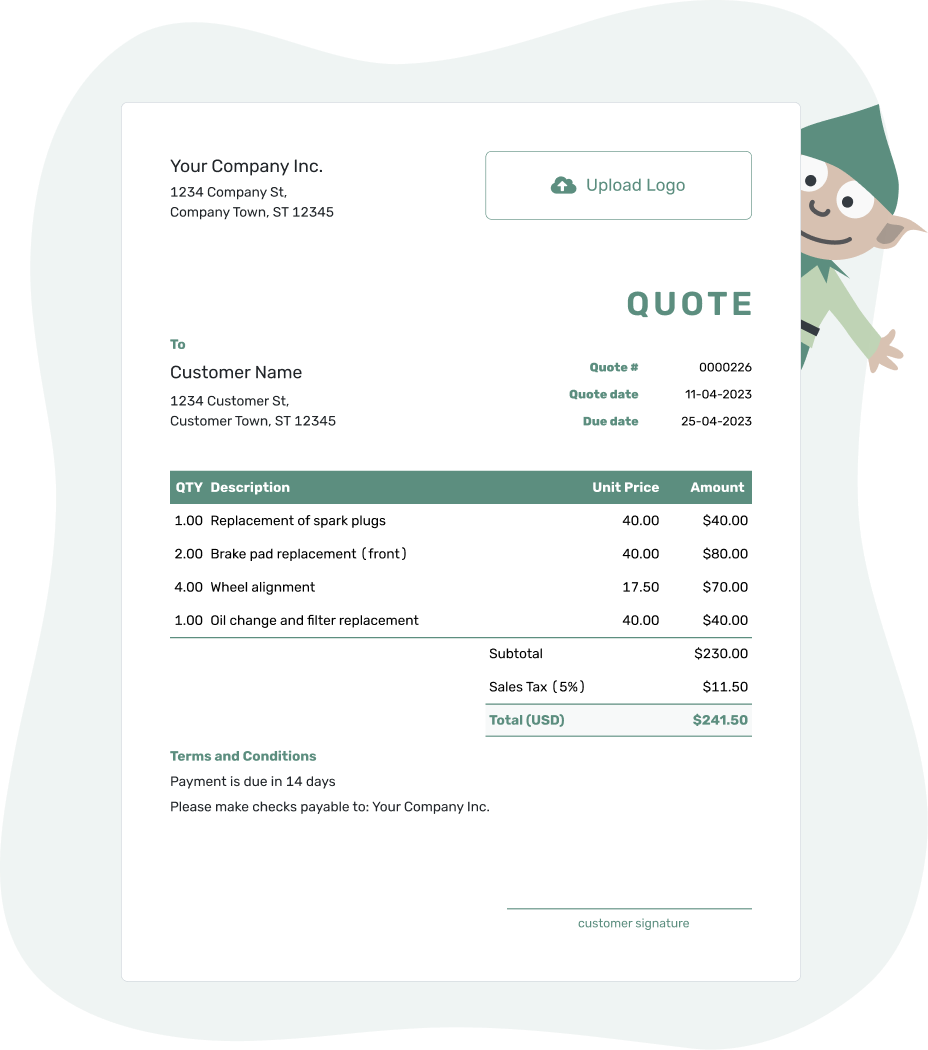
Price the job. Send the quote. Get back to work.
Official Quote Template Examples
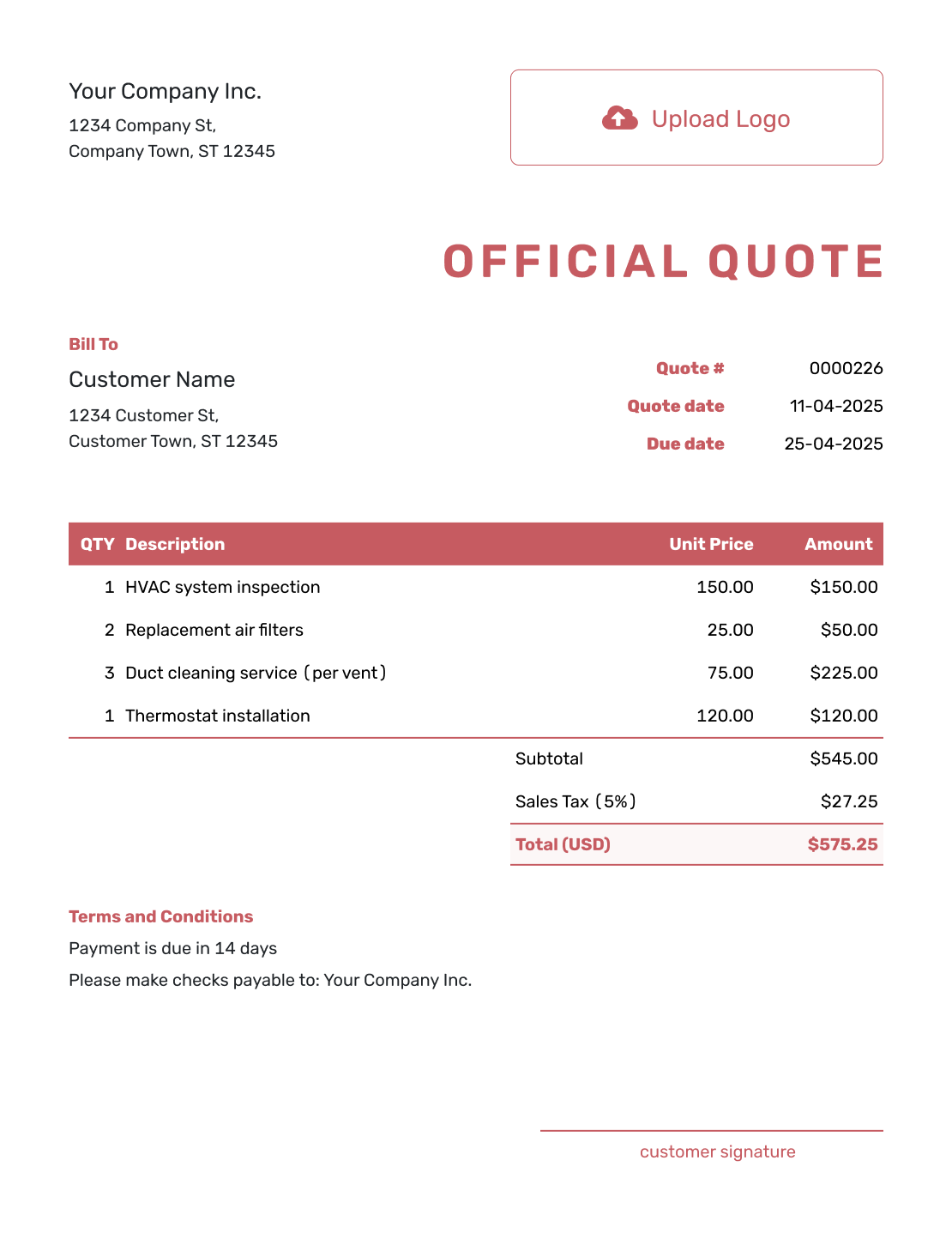
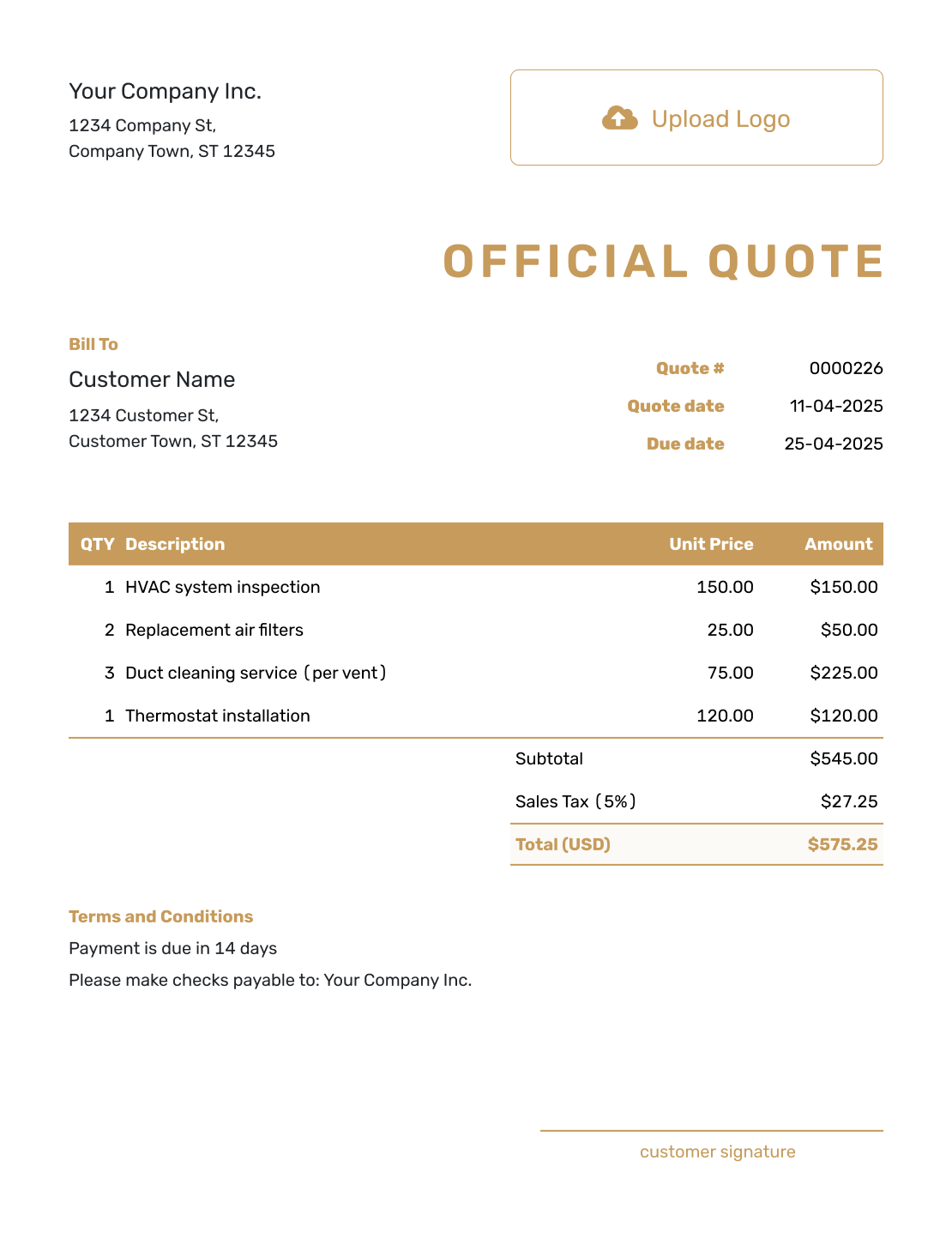
Compare these layouts for a business offer with customer references. Each preview opens the quote editor, where you can add your own details.
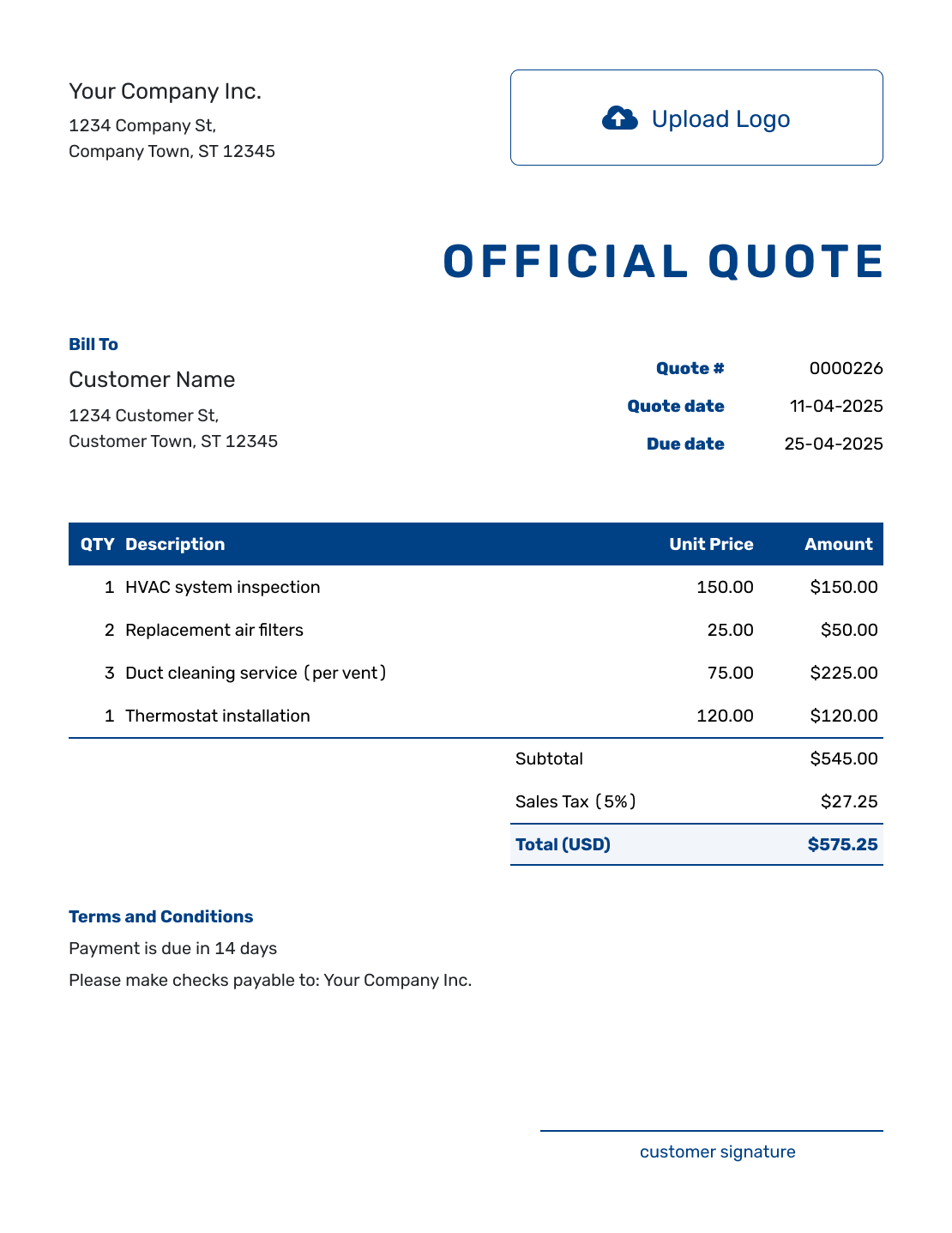
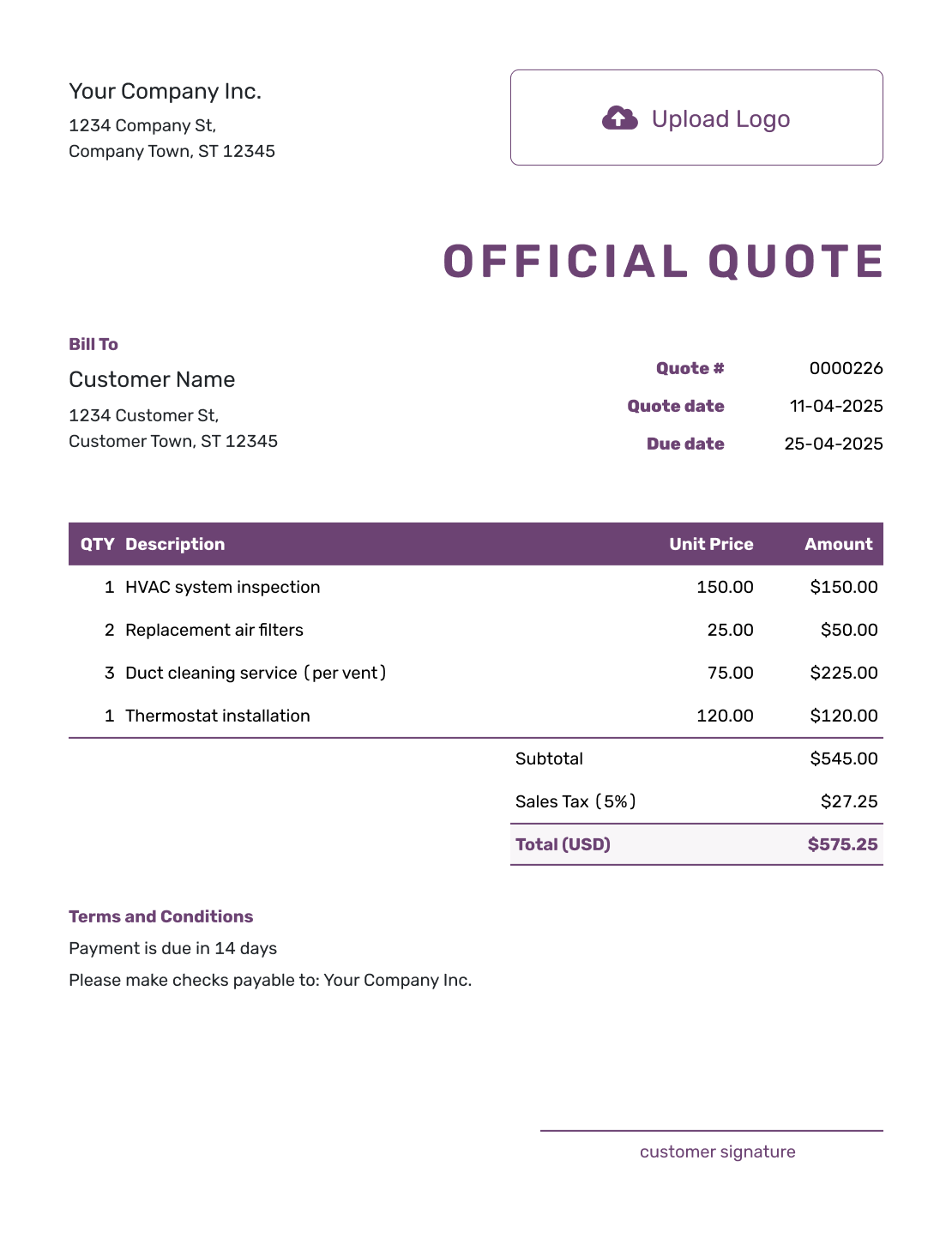
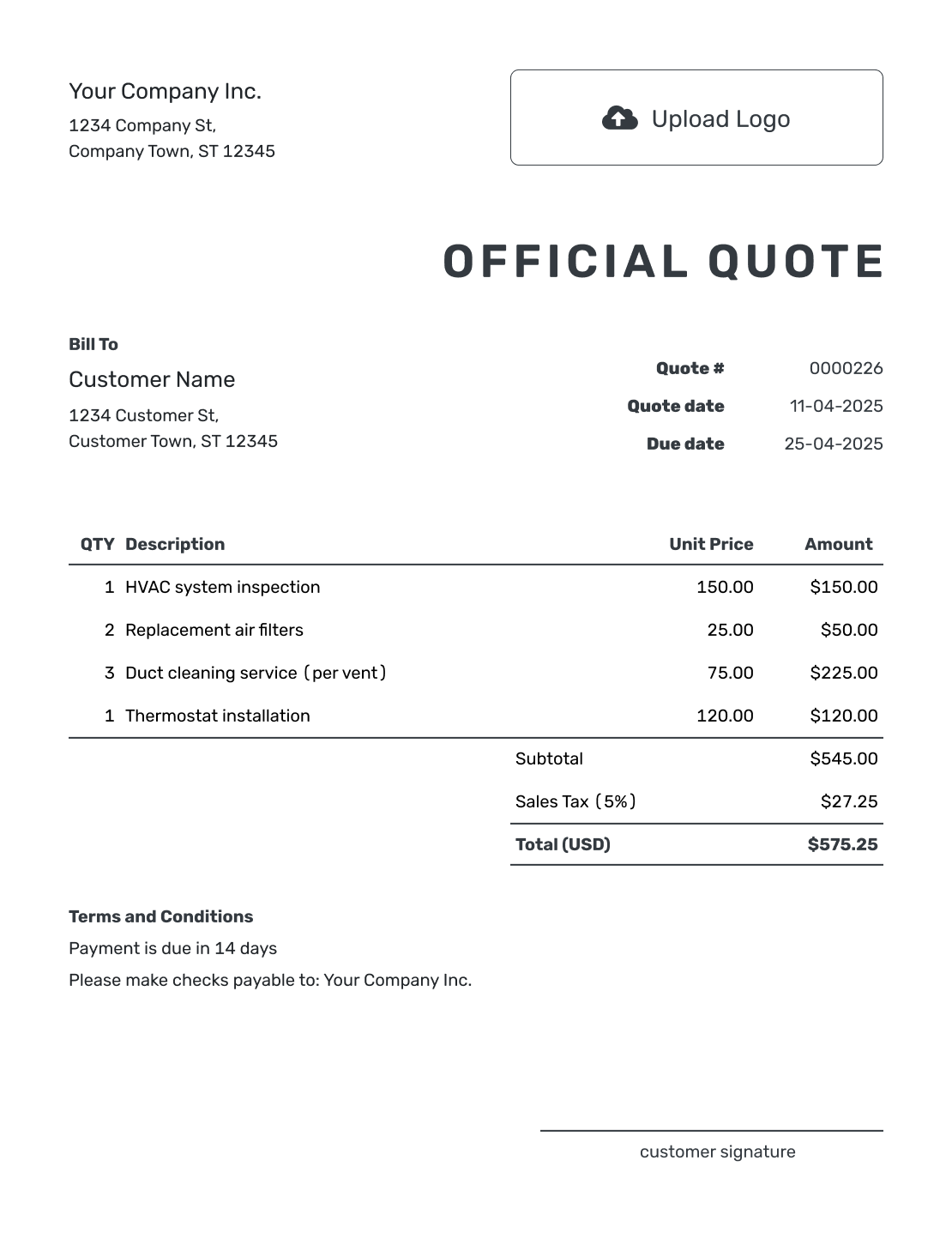
Make the Quote Easy to Match to the Request
An official quote is a written price offer your business sends to a customer. Here, “official” means the customer can identify who issued it and match it to the right request. Your business details, quote number, scope and price do that work.
Ask the buyer whether they need a particular form or reference before you prepare the offer. Their request may include a department, project code or vendor number. Add only the details that apply to this customer.
How to Create an Official Quote
Start with your business and customer details. Use the quote number to identify your offer and the customer’s reference to connect it to their request.
- Your Business: Add your business name, address and contact details.
- Your Logo: Use the logo from your other business documents.
- The Customer: Choose the customer or enter their business and contact details.
- Number and Dates: Check the quote number, issue date and valid-until date.
- The Offer: List the products or services with quantities and prices.
- The Total: Check the tax and total. Docelf calculates them from your entries.
- Terms and References: Add the buyer’s reference and terms in Terms and Conditions. Review, then send.
Show Exactly What the Quoted Price Covers
Use descriptions the buyer can compare with the request. Include sizes, specifications or service limits where they affect the price. A delivery charge belongs in the item table, alongside the goods or work.
This fictional office-supply offer is quote Q-1048 for customer request OPS-26-104. Four shelving units, eight storage totes and delivery are priced in US dollars, with illustrative 8% tax on all three items.
| QTY | Description | Unit Price | Amount |
|---|---|---|---|
| 4 | Steel shelving unit — 36 × 18 × 72 inches | $180.00 | $720.00 |
| 8 | Storage tote with lid — 18 gallons | $18.00 | $144.00 |
| 1 | Local delivery to the customer’s office | $45.00 | $45.00 |
| Subtotal | $909.00 | |
| Sales Tax (8% illustrative) | $72.72 | |
| Quote Total | $981.72 |
Keep References and Terms With the Offer
Use Terms and Conditions for the customer’s request number and the details that explain this offer. Keep your own quote number in the quote-number field. The two references help the buyer connect your price to their request without confusing one number for the other.
State how long the offer is valid, what delivery includes and when payment is due. Adapt this sample to the arrangements you actually offer; use the applicable tax treatment for your sale.
Example: Terms and Conditions
- Customer request: OPS-26-104. Quote Q-1048 is valid through October 12, 2026.
- Delivery to the office reception is priced as a separate line item. Assembly is not included.
- Delivery within 10 business days after acceptance. Payment due within 14 days of the invoice date.
- Please accept the quote online. If your business requires a purchase order, include quote Q-1048 on it.
Put the Offer and References in One Place
Enter the items once and let Docelf calculate the total. Add the buyer’s reference, review the quote, then email it or download a PDF.
Check the Details the Buyer Will Use
The person comparing offers may pass the quote to a colleague who has not spoken with you. Use the customer’s company name and include the department or buyer when that helps them route it. Check any tax, registration or license details that apply to your business.
A vendor number is the buyer’s reference for your business; a project code identifies the work. Use the codes they supply. If they need a signed copy, you can add company and customer signature fields in Docelf.
Review the Quote Before You Send It
Check the finished quote against the customer’s request while both are in front of you.
- The business, customer and required references match the request
- The descriptions, quantities, currency and total describe the offer you intend to make
- Delivery, payment timing, validity and acceptance instructions are easy to find
More Official Quote Layouts
Compare the remaining previews, then use the editor to add your own offer.
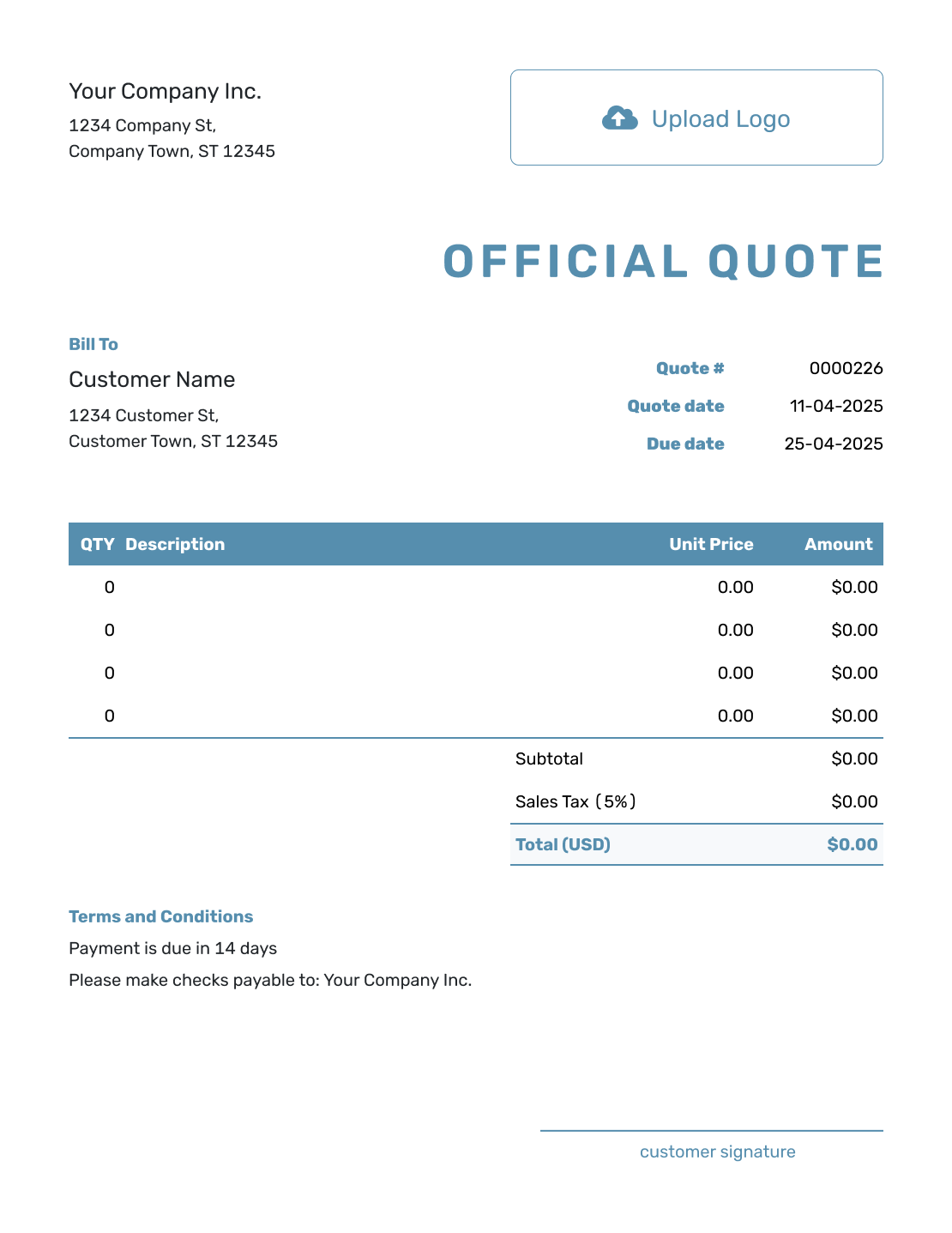
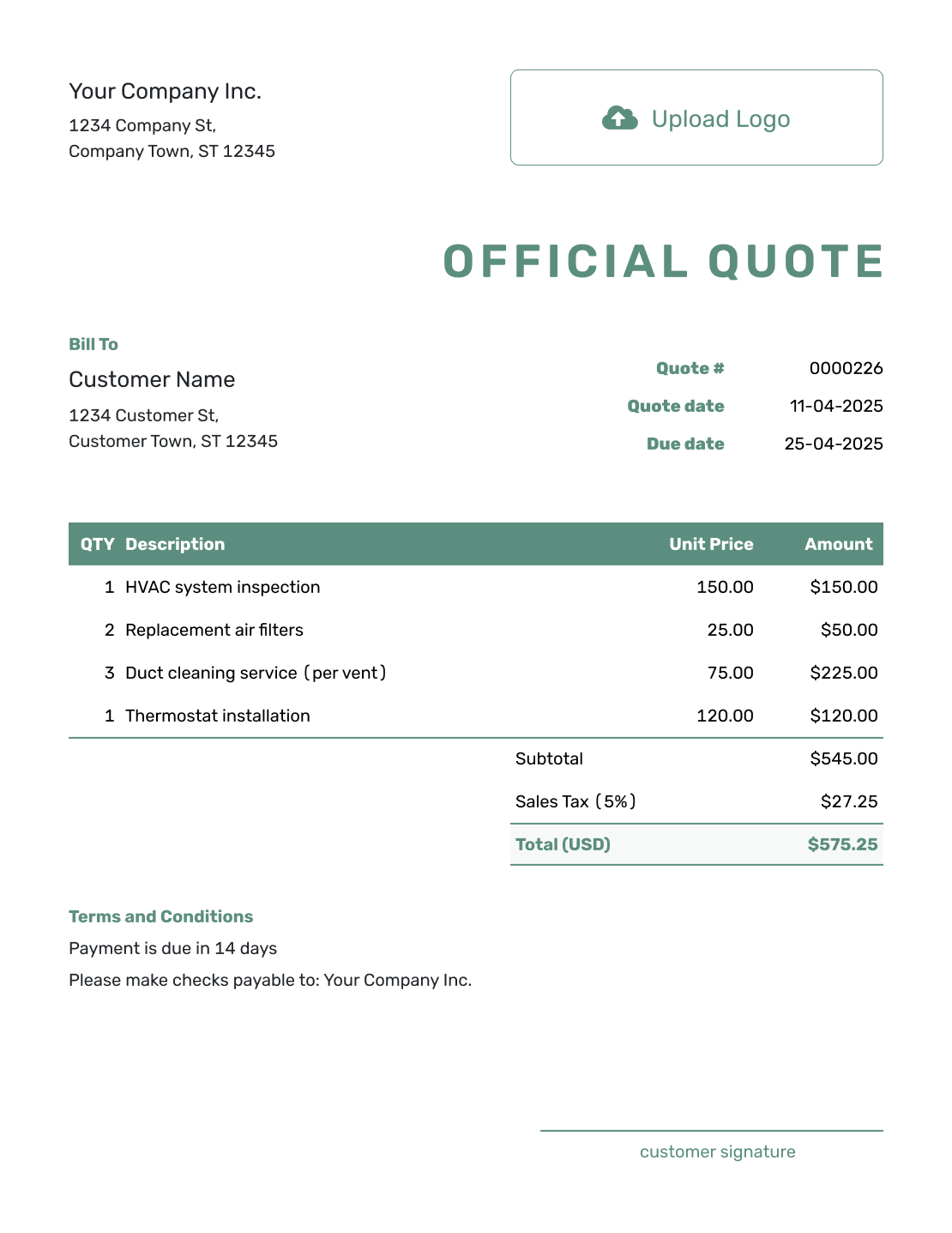
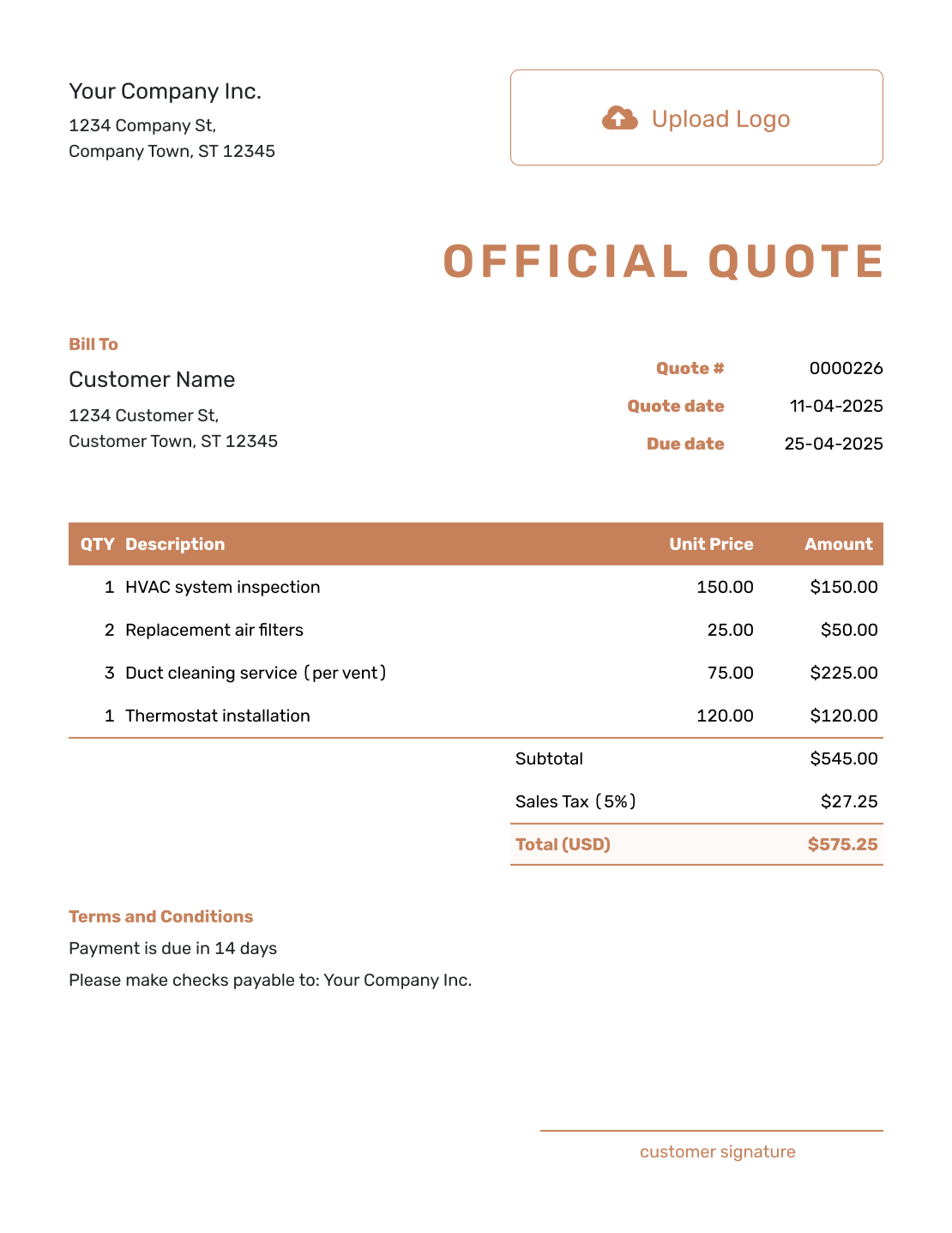
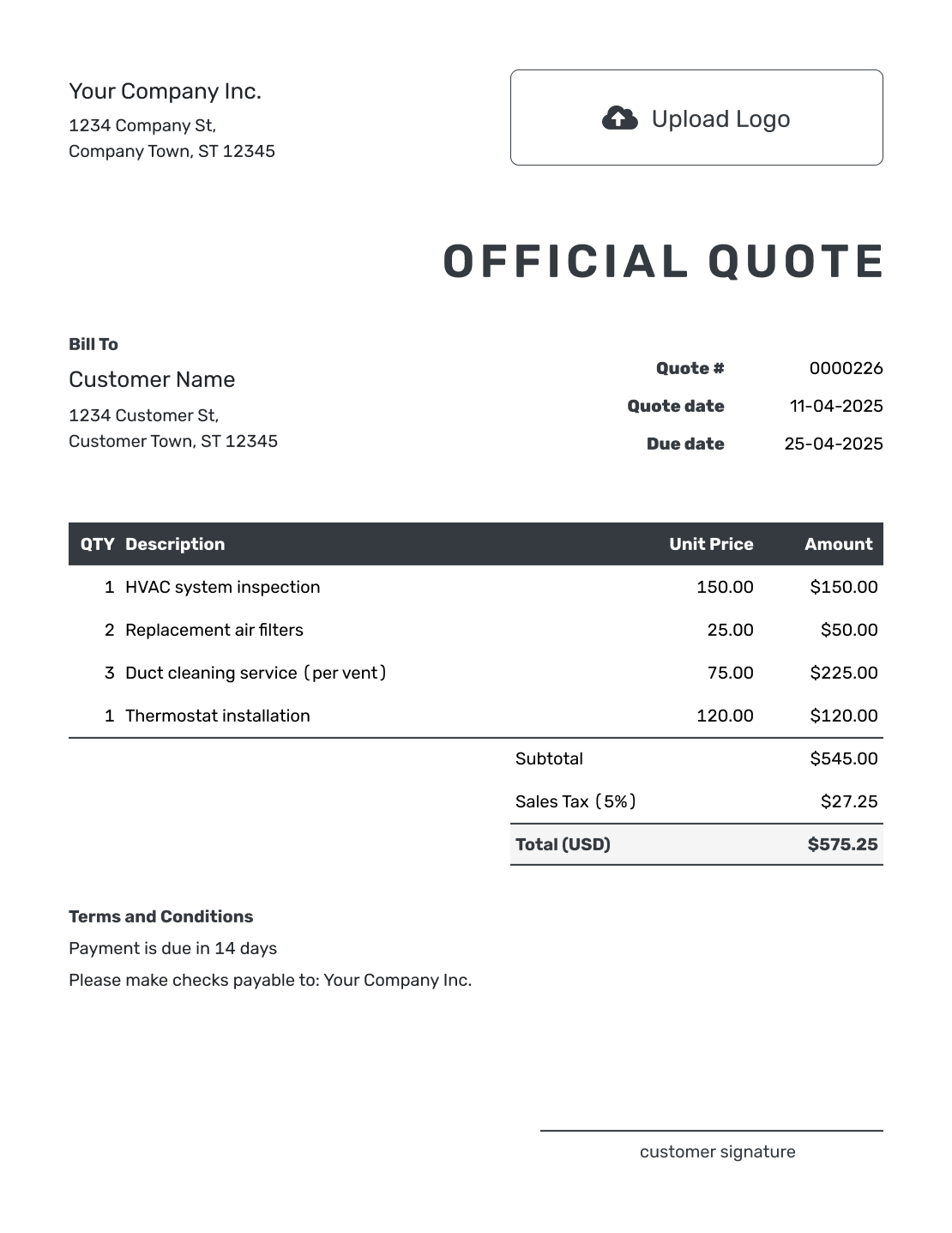
Official Quote Template File Formats
These pages provide separate document and spreadsheet templates when the buyer requests a particular file format. Keep the same quote number and customer references in each version. Docelf downloads the finished quote as a PDF.
Related Official and Business Quote Templates
Choose formal for structured review, professional for brand presentation, or written when the offer began as a conversation.
After You Send the Official Quote
For quotes emailed from Docelf, check delivery and viewing information in document history. The customer can accept or decline online, and Docelf emails you when they respond.
If the buyer asks for a revised quantity or reference, update the quote and review the full offer before choosing to send it again. Tell them which version to use. Editing alone does not email the quote.
Official Quote Template FAQs
-
What is an official quote?
It is an identifiable written offer from your business. Include the customer, quote number, scope, price and terms so the buyer can match the offer to their request. This page provides a business quote template, not certification of the offer.
-
Is there one official quote format?
Ask the buyer whether they require a particular form. Otherwise, use a clear quote layout with your business details, itemized offer, dates, terms and their requested references.
-
What makes a quote look official?
Use your full business details and a unique quote number. Add current dates, a clear scope, and itemized prices. Keep the terms and layout consistent with your other business documents.
-
Does an official quote need a signature?
Ask how the customer wants to confirm the offer. Docelf lets you add company and customer signature fields, and customers can accept or decline a quote online. Follow any additional requirements for your transaction.
-
Can I add a vendor number or project code?
Yes. Put the buyer’s supplied reference in Terms and Conditions and label it clearly, such as “Customer request: OPS-26-104.” Keep your own quote number in the quote-number field.
-
Can I turn an accepted official quote into an invoice?
Yes. Docelf can create the invoice from the accepted quote and reuse the customer, line items, quantities, and prices. You do not have to enter them again.
Ready to Send an Official Quote From Your Business?
Give the customer one clear quote from your business that they can review and approve.
- Add your business and customer details
- Add a quote number and the buyer’s required references
- Email the official copy or download a PDF




