Free Professional Quote Template
Create a professional quote in minutes
Present the scope, price and terms with your logo and a clean layout. Your business looks ready for the job, which helps customers choose you with confidence.
Email, print or download your quote as a PDF.
14-day free trial. No credit card required.
Price the job. Send the quote. Get back to work.
Professional Quote Template Examples
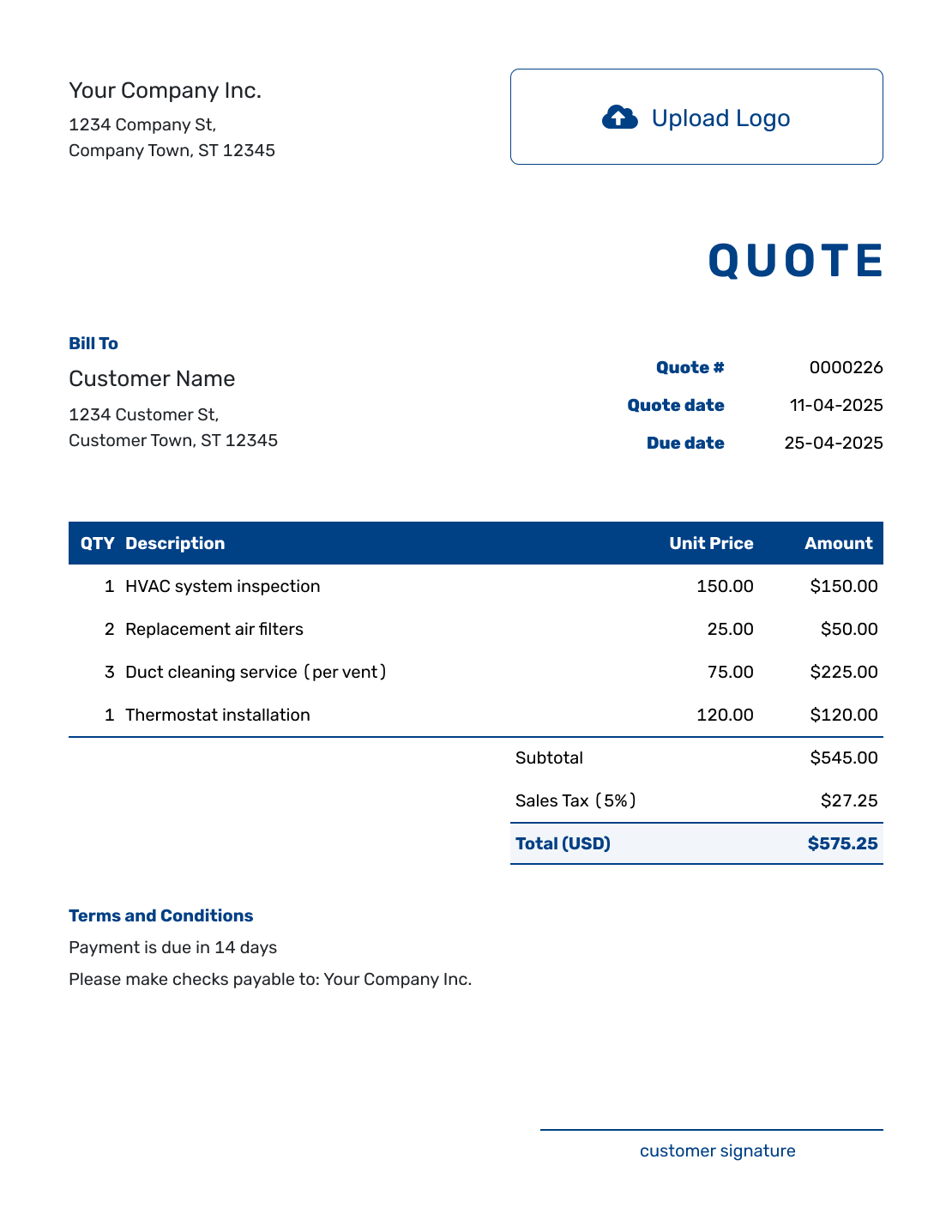
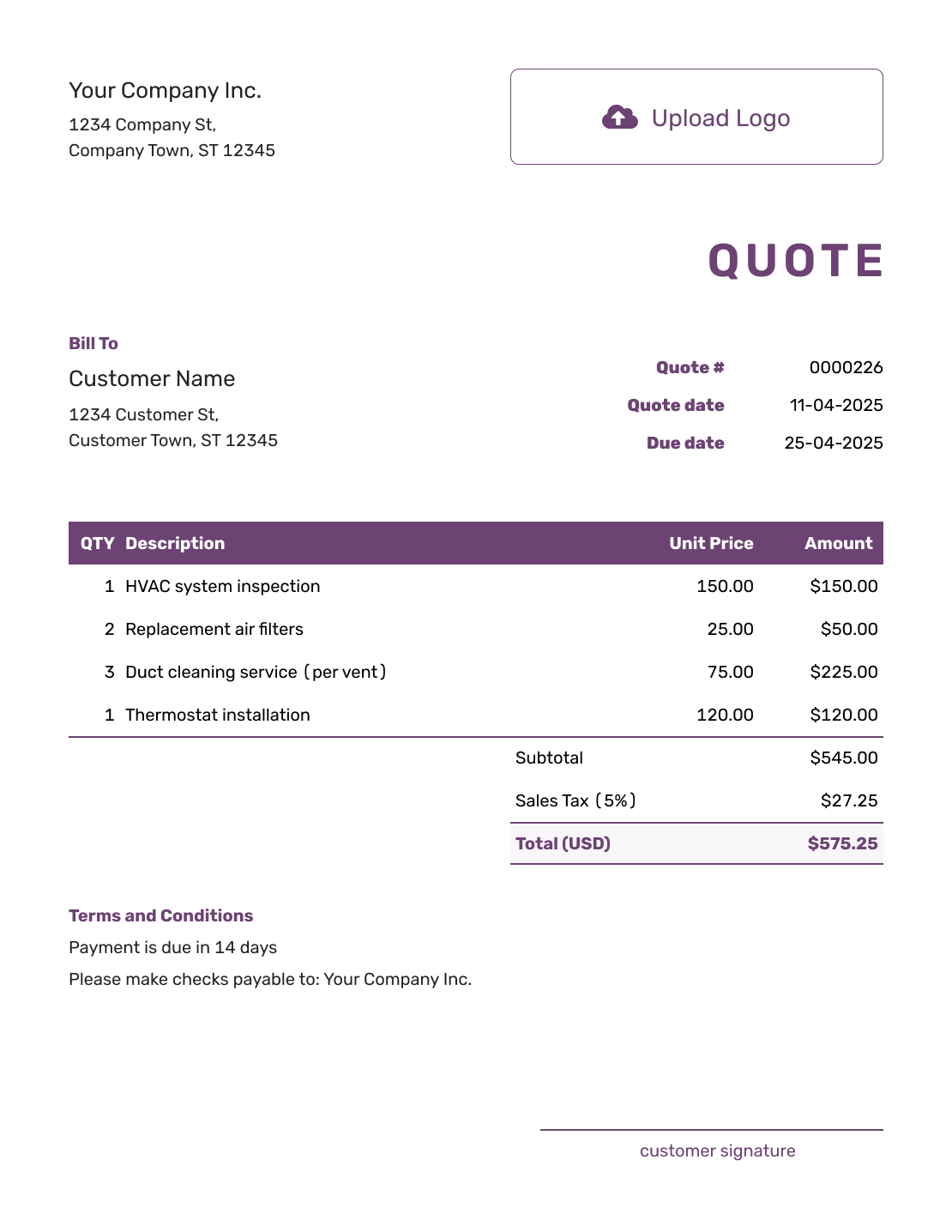
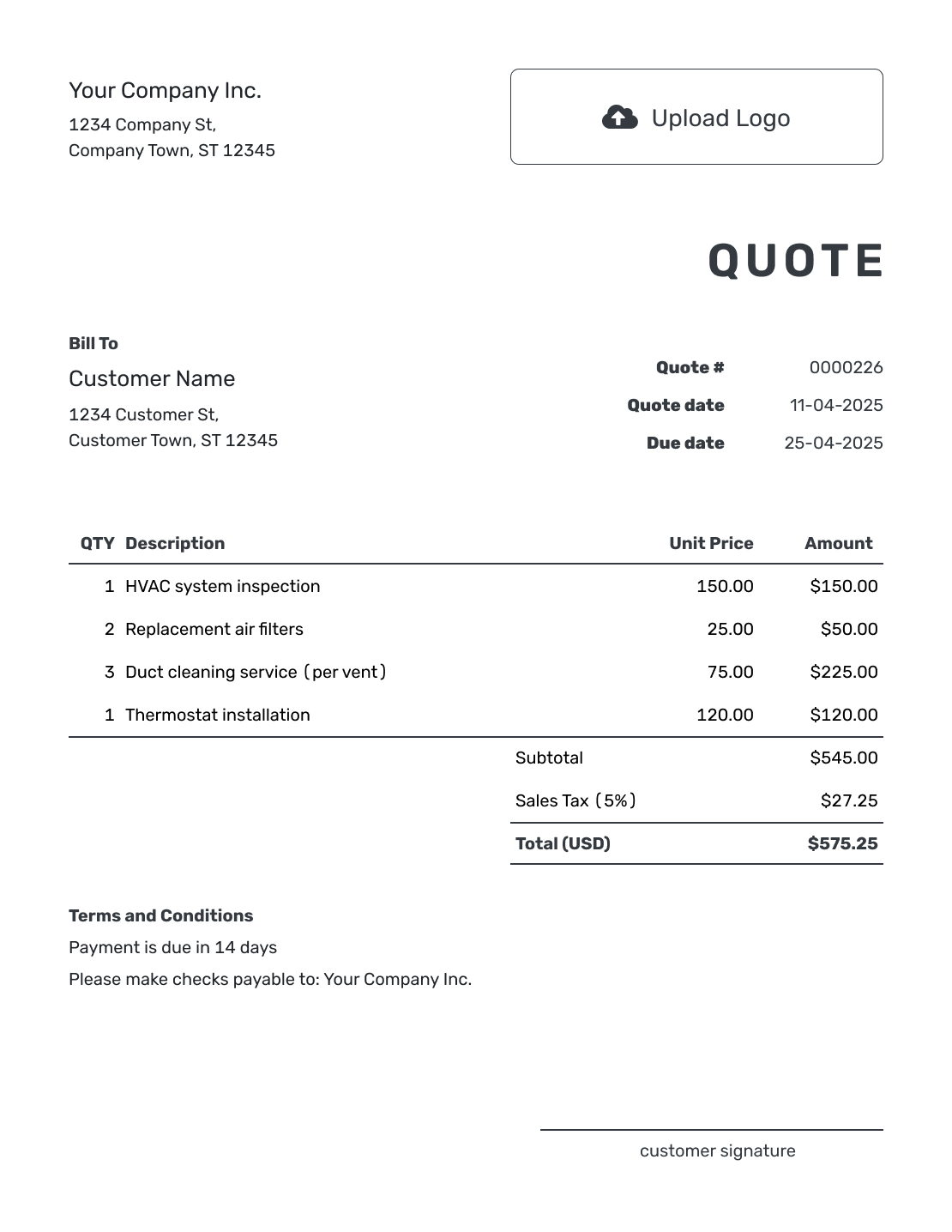
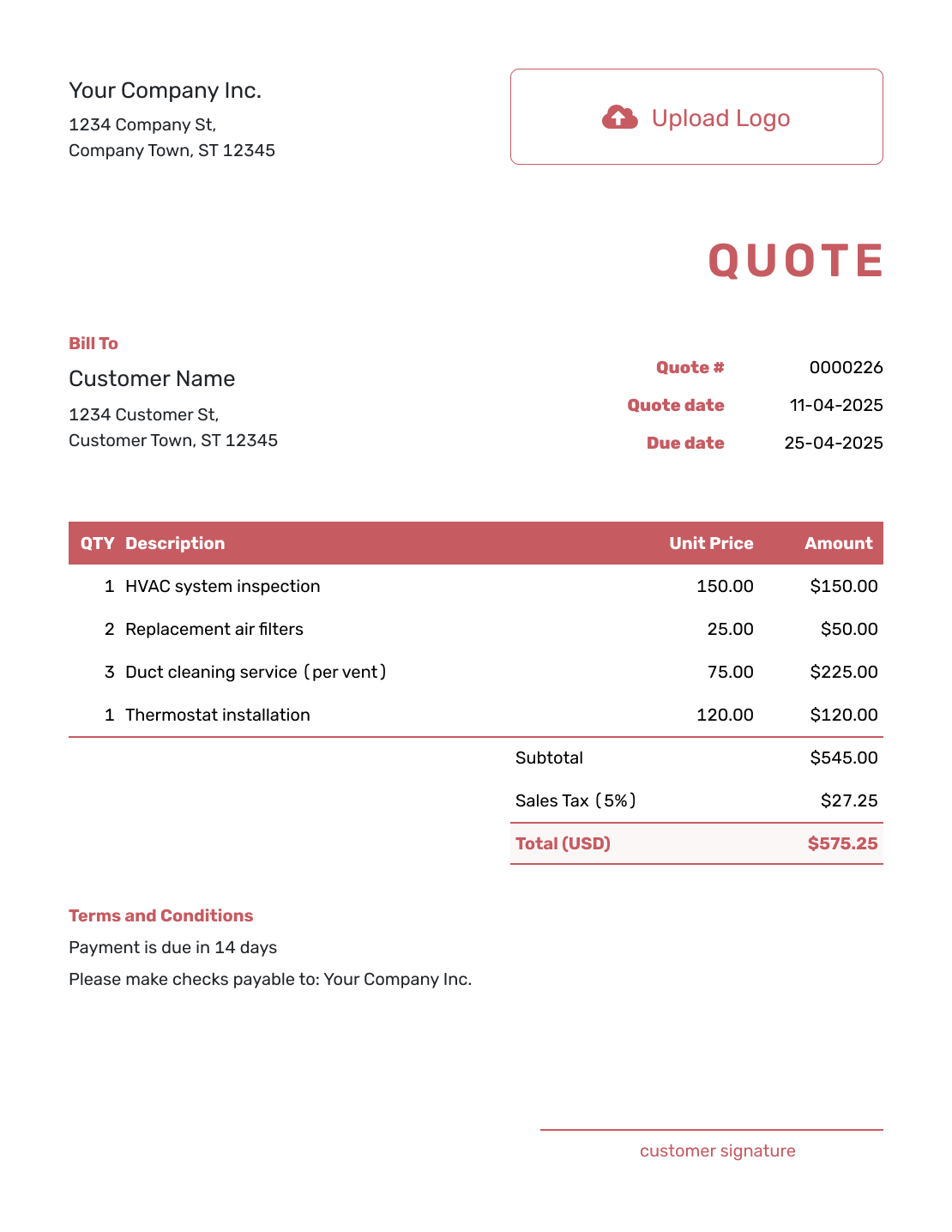
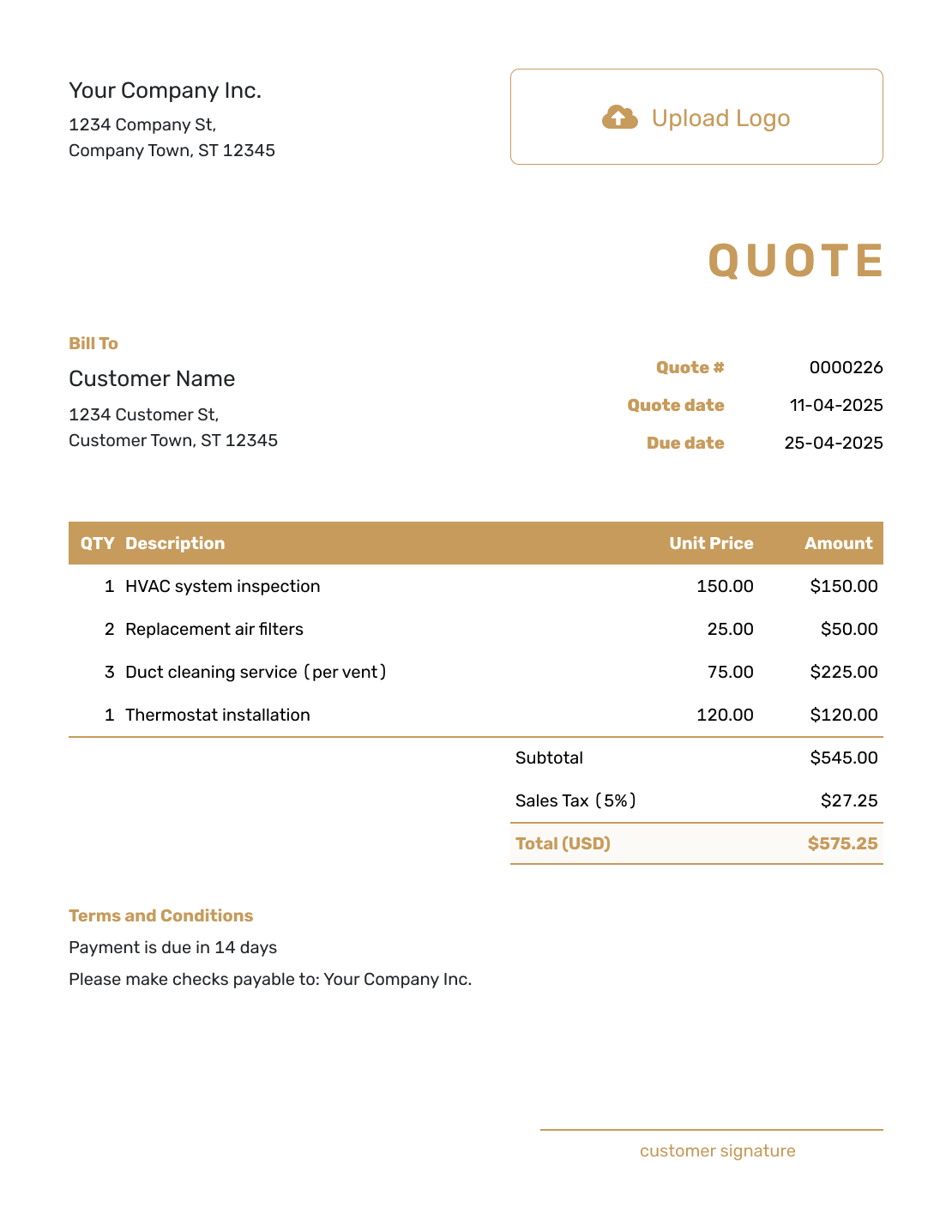
Browse these layouts before adding your own scope and prices. Each preview opens the quote editor. You can then choose colors and fonts to suit your business.
Make the Offer Easy to Read
A professional quote helps the customer understand the offer quickly. Use clear headings and a consistent line-item layout. Keep the total visible and write the terms in ordinary language.
Your logo and colors help the customer recognize your business. The detail does the rest: explain what they will receive, when it will be ready and what the price includes.
How to Create a Professional Quote
Build the offer first, then review the finished quote as your customer will see it. Docelf keeps the layout consistent while you add the details.
- Your Business: Add the business name and contact details customers know.
- Your Logo: Add your logo and choose readable colors and fonts.
- The Customer: Choose a saved customer or enter their details.
- Number and Dates: Check the quote number, issue date and valid-until date.
- The Scope: Describe each product or service, quantity and price.
- The Total: Check the tax and total. Docelf calculates them from your entries.
- Terms and Review: Add timing and scope limits in Terms and Conditions. Preview, then email or download.
Write Descriptions the Customer Can Picture
A price beside “design work” leaves the customer guessing. Name the deliverable and its limits, then give separately priced work its own row. Keep included work within the package price so you do not charge for it twice.
This fictional flyer quote separates the design, printing and proof preparation. Prices are in US dollars, with illustrative 8% tax on all three items. It covers one finished flyer design and 500 printed copies.
| QTY | Description | Unit Price | Amount |
|---|---|---|---|
| 1 | Two-sided letter-size flyer layout — one design and one revision round | $120.00 | $120.00 |
| 500 | Full-color printed flyers — two-sided, letter-size | $0.18 | $90.00 |
| 1 | Print-ready file check and digital proof | $25.00 | $25.00 |
| Subtotal | $235.00 | |
| Sales Tax (8% illustrative) | $18.80 | |
| Quote Total | $253.80 |
Explain the Boundaries of the Offer
Use Terms and Conditions to cover details that do not belong in a price row. For a service package, that may include what the customer supplies, how many revisions are included and when work can begin.
Keep the wording brief enough to read with the price. Adapt this sample to your service and payment policy, and use the applicable tax treatment.
Example: Terms and Conditions
- Quote covers one two-sided letter-size flyer design, one revision round and 500 printed copies.
- Customer supplies final text, logo and images before design begins. Extra designs or revision rounds will be quoted separately for approval.
- Printing begins after the customer approves the digital proof. Copies will be ready for collection within 5 business days of proof approval.
- Quote valid through October 12, 2026. Payment due within 14 days of the invoice date.
Send an Offer You’re Happy to Put Your Name On
Add clear descriptions and let Docelf calculate the total. Match the quote to your business, then review and send it.
Use Branding to Help the Customer Recognize You
Add a clear logo with room around it, and use colors that keep the text readable. A consistent font and the same business details you use on other documents help the quote feel familiar.
Preview the finished quote on screen and check the PDF before sending it. Look for long descriptions, crowded terms or a total that is hard to find. A polished layout is useful when it makes the offer easier to understand.
Read It Once From the Customer’s Point of View
Imagine the customer opening the quote between other jobs. These are the answers they should be able to find quickly.
- What they will receive and what is included in the price
- When the offer expires and when the work or delivery is expected
- How to ask a question or accept the offer
More Professional Quote Layouts
Compare the remaining previews, then use the editor to add your own offer.
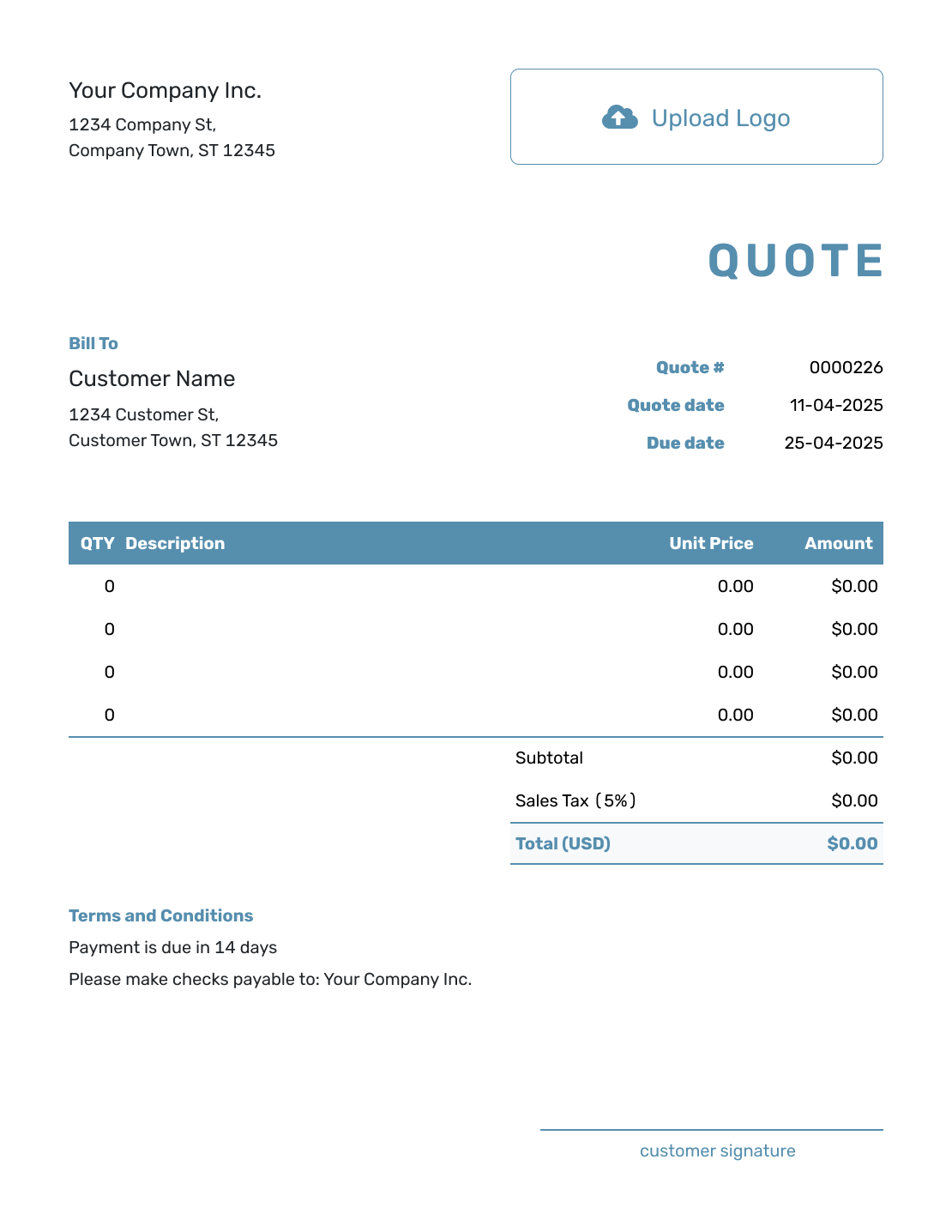
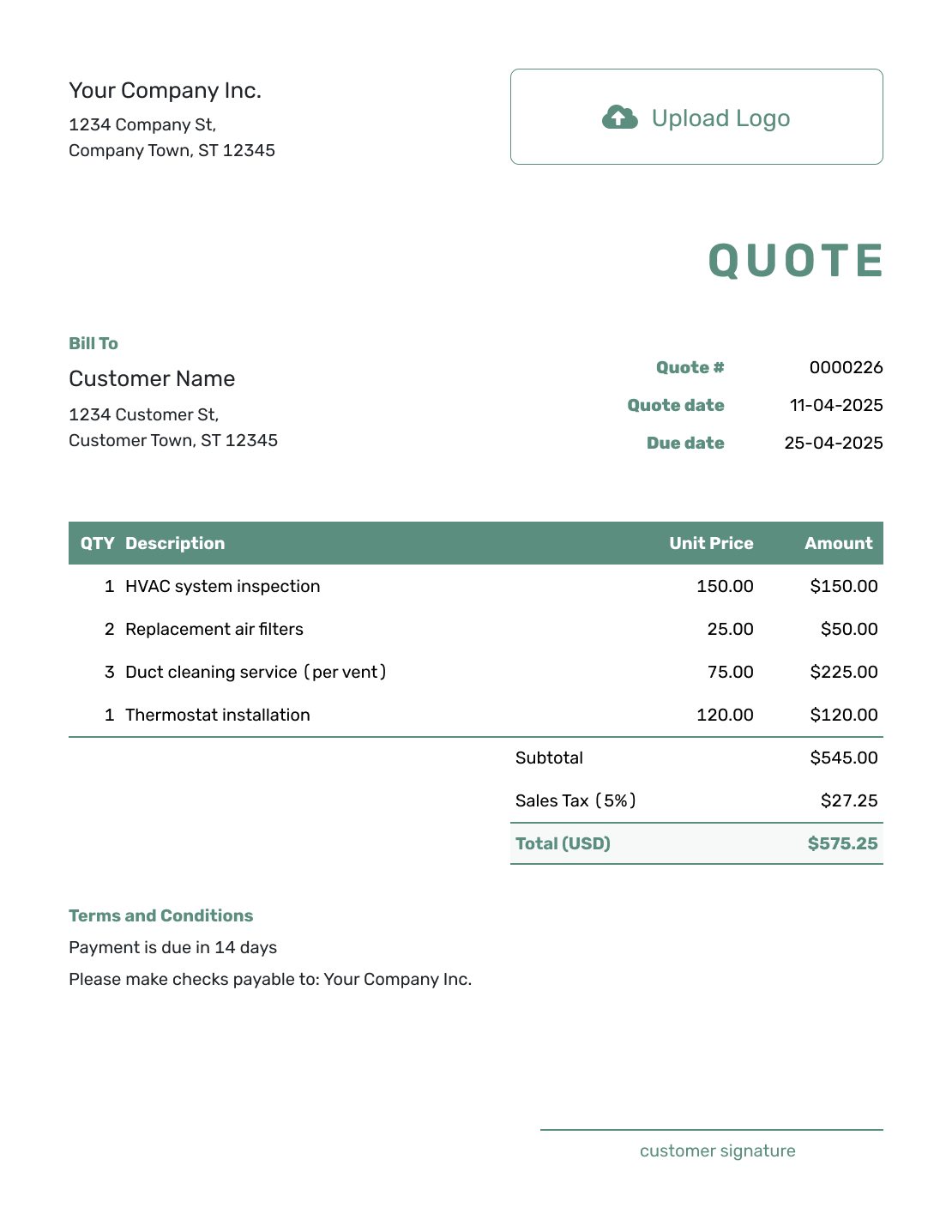
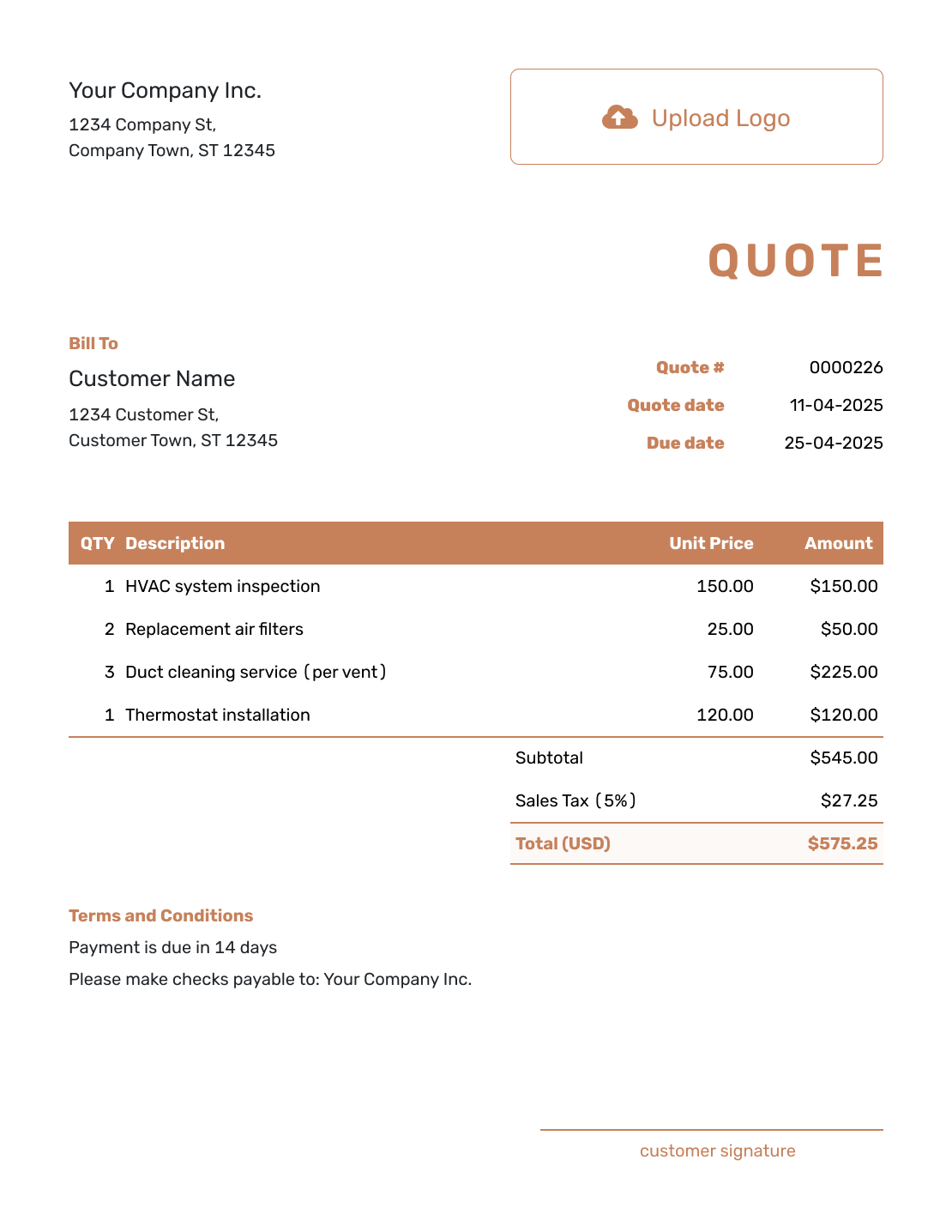
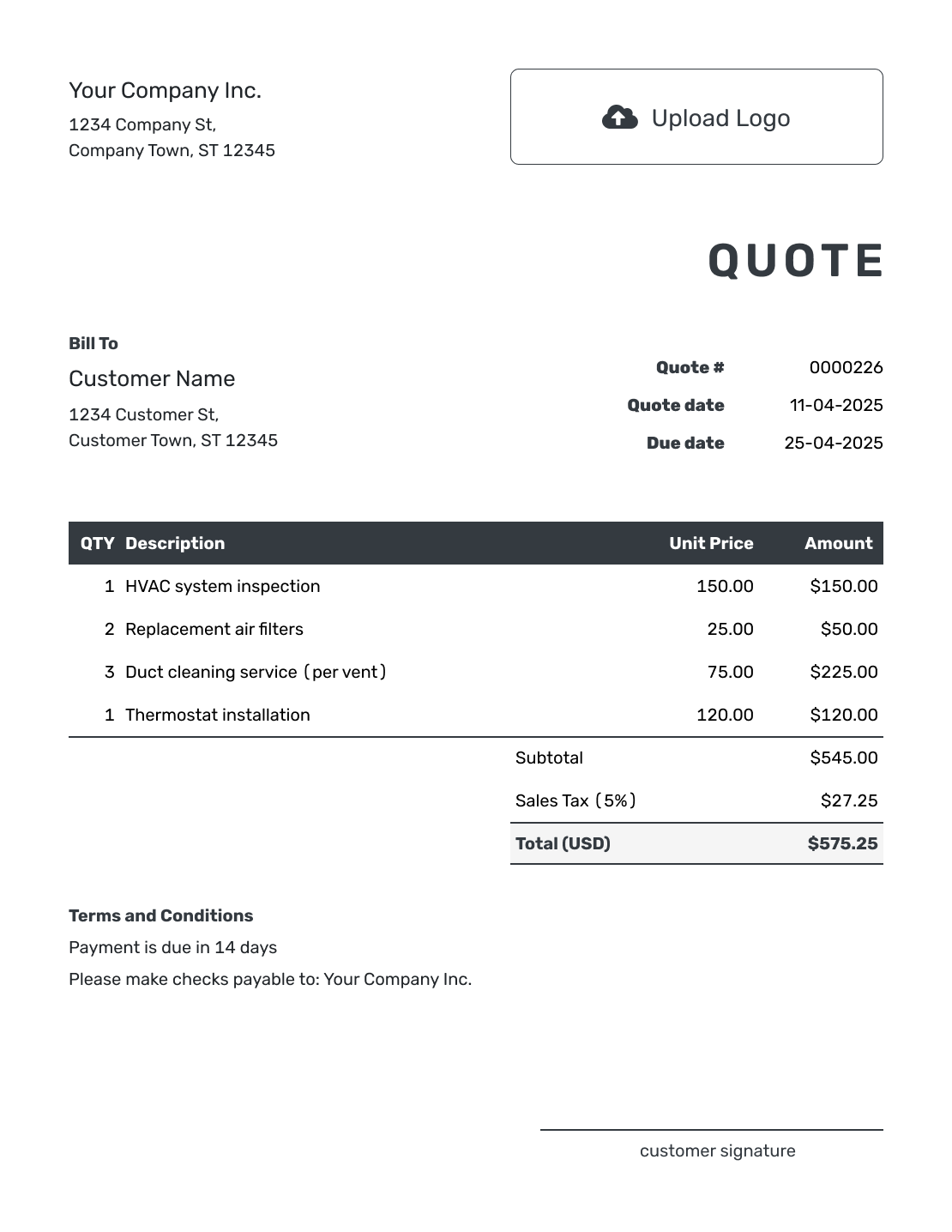
Professional Quote Template File Formats
Use the separate templates below if you prefer to work in a document or spreadsheet. Word and Google Docs suit flexible wording; Excel and Google Sheets suit custom calculations. Docelf creates the quote online and downloads the finished copy as a PDF.
Related Quote Styles
Choose formal for a structured approval process, simple for a shorter offer, or business for a general company quote.
After You Send the Professional Quote
After emailing the quote from Docelf, check document history to see when it was delivered and opened. The customer can accept or decline online; Docelf updates the status and emails you when they respond.
If they ask for a different scope, update the work and price together. Review the revised offer before choosing to send it again, so the customer knows what they are being asked to approve.
Professional Quote Template FAQs
-
What makes a quote look professional?
Use complete business and customer details. Keep the scope, itemized prices, and total easy to find. Add readable terms, consistent branding, and a clean layout.
-
What should a professional quote include?
Include the quote number, dates, and customer. List the products or services with quantities, rates, and the total. Add timing, payment terms, exclusions, and acceptance instructions.
-
Should I add my logo to a professional quote?
Yes, when you have one. Use a clear logo and keep it from crowding the customer, scope, or price.
-
How many colors should I use?
Use a small, consistent set of brand colors and enough contrast to keep the text readable. Check the finished PDF and printed copy; the scope and total should be easy to find in both.
-
Can I download the professional quote as a PDF?
Yes. Email the quote from Docelf or download a PDF to save, print, or attach to your own email.
-
Can I turn an accepted professional quote into an invoice?
Yes. Docelf can create the invoice from the accepted quote and reuse the customer, scope, line items, and prices. You do not have to rebuild the approved work.
Ready to Send a Professional Quote?
Create a clear offer that carries your business details and is easy for the customer to review.
- Add your logo, colors, and clear business details
- Present the scope and price in an easy-to-scan order
- Email the quote or download a polished PDF




