How to Make an Invoice
Create a clear invoice step by step
Work through the invoice step by step, from listing the work or sale to checking the total and due date. The guide keeps each step manageable before you send the bill.
Follow the steps below, then create and send the invoice in Docelf.
14-day free trial. No credit card required.
Create the invoice. Send it. Get back to work.
Start With an Invoice Template
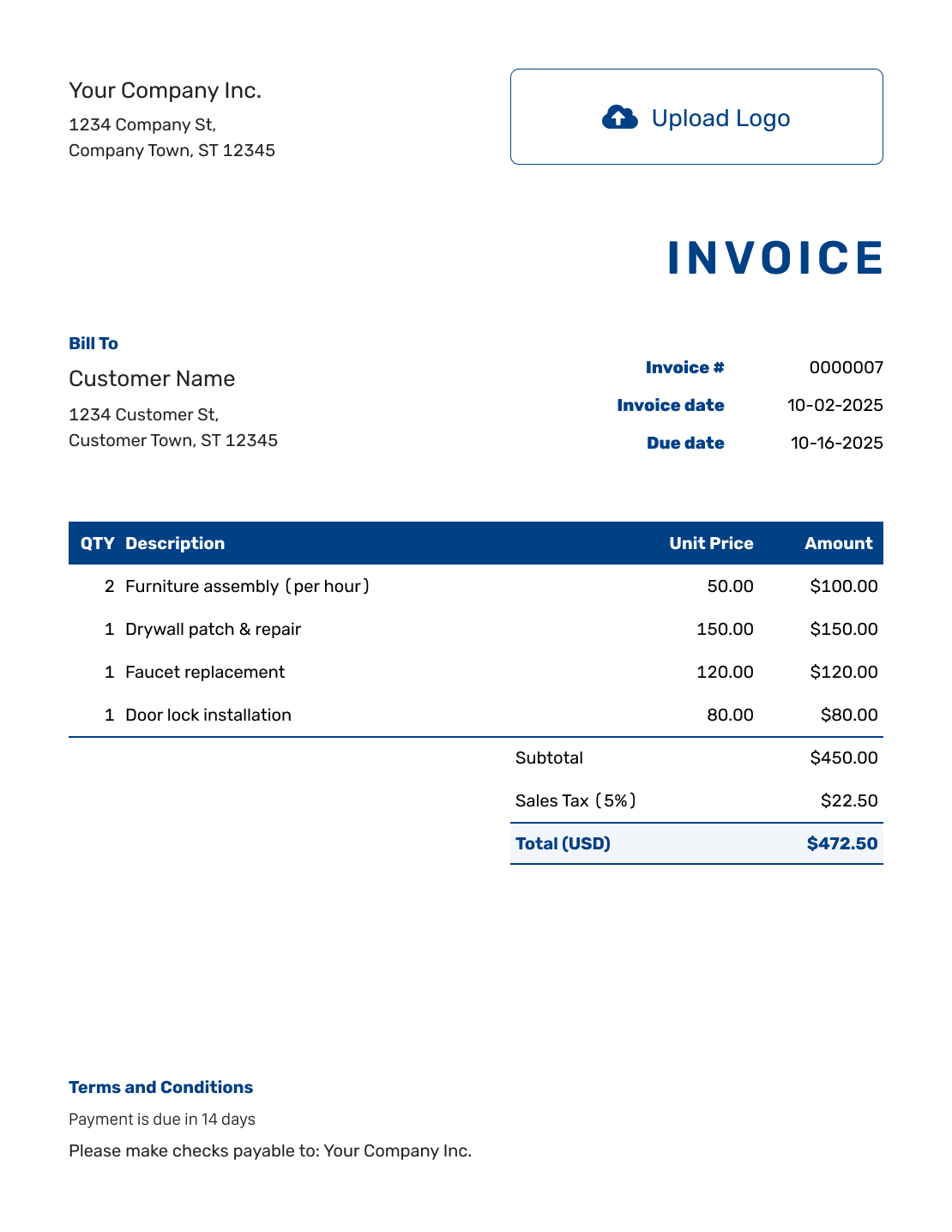
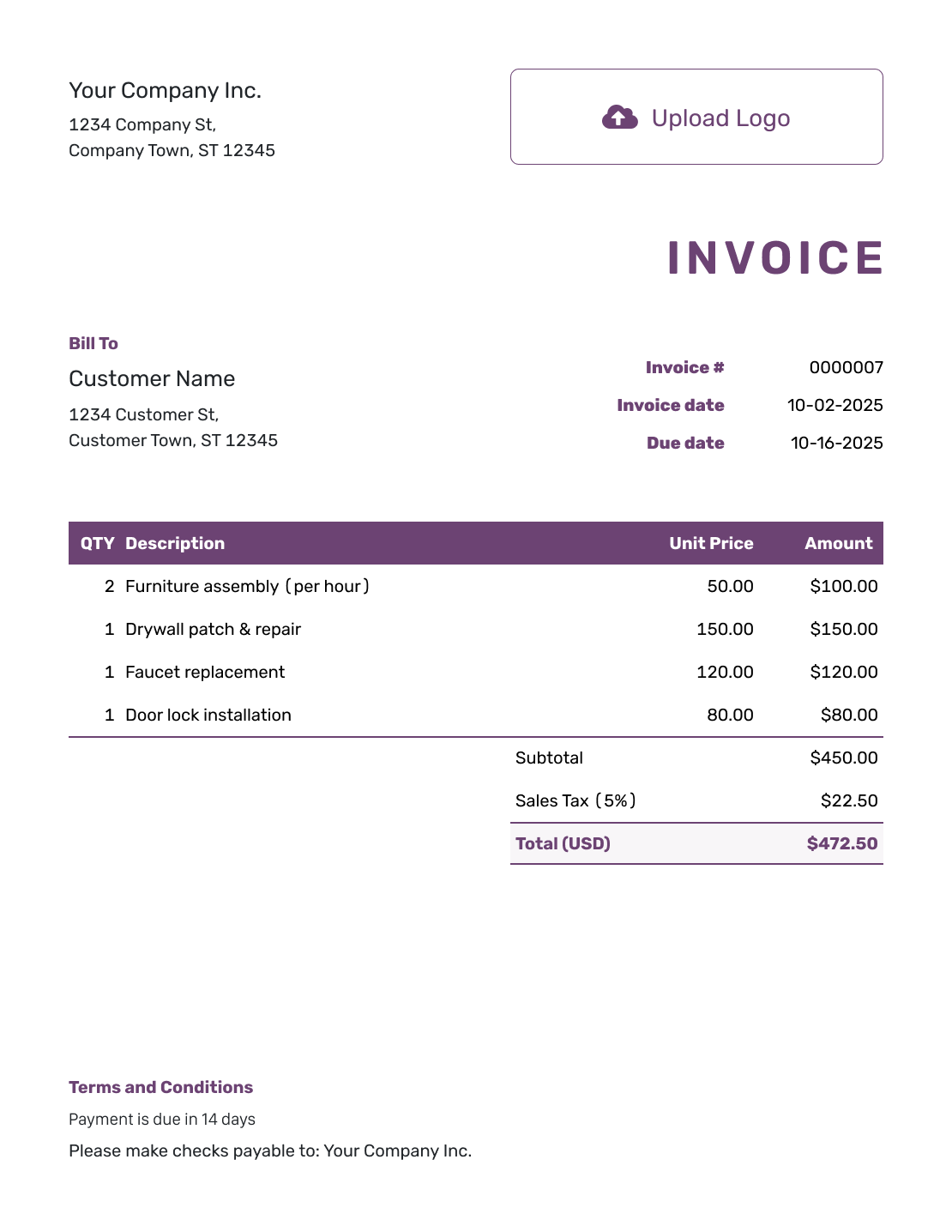
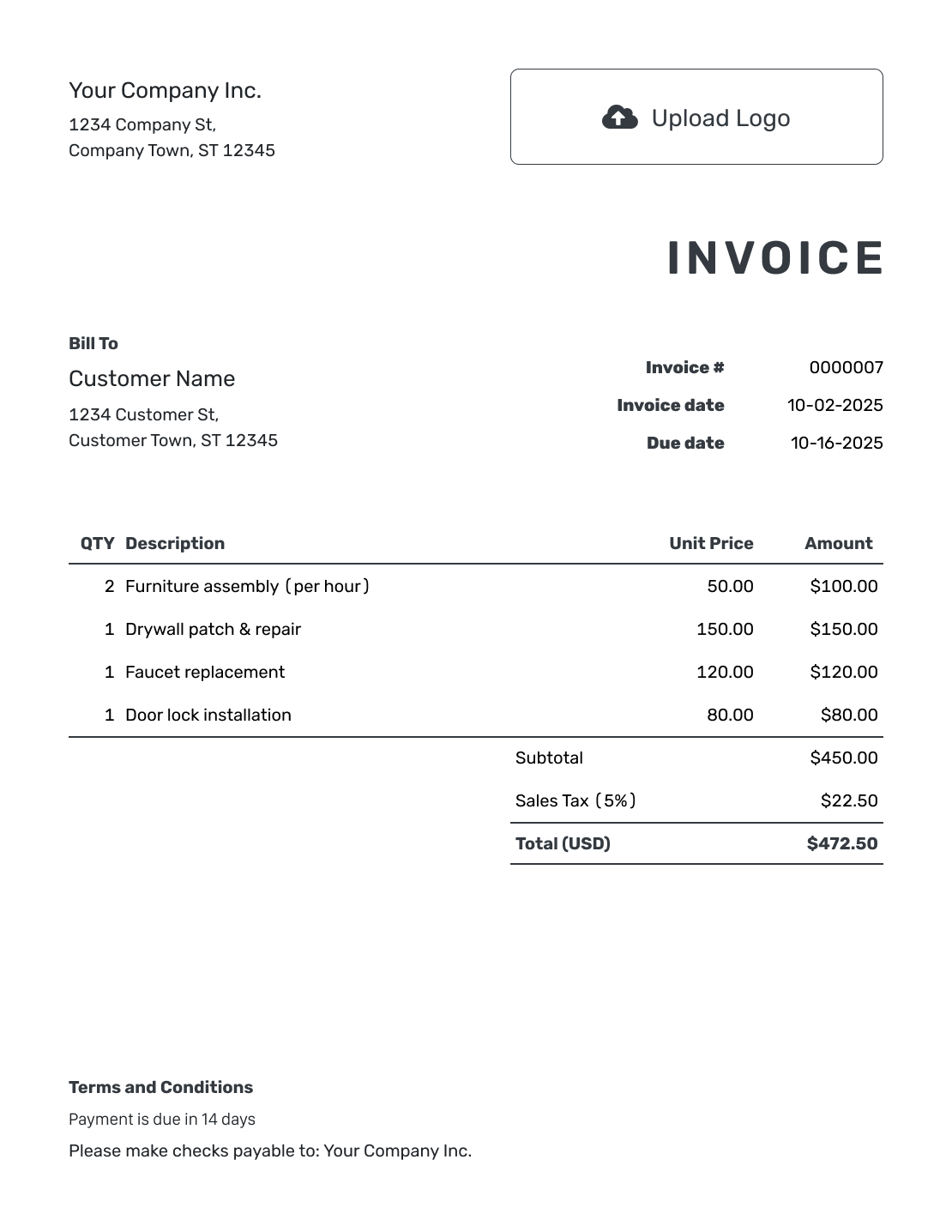
Use a ready-made layout instead of setting up a blank document. Each preview opens the invoice creator, where you can enter your own details.
Ready to fill it in? Go straight to the seven steps.
How to Fill In Your Invoice
Have your customer’s billing details and the agreed prices ready. Work through these seven steps in Docelf. The numbers show where each detail belongs.
- Add Your Business: Enter your business name, address, email, and phone number.
- Add Your Logo: Upload your logo so the customer recognizes your business.
- Choose the Customer: Select a saved customer or enter their billing details.
- Set the Number and Dates: Check the invoice number. Set the invoice date and payment due date.
- List the Charges: Describe each product or service. Add the quantity and unit price.
- Check Taxes and Totals: Add any tax or discount that applies. Docelf calculates the total.
- Explain How to Pay: Use Terms and Conditions for payment instructions and the terms you agreed with your customer.
How to Fill In Invoice Line Items
Choose a unit that matches the price you agreed. Use hours for time-based work and a count for products. For a fixed fee, use a quantity of one.
This example shows a computer-support job with hourly work, a product, and a fixed fee. Replace the sample prices with your agreed charges.
Multiply each quantity by its unit price, then add the line amounts. This example applies 8% sales tax to the full subtotal. Use the tax rules and rate that apply to your own sale.
| QTY | Description | Unit Price | Amount |
|---|---|---|---|
| 2 | Laptop setup — hours | $90.00 | $180.00 |
| 1 | USB-C hub — each | $45.00 | $45.00 |
| 1 | File transfer — fixed fee | $60.00 | $60.00 |
| Subtotal | $285.00 | |
| Sales Tax (8% example) | $22.80 | |
| Total | $307.80 |
The three charges total $285.00. Adding $22.80 in example tax brings the invoice to $307.80.
What to Include in Invoice Terms
Use Terms and Conditions to explain when and how your customer should pay. Make sure the payment deadline matches the invoice’s due date. Include the payment reference the customer should use.
For the example above, invoice INV-1001 is dated September 10, 2026. The agreed payment due date is September 24, 2026. Replace these sample dates and terms with the details for your own invoice.
Include only policies your business actually uses. Check local requirements before adding late fees, warranty limits, or return conditions. The invoice terms guide offers more wording to adapt.
Example: Terms and Conditions
- Payment of $307.80 is due by September 24, 2026.
- Please pay by bank transfer using the payment details provided with this invoice.
- Use INV-1001 as your payment reference.
- For questions about the setup work or charges, use the contact details on this invoice.
Ready to Fill In Your Invoice?
Open an invoice and use the steps above to fill it in. Docelf calculates the total as you enter the charges. Check the invoice before you send it.
Match the Invoice to Your Business
Add your logo, then choose your colors and fonts in Docelf. You can also add an optional industry name before the invoice title. Use the footer for a useful contact detail, such as your website.
Choose the currency that matches the bill: USD, EUR, GBP, CAD, or AUD. Check it before entering prices so the customer knows which currency to pay in.
Attach a PDF contract, work breakdown, or reference image when the customer needs more detail. Docelf supports PDF, JPG, GIF, PNG, and WebP files, up to 5 MB per attachment.
Check the Invoice Before You Send It
Read the finished invoice as though you were the customer. A quick check now can save a follow-up email later.
- Check the customer’s billing name and contact details.
- Match the charges to the work or products you agreed to provide.
- Review quantities, prices, discounts, tax, and the total.
- Make sure the due date and payment instructions agree.
Email the invoice directly from Docelf, or download a PDF to send yourself. You can also print a copy for the customer. Check the recipient before sending; creating or saving the invoice does not email it.
After You Send the Invoice
Docelf keeps the due date and payment status with the invoice. After emailing it, check the document history to see whether it was delivered and opened.
Follow up if the due date passes without payment. When your customer pays, record the amount and payment date. Docelf shows any remaining balance. Once you’ve recorded the full payment, Docelf marks the invoice Paid.
After recording a payment, create a receipt from the invoice to confirm what the customer paid.
More Invoice Templates
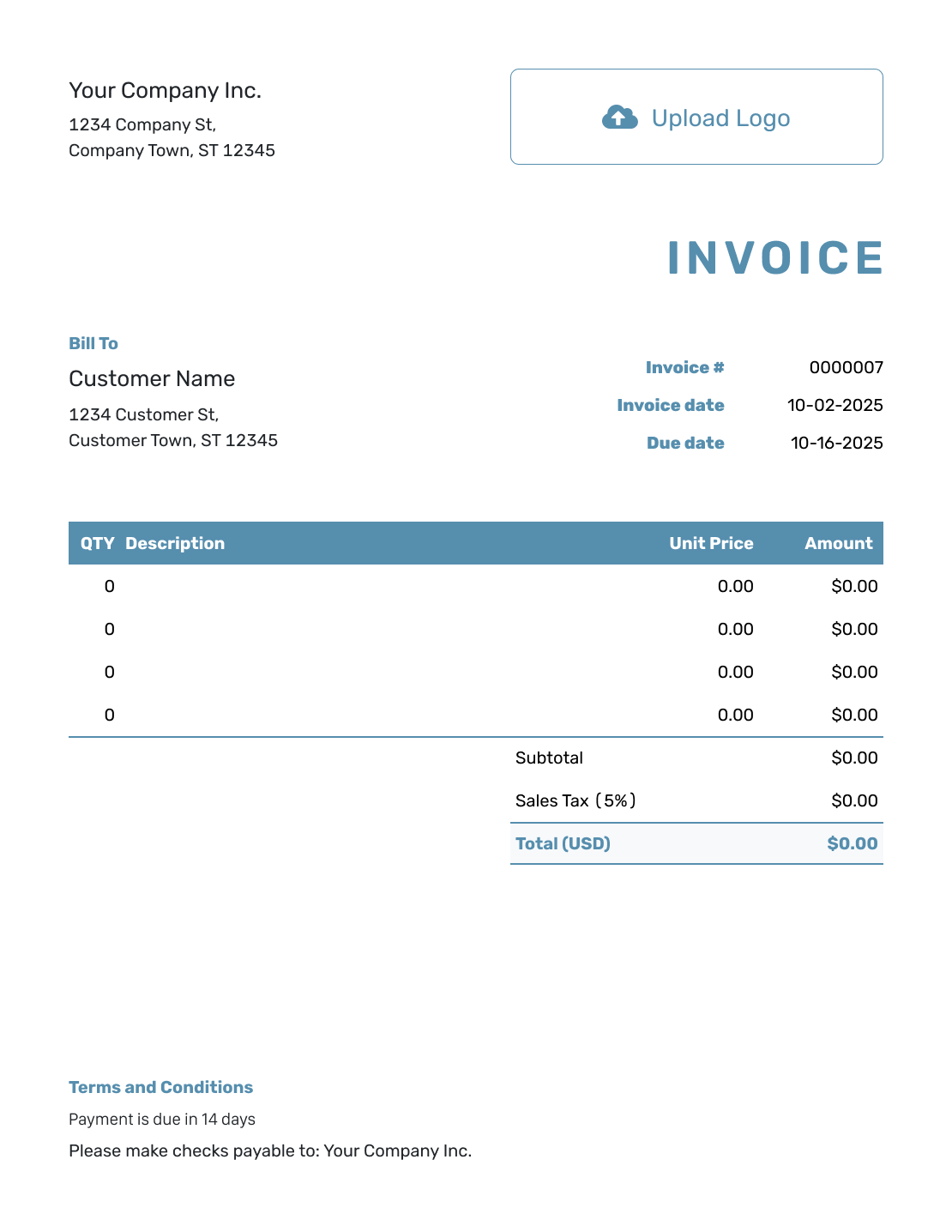
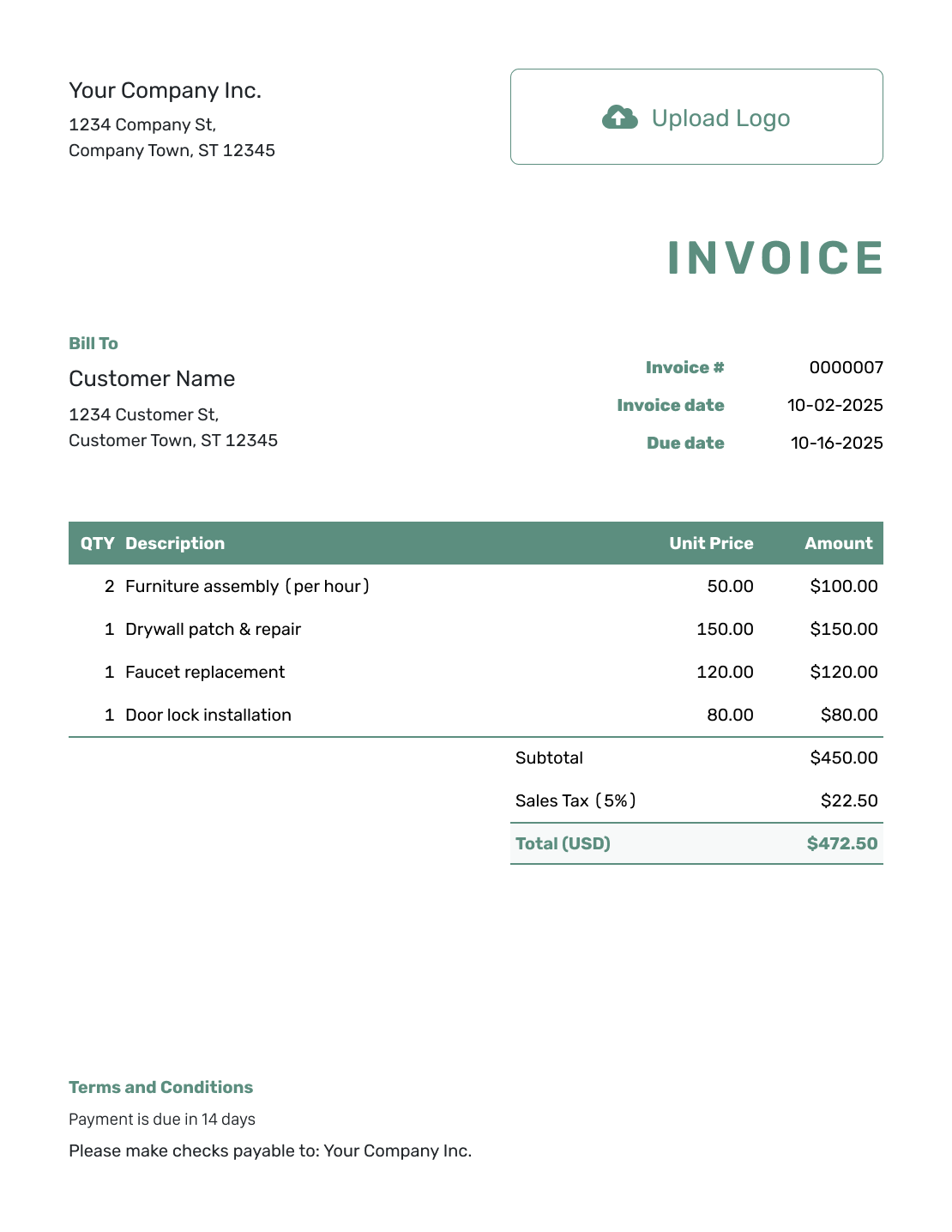
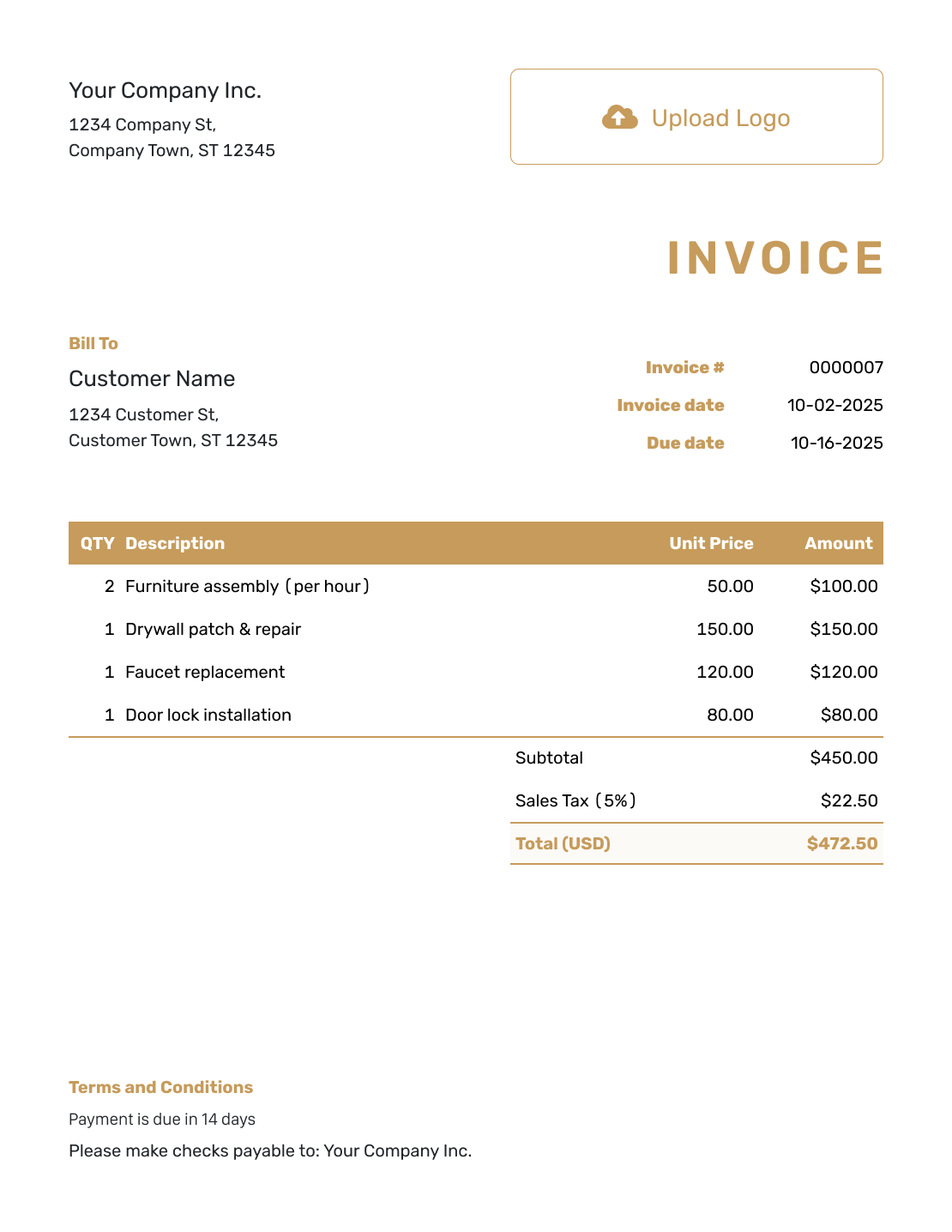
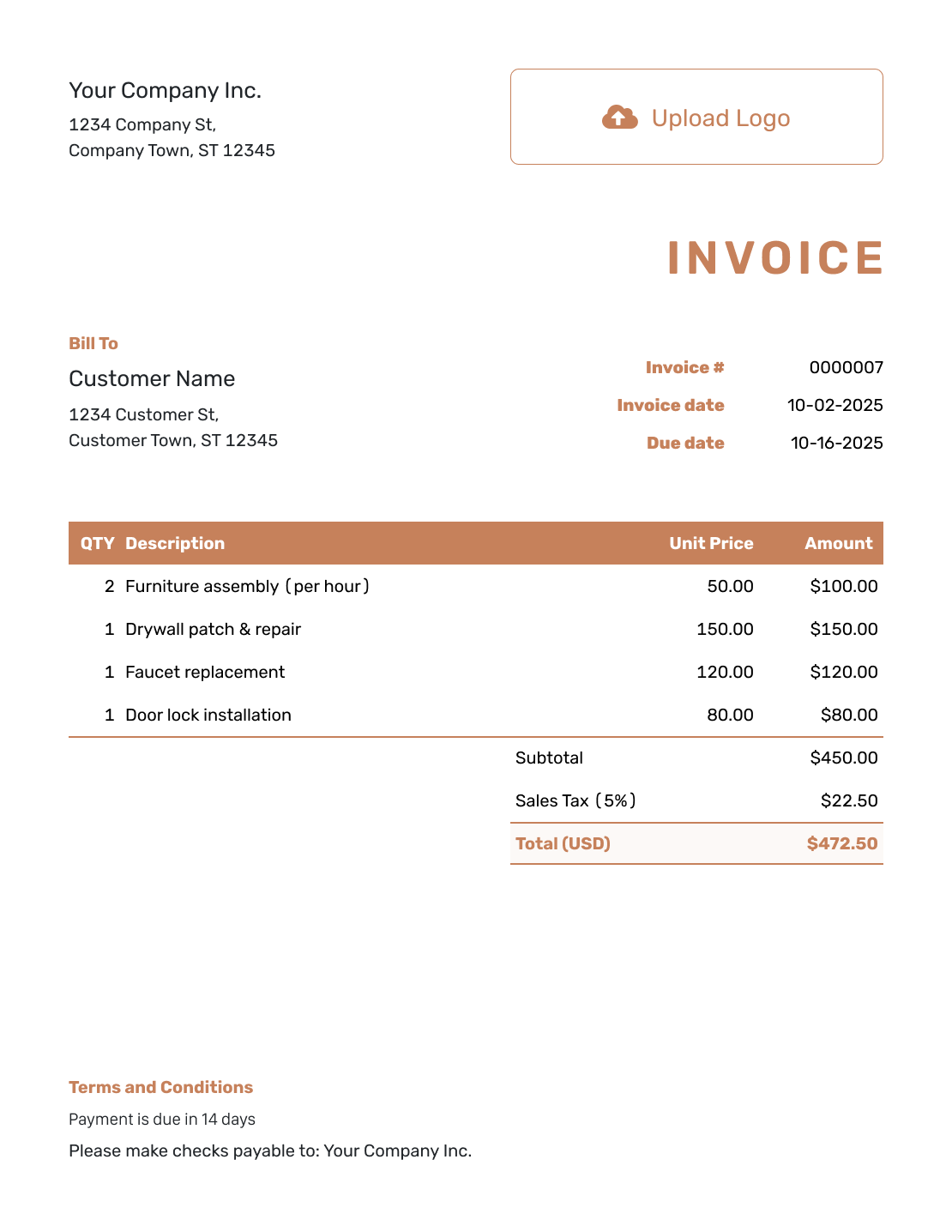
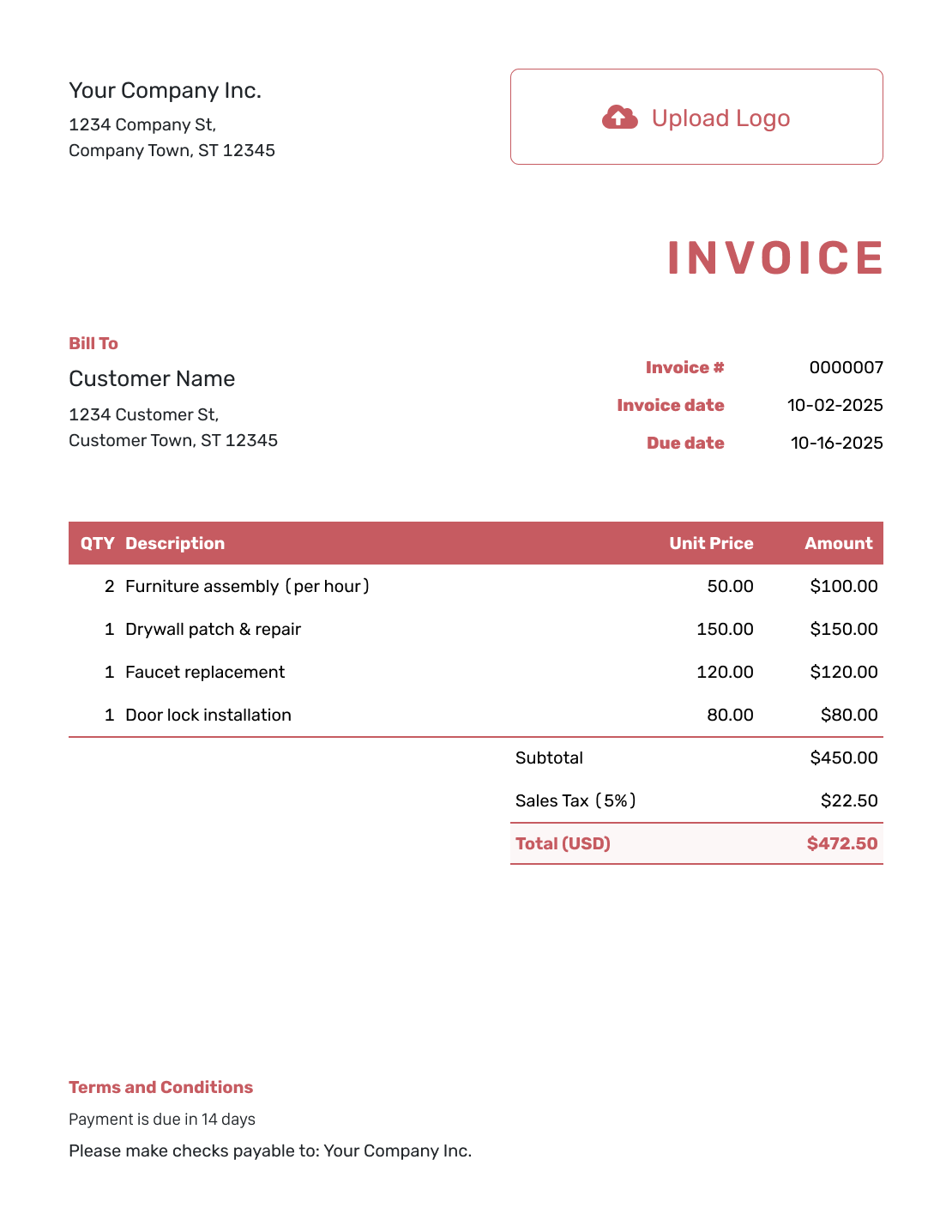
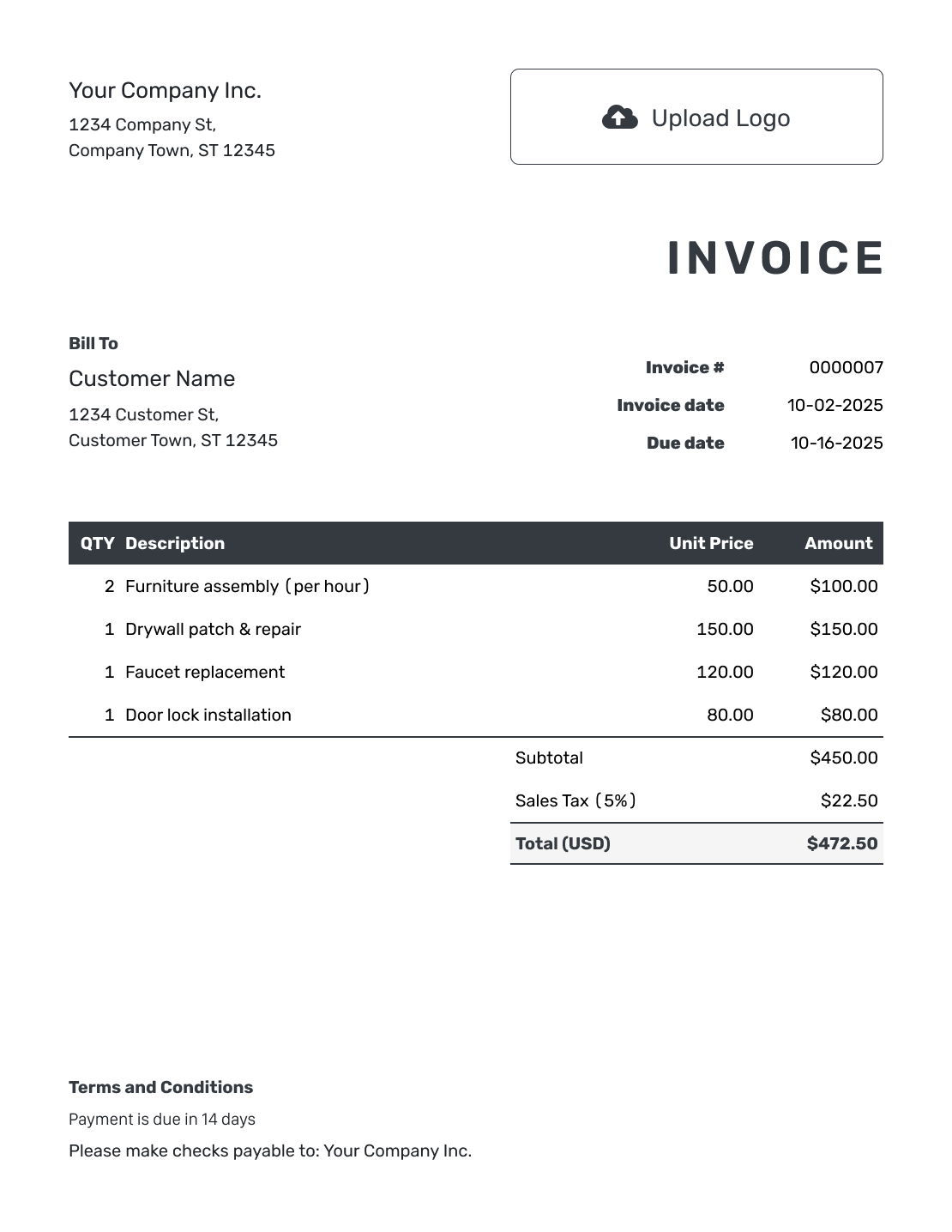
These six layouts open the same invoice creator. Choose a starting point, then enter the details for your customer and sale.
Prefer to Work in Word, Google Docs, or a Spreadsheet?
The same invoice details belong in each format. Choose Word or Google Docs to edit a document. Use Excel or Google Sheets when you prefer to work with quantities, prices, and formulas.
Get a template from one of the pages below. Keep an editable copy for your records.
Questions About Creating an Invoice
-
How do I number my first invoice?
Choose the starting number for your first invoice in Docelf. Docelf numbers each new invoice in order after that. When you duplicate an invoice, Docelf creates a new draft with a new document number.
-
What is the difference between the invoice date and due date?
The invoice date shows when you issued the bill. The due date tells your customer when to pay. In this page’s example, the invoice is dated September 10, 2026. Payment is due September 24, 2026.
-
Can I put products and hourly work on the same invoice?
Yes. Give each charge its own line. Enter the hours for time-based work and the number of units for a product. For a fixed fee, use a quantity of one and describe the service it covers.
-
Can I start with an estimate or quote I already created?
Yes. Open the estimate or quote in Docelf and create an invoice from it. Docelf copies the customer and item details into the invoice. Check the final charges and set the invoice’s due date before you send it.
-
What should I do when the customer has already paid a deposit?
Record the deposit amount and payment date on the invoice. Check the remaining balance before you send it. The deposit reduces what the customer still owes. It is not a discount on the work.
-
Can I create an invoice without Word or Excel?
Yes. Create the invoice online in Docelf, then email it or download a PDF. Docelf calculates the totals, so you do not need to build a spreadsheet or set up formulas.
Create Your First Invoice in Docelf
Give your customer the details they need to pay you.
- Use a ready-made invoice layout
- Let Docelf calculate line amounts and totals
- Email your invoice or save a PDF




