Free Manual Invoice Template
Create a professional manual invoice in minutes
Enter and review each billing detail yourself when you need full control over the invoice. A clear total and due date show the customer what to pay and when, helping you get paid.
Email, print or download your invoice as a PDF.
14-day free trial. No credit card required.
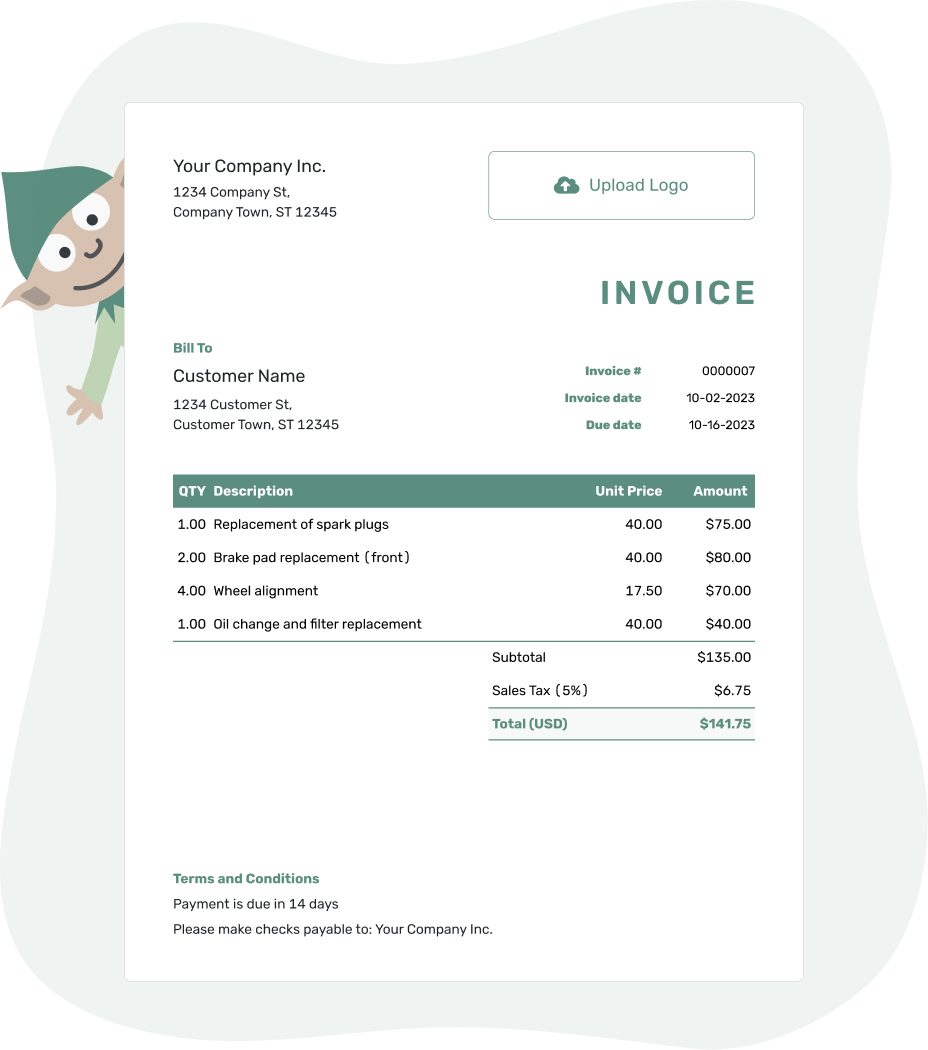
Create the invoice. Send it. Get back to work.
Choose a Starting Point for Manual Entry
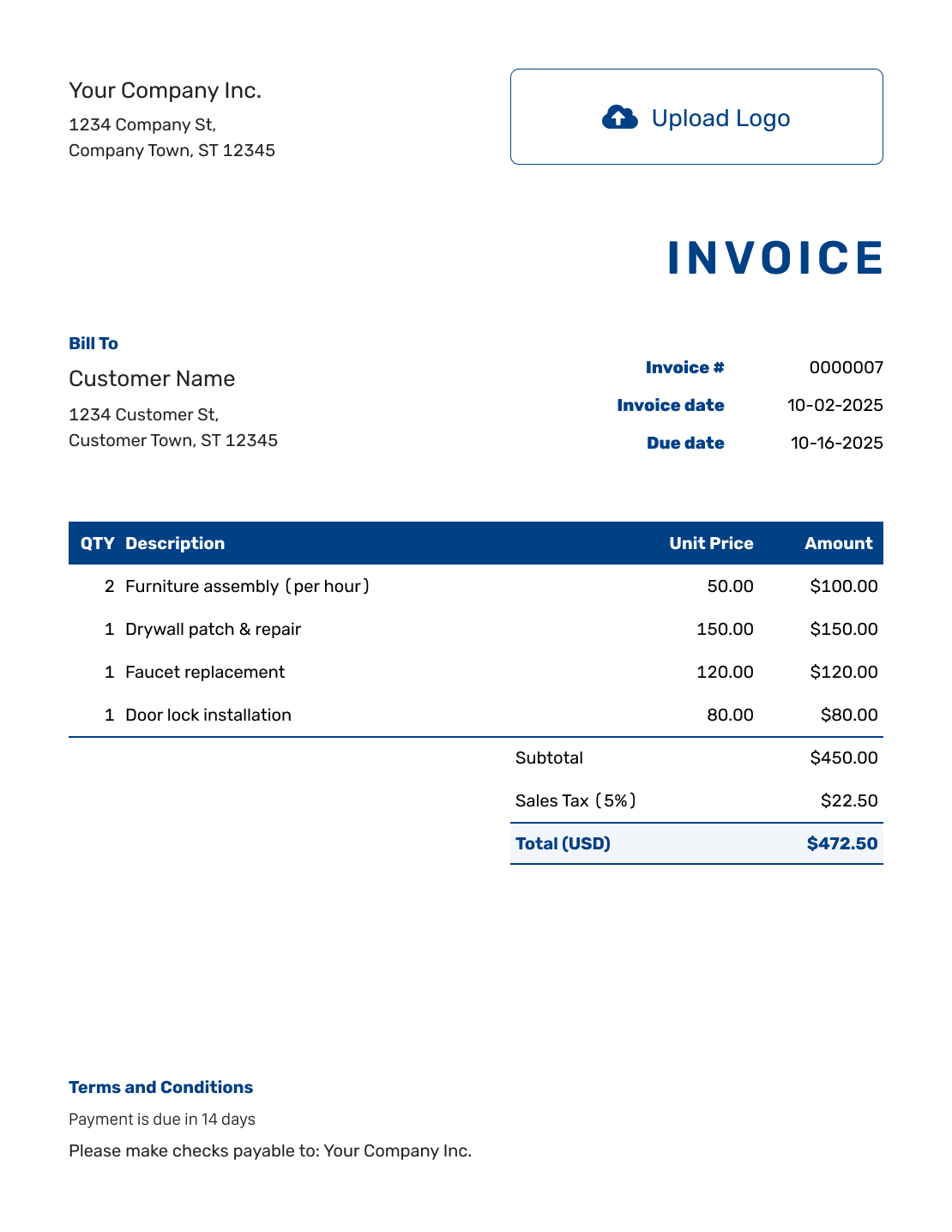
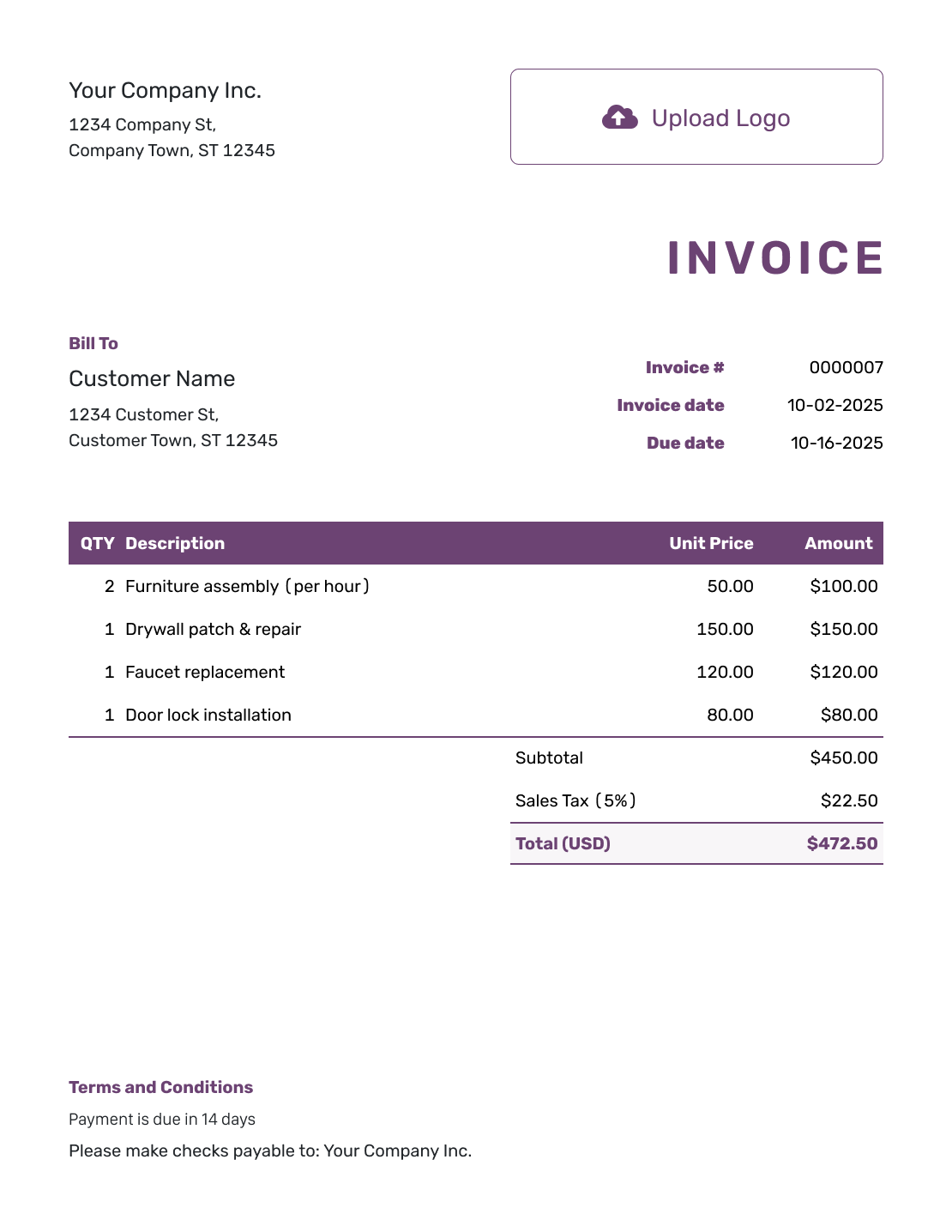
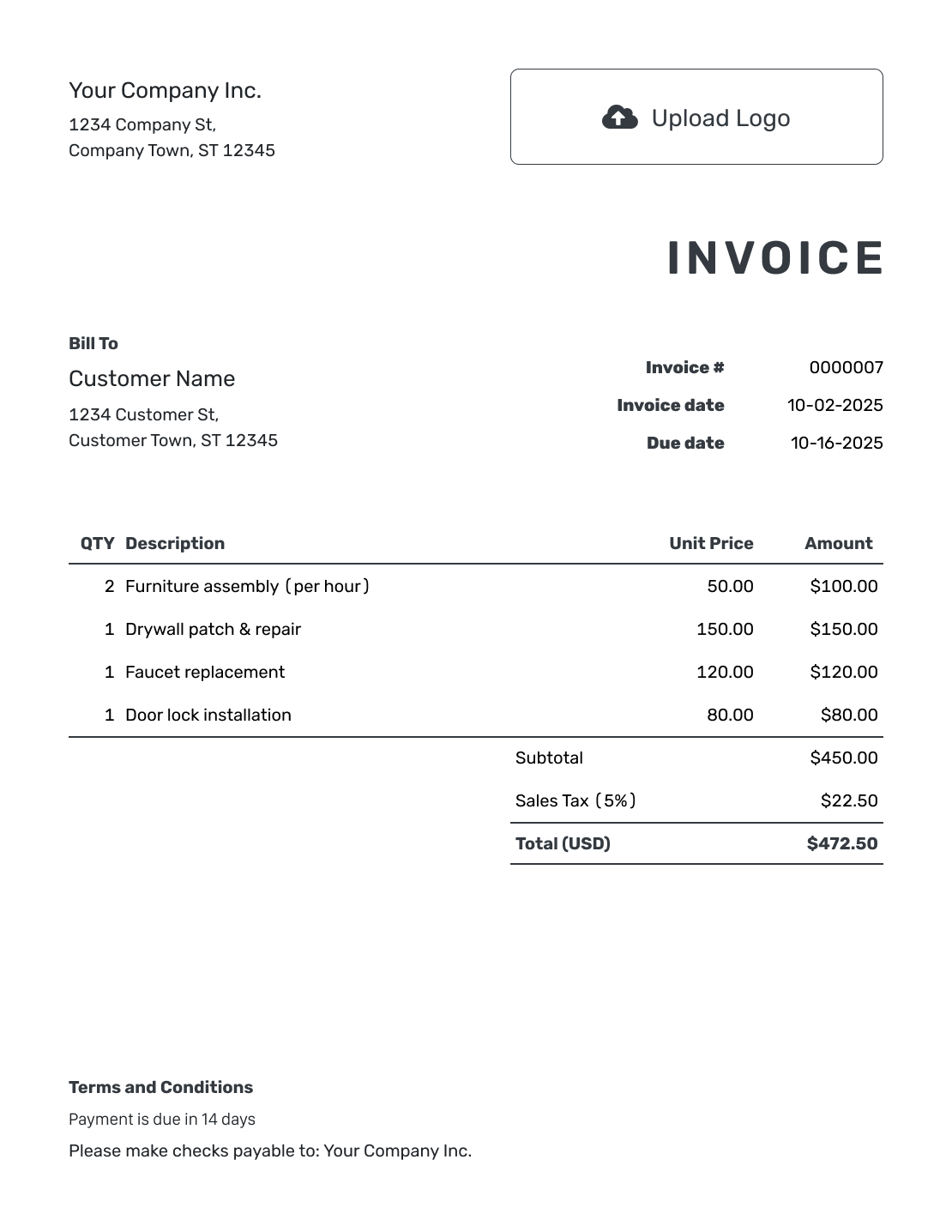
Use the previews to choose how the finished invoice should look. They open the online editor, where you enter the details yourself. The links farther down the page offer separate document and spreadsheet templates.
How to Create a Manual Invoice
Bring the details from your job notes or order record into one invoice. Manual entry does not mean you have to calculate every total by hand.
- Enter Your Business Details: Copy the business name and billing contact carefully.
- Add a Logo: Use your logo or keep the invoice text-only.
- Enter the Customer: Check the customer’s name and address against the original order.
- Check the Number and Dates: Review the invoice number and enter the invoice date and due date.
- Copy the Charges: Enter each description, quantity and rate from your job or sales record.
- Check the Arithmetic: Add applicable tax or discounts and review the totals Docelf calculates.
- Add Terms and Conditions: State how to pay and which reference to use. Review the invoice, then email, print or download it as a PDF.
Check the Numbers on a Manually Entered Invoice
Compare each quantity and price with your original record. To check the math, multiply each quantity by its unit price. Add the line amounts before calculating tax.
This example bills for a one-day equipment rental and collection. It uses prices in US dollars and assumes 5% tax applies to all three charges.
| QTY | Description | Unit Price | Amount |
|---|---|---|---|
| 1 | Drain-cleaning unit — one-day rental | $80.00 | $80.00 |
| 2 | Extension hoses — one-day rental | $15.00 | $30.00 |
| 1 | Equipment collection | $30.00 | $30.00 |
| Subtotal | $140.00 | |
| Sales Tax (5% example) | $7.00 | |
| Total | $147.00 |
What to Include in Manual Invoice Terms
Payment instructions are easy to miss when you are copying a bill from notes. Use Terms and Conditions to explain how to pay, with the deadline matching the invoice due date.
For an equipment-rental bill, identify the rental period or job in the invoice details. Use only the payment instructions that apply, and replace the placeholders in this example.
Example: Terms and Conditions
- Payment is due within 7 days of the invoice date.
- Charges cover the rental period and collection listed on this invoice.
- Pay by [Accepted Payment Method] using the invoice number as the reference.
- Contact [Billing Contact] with questions about the rental charges.
Enter the Details. Let Docelf Do the Math.
You choose the descriptions and prices. Docelf calculates the amounts from what you enter. Compare the result with your records before sending.
Check the Copying as Well as the Math
Correct arithmetic cannot catch a rate copied from the wrong job. Review the invoice against the original details.
- Check decimal points in quantities and prices.
- Use the agreed rate, not a price from a previous customer’s bill.
- Keep the same currency throughout the invoice.
- Check invoice numbering so two bills do not share a reference.
- Review the final copy after any handwritten or typed correction.
Manual Entry and Handwritten Invoices Are Different
Manual entry means you type the billing details yourself. In Docelf, the calculations still update from those entries. A paper invoice or a document without formulas needs a separate arithmetic check.
To work on paper, start from a suitable printable file on a format page and keep a copy of the completed invoice. For detailed charges, the itemized invoice guide shows how the amounts fit together.
Keep Control Without Retyping Every Detail
Saved customer and product details give you a starting point for manual entry. Check that they still match this job before using them on the invoice.
Choose the starting number for your first invoice. Docelf numbers new invoices in sequence.
Your logo, colors, fonts and footer contact can make the bill recognizable. An optional industry name before “Invoice” can identify the kind of work you do.
An attachment can give the customer the original job record while the invoice shows the charges. Use the agreed currency throughout: USD, EUR, GBP, CAD or AUD.
More Invoice Layouts
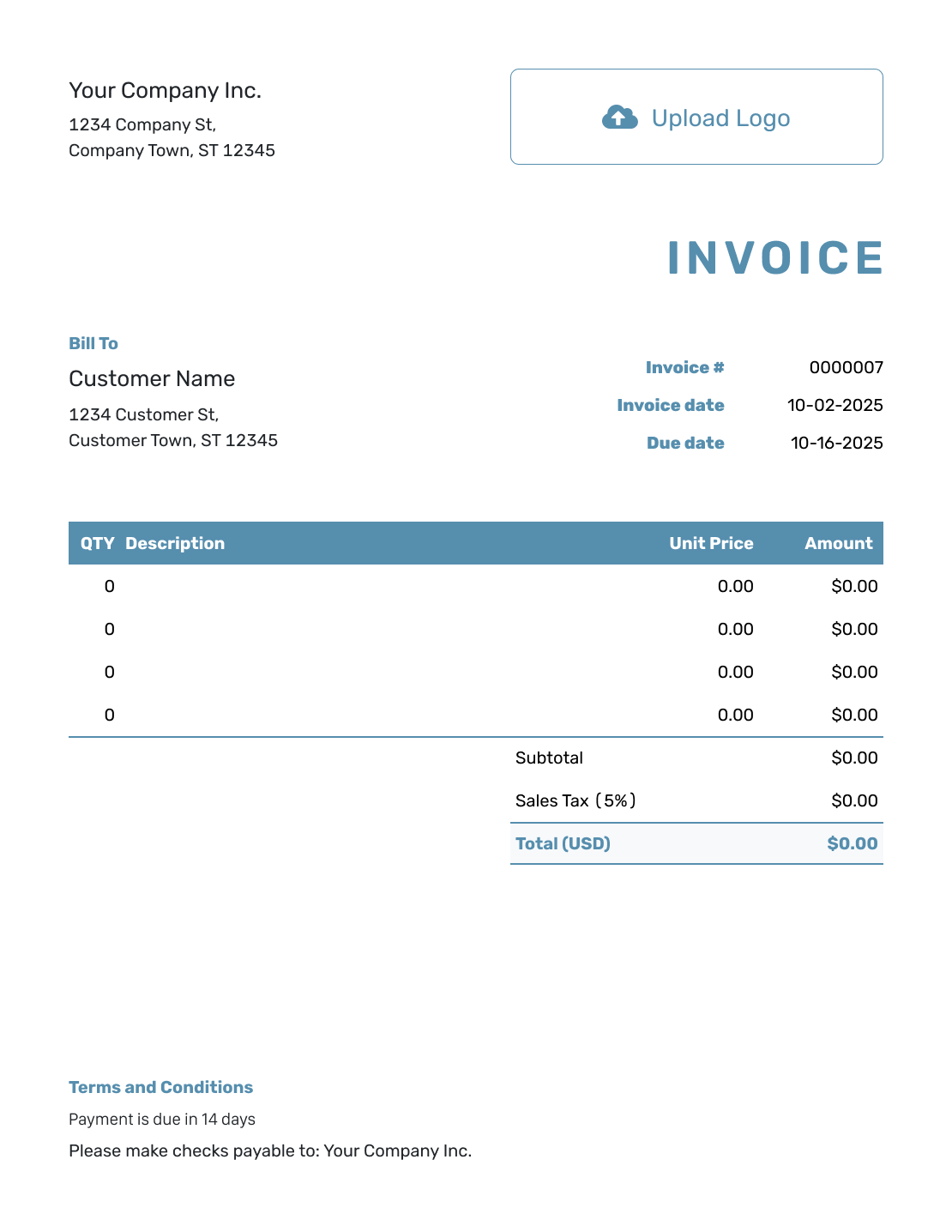
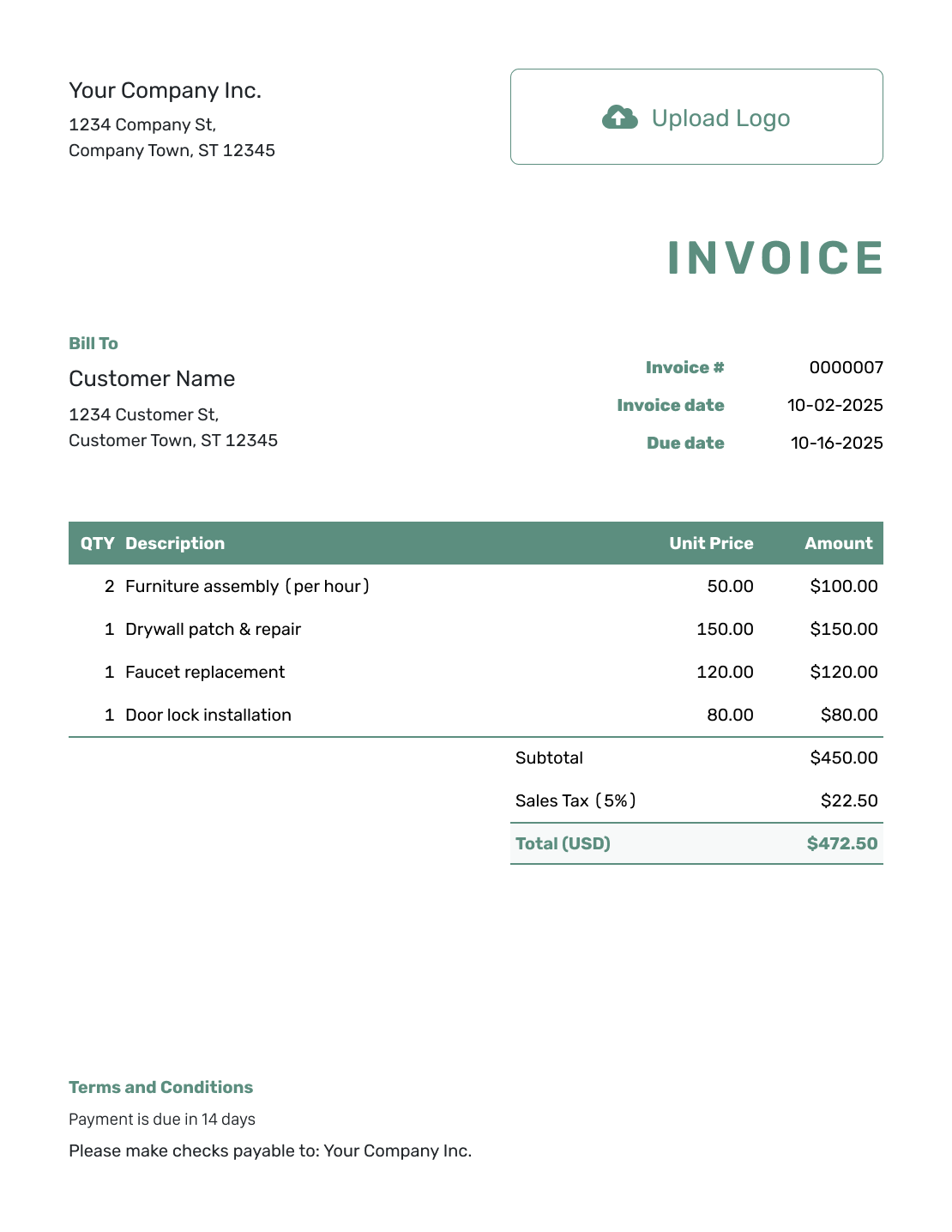
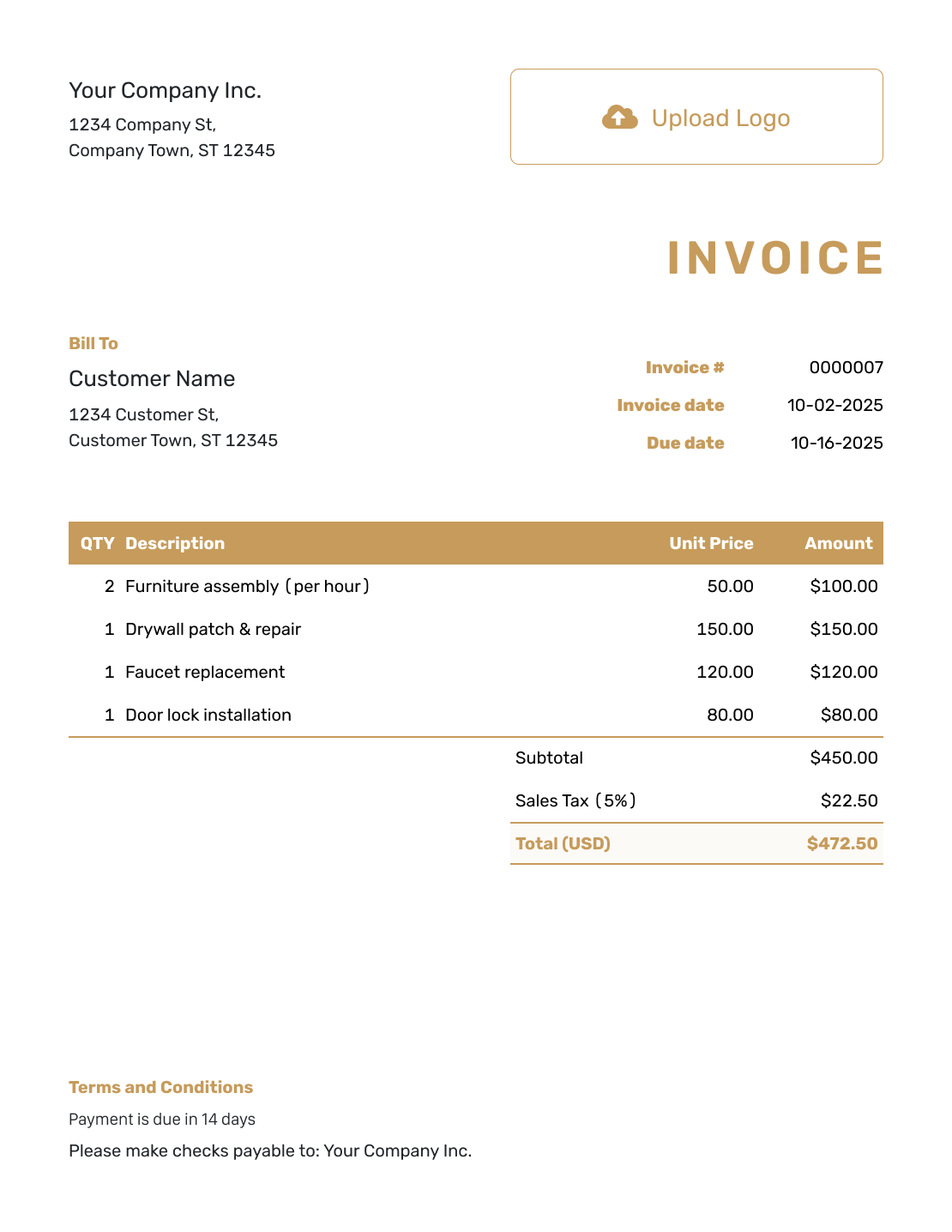
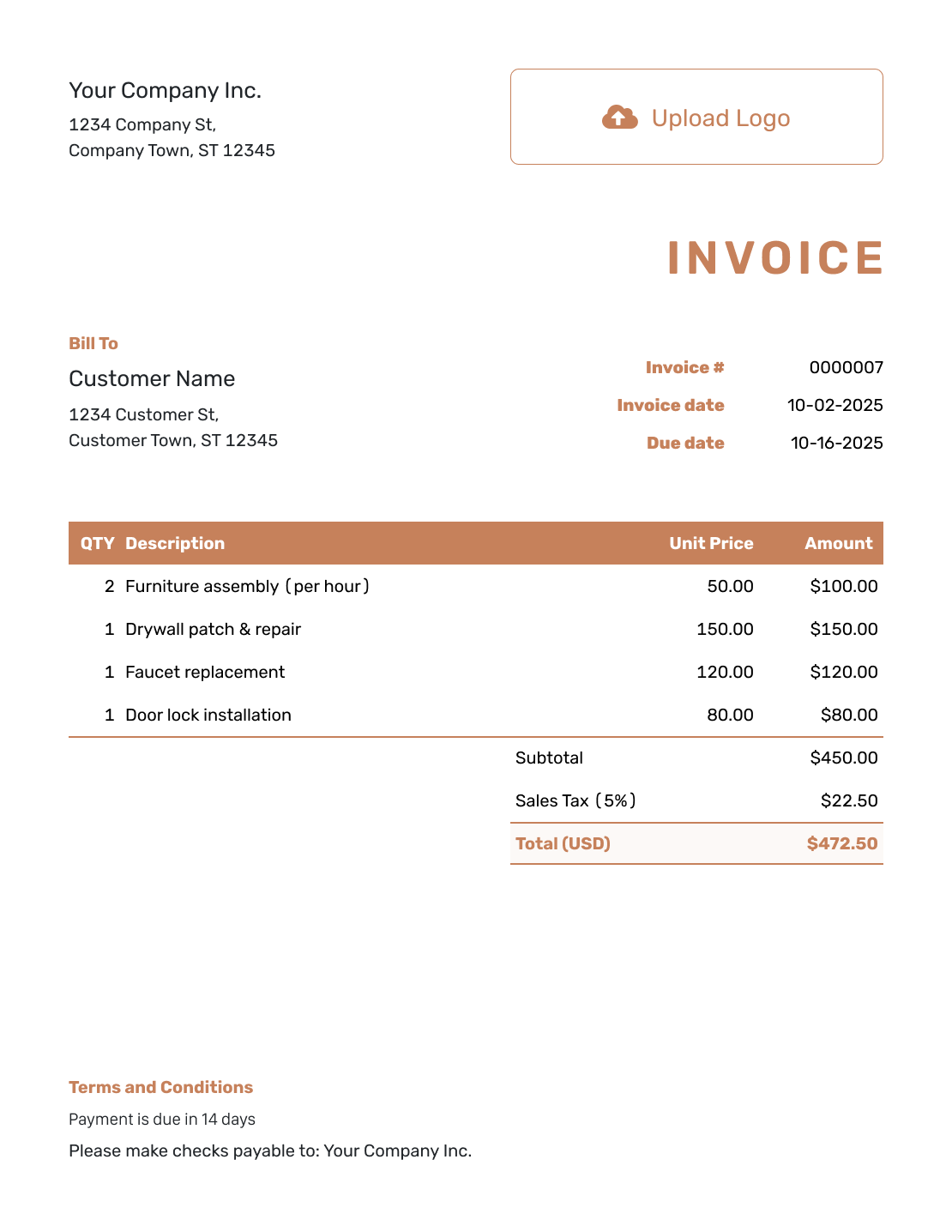
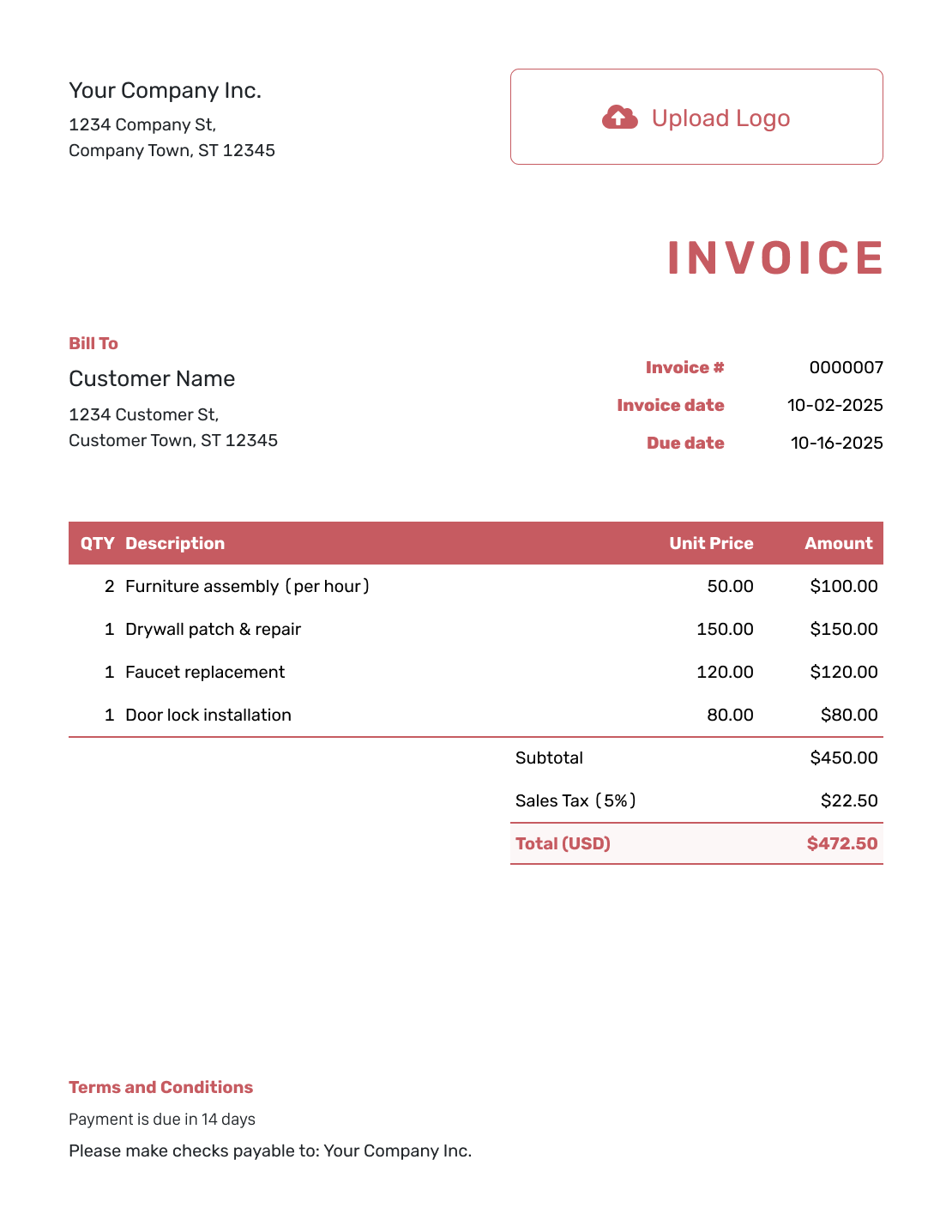
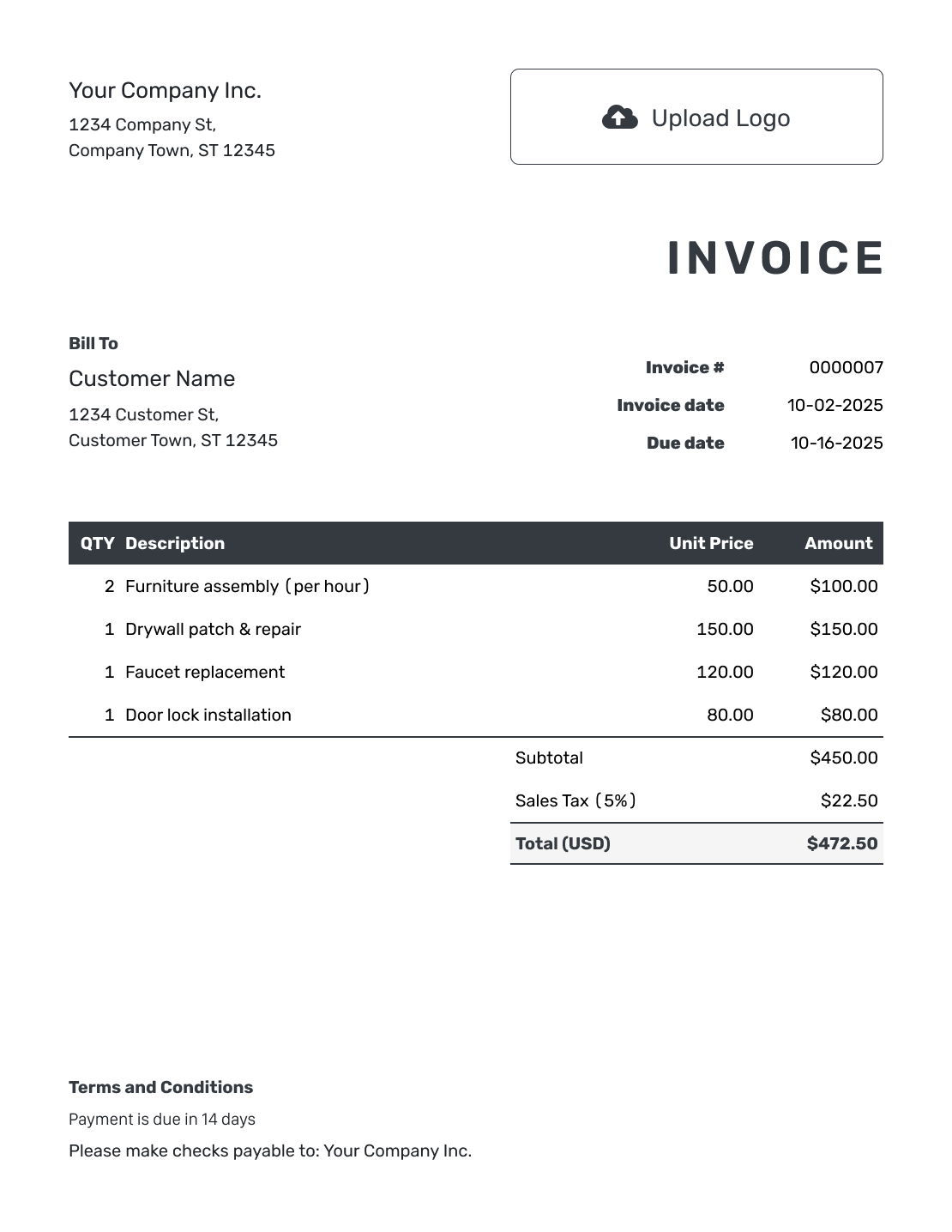
These six previews open the same invoice editor. Add your own billing details after opening it.
Keep a Record of the Invoice You Actually Sent
Once the invoice is complete, keep it with the payment details rather than relying on the original rough notes.
- For an invoice emailed through Docelf, review delivery and opening information in its history.
- Record the payment amount and date when you receive the money.
- Create a receipt from the invoice after recording payment.
Choose a File for Handwritten or Typed Billing
Word and Google Docs suit typed documents. Excel and Google Sheets offer a spreadsheet format. For a paper copy, check the print preview and verify the finished amounts yourself.
Manual Invoice Template FAQs
-
What does manual invoicing mean on this page?
It means you enter and review the billing details yourself. You can do that in Docelf or use a separate file. In Docelf, automatic calculations still work from the quantities, prices, tax and discounts you enter.
-
Do I have to calculate a manual invoice by hand?
Not in Docelf. It calculates line amounts and totals from your entries. On paper or in a document without working formulas, check each multiplication, the subtotal and any tax or discount yourself.
-
How can I check a manually entered total?
Check the quantities and rates against your job notes. Recalculate the line amounts, then add them. Include any applicable tax and discounts in the total. In the example above, $140.00 plus $7.00 tax gives $147.00.
-
How do I avoid using the same invoice number twice?
Choose the starting number for your first invoice in Docelf. Docelf numbers later invoices in sequence. Keep your own numbering record for bills you create outside Docelf.
-
Can I still add a logo to a manually entered invoice?
Yes. Manual entry does not prevent you from adding a logo or choosing colors and fonts in Docelf. Check that the customer details and amounts remain easy to read.
Bring Your Job Notes Into a Finished Invoice
Keep control of the billing details and let Docelf handle the calculations.
- Enter the quantities and prices from your records
- Compare the invoice with your job record
- Print, email or save the invoice as a PDF




