Free Vehicle Quote Template
Create a professional vehicle quote in minutes
Identify the exact vehicle, offered price, included options and extra fees. The whole deal is easy to compare without back-and-forth and helps customers feel confident buying from you.
Email, print or download your quote as a PDF.
14-day free trial. No credit card required.
Price the job. Send the quote. Get back to work.
Vehicle Quote Template Examples
Use these previews for layout ideas, then add your own vehicle and offer. Every preview opens the same quote editor.
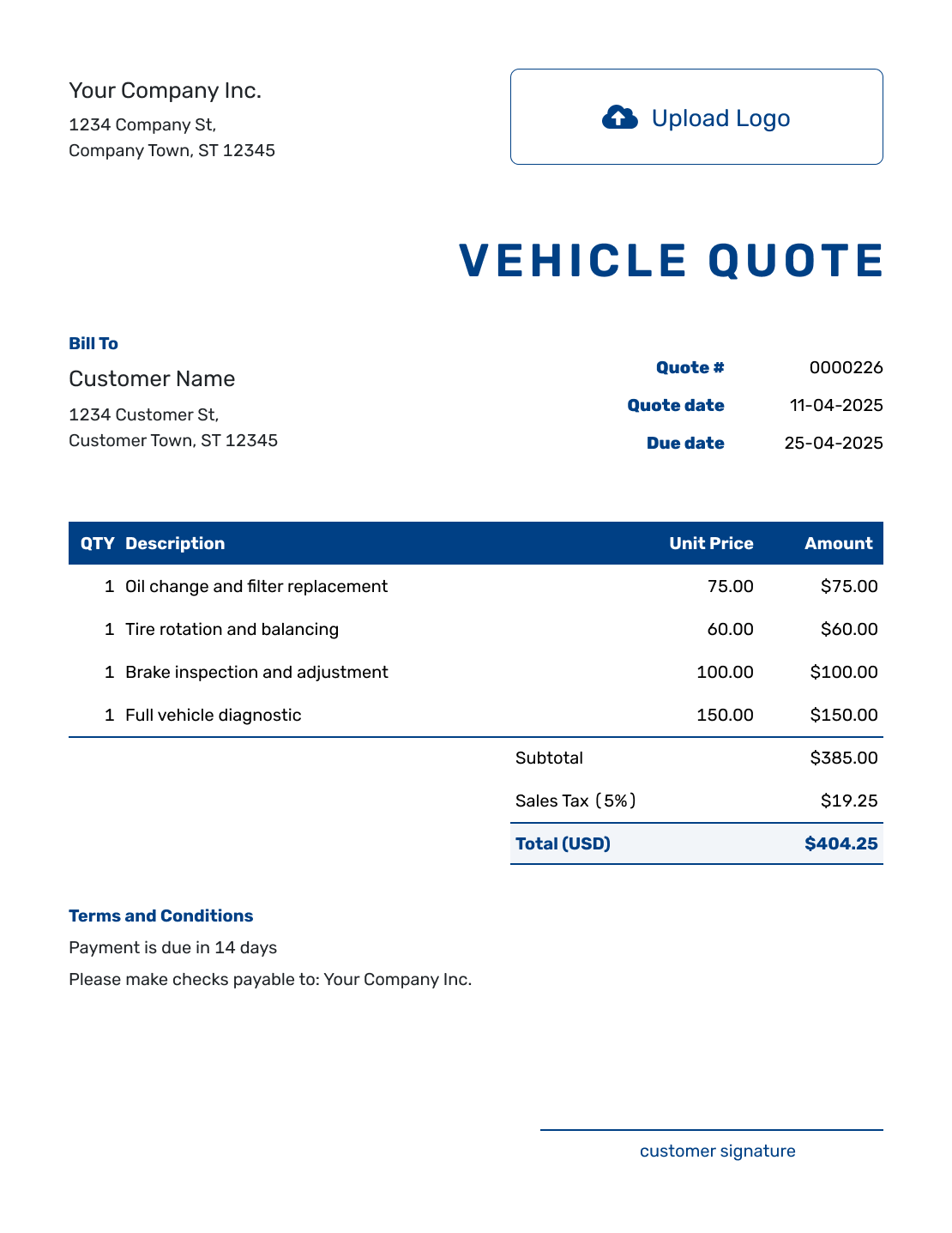
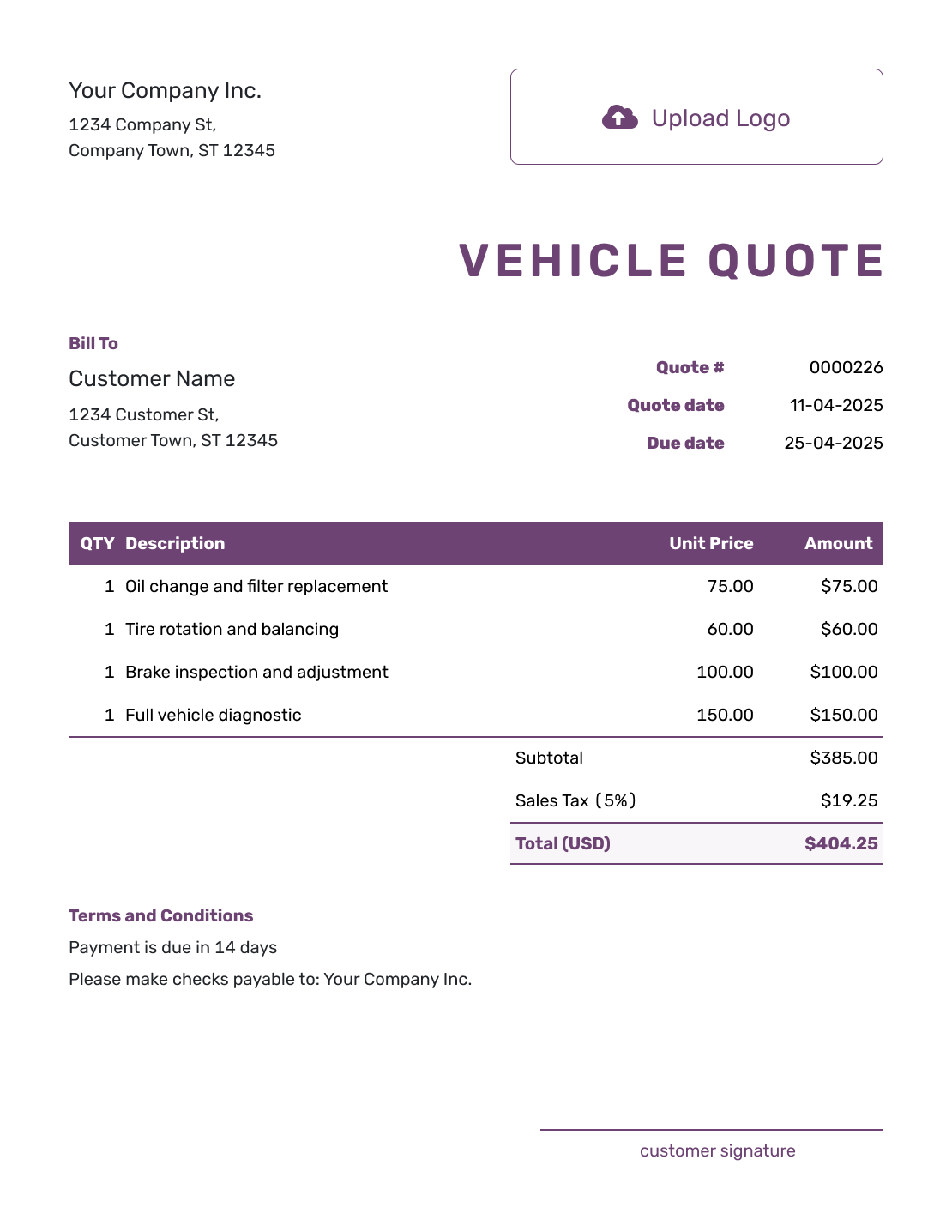
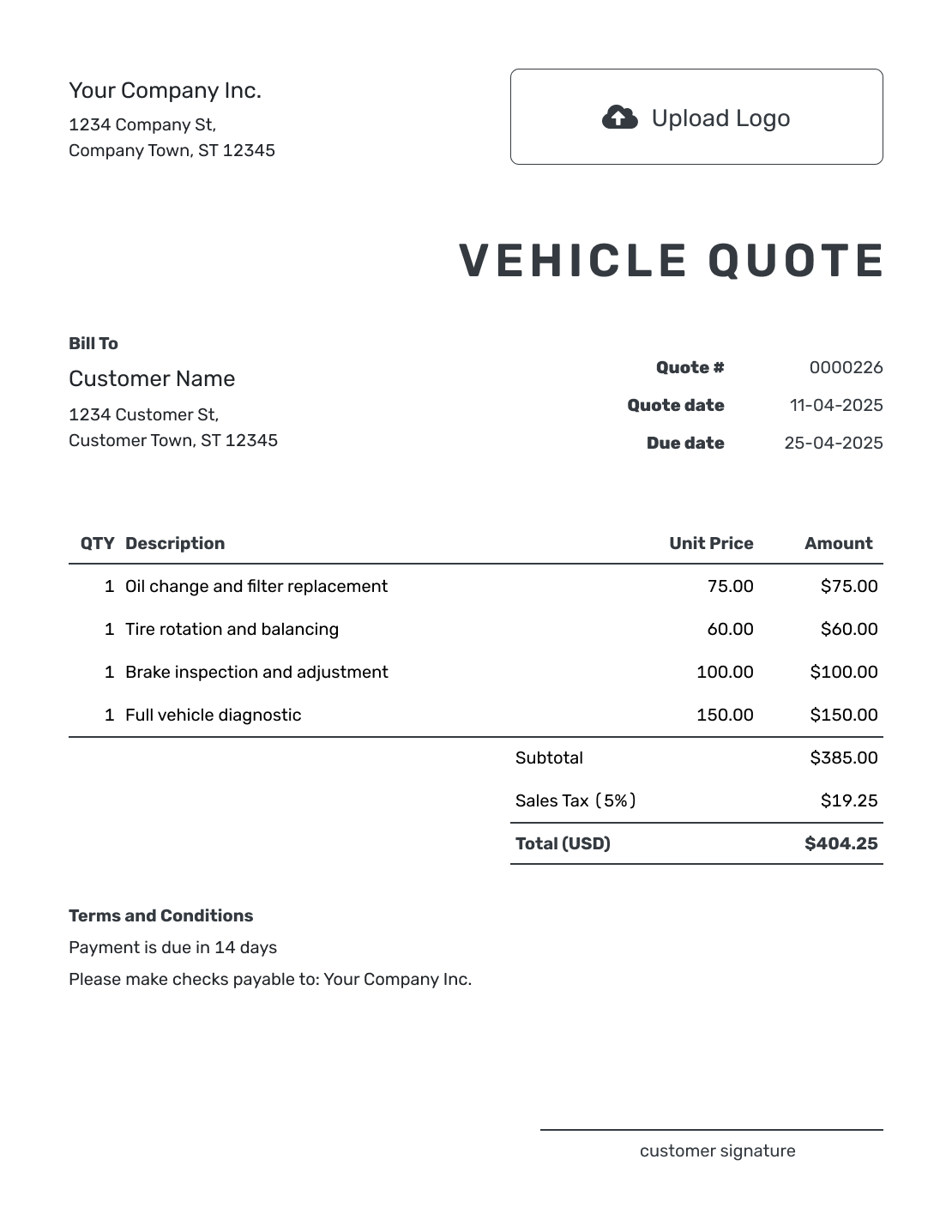
Keep the Vehicle and the Offer on the Same Page
A vehicle quote is a written offer for a particular car, truck, van, or other vehicle. It brings the vehicle description, price, and terms together so the buyer can review the whole offer. You can also use it for a service built around a specific vehicle.
Start with the year, make, and model, then add the VIN or stock number that identifies this vehicle. For a job focused on repairs or detailing, use the auto repair quote template or car detailing quote template.
How to Create a Vehicle Quote
Have the vehicle details and agreed options ready before you open the editor. These steps take you from the business details to the offer you will send.
- Business Details: Add your business name, contact details, and logo.
- Customer and Vehicle: Enter the buyer, then identify the vehicle with its VIN or stock number.
- Quote Dates: Check the number and issue date. Set a valid-until date.
- Vehicle Offer: Add the vehicle price or describe the specific service you are offering.
- Options and Fees: Add selected extras and fees. Check any discount, tax, and total.
- Delivery and Terms: Use Terms and Conditions for payment, delivery, and relevant sale conditions.
- Review and Send: Check the offer, then email it, print it, or download a PDF.
How to Fill In Vehicle Quote Line Items
Give the vehicle its own row, with enough detail to match it to your stock record. List accessories and delivery on separate rows when they have their own prices. If an accessory is included in the vehicle price, describe it there instead of charging for it again.
This fictional offer is for a used van with a fitted roof rack and local delivery. Prices are in US dollars, with an illustrative 8% tax applied to all three items. Use the tax treatment that applies to your sale; this rate is only an example.
| QTY | Description | Unit Price | Amount |
|---|---|---|---|
| 1 | 2021 Ford Transit Connect XLT — stock VH-104, 48,200 miles | $18,500.00 | $18,500.00 |
| 1 | Roof rack — supplied and fitted | $450.00 | $450.00 |
| 1 | Local vehicle delivery to the agreed address | $150.00 | $150.00 |
| Subtotal | $19,100.00 | |
| Sales Tax (8% illustrative) | $1,528.00 | |
| Quote Total | $20,628.00 |
The roof rack and delivery are included because the buyer selected them. Keep unselected options outside the quoted total, with their prices clearly labeled for the buyer to consider. Update the quote when the buyer chooses a different option.
What to Include in Vehicle Quote Terms
Use Terms and Conditions to explain how long the offer lasts, when payment is due, and how collection or delivery will be arranged. If the offer depends on an inspection or includes a warranty, describe the actual arrangement rather than leaving the buyer to assume what is covered.
Adapt this sample to your sale and include only policies your business uses. Check local requirements before adding regulated fees or warranty wording.
Example: Terms and Conditions
- Offer valid through October 12, 2026 for stock VH-104, subject to vehicle availability.
- The quoted price includes the van, fitted roof rack, and local delivery listed above.
- Payment is due before delivery. We will agree the delivery address and date with you before payment.
- Any change to the vehicle or selected accessories will be confirmed in a revised quote.
Create a Vehicle Quote Ready to Review
Put the vehicle and selected extras into one offer. Docelf calculates the total, leaving you to check the details and send the buyer a clear quote.
Check the Vehicle Details Before You Send
Compare the VIN or stock number with the vehicle being offered. Add trim, mileage, registration, or condition details when they help the buyer recognize it. The description should be specific enough to distinguish two similar vehicles.
Name any documentation or other fee you actually charge, and make clear which costs are included in the quoted total. Delivery charges belong in the item table. Check the applicable fee and tax requirements for your sale rather than copying another seller's charges.
Finally, check availability, the valid-until date, and the payment or delivery arrangements. If you require a deposit, explain its amount and timing in Terms and Conditions. A quote describes the offer; it does not record that a payment has been received.
More Vehicle Quote Layouts
These six previews offer more layout ideas for the same vehicle quote editor.
-
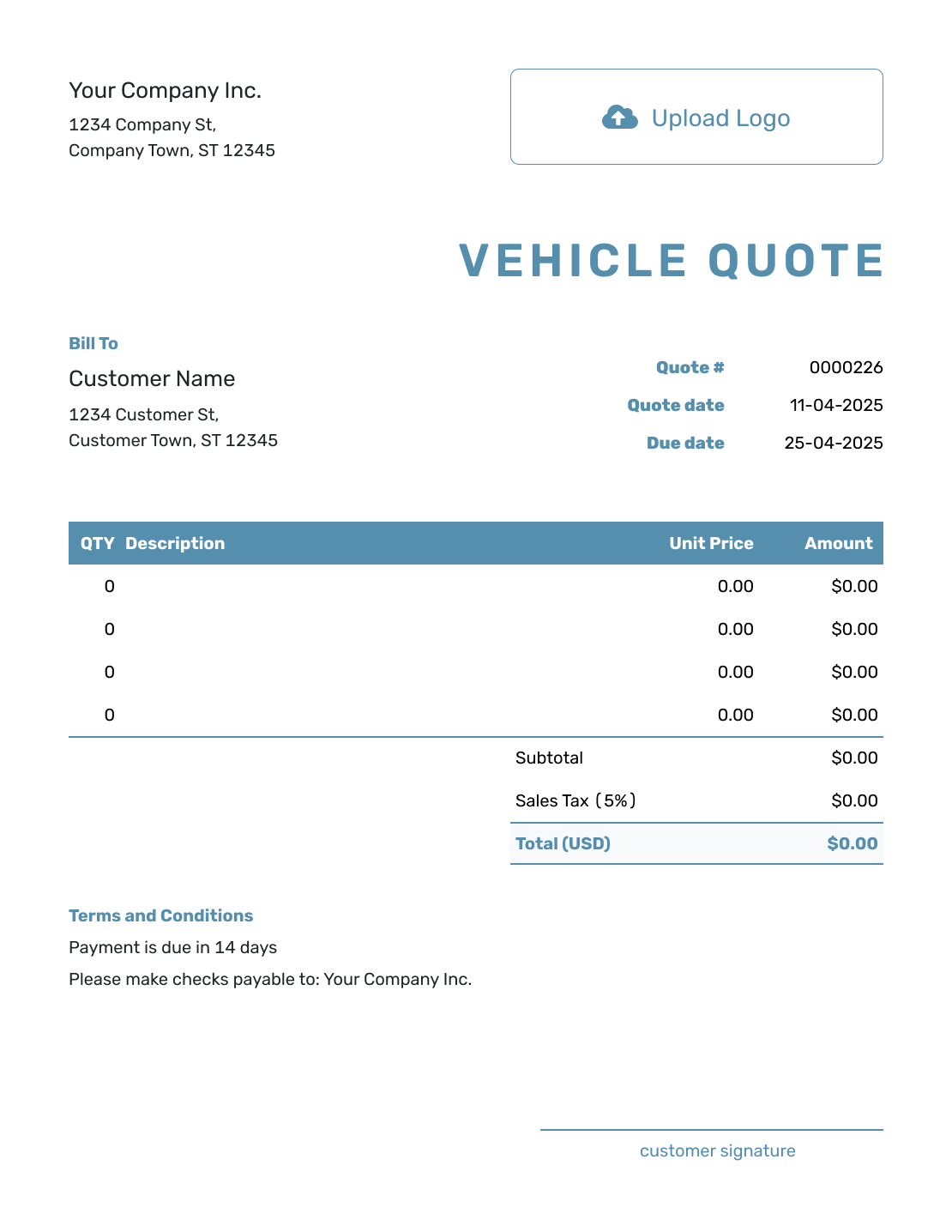
Blank Vehicle Quote Template
Create Free Quote -
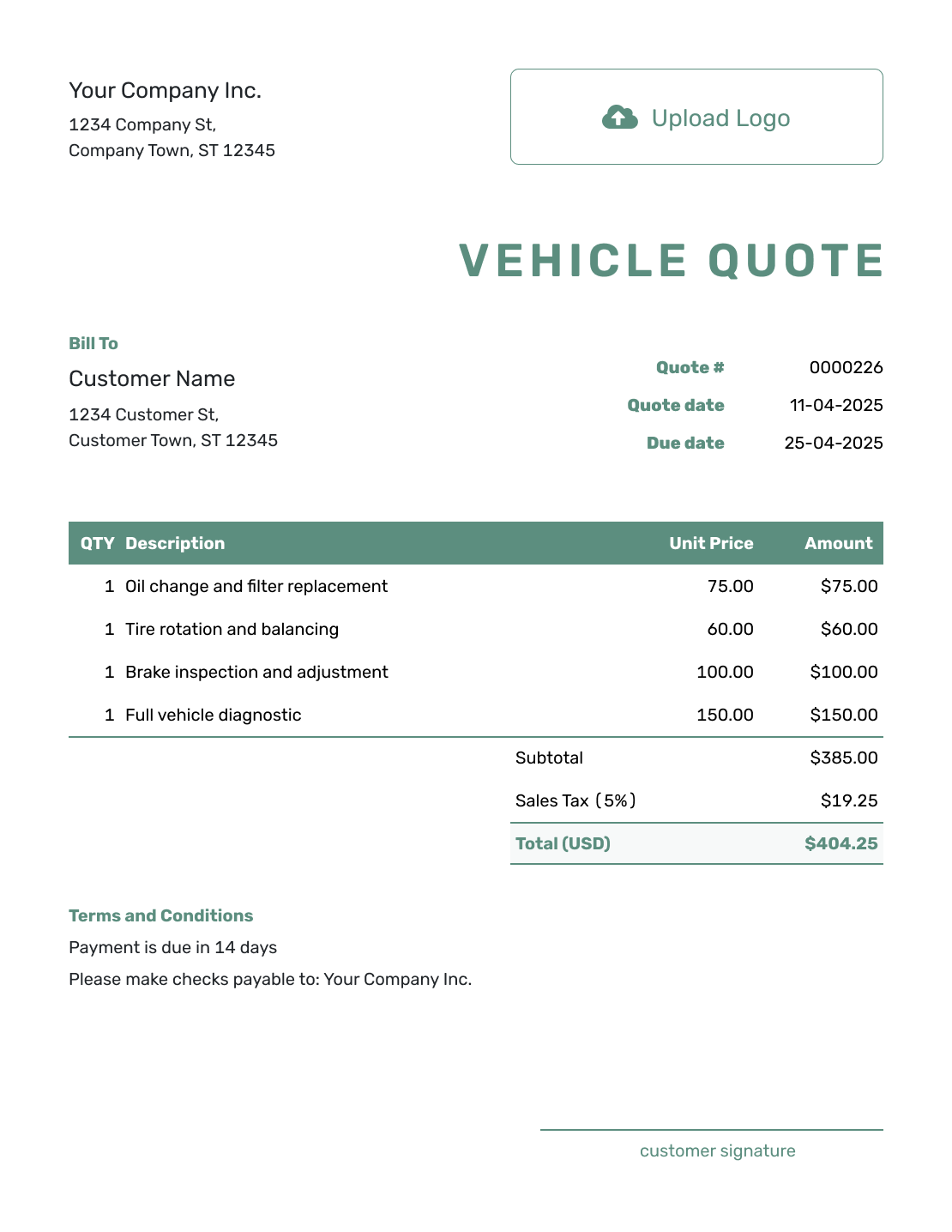
Simple Vehicle Quote Template
Create Free Quote -
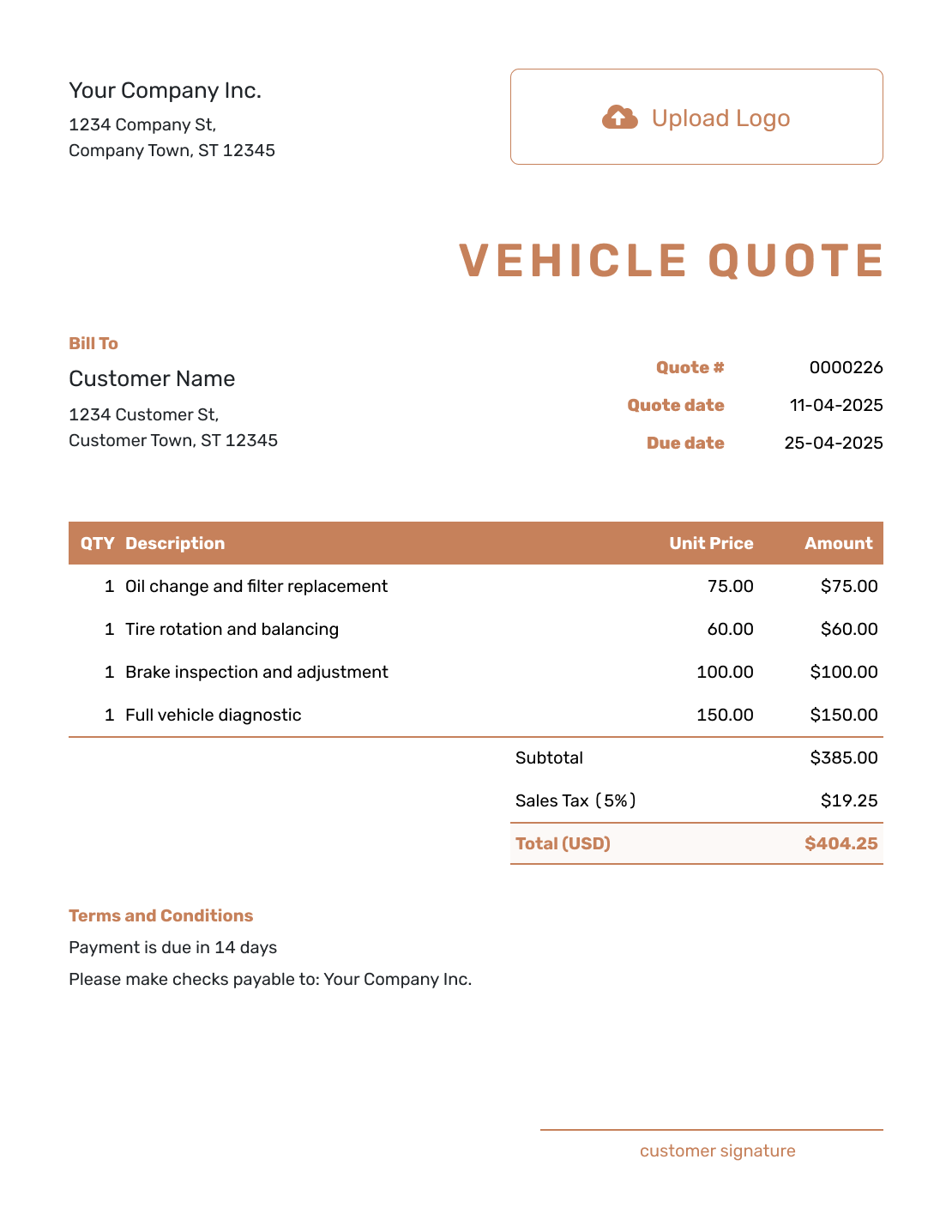
Downloadable Vehicle Quote Template
Create Free Quote -
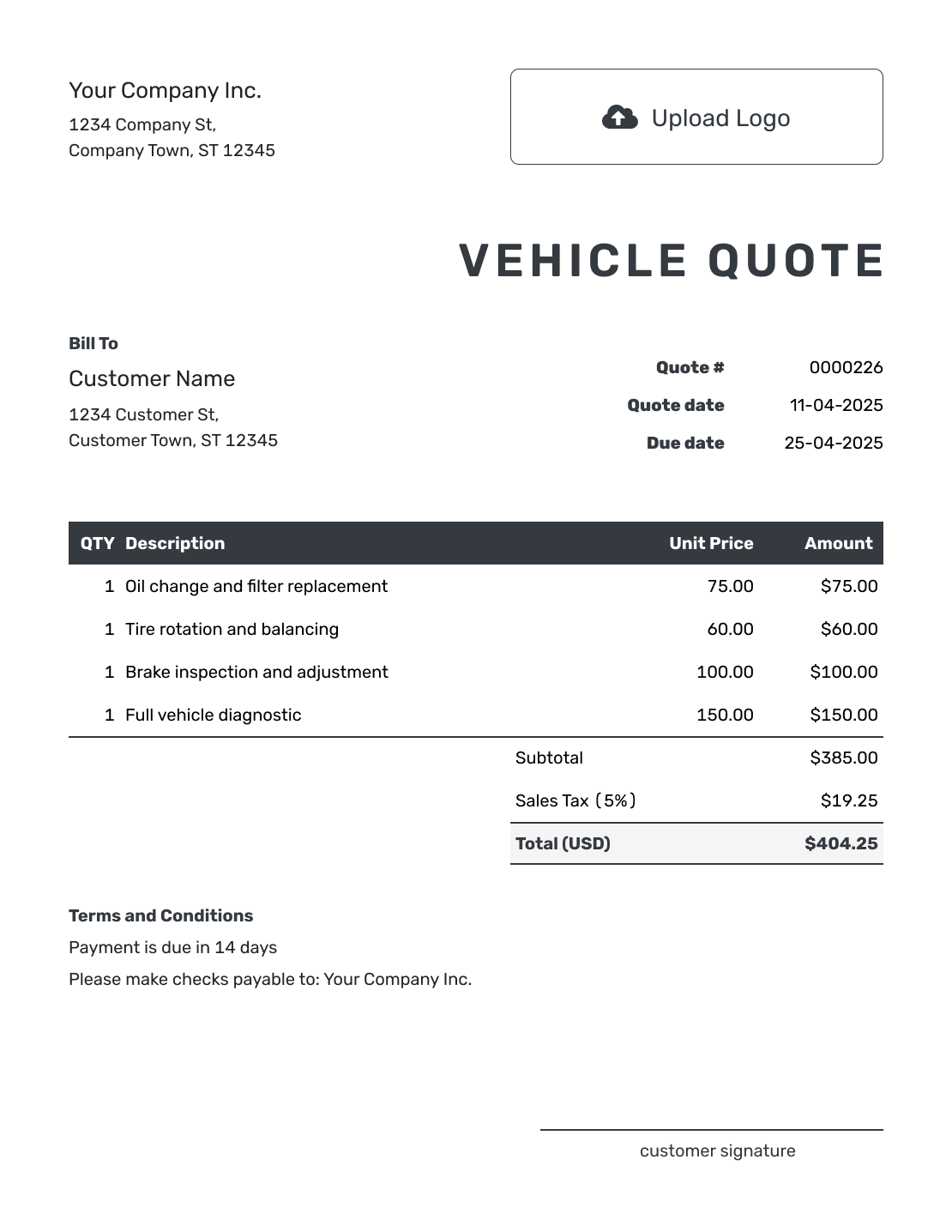
Editable Vehicle Quote Template
Create Free Quote -
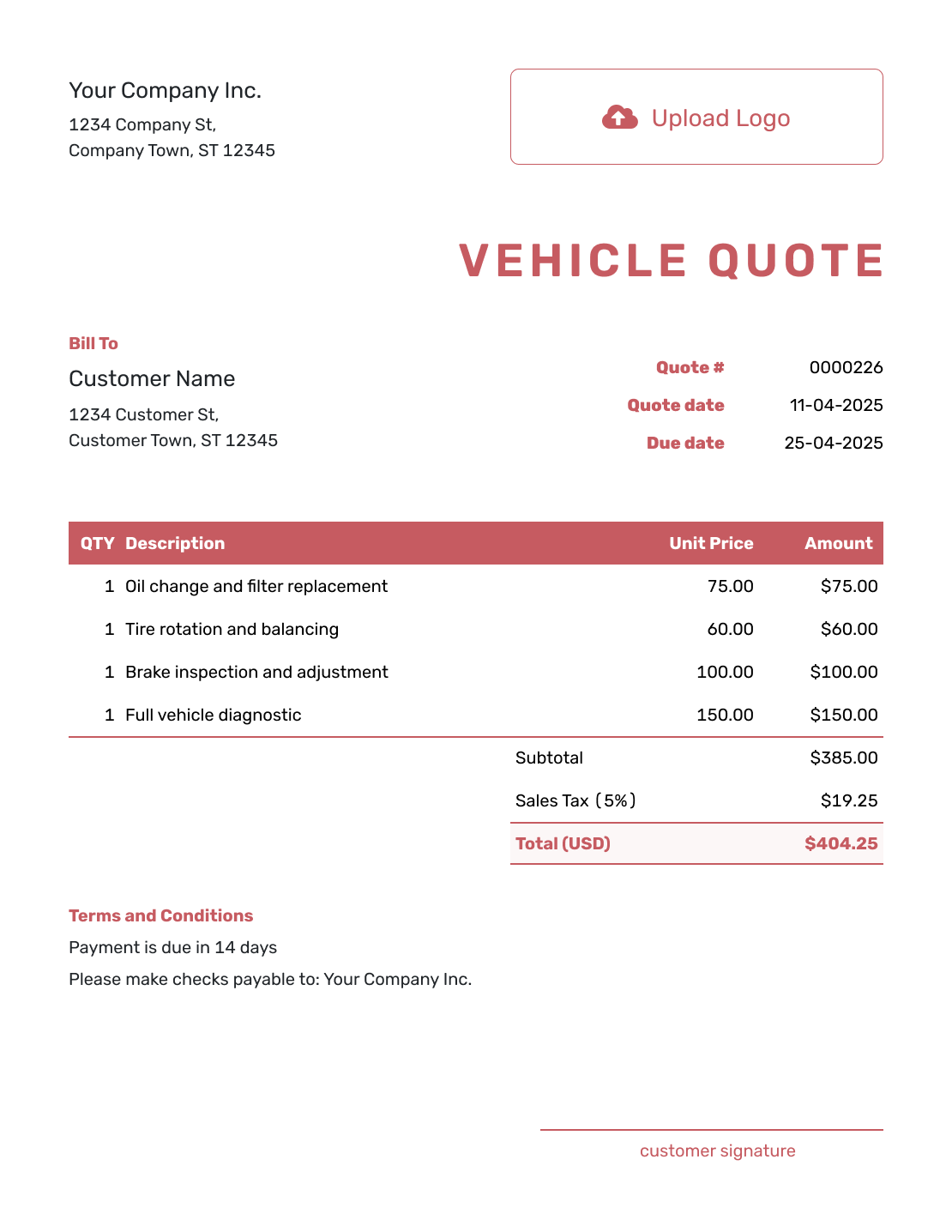
Fillable Vehicle Quote Template
Create Free Quote -
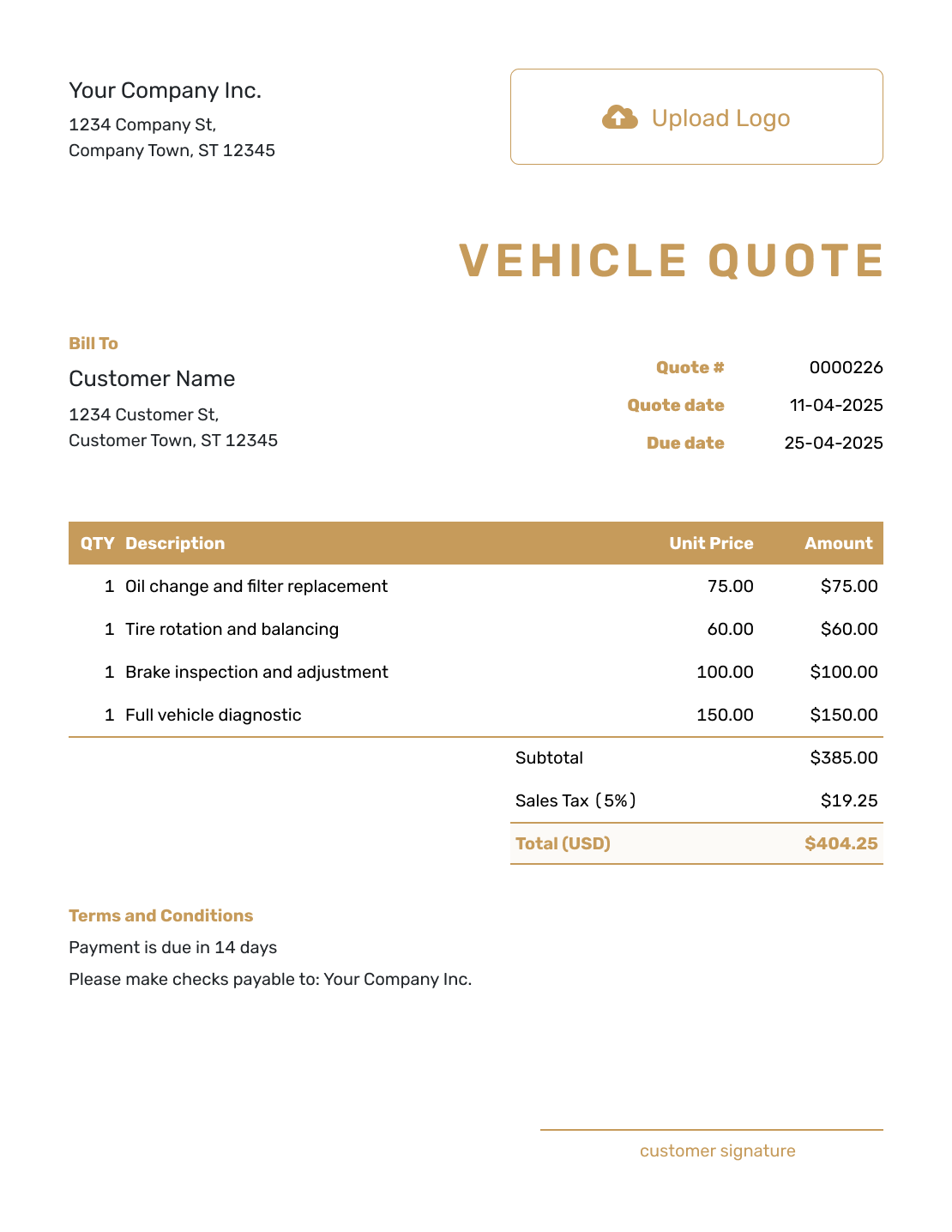
Professional Vehicle Quote Template
Create Free Quote
Vehicle Quote, Estimate, or Invoice?
The right document depends on whether you are offering a price, working out a likely cost, or asking the buyer to pay.
Vehicle Quote
Use a quote when you can identify the vehicle and give the customer a specific offered price.
Vehicle Estimate
Use an estimate when inspection, condition, or uncertain work could change the final amount.
Vehicle Invoice
Use an invoice when payment is due for the vehicle or completed vehicle-related work.
After You Send the Vehicle Quote
Your customer can view the quote and accept or decline it online. The document history shows delivery and opening information, and Docelf emails you when the customer responds. Saving an edit does not send it; choose to send the document when the revised offer is ready.
If the buyer chooses different options, update the quote and send the new offer for review. When payment is due, create an invoice from the quote in Docelf. The customer and line-item details carry over; check the vehicle, final charges, due date, and payment instructions before sending the invoice.
Choose the Automotive Template That Matches the Offer
Need to price workshop labor or a detailing package? These guides cover the details for those jobs, and the automotive collection brings the options together.
Other Quote Template File Formats
Prefer a document or spreadsheet file? These pages provide templates in the named formats. Docelf downloads the completed online quote as a PDF.
See every option on the quote templates by format page.
Vehicle Quote Template FAQs
-
What is a vehicle quote?
A vehicle quote is a written offer for a specific vehicle or vehicle-related service. It identifies the vehicle and shows the price, options, fees, and terms the customer is being asked to review.
-
When should I use the general vehicle quote template?
Use it when the vehicle itself is the main subject of the offer, such as a vehicle sale or a broader vehicle-specific service. Use an auto repair quote for repair operations and a car detailing quote for detailing packages.
-
What vehicle details should I include on the quote?
Use the year, make, and model plus the VIN or stock number that identifies the vehicle. Add trim, mileage, registration, or condition details when they matter to the offer. Check the identifiers against the vehicle record before sending.
-
Can a vehicle quote include services and accessories?
Yes. Give separately priced services and selected accessories their own rows. Describe anything already included within the vehicle price so it is not charged twice. Keep unselected options outside the quoted total, then revise the offer when the buyer makes a choice.
-
How should I show fees and taxes on a vehicle quote?
Name each fee you actually charge and give a separately charged delivery service its own item row. Apply the tax treatment that is appropriate for the sale. Vehicle taxes and regulated fees vary; the worked example is not a schedule of charges to copy.
-
Should a vehicle quote have an expiration date?
A valid-until date tells the buyer how long the offered price remains available. Choose a period your business can honor and explain any availability condition in Terms and Conditions. A validity date alone does not explain whether you are holding the vehicle for the buyer.
-
What is the difference between a vehicle quote and an auto repair quote?
A general vehicle quote is centered on the vehicle and the overall offer. An auto repair quote is centered on repair operations, parts, labor, and repair-specific terms.
-
What is the difference between a vehicle quote and an estimate?
A quote gives a specific offered price for a defined vehicle or service. An estimate is a best prediction when inspection, condition, or uncertain work could change the final amount.
-
Can I turn an accepted vehicle quote into an invoice?
Yes. Create the invoice from the accepted quote in Docelf. The customer and line-item details carry over so you can review the final charges without entering the offer again.
Ready to Send Your Vehicle Quote?
Give the customer one clear vehicle offer to review before payment or delivery.
- Identify the vehicle with the right model or stock details
- Separate accessories, services, fees, and taxes
- Email the vehicle quote or download a PDF




