Free Customs Invoice Template
Review a customs invoice example
Use the example to organize the shipment, quantities and charges in a customs invoice. Check the destination's requirements separately before you create the invoice.
Use the example below to organize ordinary invoice details, then create the invoice in Docelf.
14-day free trial. No credit card required.
Review the example. Check the requirements. Create the invoice.
Customs Invoice Template Previews
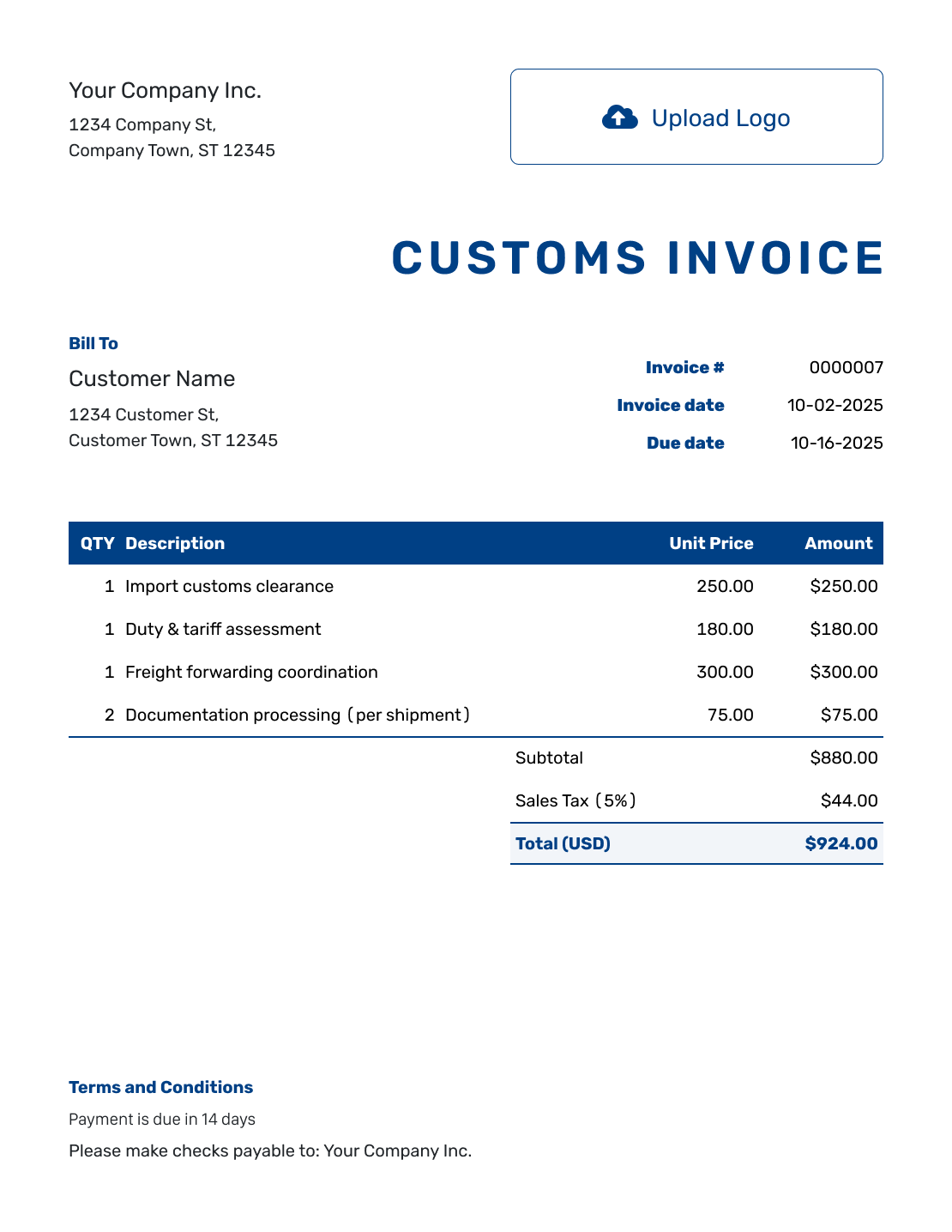
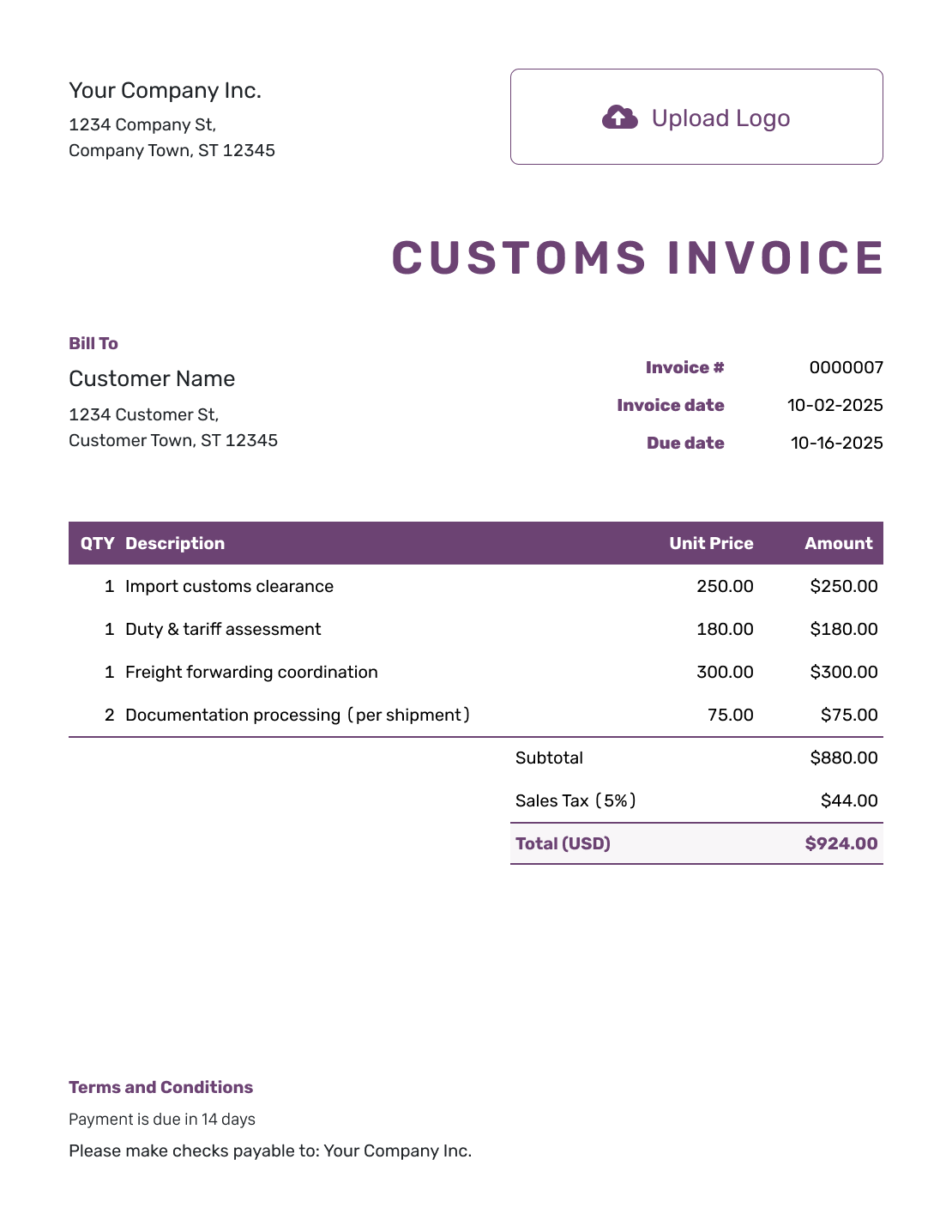
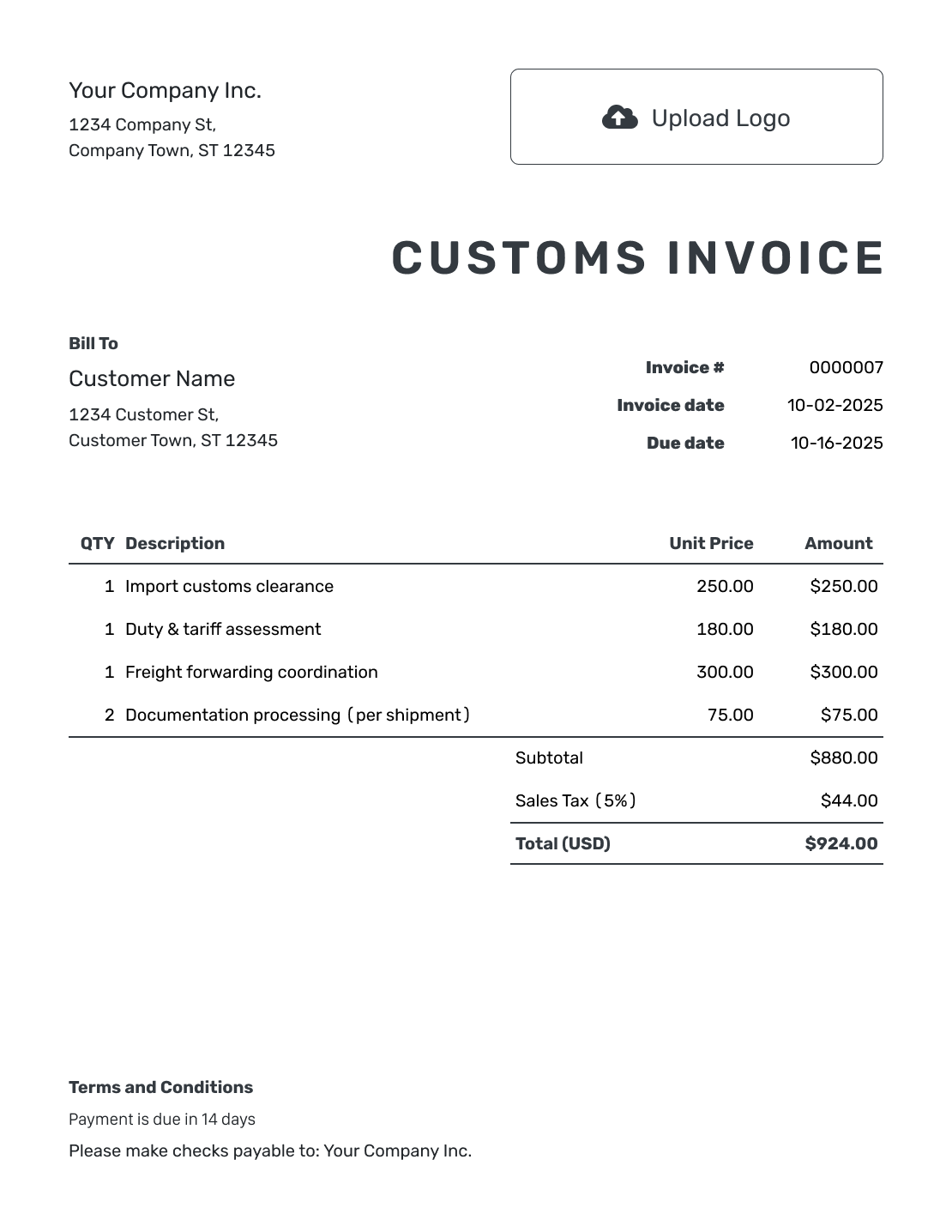
These previews show general invoice layouts for recording the sale. Each opens the same invoice editor. The guide below helps you organize the details alongside your shipment paperwork.
Use the Customs Invoice Example as a Starting Point
Start by asking your carrier or broker which invoice or form the shipment needs. A commercial invoice records the sale, while the destination may require a particular form or additional declarations. The International Trade Administration’s commercial-invoice guide explains why the destination matters.
Once the required format is clear, use the order and shipment records to fill it in. The example below shows ordinary invoice charges; it does not supply product codes, origin declarations or import-duty calculations for your goods.
Docelf helps you create and send the invoice. It does not file customs entries, clear goods through customs or calculate import duty.
How to Prepare a Customs Invoice
For a sale, start with the buyer’s order and the agreed prices. These steps organize the billing details; keep the required customs form and submission instructions beside you as you work.
- Add the Seller or Shipper: Enter the business name and contact details that belong on the invoice.
- Add Your Business Logo: Use your logo to match the invoice to your other business documents.
- Add the Buyer or Recipient: Enter the buyer’s name and address. Include a different delivery recipient where the shipment form requires it.
- Set the Number and Dates: Use an invoice number and invoice date. Add the payment due date when payment is still outstanding.
- Describe the Goods: List each product, quantity, unit and price. Add billed freight and insurance as separate item rows.
- Check Values and Currency: Check the invoice currency and applicable tax. Docelf calculates the subtotal and total from the charges you enter.
- Add Terms and Shipment References: Use Terms and Conditions for payment instructions and shipment references. Review the completed invoice before emailing or downloading it.
How to Fill In Customs Invoice Line Items
Describe each product clearly enough to tell it apart. Add the material, size, model or product reference when it matters.
This fictional sale contains three textile products in USD. Freight and insurance are agreed charges billed to the buyer, so they appear as item rows and contribute to the subtotal.
| QTY | Description | Unit Price | Amount |
|---|---|---|---|
| 36 | Cotton canvas tote bags, natural, 38 × 42 cm — each | $9.50 | $342.00 |
| 24 | Cotton zip pouches, black, 22 × 15 cm — each | $6.75 | $162.00 |
| 12 | Woven cotton aprons, navy — each | $18.00 | $216.00 |
| 1 | Freight — agreed shipment charge | $85.00 | $85.00 |
| 1 | Insurance — agreed shipment charge | $8.00 | $8.00 |
| Subtotal | $813.00 | |
| Total | $813.00 |
The products total $720.00. Adding $85.00 freight and $8.00 insurance gives an invoice total of $813.00. No destination or tax treatment is specified, so this example does not assume a tax or duty rate. The total is an invoice calculation, not a customs valuation or a claim that the shipment is tax-free.
What to Include in Customs Invoice Terms
Use Terms and Conditions to connect the invoice to the shipment and explain payment. The buyer should be able to find the order reference and payment instructions without searching through the supporting documents.
This sample fits the textile sale above. Replace the bracketed details with your agreement. Customs declarations, origin statements and any responsibility for import charges need their own verified wording; this sample does not decide them.
Example: Terms and Conditions
- This invoice relates to order [Order Reference] and shipment [Shipment Reference].
- Invoice total: USD 813.00. Payment is due on [Due Date] by [Payment Method].
- Agreed shipping term and named place: [Trade Term / Place].
- Please quote [Invoice Number] with payment and send billing questions to [Billing Contact].
Create a Clear Invoice From the Shipment Details
Enter the sale details once and let Docelf calculate the invoice total. Review the finished invoice alongside the shipment records, then download the PDF.
Check the Details Before the Shipment Leaves
Ask which form is needed, which details must appear on it, whether it needs a signature, and how to submit it. Then check the completed paperwork against these four areas.
Seller, Buyer and Recipient
Check the names and addresses against the order. If the buyer and delivery recipient are different, confirm where each one needs to appear.
Product Description and Origin
Describe the goods accurately. Confirm any required country-of-origin information from a reliable source instead of assuming the dispatch country is the origin.
Codes and References
Keep the order, invoice and shipment references consistent. Verify any required Harmonized System (HS) or destination tariff code with your carrier, broker or customs authority.
Currency and Charges
Use one invoice currency. Give freight, insurance and other amounts billed to the buyer their own item rows. Check the applicable taxes and the value required for customs with the party handling the shipment.
Keep the Invoice Consistent With the Shipment Records
Compare the invoice with the buyer’s order, packing information and carrier records before you send it. Matching descriptions and quantities make the paperwork easier to check.
You can attach a supporting PDF or image to a Docelf invoice when it helps the recipient. An attachment does not replace a declaration, signature or field required on the customs document itself.
Follow the carrier’s submission instructions for the completed paperwork. Emailing an invoice from Docelf sends the customer copy; it does not file a customs entry.
Keep the Currency and Invoice Easy to Read
Docelf supports USD, EUR, GBP, CAD and AUD. Use the currency agreed with the buyer and keep it consistent across item prices and the invoice total.
Add your logo, fonts and brand colors without making the item descriptions or values harder to read. Docelf can save customer and product details for future documents. Check quantities, prices and shipment references each time you reuse them.
After You Send the Customs Invoice
Keep the final invoice with the sale and shipment records. Docelf can track the invoice payment. Customs processing happens separately.
Track the Invoice and Customs Separately
- See whether an invoice emailed from Docelf was delivered and opened.
- Record the customer’s payment and check any remaining balance.
- After you record payment, create a receipt from the invoice.
- Get customs-status updates from the carrier, broker or authority handling the shipment.
More Customs Invoice Previews
These six layouts offer more ways to present your invoice. Each preview opens the invoice editor.
-
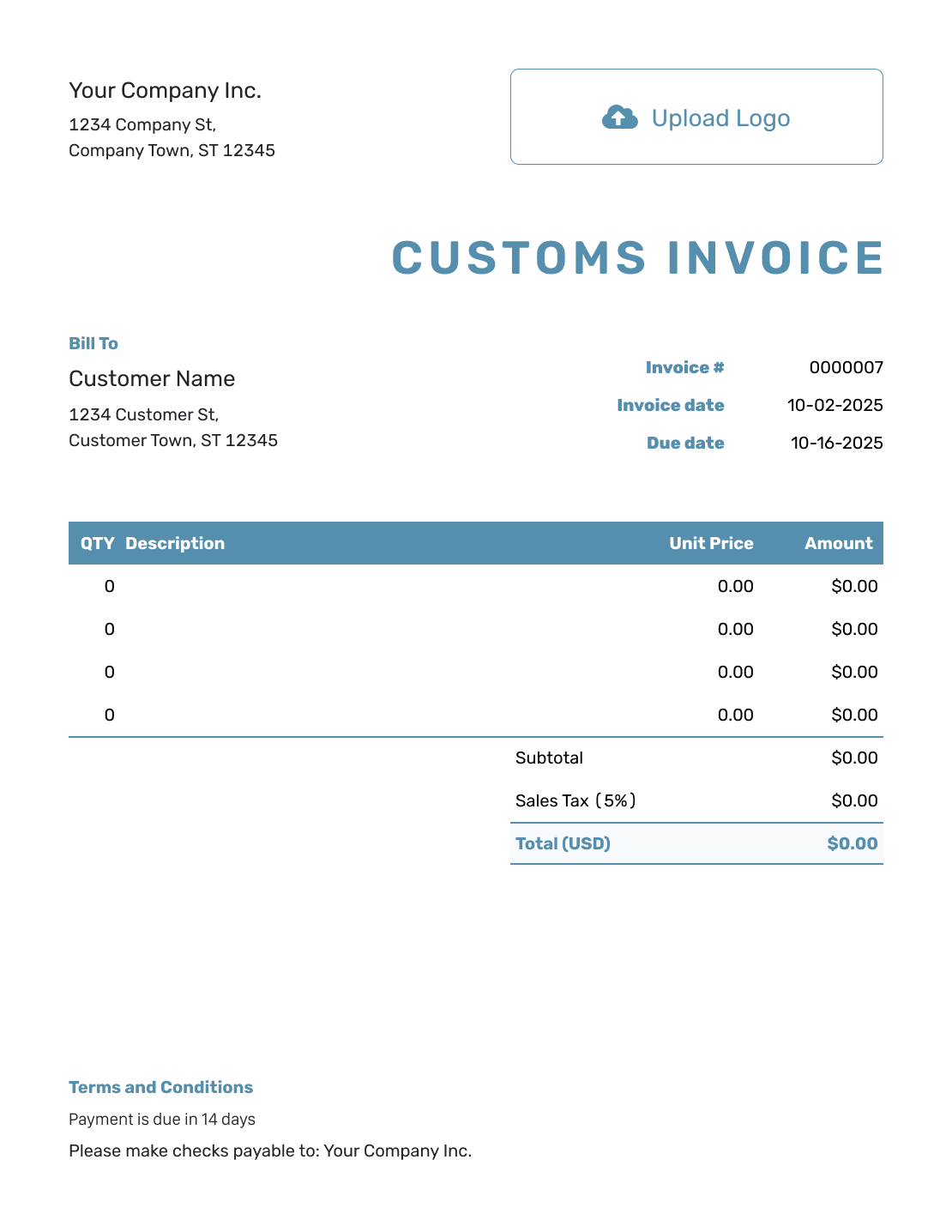
Blank Customs Invoice Template
Create Free Invoice -
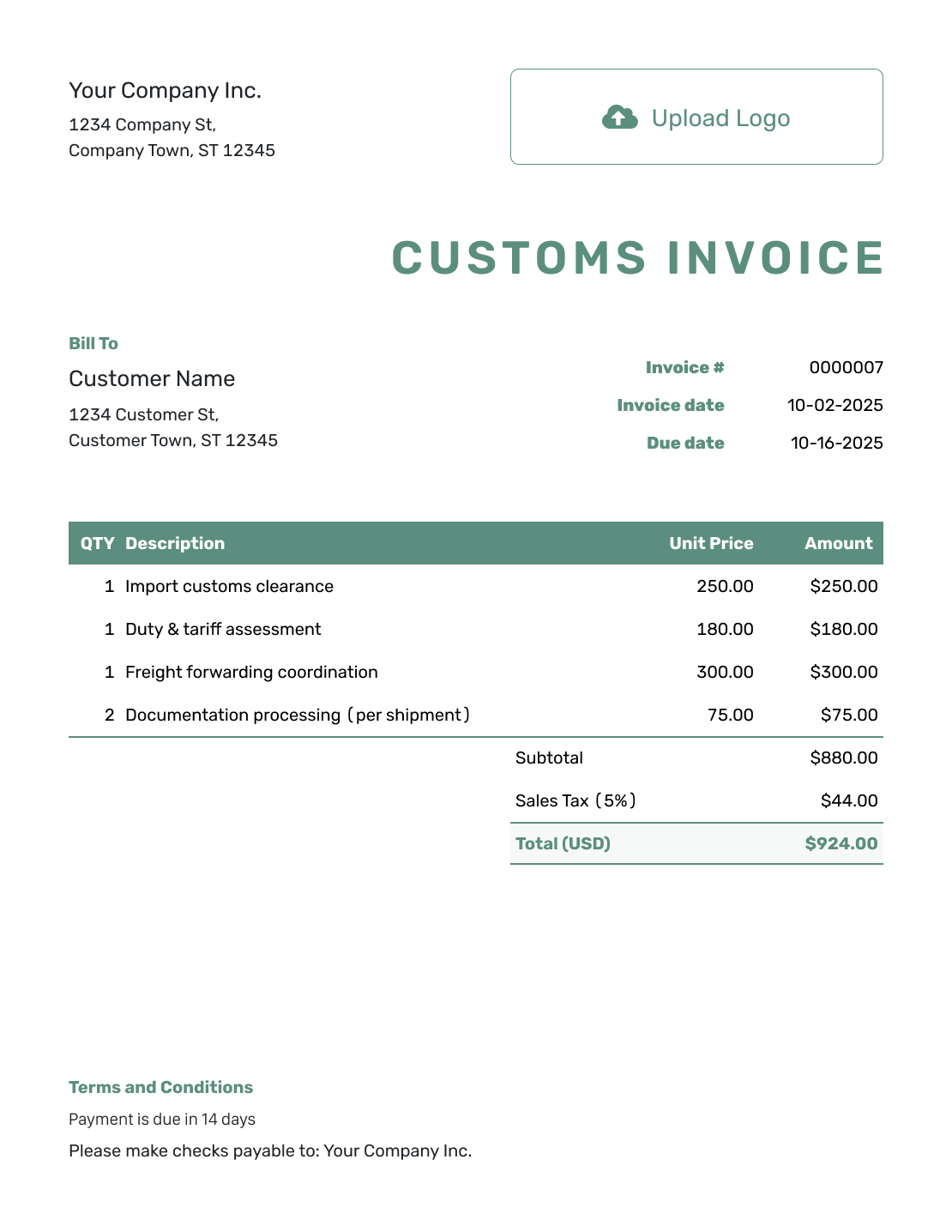
Simple Customs Invoice Template
Create Free Invoice -
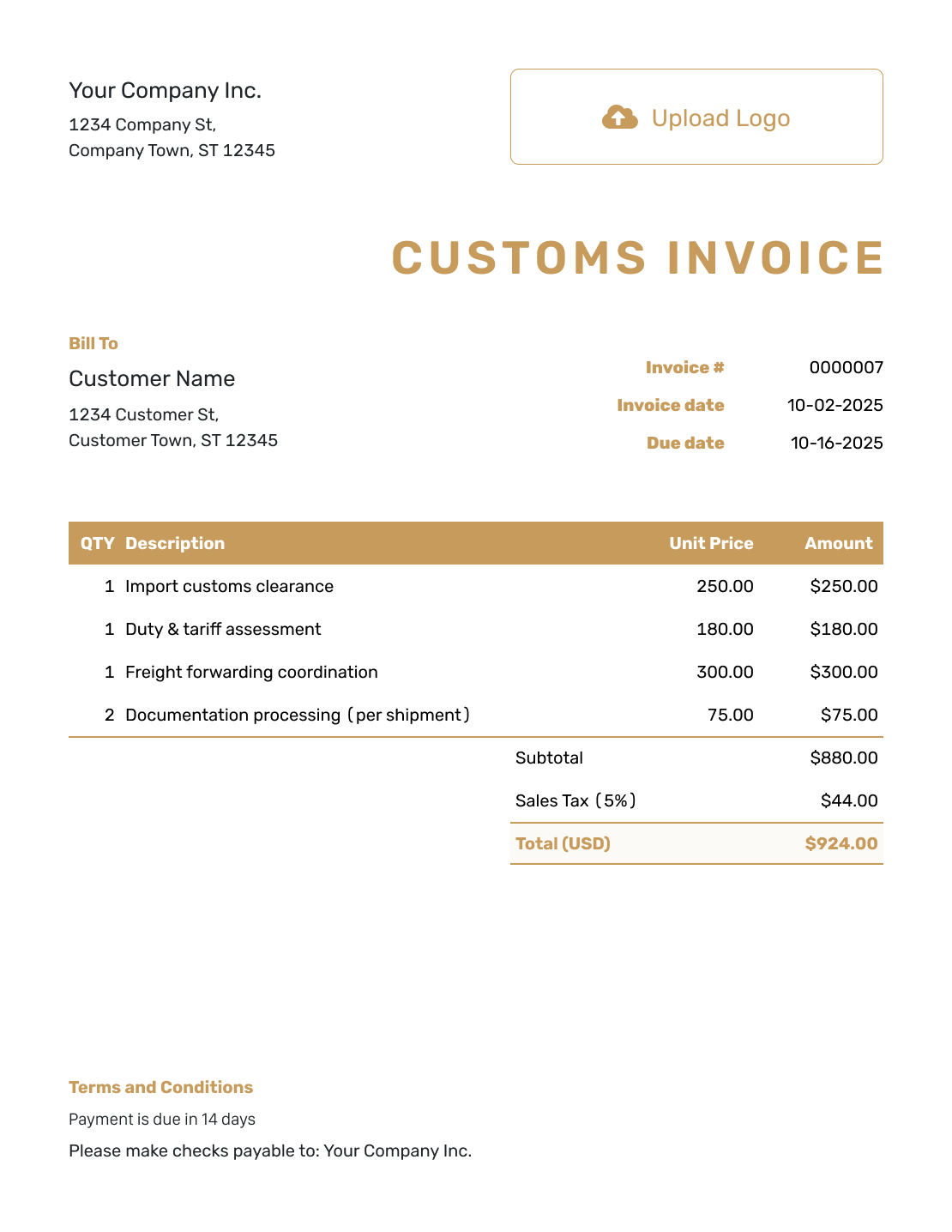
Standard Customs Invoice Template
Create Free Invoice -
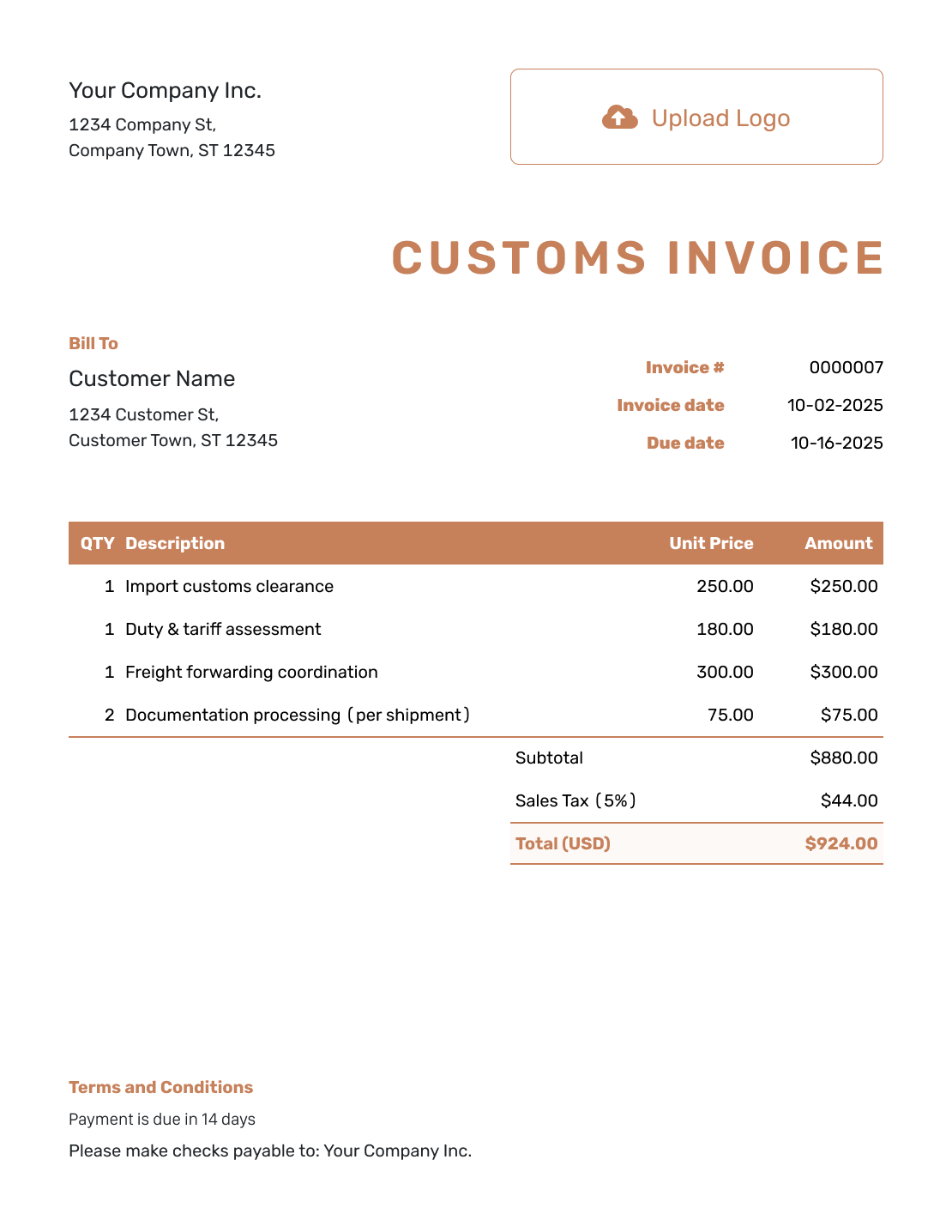
Itemized Customs Invoice Template
Create Free Invoice -
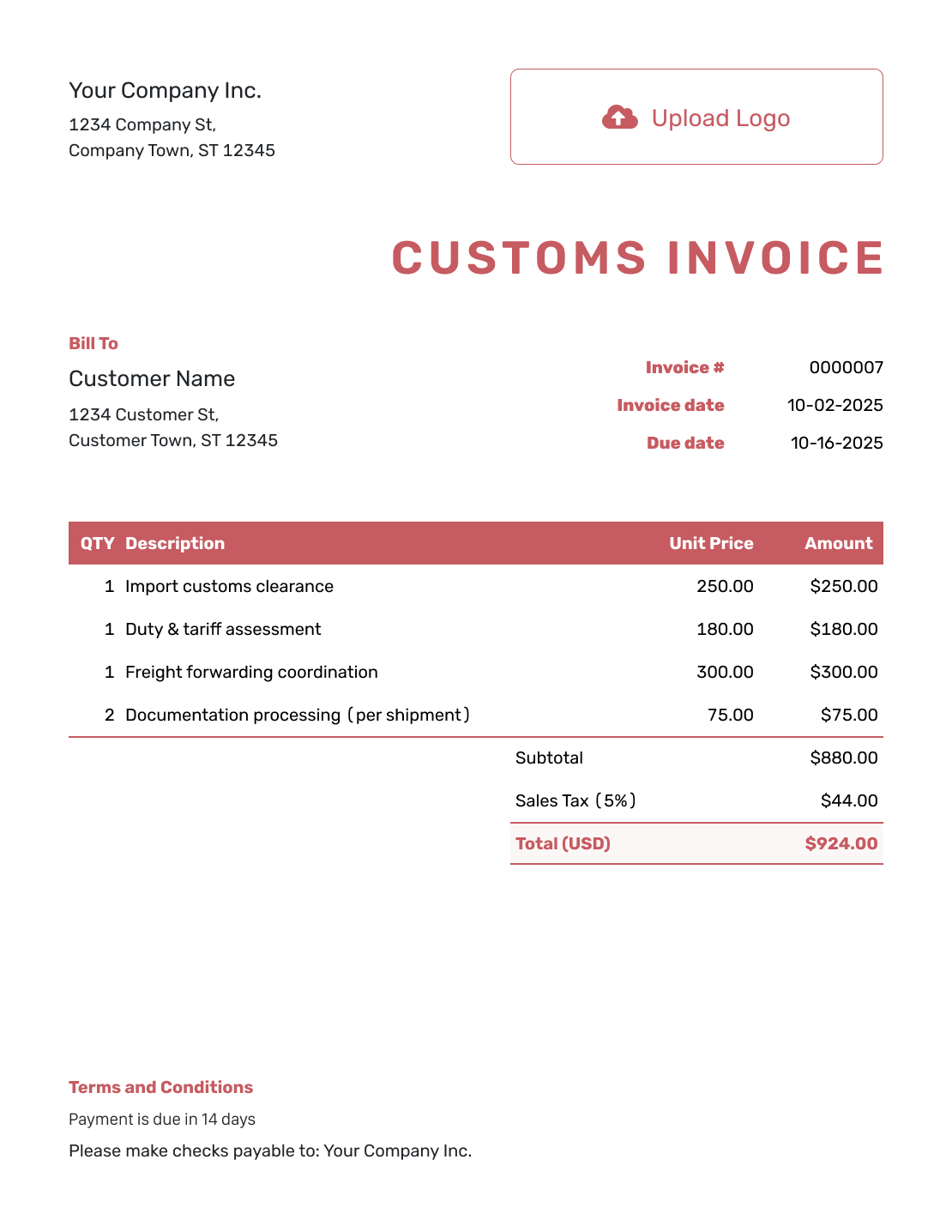
Basic Customs Invoice Template
Create Free Invoice -
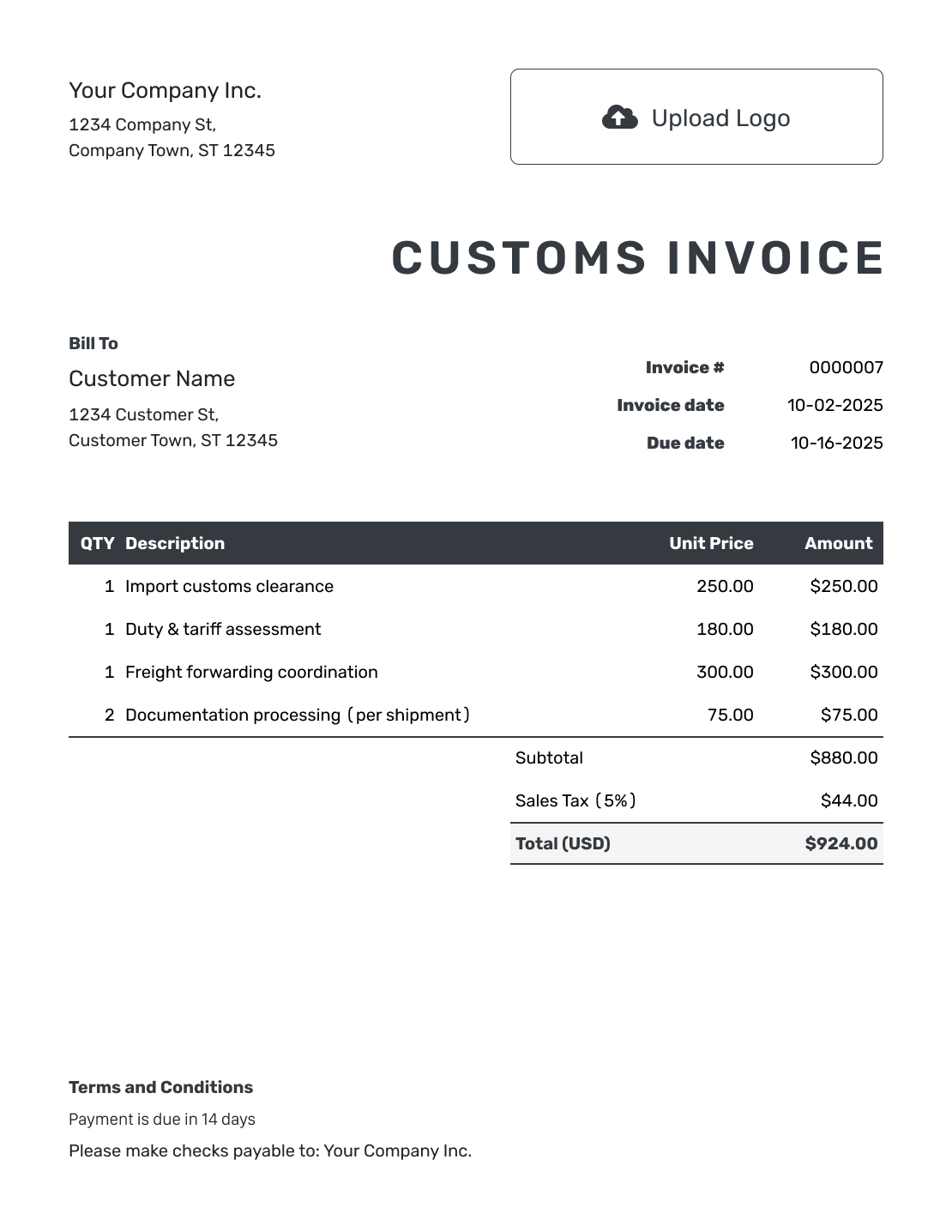
Hourly Customs Invoice Template
Create Free Invoice
Customs Invoice Templates by File Format
Prefer to work in a document or spreadsheet? These pages provide general invoice files in the named format. They are separate from any country-specific customs form your shipment requires.
Customs Invoice FAQs
-
What is a customs invoice?
A customs invoice usually means invoice information sent with an international shipment. The exact document can vary by carrier, goods and destination. Check whether the shipment needs a commercial invoice, another customs form or both.
-
Is a customs invoice the same as a commercial invoice?
A commercial invoice can supply the sale details used for customs clearance. Some destinations require a particular customs form or additional information. Ask your carrier or customs authority which document they need rather than relying on the name alone.
-
Can I use this customs invoice template for any country?
Use the layouts as a starting point for invoice details, not as a guarantee of customs acceptance. Check the destination and carrier requirements for every shipment and use a country-specific or carrier form when required.
-
What shipment details should I verify before sending?
Check the seller and buyer details, goods descriptions, quantities, values, currency and shipment references. Ask the party handling customs which origin information, product codes, trade terms, duties or taxes are required.
-
Why does the line-item example leave out tax and duty?
Taxes and duties depend on the goods, route and agreed terms, so the example does not assume a rate. Leaving them out of the sample does not mean the real shipment is tax-free.
-
Can Docelf calculate customs duty or clear the shipment?
No. Docelf calculates invoice amounts from the prices, taxes and discounts you enter. It does not determine the correct import duty, file customs entries or clear the goods through customs.
-
Can I email the invoice from Docelf?
Yes. Choose to send the invoice from Docelf, then check its delivery and opening information in the document history. You can also print it or download a PDF. Follow the carrier’s instructions to submit the customs paperwork.
Ready to Prepare the Customs Invoice?
Bring the sale details together in a clear invoice for the buyer and your shipment records.
- Describe the goods and quantities clearly
- Show the agreed prices and currency
- Download the checked invoice as a PDF




