Free Printable Quote Template
Print a quote that is clean and easy to read
Keep the work, price and terms clear when the quote is printed on paper. An easy-to-read offer helps customers understand the job and choose you with confidence.
Create the quote online, download the finished PDF, then print it.
14-day free trial. No credit card required.
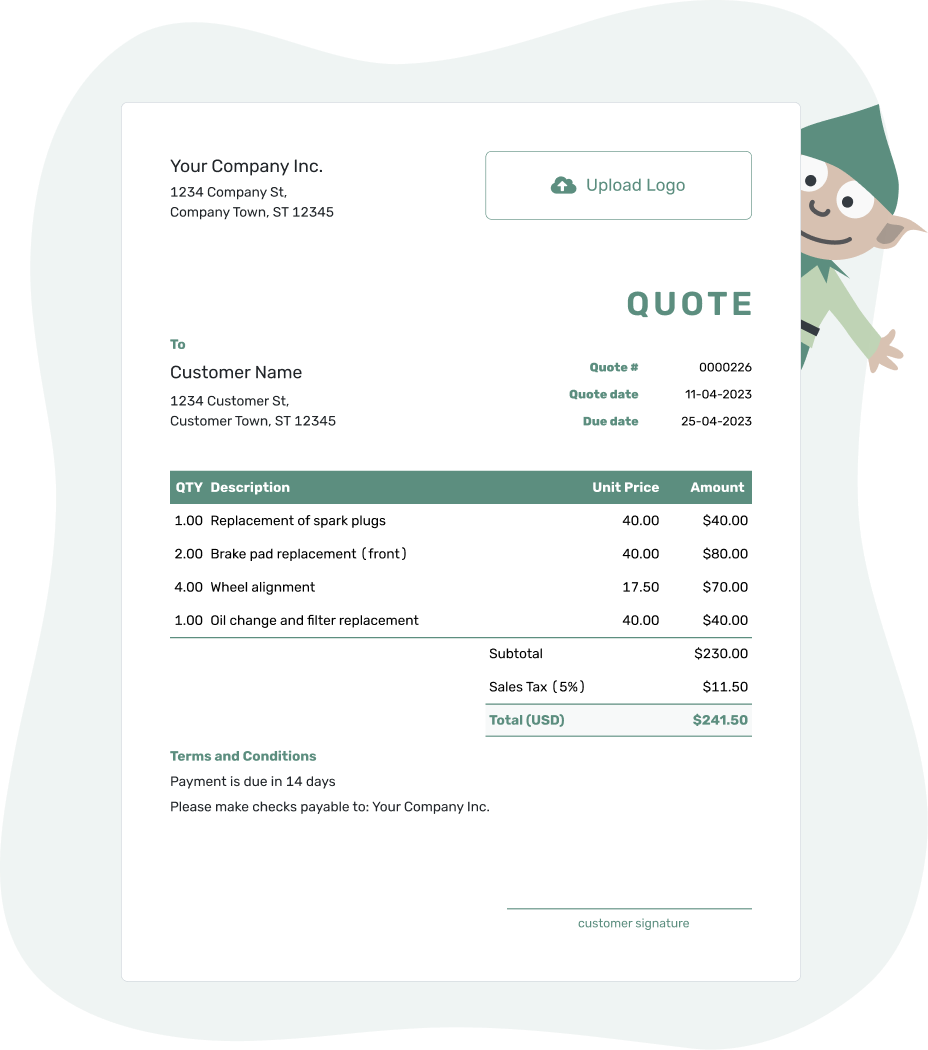
Price the job. Send the quote. Get back to work.
Printable Quote Template Examples
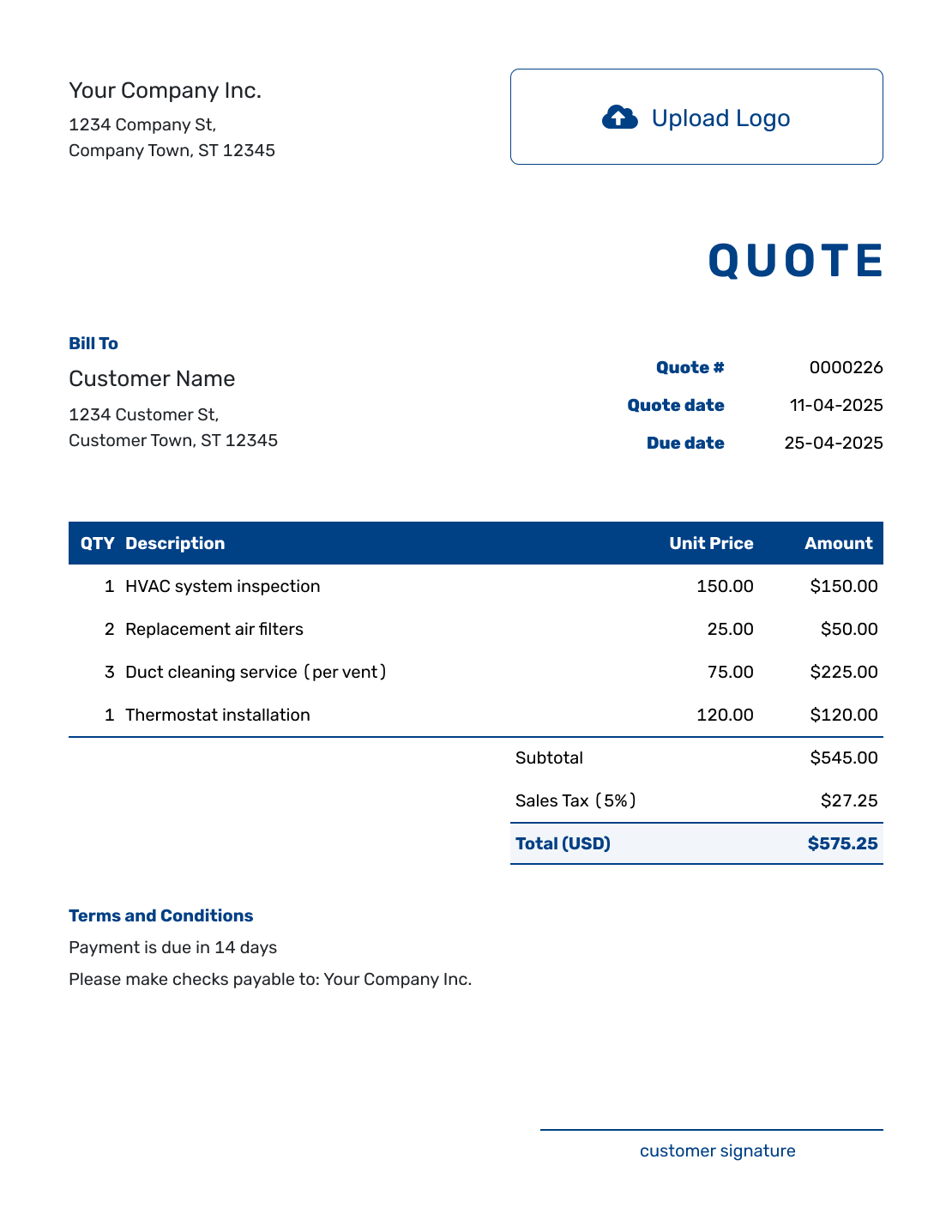
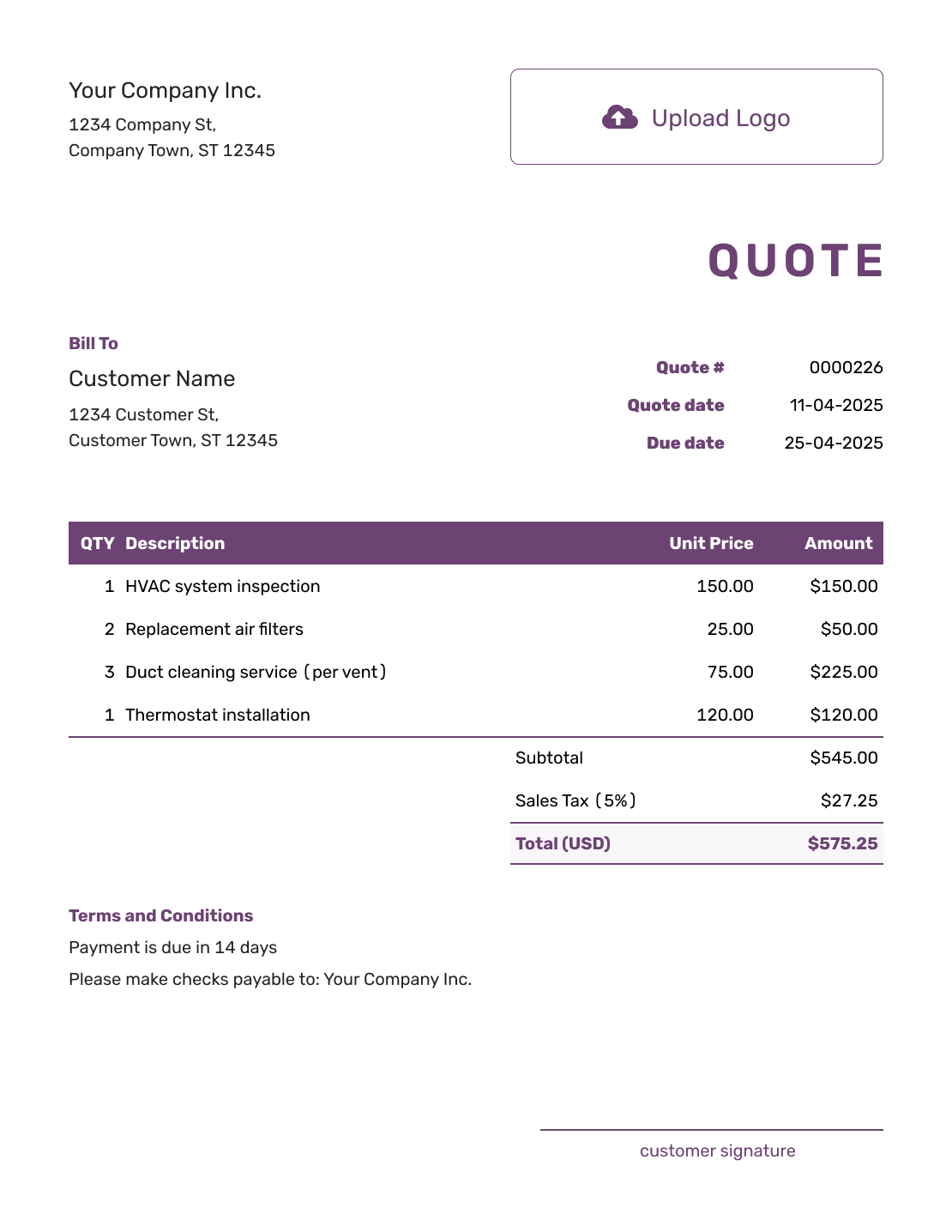
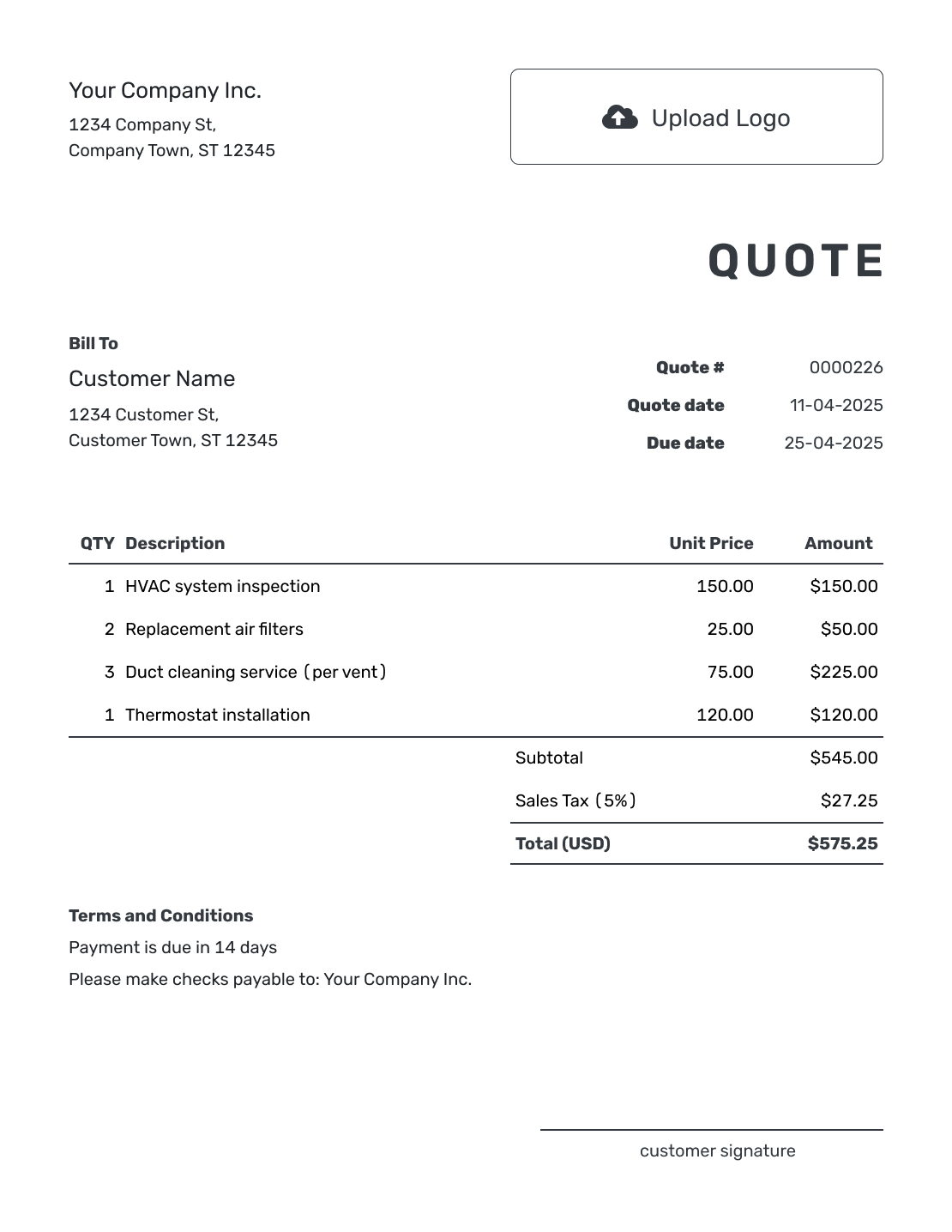
Browse these layouts for your paper quote. Every preview opens the same quote editor, where you add your offer and choose its styling before printing.
A Paper Quote for the Meeting or Job Folder
A printable quote gives the customer your scope, price and terms in a copy they can read, keep or sign. It is useful for an in-person meeting or a customer who prefers paper.
Keep the quote in Docelf as the editable version. Download a PDF for printing so you can review the same layout you will hand over.
How to Create and Print a Quote
Finish the offer before preparing the paper copy. You can add company and customer signature fields when the quote will be signed in person.
- Business Details: Enter your business details and add your logo if you use one.
- Customer: Choose a saved customer or add the contact details for this job.
- Number and Dates: Add the quote number, issue date, and valid-until date.
- Describe the Offer: List the work, products, or services in clear line items.
- Add the Price: Enter quantities and rates. Docelf calculates the totals, tax, and discounts.
- Prepare the Paper Copy: Add scope limits and reply instructions in Terms and Conditions. Include signature fields if needed.
- Preview and Print: Download the PDF, check the page breaks and scale, then print the final copy.
What to Check on a Printable Quote
Make sure the paper copy is complete and easy to read:
- Business and customer details fit on the page
- The quote number and dates are easy to find
- Line descriptions and prices do not wrap awkwardly
- The subtotal, sales tax, and final total are visible
- Scope and exclusions are easy to follow
- Payment and acceptance terms are complete
- Any signature or approval area has enough space
- The footer and page numbers do not cover the content
Check the Paper Size and Print Preview
Match the print dialog to the paper in your printer, such as Letter or A4. If the preview cuts off an edge, use the fit-to-page option and check that the text remains comfortably readable.
Use the PDF
Open the downloaded PDF in a PDF viewer and print that file. This keeps the quote separate from the surrounding webpage.
Preview the Pages
Check every page, including long descriptions and the total. If you print in black and white, make sure headings and prices are still easy to read.
Leave Approval Space
Leave enough room for any signatures. A longer quote can use another page; keep the scope and terms instead of shrinking them to fit.
Keep a Copy
Keep the PDF you handed over and any signed copy with the job records. If the offer changes, update the quote in Docelf and print a fresh copy.
Create a Clean Quote to Print
Finish the quote in Docelf before you print. Preview the PDF, then hand over a clean copy.
Keep the Customer's Reply With the Quote
If the customer accepts or declines on paper, you can mark that response manually on the quote in Docelf. Keep the signed copy with your records so you can refer back to the offer they reviewed.
A paper reply does not update the online quote by itself. For an online response instead, email the quote from Docelf and let the customer accept or decline there.
More Printable Quote Layouts
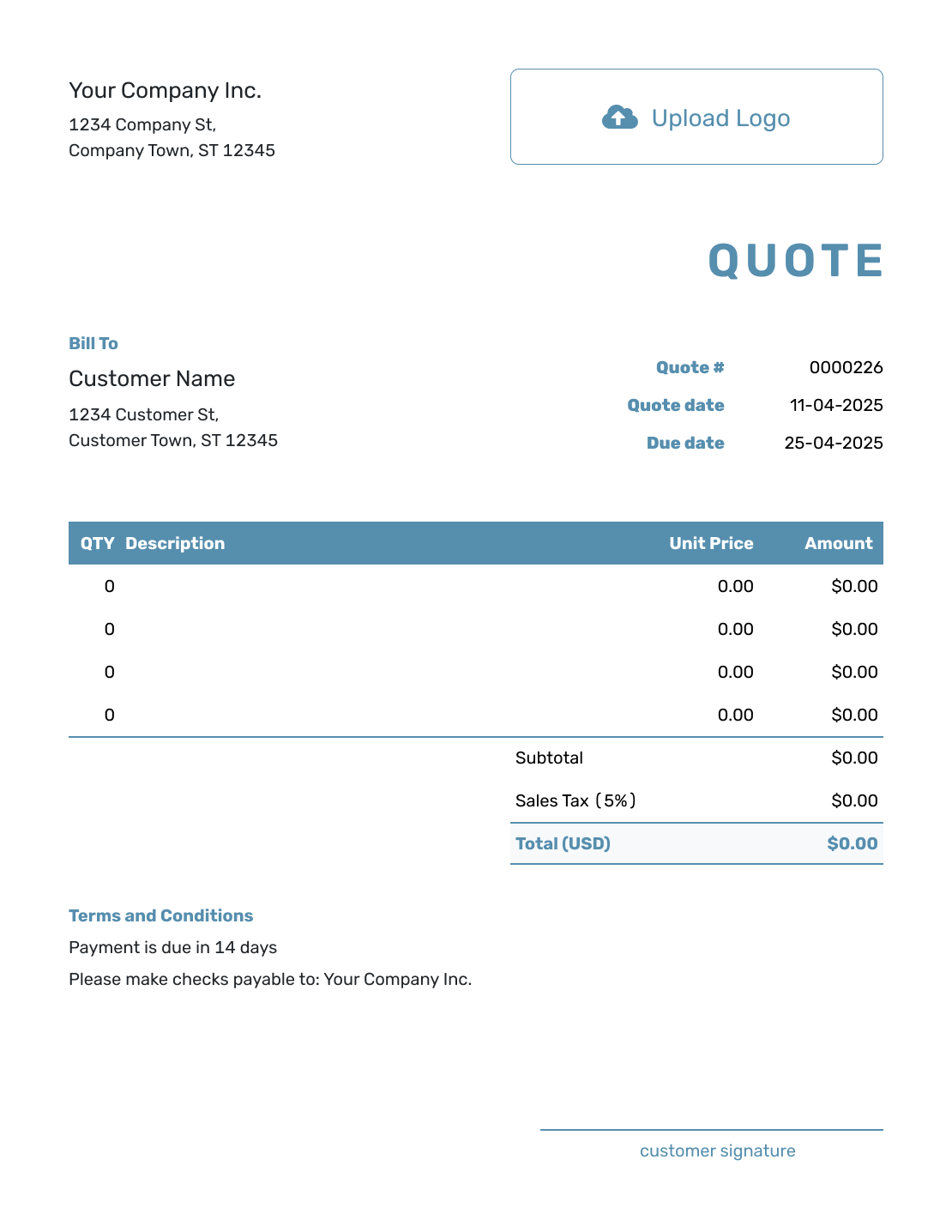
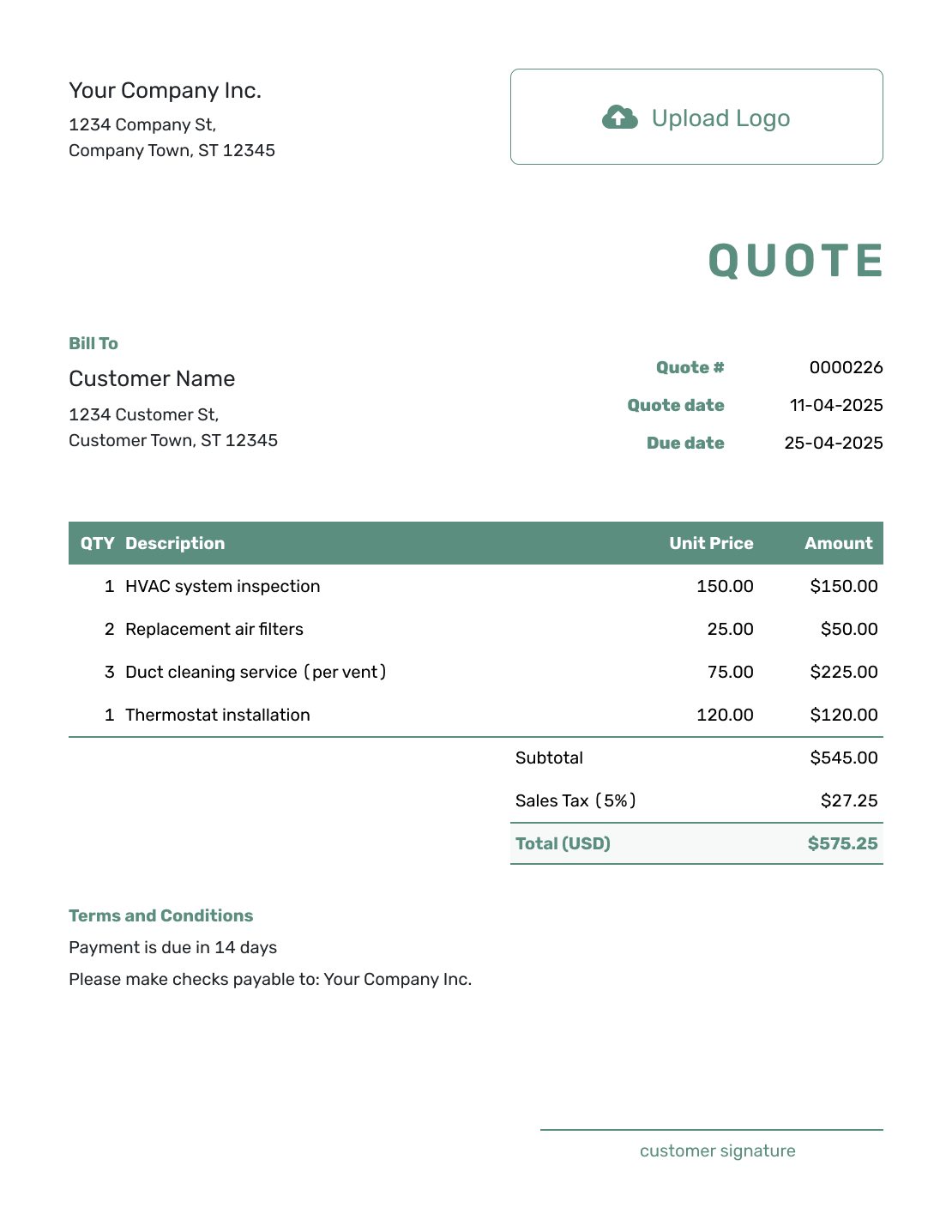
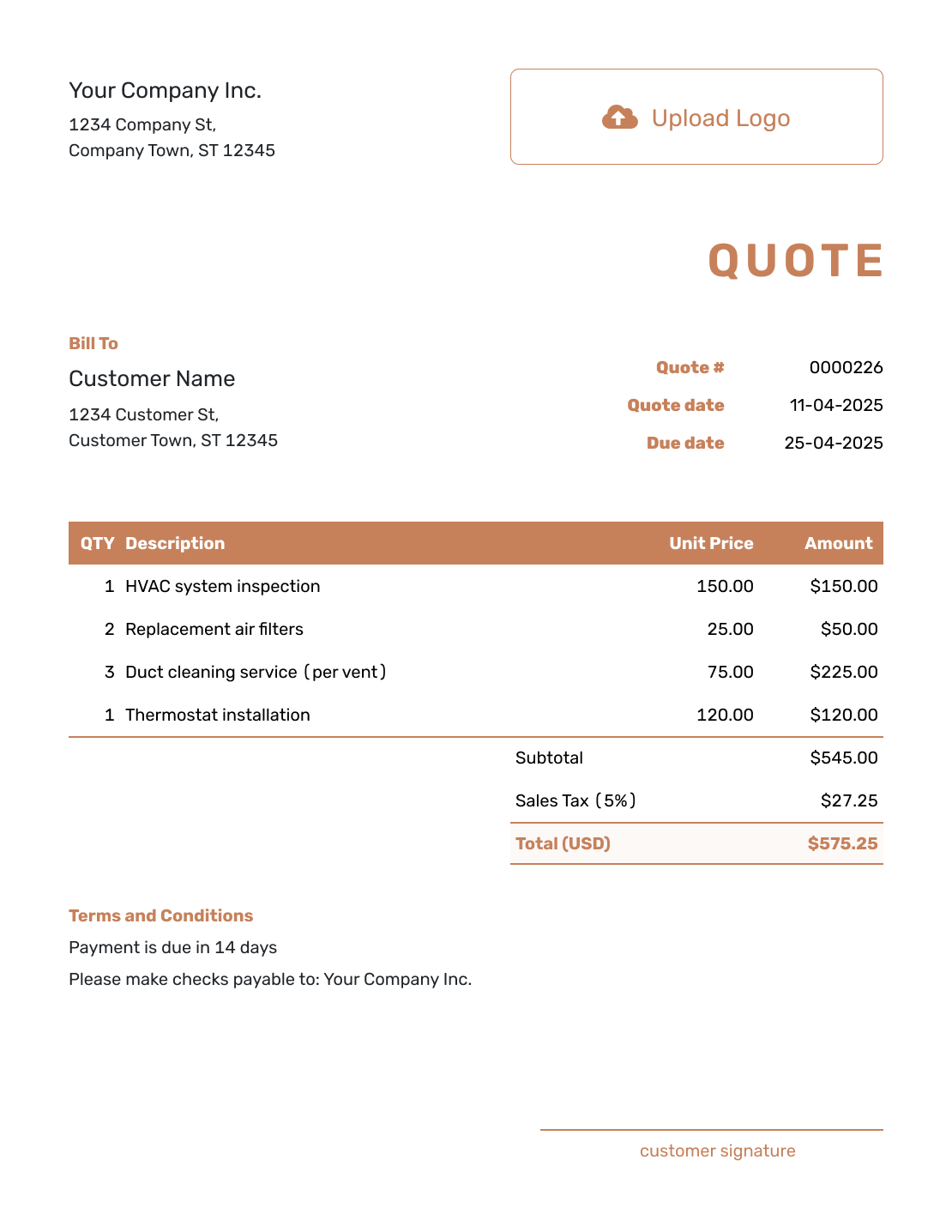
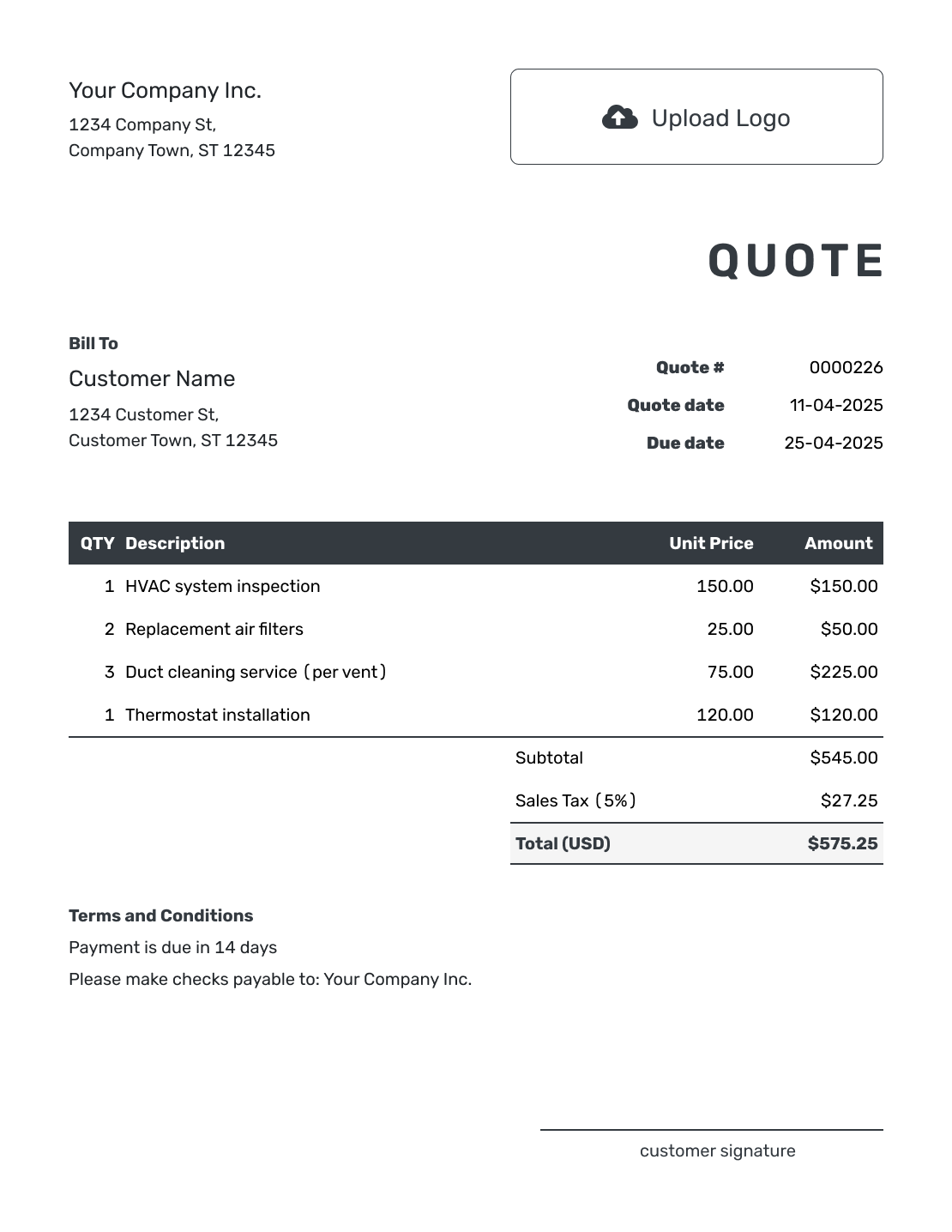
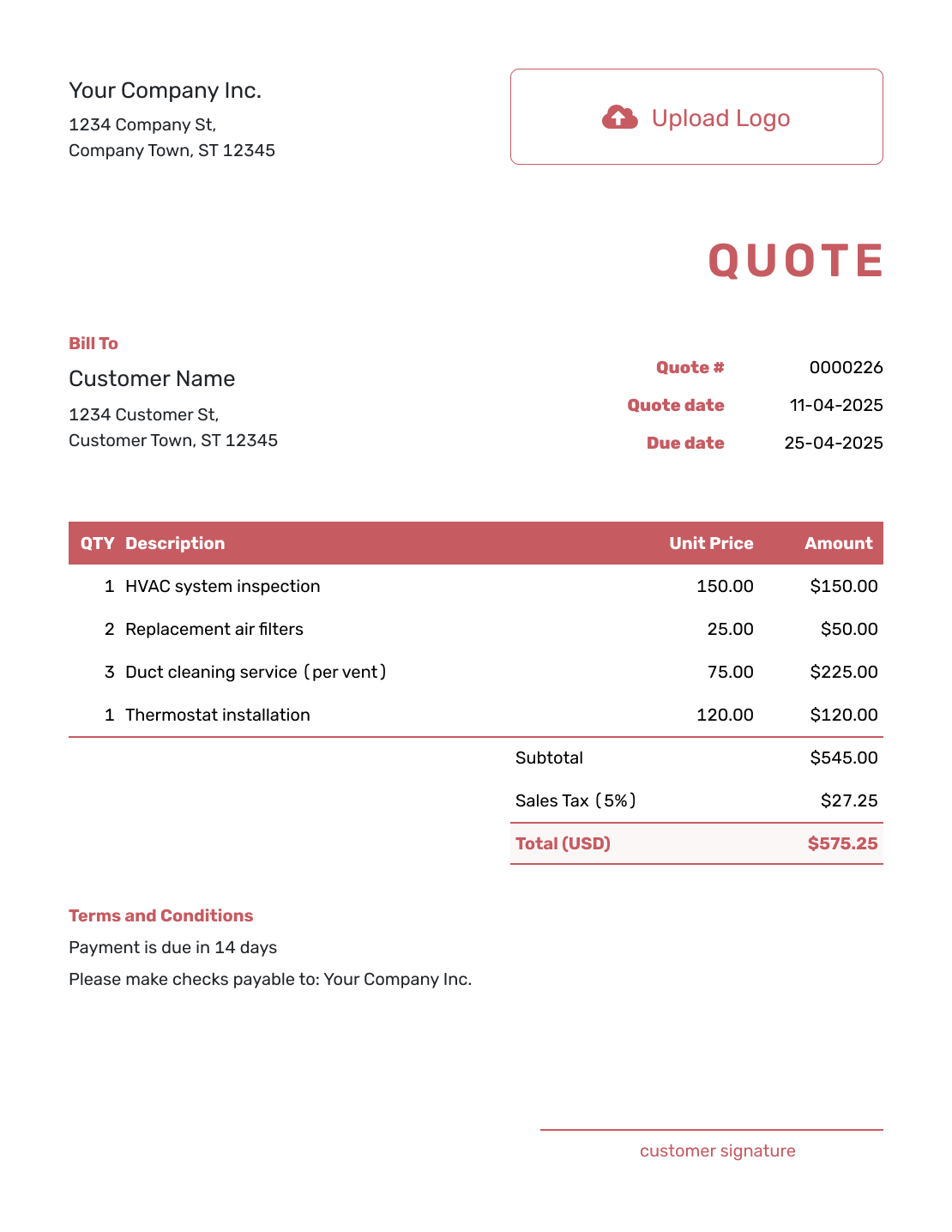
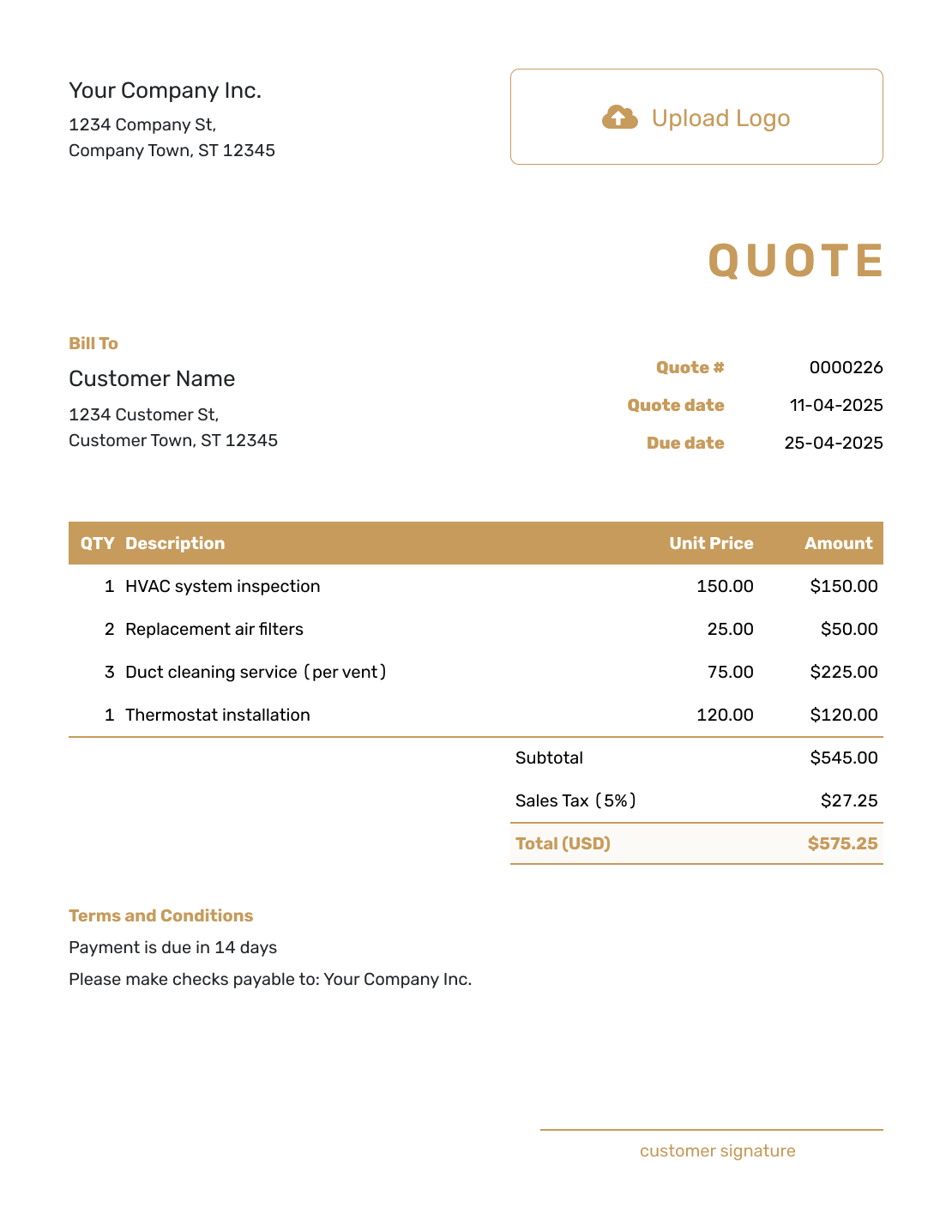
These six layouts also open the quote editor. Add your offer, check the print preview, and choose the layout that keeps your prices and terms easy to read.
Printable Quote Template File Formats
Use PDF for the most consistent printed layout, or choose a document or spreadsheet format when the file must stay editable before printing.
Other Print and Download Options
Choose PDF for a fixed page, download for file storage, or Word when you need to edit the quote before printing.
Printable Quote Template FAQs
-
How do I create a printable quote?
Create the quote in Docelf and add the customer and work. Confirm the price, dates, and terms. Download the final PDF, then print the copy you need.
-
What is the best file format for printing a quote?
A PDF is usually the best final print format because it keeps the layout, fonts, and page breaks consistent.
-
What should I check before printing the quote?
Review the customer details, price, dates and terms. Match the selected paper size to your printer, then use print preview to check every page, the total and any signature area. If an edge is clipped, try fit to page and recheck the text size.
-
Can I print a one-page quote?
Yes, when the offer is short enough to stay readable. Do not remove useful scope or terms only to force the quote onto one page.
-
Should I sign a printed quote?
Add a signature or acceptance area when it fits your customer’s process. Keep clear acceptance instructions even when you do not use a signature line.
-
Can I create an invoice from the printed quote?
Keep the working quote in Docelf. After acceptance, create the invoice from that quote so the agreed details carry over.
Ready to Print a Customer-Ready Quote?
Give the customer a paper copy that matches the offer you saved in Docelf.
- Preview the final PDF before printing
- Keep page breaks, totals, and approval space clear
- Keep the Docelf quote as the editable record




