Free Quote Template PDF
Create a professional quote PDF in minutes
Keep the scope, price and terms easy to read on any screen or printed page. The finished PDF gives customers a clear offer they can review and helps them choose your business.
Create the quote online, then download the finished PDF to email or print.
14-day free trial. No credit card required.
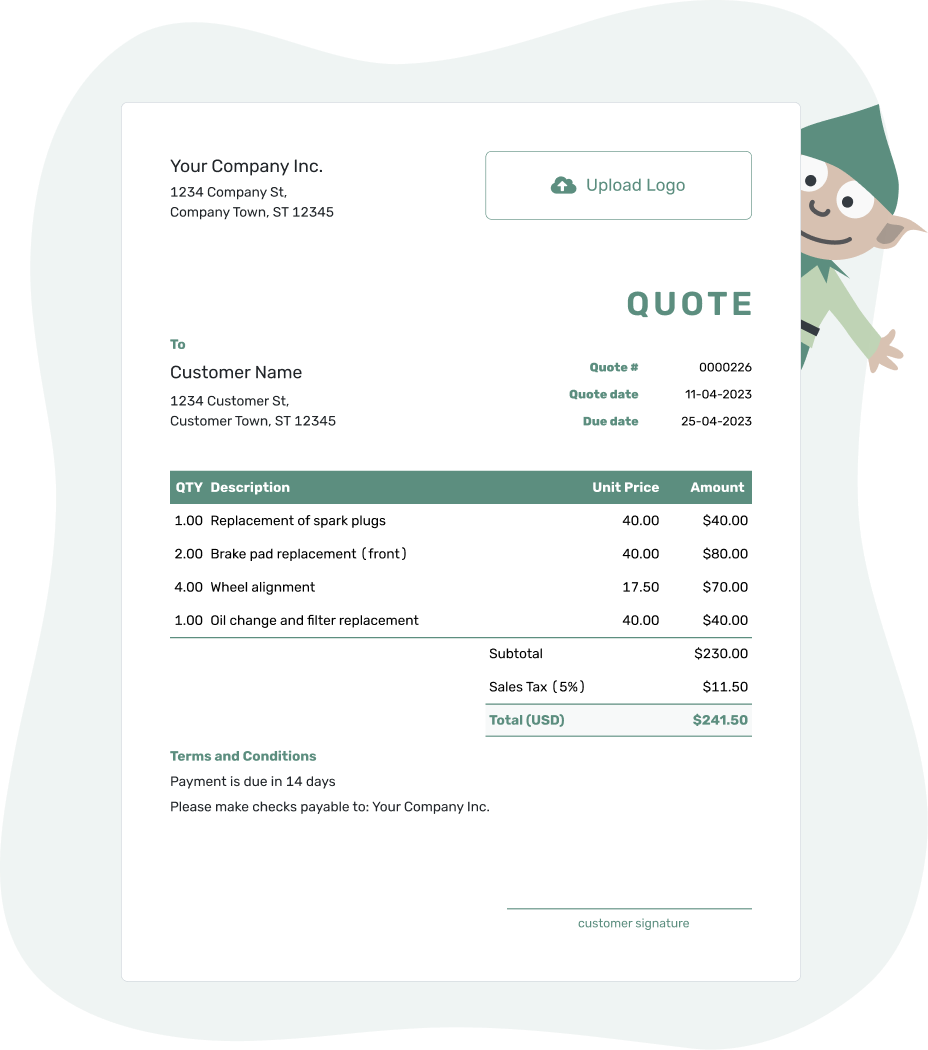
Price the job. Send the quote. Get back to work.
Quote Template PDF Examples
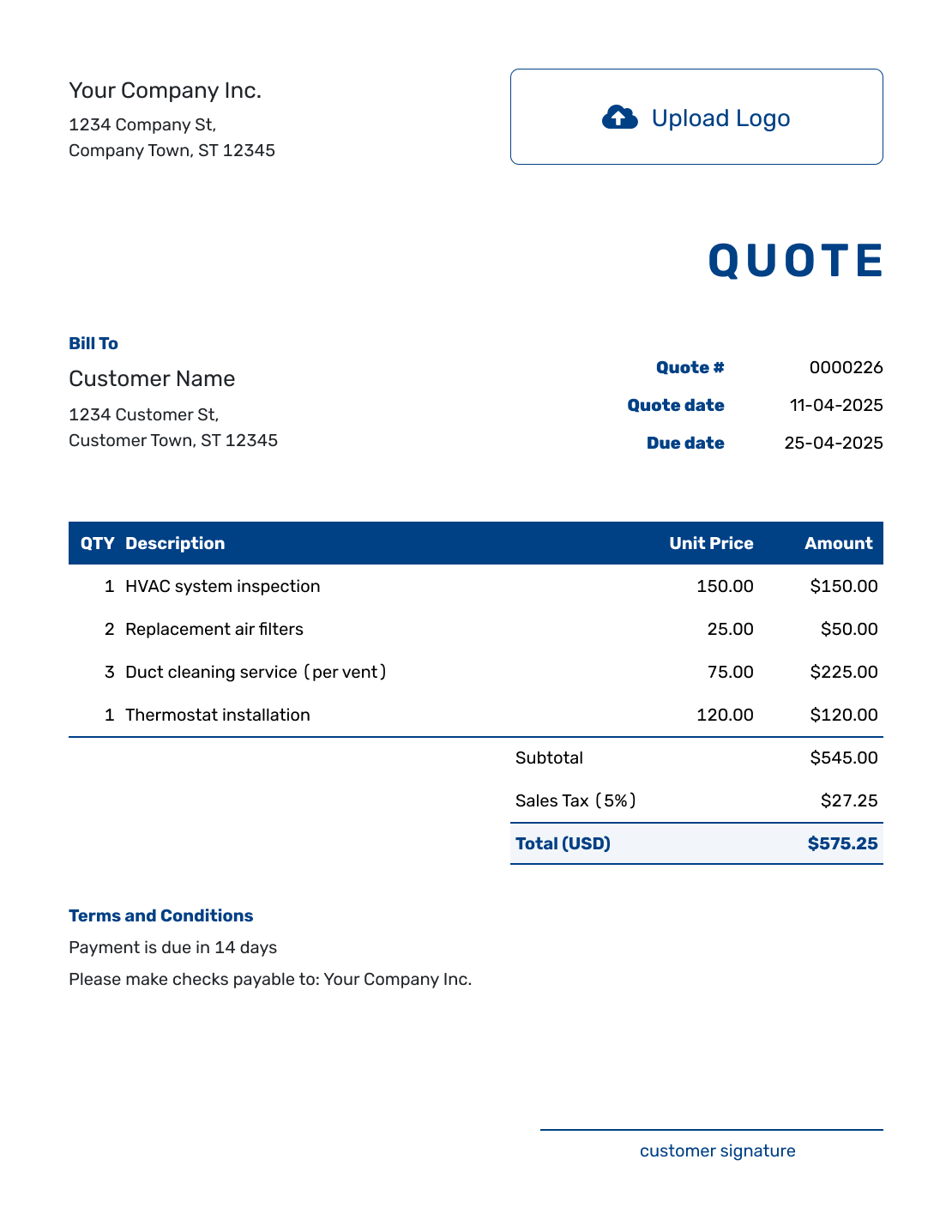
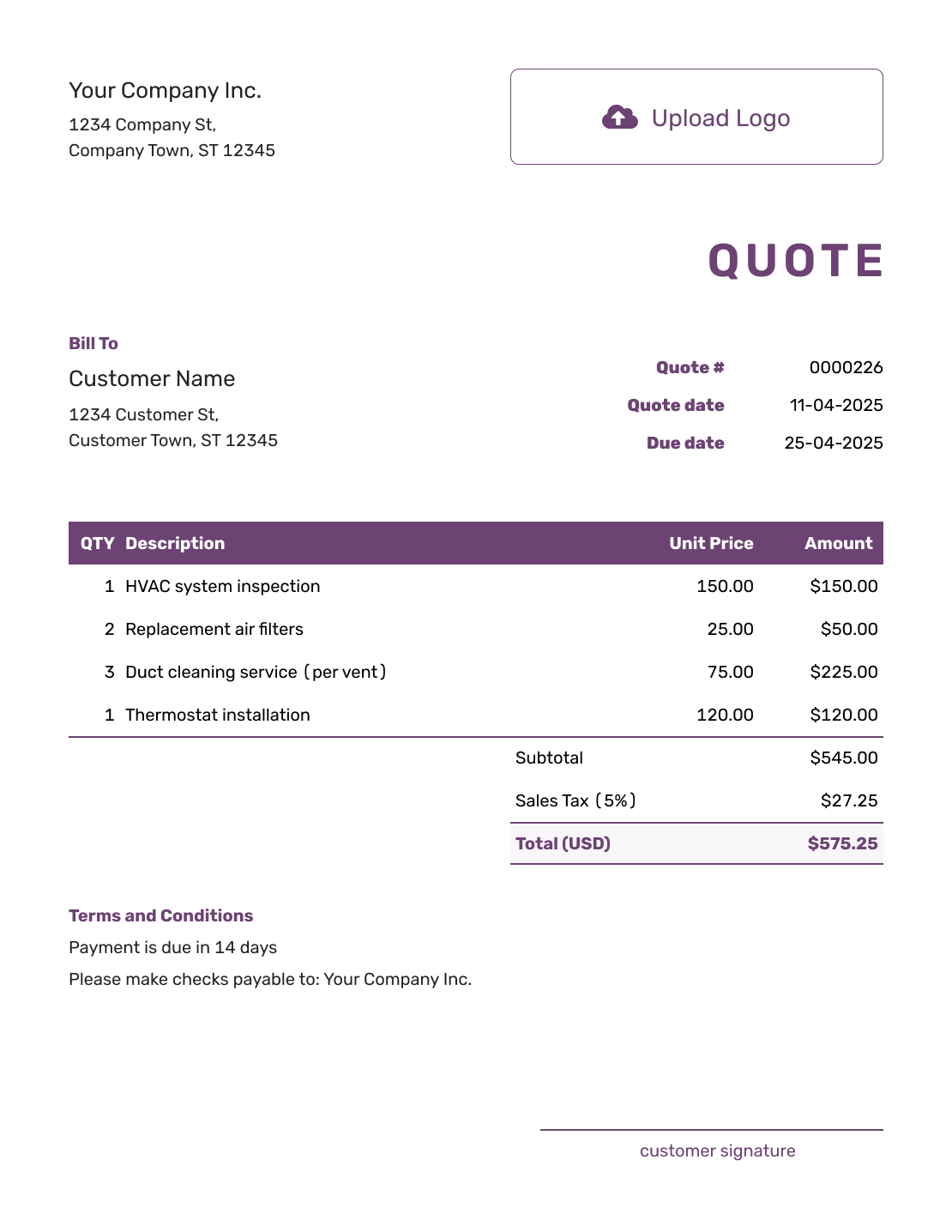
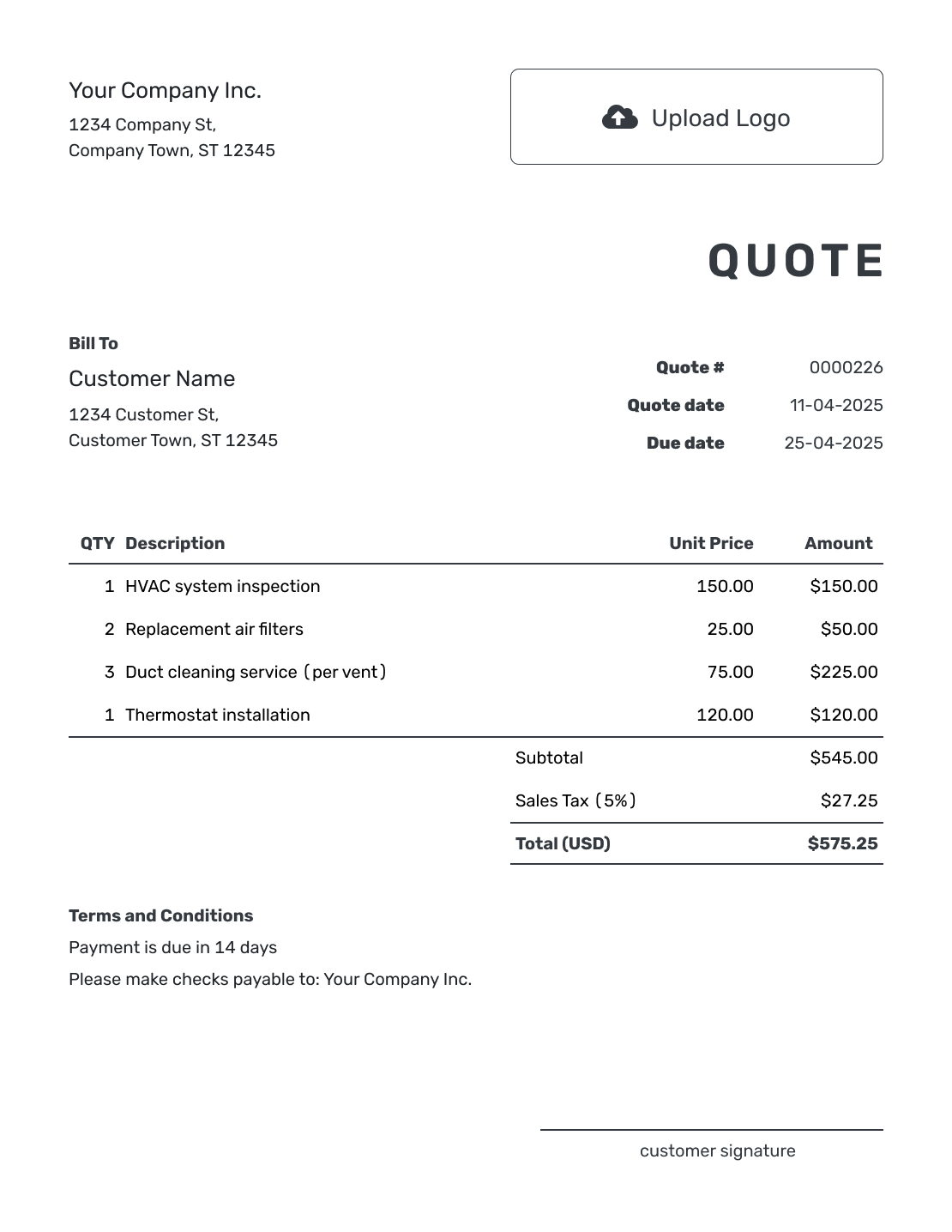
Browse these designs for your customer copy. Every preview opens the same quote editor, where you add your offer and choose its styling before downloading the PDF.
Keep an Editable Quote and a Finished PDF
A quote PDF is a copy of your offer that keeps its layout when the customer opens or prints it. It works well as an email attachment, a paper quote or a file for the job records.
Create and edit the quote in Docelf, then download the PDF when it is ready. If the price or scope changes, update the saved quote and download a new copy. An earlier PDF will still show the earlier offer.
How to Create a Customer-Ready Quote PDF
The saved quote is where you make changes. Once the offer is ready, download the PDF and open it to check the copy your customer will receive.
- Business Details: Enter your business details and add your logo if you use one.
- Customer: Choose a saved customer or add the contact details for this job.
- Number and Dates: Add the quote number, issue date, and valid-until date.
- Describe the Offer: List the work, products, or services in clear line items.
- Add the Price: Enter quantities and rates. Docelf calculates the totals, tax, and discounts.
- Finish the Offer: Use Terms and Conditions for scope limits, timing and how the customer can accept.
- Check the PDF: Download it and review page breaks, margins, totals, and signature fields.
What to Check in the Quote PDF
Review the final file, not only the editing screen:
- Customer and business details are complete
- The quote number, issue date, and valid-until date are current
- Line descriptions, quantities, rates, and totals are correct
- Any tax or discount agrees with the offer
- Optional work and deposit terms are clearly separate from the quoted total
- Scope, timing, terms, and exclusions are complete
- Acceptance instructions are easy to find
- The PDF page breaks and margins look right
- The file has a clear name before you attach or save it
A filename such as Quote-1042-Maple-Cafe.pdf helps both of you find the offer later. When you send a revised copy, identify what changed and tell the customer it replaces the earlier version.
PDF, Editable File, or Docelf?
Choose the format based on whether you need a fixed customer copy or a working file you can still change.
Use PDF for the final customer copy when the layout should stay fixed.
Document or Spreadsheet
Use Word, Excel, Google Docs, or Google Sheets when you need to keep editing the working file.
Docelf
Email the quote from Docelf when you want the customer to accept or decline it online. A PDF sent through your own email needs its own reply instructions.
For a quote emailed from Docelf, delivery and opening details appear in its document history. Saving a PDF or attaching it to a separate email does not provide that Docelf history.
Create a Fixed-Layout Quote PDF
Docelf calculates the totals as you price the offer. Keep the quote ready for changes, then download the copy you want your customer to review.
More PDF Quote Layouts
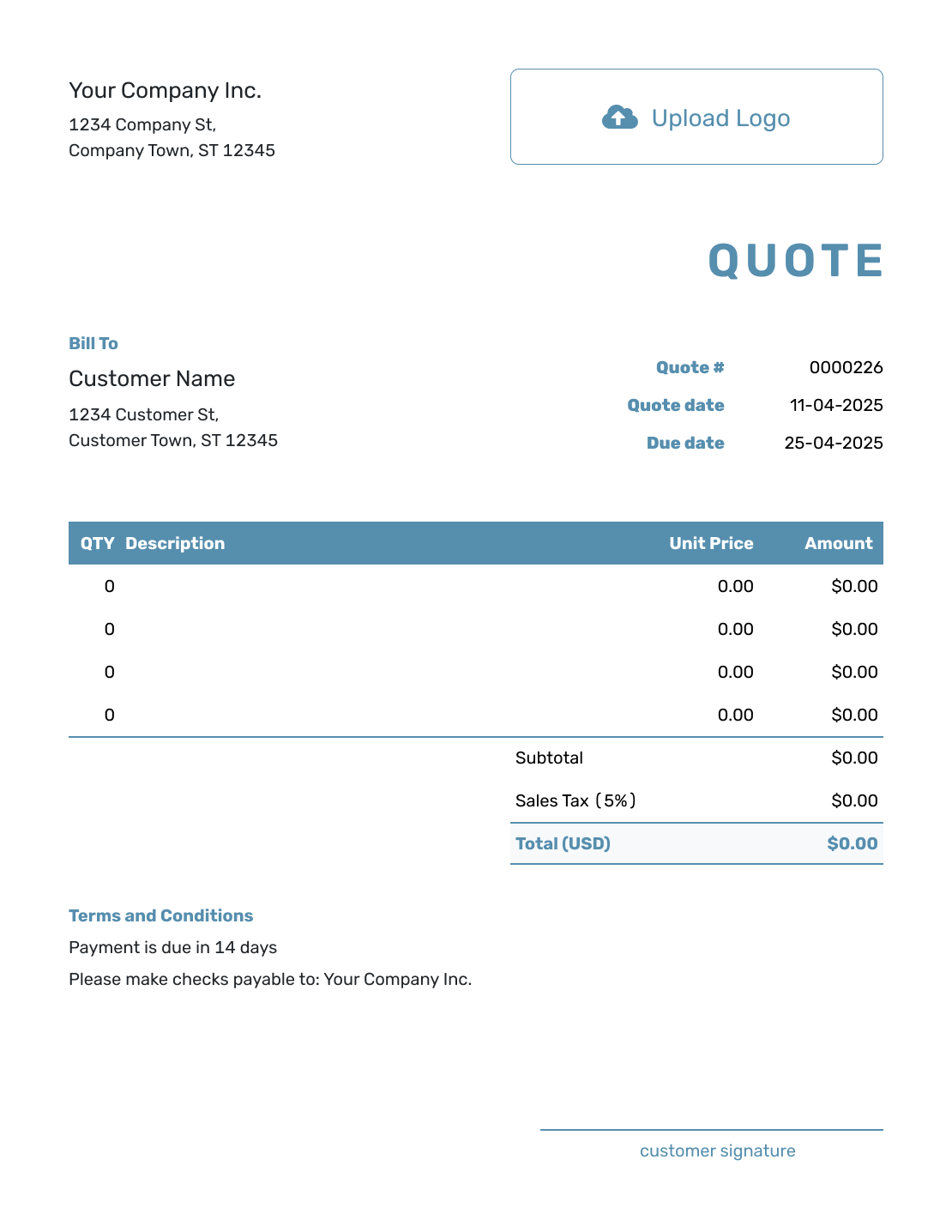
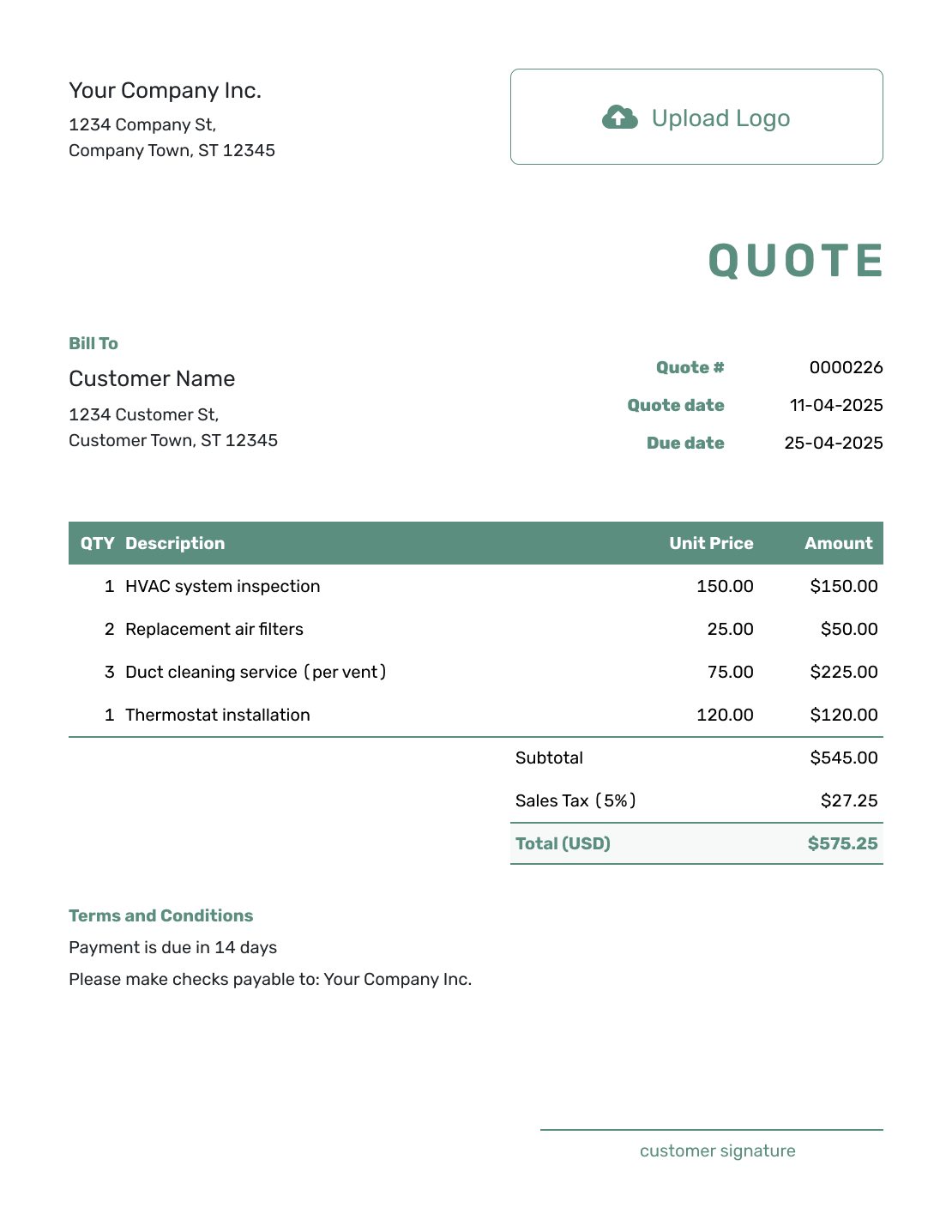
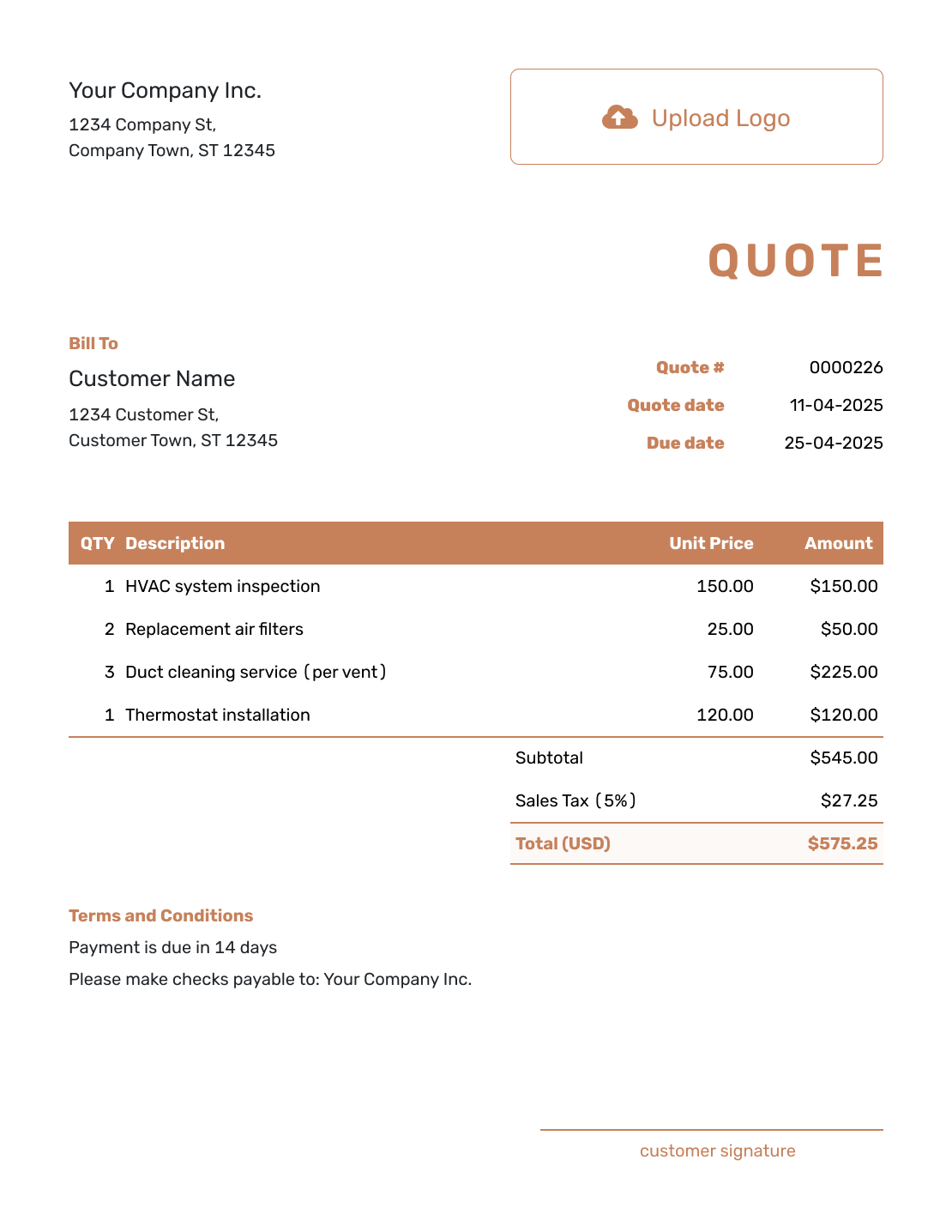
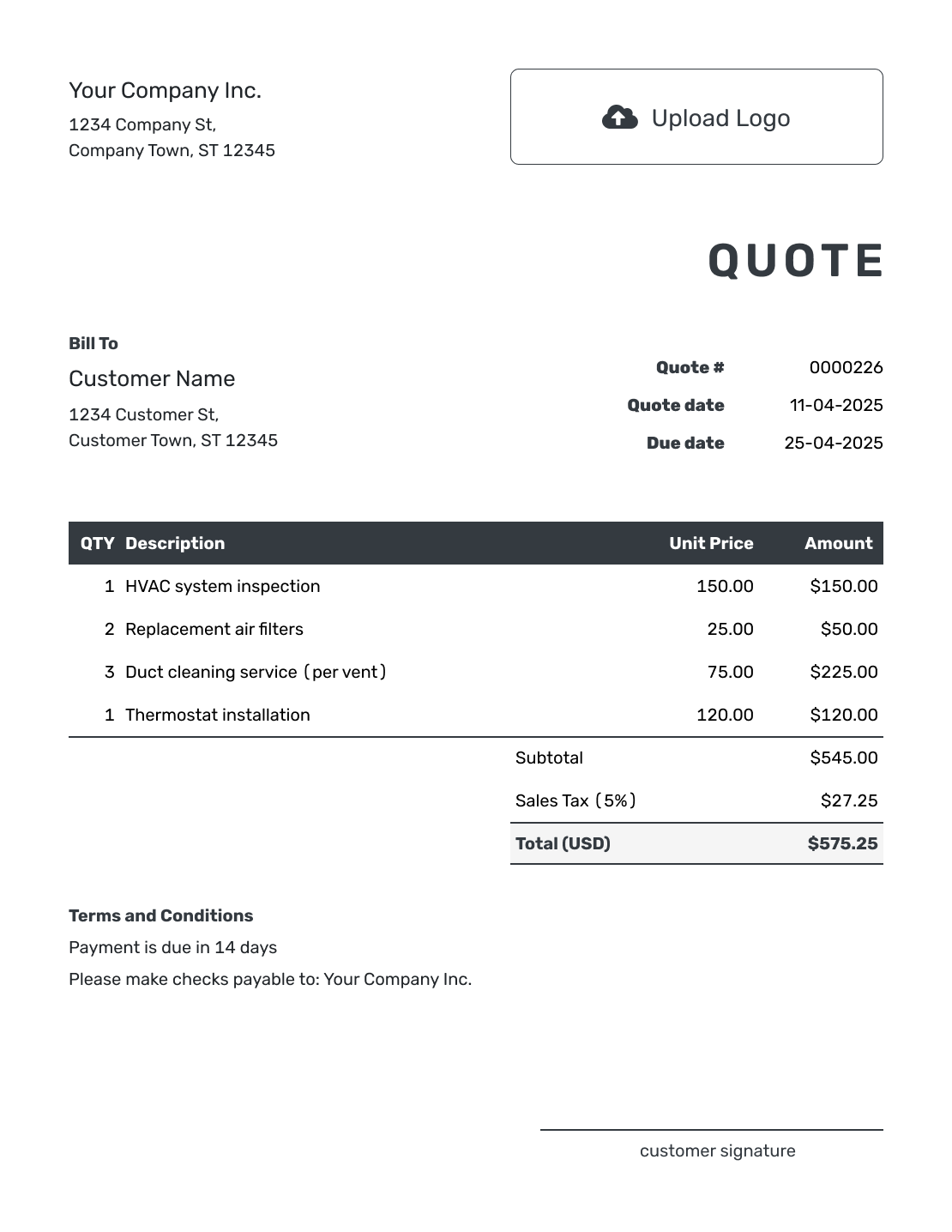
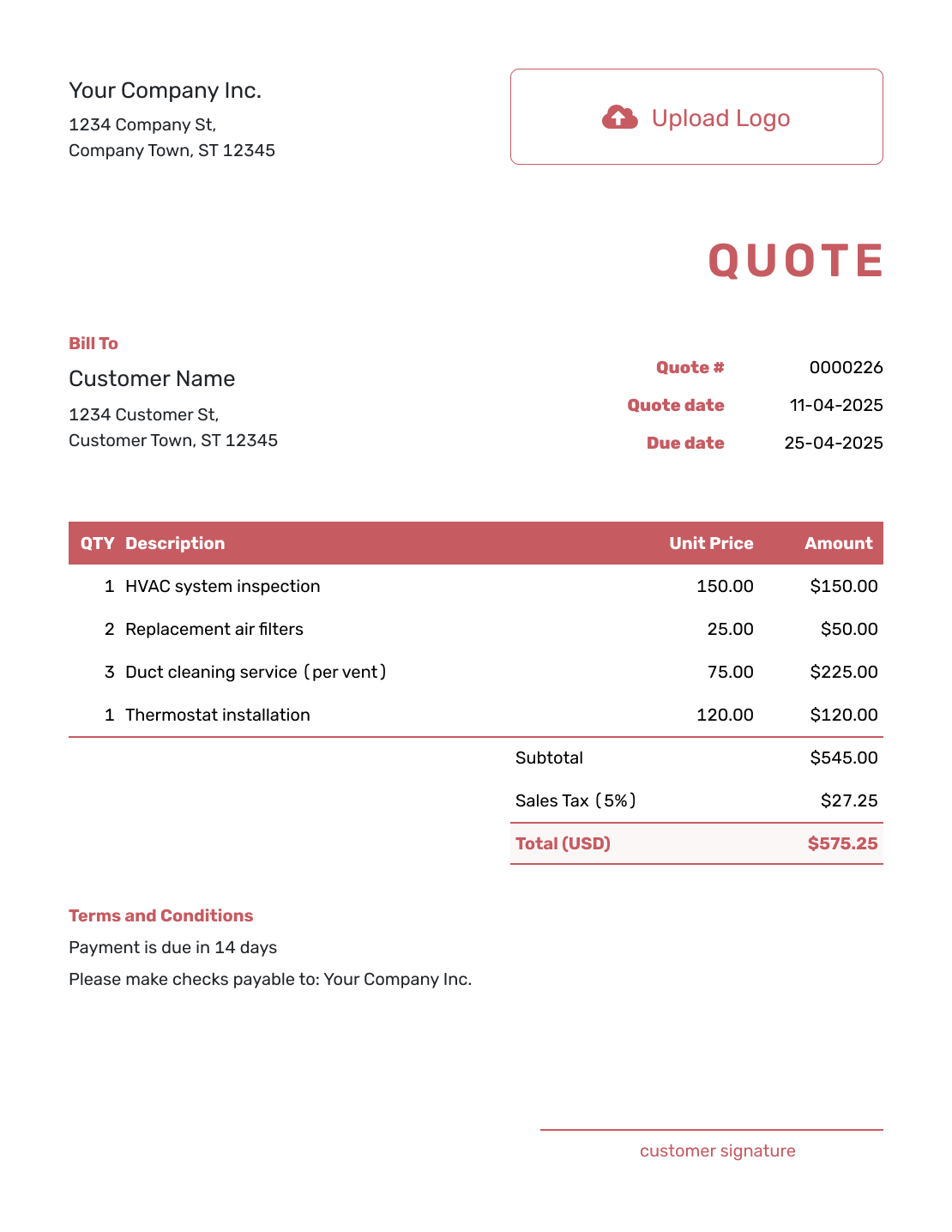
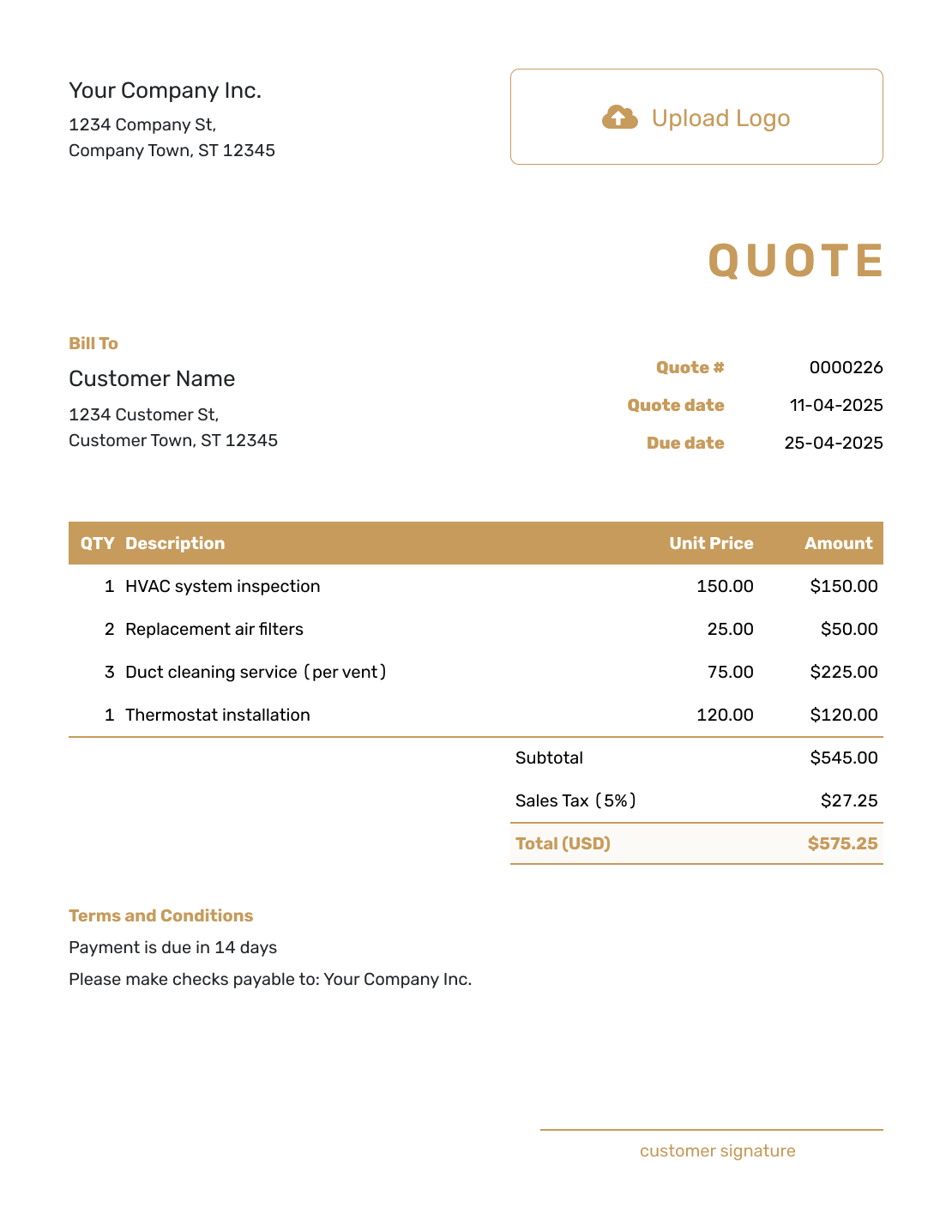
Quote PDF and Editable File Formats
Use PDF for the final fixed-layout copy. Choose a document, spreadsheet, or Docelf when you still need to edit the working quote.
Other PDF and Download Options
Choose printable when paper is the priority, download for saving and resending files, or online when you want to send and track the quote in Docelf.
Quote Template PDF FAQs
-
How do I create a quote PDF?
Create and review the quote in Docelf, then download the finished version as a PDF.
-
Why should I send a quote as a PDF?
A PDF keeps the layout, line items, totals, and terms in the same positions when the customer opens or prints it.
-
Can I edit the quote PDF?
Use the Docelf quote as the editable working copy. Make the change there, then create a new PDF so the saved quote and final file match.
-
How do I make sure the PDF layout is correct?
Preview the whole file and check page breaks, margins, totals, long descriptions, and acceptance details before sending it.
-
Can I email or print the quote PDF?
Yes. Attach the downloaded PDF to your own email or print it. You can also email the quote directly from Docelf, where the customer can view, download, accept or decline it.
-
Does the customer need special software to open the PDF?
Most customers can open a PDF in a web browser or standard PDF viewer. The fixed layout makes it a practical final copy.
-
Can I create an invoice from an accepted PDF quote?
Yes. Create the invoice from the saved quote in Docelf; its customer, items and prices carry over. If the customer accepted by replying to your PDF email, you can mark the quote as accepted manually.
Ready to Create Your Quote PDF?
Give the customer one file that keeps its layout on screen and on paper.
- Create and edit the working quote in Docelf
- Preview a fixed-layout PDF before sending
- Download the PDF for email, printing or your records




