Free Hourly Invoice Template
Create a professional hourly invoice in minutes
List the time worked, the agreed hourly rate and the service provided. Customers can see how the hours add up, check the total and pay the correct amount.
Email, print or download your invoice as a PDF.
14-day free trial. No credit card required.
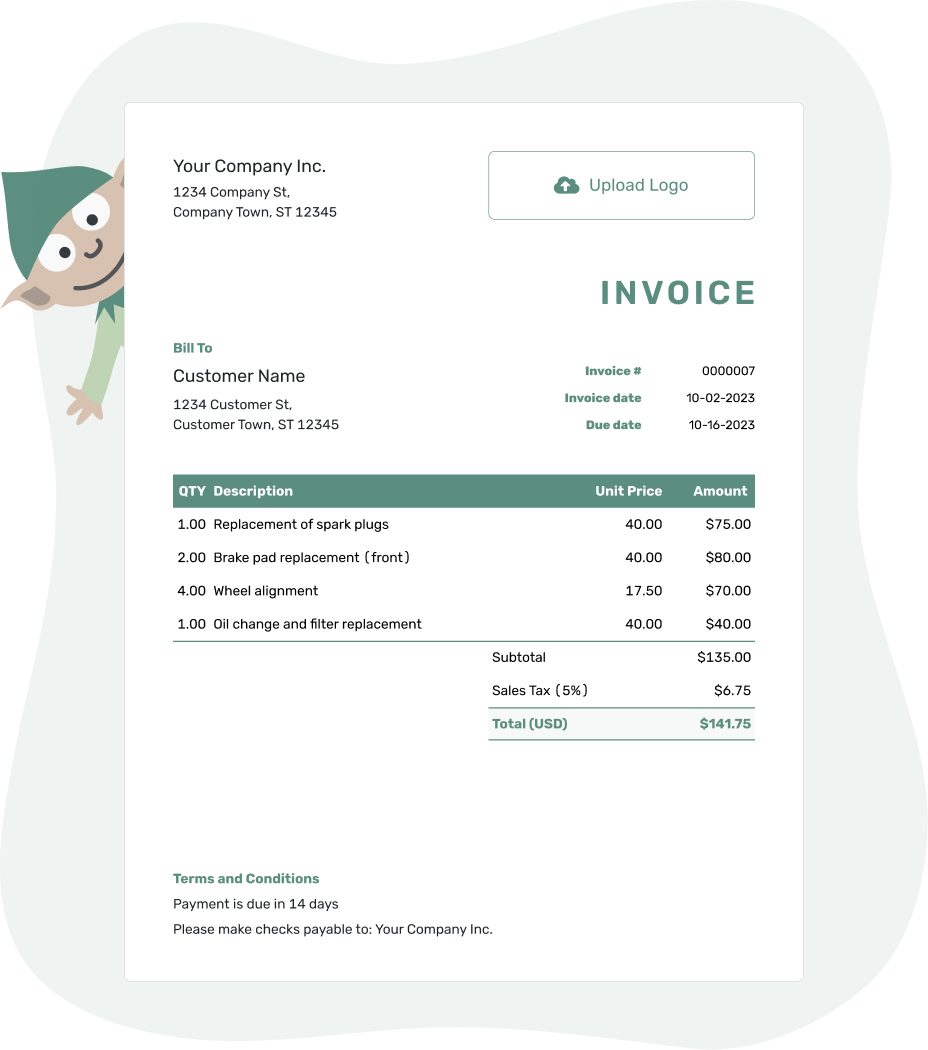
Create the invoice. Send it. Get back to work.
Choose a Layout for Your Hourly Invoice
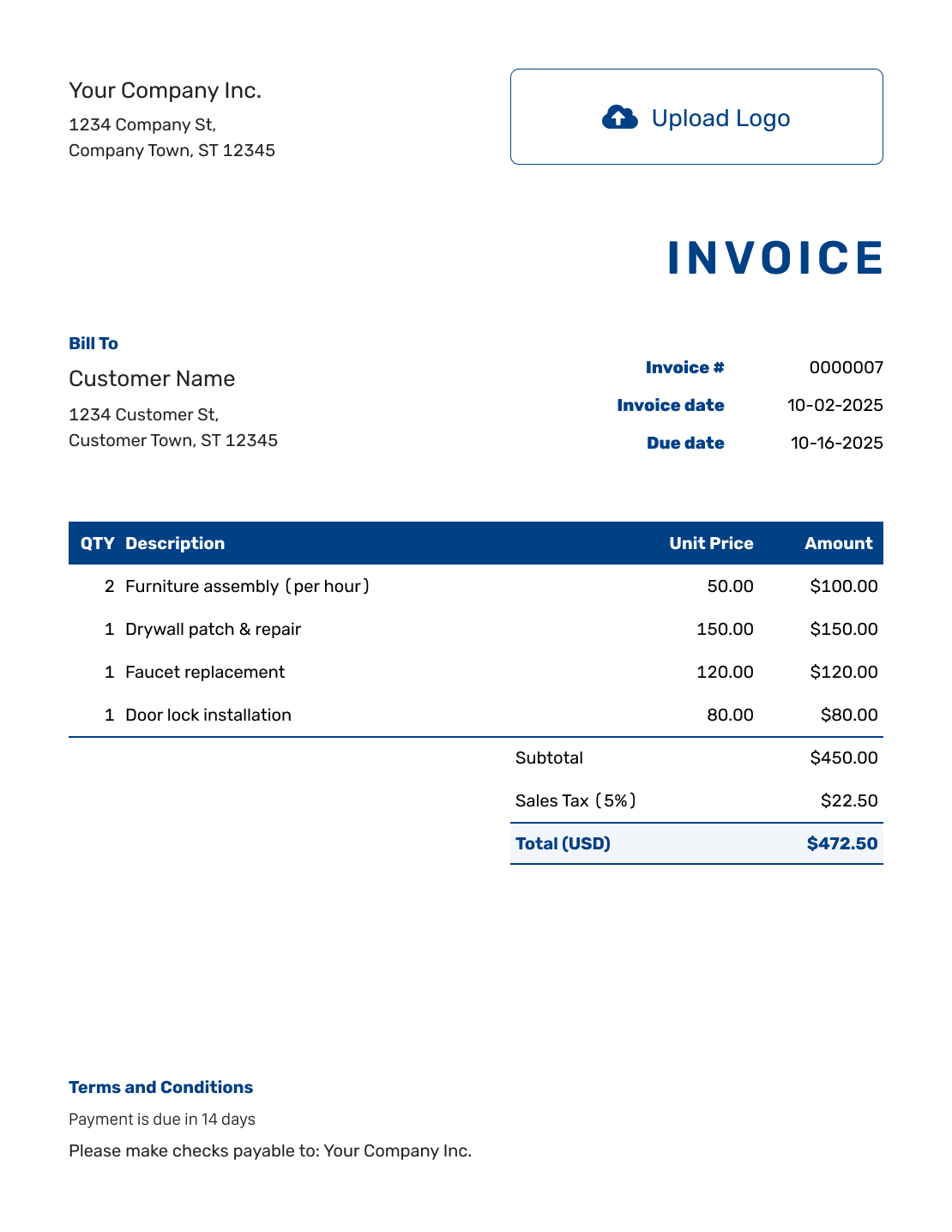
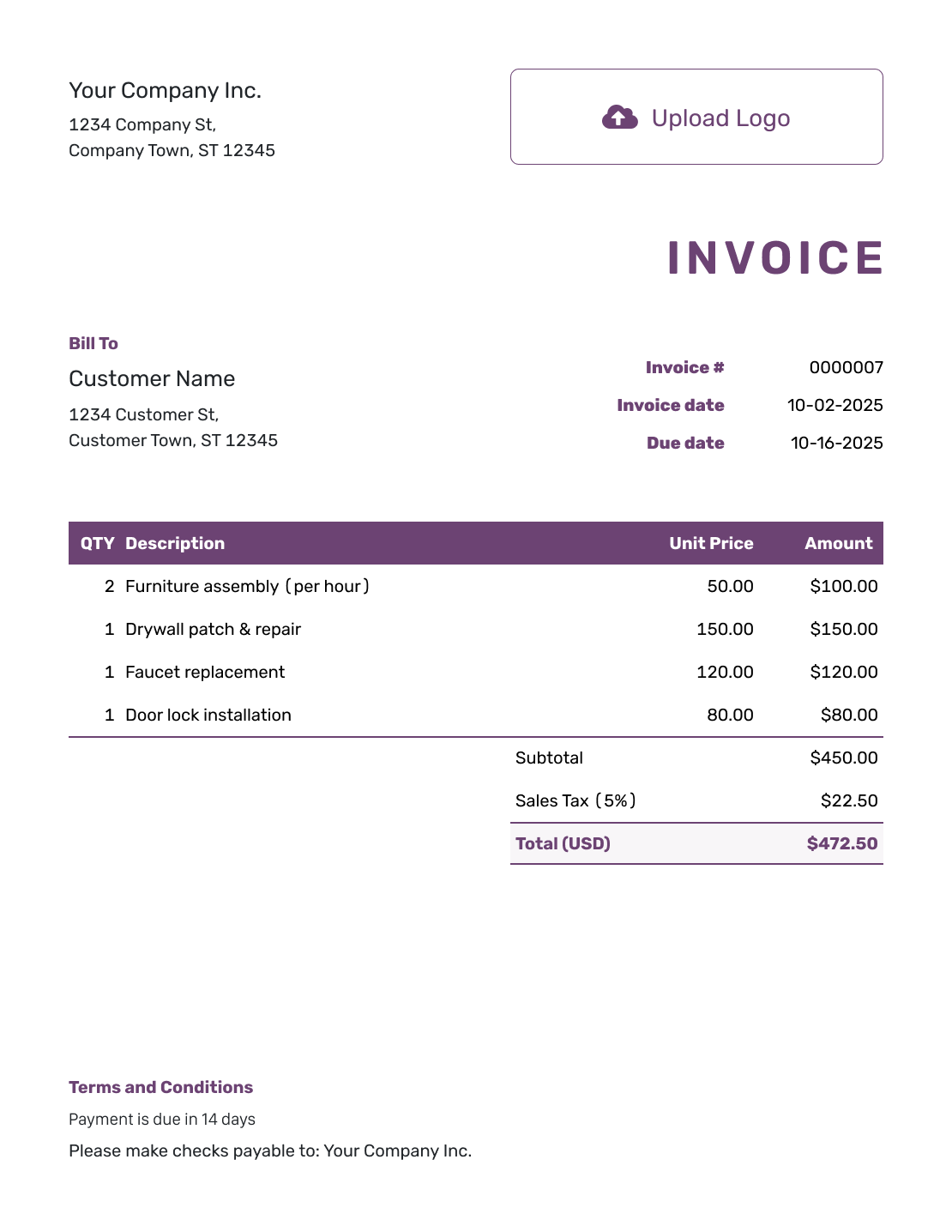
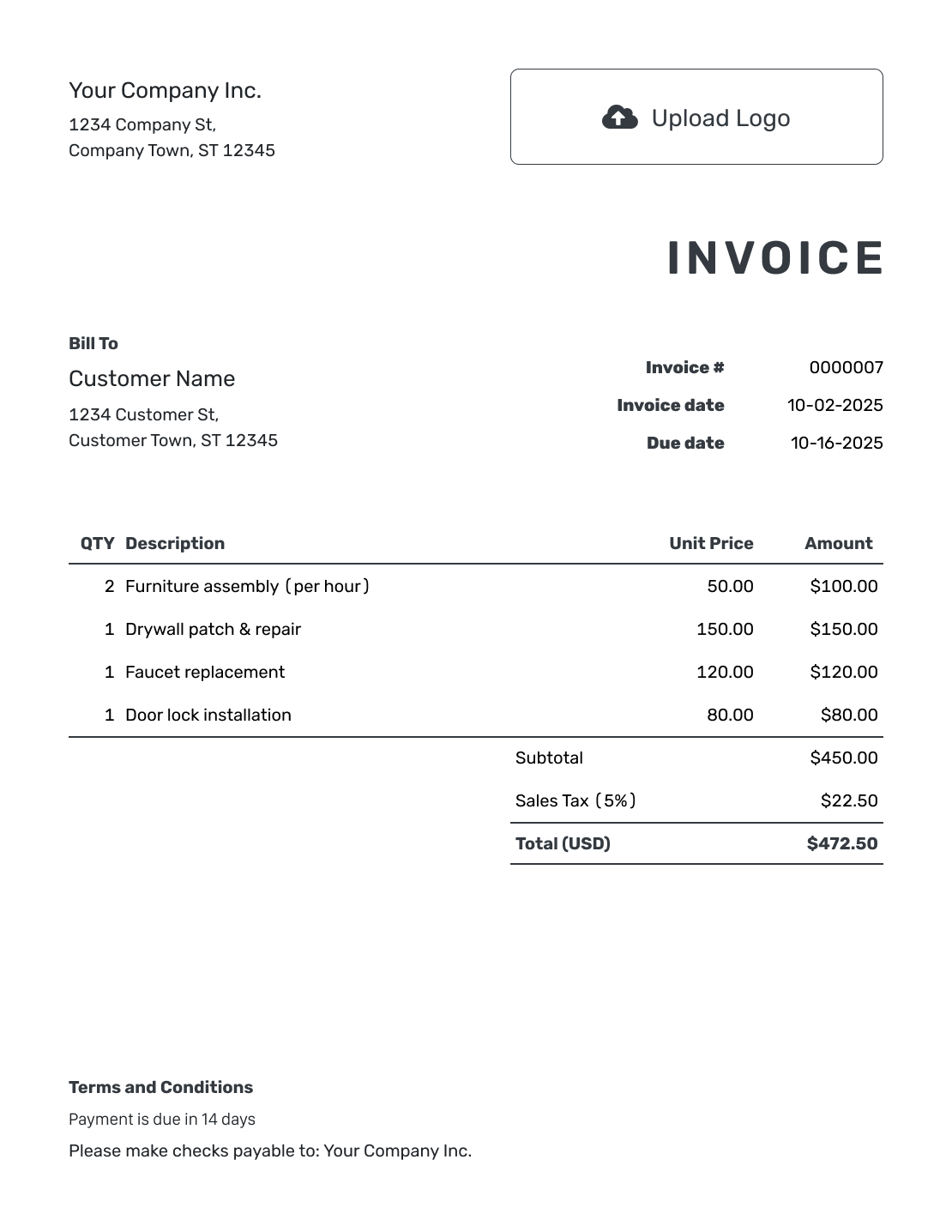
Choose a layout for the time you worked. Each button opens the invoice generator. Add the hours for each task and the rate you agreed with the client.
Turn Recorded Time Into a Clear Bill
An hourly invoice asks a client to pay for time spent on a service. Show which work the hours cover so the client can check the bill against the job or project.
Keep your time record nearby while you create the invoice. Use a separate line when the task or rate changes. A short description such as “Contact form repairs — August 26” explains more than “Labor.”
How to Create an Hourly Invoice
Have your time record and agreed rates ready. Follow the numbered fields to create the invoice.
- Add Your Business: Enter your business name and the contact details your client should use.
- Add Your Logo: Use your logo so the client recognizes the invoice.
- Choose the Client: Select the client and check the billing contact for this project.
- Set the Number and Dates: Check the invoice number. Add the issue date and agreed due date.
- Enter Tasks and Hours: Use hours as the quantity and the agreed hourly rate as the unit price.
- Review the Charges: Add any agreed discount and applicable tax. Docelf calculates the total.
- Explain Payment: Add payment instructions and the work period in Terms and Conditions. Review, then email or save a PDF.
How to Fill In Hourly Invoice Line Items
Describe the work and its date or billing period. Enter part of an hour as a decimal: 2 hours and 15 minutes becomes 2.25 hours, not 2.15.
This fictional website-support invoice covers August 24–28, 2026. Quantities are hours, and prices are in USD. The example uses 8% sales tax on all three services. The rates and tax are examples, not recommended charges.
| QTY | Description | Unit Price | Amount |
|---|---|---|---|
| 3.5 | Website content updates | $65.00 | $227.50 |
| 2.25 | Contact form repairs | $80.00 | $180.00 |
| 1.25 | Browser checks | $65.00 | $81.25 |
| Subtotal | $488.75 | |
| Sales Tax (8% example) | $39.10 | |
| Total | $527.85 |
The work adds up to 7 hours, but the rates are not all the same. Price each line before adding the amounts. Use your own agreed rates and check which taxes apply to your services.
What to Include in Hourly Invoice Terms
Use Terms and Conditions to identify the work period and explain how to pay. Refer to the work order or agreement when it helps the client match the charges to the job.
Keep the wording tied to this job. Check local requirements before adding late fees or other regulated conditions. Adapt this example to the client and work you are billing.
Example: Terms and Conditions
- This invoice covers website support provided August 24–28, 2026.
- Hours and rates follow the work approved in [Work Order Reference].
- Payment is due by [Due Date] using the payment details shown.
- Please include [Invoice Number] with your payment or any billing question.
Turn Your Hours Into an Invoice
Enter the time for each task. Docelf calculates the charges from your hours and rates. Check the invoice, then send it to your client.
Check the Time Against Your Agreement
Follow the rounding rule or minimum charge you agreed with the client. Explain how it affects the hours charged in Terms and Conditions so the client can check the bill against the time record.
Keep the Supporting Details With the Invoice
Attach a PDF or image of the time record when the client needs a breakdown. The invoice can stay short while the attachment explains each work session.
Match the invoice to your other project documents with your logo, fonts and colors. Use the agreed currency and add your billing contact in the footer.
Save service descriptions and rates in Docelf so you can use them on the next job.
After You Send the Hourly Invoice
Check whether the invoice you emailed from Docelf was delivered and opened. If the client asks about a charge, use the work date and time record to explain it.
Record the amount and date when payment arrives. A partial payment leaves a balance to collect. After recording payment, you can create a receipt from the invoice.
More Hourly Invoice Layouts
These six layouts also open the invoice generator. Keep the same hours, rates and work details whichever design you choose.
Prefer to Enter Your Hours in a File?
Use Word or Google Docs to edit the wording and layout. Choose Excel or Google Sheets to work with hours, rates and totals in a spreadsheet. Check decimal hours whichever format you use.
Hourly Invoice FAQs
-
How do I bill for minutes on an hourly invoice?
Divide minutes by 60 before adding them to whole hours. For example, 45 minutes is 0.75 hours, and 2 hours and 15 minutes is 2.25 hours. Use the rounding method you agreed with the client.
-
Can I use different hourly rates on the same invoice?
Yes. Give each task and rate a separate line. Enter the hours and unit price for that line so Docelf can calculate its amount. Explain what each rate covers.
-
Do I need to list every work session?
Use the level of detail your client needs. You can group similar work within a clearly named period. Attach a PDF or image of the time record when the client needs individual sessions.
-
Can I bill travel time or a minimum number of hours?
Include these charges only when they are part of your agreement. Identify travel time or the minimum charge clearly instead of adding it to another task without explanation.
-
Can I reuse a service description and rate in Docelf?
Yes. Save the service details for another invoice. Check that the rate still matches this client’s agreement, and enter the hours actually worked for the new period.
-
What happens when the client pays only part of the invoice?
Record the amount you received and the payment date. Docelf keeps track of the remaining balance. The invoice is marked Paid only when it is fully paid.
Ready to Bill for Your Time?
Give your client a clear bill for the time you worked.
- Show recorded hours for each task
- Apply the agreed hourly rates
- Send the invoice with a clear due date




